How to Disable Bmw Auto Start-stop

Contents
- 1 Key Takeaways
- 2 📑 Table of Contents
- 3 Introduction: Taming the Stop-Start Beast in Your BMW
- 4 Understanding Your BMW’s Auto Start-Stop System
- 5 Method 1: The Temporary Disable – Your Dashboard Button
- 6 Method 2: Disabling via the iDrive Infotainment System
- 7 Method 3: The Permanent Solution – Software Coding
- 8 Method 4: Professional Dealer or Independent Shop Coding
- 9 Important Considerations & Potential Drawbacks
- 10 Conclusion: Choosing the Right Method for You
- 11 Frequently Asked Questions

Car Mud Flaps (Universal)

Jack Stands

Anti-Slip Dashboard Mat

Carburetor Cleaner
BMW’s Auto Start-Stop system can be frustrating, turning off your engine at every stoplight. You can disable it temporarily using a dedicated button on the dashboard or through the iDrive infotainment menu. For a permanent solution, coding via tools like BimmerCode is the most popular DIY method, though it may have warranty and battery implications. Always consider your model year and consult a professional if unsure.
Key Takeaways
- Temporary Disable is Easy: Every BMW with Start-Stop has a physical button (often with an “A” symbol) to turn it off for that drive cycle. It resets on restart.
- iDrive Menu Offers Control: Many models allow disabling via the vehicle settings in the iDrive system under “Driving” or “Efficiency” menus, which can sometimes be set to remember your preference.
- Permanent Disable Requires Coding: To stop the system from ever activating, you must change the vehicle’s software settings using an OBD2 coder like BimmerCode or BimmerLink. This is the most common DIY permanent fix.
- Hardware Bypass is a Last Resort: Some older models use a separate control module that can be unplugged, but this is not recommended and can trigger error codes.
- Consider Warranty and Battery: Coding may void parts of your warranty. The system is designed to reduce emissions and wear; permanently disabling it may slightly impact fuel economy and place more load on the battery/alternator.
- Model Year Matters: The exact method and menu names vary significantly between BMW’s iDrive generations (iDrive 6, 7, 8) and between model years (e.g., F30 3 Series vs. G20 3 Series).
- Professional Help is Available: BMW dealerships or independent specialists can perform a permanent coding disable for a fee if you are uncomfortable with DIY tools.
📑 Table of Contents
- Introduction: Taming the Stop-Start Beast in Your BMW
- Understanding Your BMW’s Auto Start-Stop System
- Method 1: The Temporary Disable – Your Dashboard Button
- Method 2: Disabling via the iDrive Infotainment System
- Method 3: The Permanent Solution – Software Coding
- Method 4: Professional Dealer or Independent Shop Coding
- Important Considerations & Potential Drawbacks
- Conclusion: Choosing the Right Method for You
Introduction: Taming the Stop-Start Beast in Your BMW
You tap the brake, come to a complete stop at a red light, and your BMW’s engine suddenly shuts off. The cabin goes quiet. It’s a clever feature on paper—Auto Start-Stop, designed to save fuel and reduce emissions in city traffic. But for many BMW drivers, it’s a source of constant irritation. The restart can be jarring, the system feels intrusive, and sometimes it simply doesn’t work as intended, cycling on and off erratically. If you’ve found yourself muttering, “How do I turn this thing off for good?” you’re in the right place. This guide will walk you through every method to disable BMW Auto Start-Stop, from the simple button press you can do today to the more involved software coding for a permanent solution. We’ll cover the “how,” the “why,” and the important “what to consider” before you make a change.
The frustration is real. Unlike some manufacturers where the system remembers your last setting, many BMWs revert to having Start-Stop active every single time you start the car. You press the button to disable it, drive to your destination, turn off the car, and the next morning—it’s back on. This repetitive need to manually disable it on every trip is what drives owners to seek a permanent fix. We’ll demystify the process, ensuring you can enjoy your driving experience without unwanted engine shutdowns, whether you have a classic E90 or the latest iX electric SUV.
Understanding Your BMW’s Auto Start-Stop System
Before diving into the “how-to,” it’s helpful to understand what you’re dealing with. BMW’s implementation of Start-Stop is sophisticated. It doesn’t just turn off the engine when you brake; it considers a complex web of conditions. The engine will only stop if the driver’s door is closed, the seat belt is fastened, the engine is at optimal operating temperature, the battery has sufficient charge, the climate control demands are within range, and the steering wheel is turned straight. If any of these aren’t met, the system stays active but may not engage. This complexity is why a simple button disable is often just a temporary band-aid—the system is constantly re-evaluating and can re-engage if conditions change mid-drive.
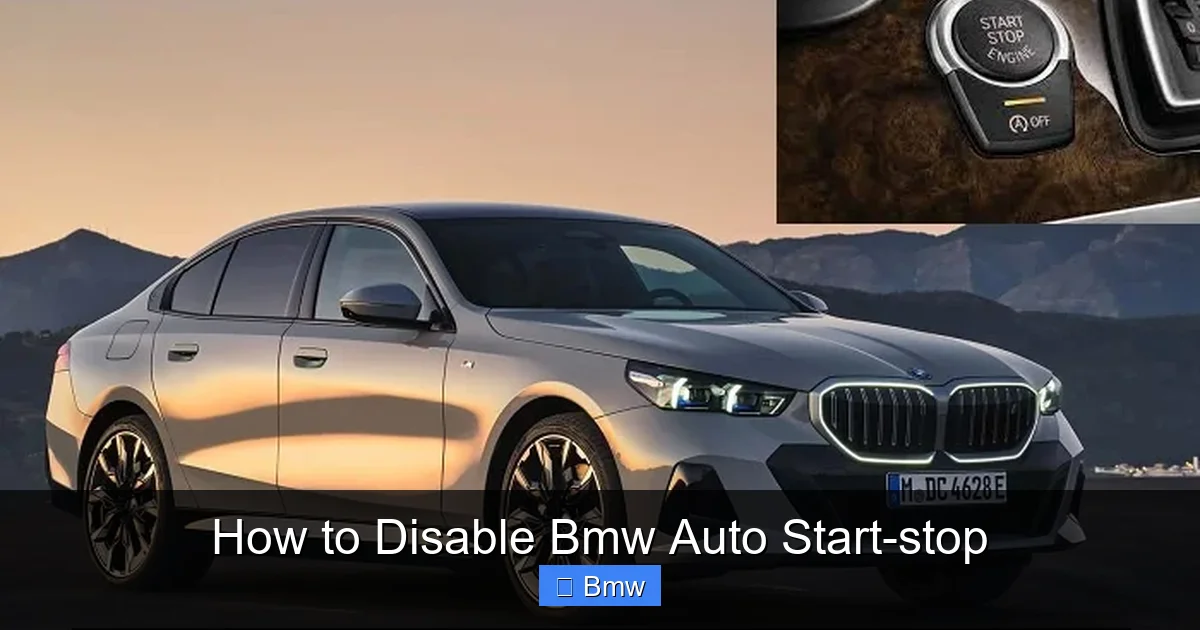
Visual guide about How to Disable Bmw Auto Start-stop
Image source: cararac.com
The Core Components: Button, Sensors, and Software
At its heart, the system relies on three things: a user interface (the button), a suite of sensors (for brake pressure, steering angle, battery state, etc.), and the vehicle’s central software logic. The physical button you press sends a signal to the car’s Body Control Module (BCM) or a dedicated Start-Stop control unit, telling it to suppress the shutdown function for that key cycle. This is why the disable resets with the car—it’s a temporary override stored in volatile memory. A permanent disable, therefore, requires altering the software’s default logic in non-volatile memory, which is what coding accomplishes. It’s like changing the default setting from “Enabled” to “Disabled” in the car’s brain.
Method 1: The Temporary Disable – Your Dashboard Button
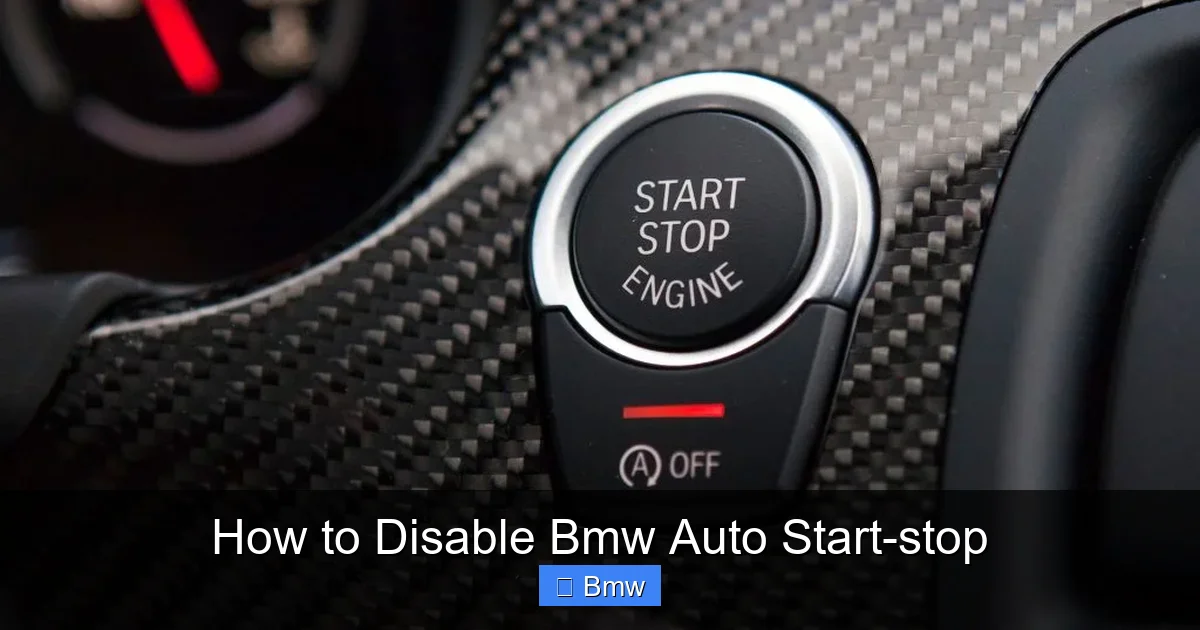
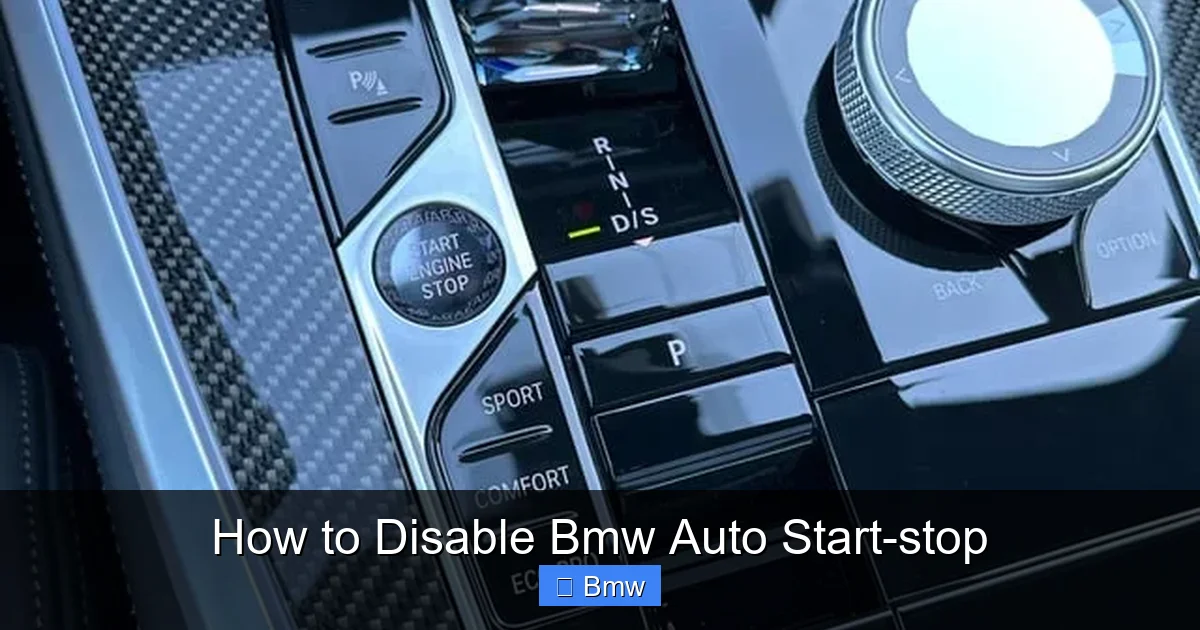
This is the fastest, zero-cost method and works on virtually every BMW equipped with the feature from the late 2000s onward. Look for a button with an icon that resembles a capital letter “A” with an arrow circling around it (sometimes just an “A”). It’s typically located on the center console, near the gear selector or climate controls, or on the dashboard to the left of the steering wheel. The exact location varies by model and year.
Visual guide about How to Disable Bmw Auto Start-stop
Image source: papasroadtrip.com
Finding and Using the Button
In a F30 3 Series (2012-2019), you’ll find it on the center console, just behind the shifter. In a G01 X3 (2018+) or G20 3 Series (2019+), it’s often on the dashboard to the left of the steering wheel, integrated into a switch bank. Press it once. You should see a small amber or yellow indicator light illuminate on the button itself, and a corresponding message may appear briefly on your instrument cluster or head-up display saying “Auto Start-Stop: Deactivated.” That’s it. The system will now remain off until you cycle the ignition (turn the car completely off and on again with the key or start/stop button).
Pro Tip: Make it a habit to press this button immediately after starting your car. It becomes second nature. However, if you frequently carry passengers or drive in heavy, stop-and-go traffic where you *want* the fuel savings, you might prefer to leave it on and only disable it for highway cruising or more spirited driving.
Method 2: Disabling via the iDrive Infotainment System
Many BMW models, particularly those with iDrive 5.0 (in E90 LCI, F10, etc.) and newer, offer a menu-based way to control the Start-Stop system. This method is still generally temporary, but on some models and software versions, you can set a “Remember Setting” option that makes your choice persist across restarts. The path through the menus changes with each iDrive generation.

Visual guide about How to Disable Bmw Auto Start-stop
Image source: thecarhow.com
Navigating iDrive 6, 7, and 8
For iDrive 6 (found in F30/F31/F32 3/4 Series, G11/G12 5/6 Series from ~2016-2018): Go to “Menu” -> “Vehicle” -> “Driving” -> “Auto Start-Stop”. You’ll likely see options for “On,” “Off,” and sometimes “Automatic.” Select “Off.” Look carefully for a sub-menu or checkbox that says “Remember setting” or “Save preference”. If present, enable it. This is the golden ticket to a semi-permanent solution without coding.
For iDrive 7 (in G20 3 Series, G30 5 Series, G15 4 Series, etc. from ~2018-2022): The path is “Menu” -> “My Vehicle” -> “Vehicle Settings” -> “Driving” -> “Auto Start-Stop”. Again, toggle it off and hunt for the “Remember setting” option. In some software versions, this setting is hidden or greyed out, which means BMW has locked it down, and you’ll need to use coding.
For iDrive 8 (in the latest G42 2 Series, G60 3 Series, i4, iX, etc.): The interface is touch and menu-driven. Go to “Settings” -> “Driving” -> “Comfort” or “Efficiency” -> “Auto Start-Stop”. The “Remember” option is less common here, as BMW pushes the system harder on newest models for emissions compliance. Your best bet on iDrive 8 might be the physical button or coding.
Important: If you cannot find the Start-Stop option in your iDrive menus at all, your specific vehicle configuration or software version may not expose it. Don’t panic—the physical button will still work. For a permanent fix, you’re looking at coding.
Method 3: The Permanent Solution – Software Coding
This is the definitive, set-and-forget method that BMW enthusiasts use. It involves changing a parameter in the car’s software modules, telling the Start-Stop logic to remain disabled by default. You do not need to be a software engineer, but you do need to be comfortable with technology and understand the risks. The primary tool for this job is BimmerCode (a user-friendly smartphone app) or its more powerful sibling, BimmerLink. You’ll also need a compatible OBD2 adapter, most commonly the ENET cable (for wired connection to your laptop) or a reliable Bluetooth/Wi-Fi OBD2 dongle that works with BimmerCode (like the OBDLink MX+).
Step-by-Step Coding Process with BimmerCode
First, purchase and download the BimmerCode app on your smartphone. Acquire a compatible OBD2 adapter. Ensure your BMW’s battery is fully charged or connected to a charger/maintainer, as coding disrupts the vehicle’s sleep mode and can drain a weak battery. With the car parked and ignition on (engine off), plug the OBD2 adapter into the port under the dashboard. Open BimmerCode, select your vehicle model and year, and let it connect.
Navigate to the “Expert Mode”. This is where you access deep software settings. You’ll see a list of control modules like “DME” (Digital Motor Electronics), “BMS” (Battery Management System), and “FRM” (Footwell Module). The Start-Stop setting is typically found in the DME (engine control unit) or sometimes the BMS. Look for a parameter named something like “auto_startstop_function”, “start_stop_function”, or “SSA_ACTIVATION”. Its value will be “active” or “1”. Change it to “inactive” or “0”.
Critical Note: The exact parameter name varies wildly between engine types (B48, B58, N55, N57, etc.) and model years. BimmerCode’s community forums and their own knowledge base are invaluable here. Search for your specific model (e.g., “F30 B48 Start-Stop coding”). Once you’ve made the change, write it to the module. The process takes a minute. After a successful write, unplug the adapter, lock the car, and wait a few minutes for modules to go to sleep. Start the car—the Auto Start-Stop should now be disabled by default, and the button may no longer illuminate the system. You’ve permanently disabled it.
Why Coding is Preferred Over Hardware Bypass
In the early days (E9x, E60 era), some owners would literally unplug a small Start-Stop relay or control module under the hood. This is a hardware bypass. We strongly advise against this. Modern BMWs integrate Start-Stop deeply into the engine and battery management software. Unplugging a module will trigger multiple fault codes, illuminate warning lights (like a yellow battery light), and may cause the car to enter a limp mode or fail emissions inspections. Coding is clean, software-based, and does not trigger any errors because you are simply changing a default flag from 1 to 0. It’s the correct, professional way to achieve a permanent disable.
Method 4: Professional Dealer or Independent Shop Coding
If the idea of connecting a laptop or phone to your car’s OBD2 port makes you nervous, or if you want the most robust coding that also disables related features like the “Auto Start-Stop not available” pop-up messages, seek professional help. A BMW dealership can do this, often under a “vehicle configuration” or “software update” procedure. However, they may be unwilling to remove a factory emissions-related feature or may charge a high diagnostic fee. A better option is a reputable independent BMW specialist or tuning shop. They have the official BMW diagnostic software (ISTA) or powerful coding tools like ESYS and E-Sys. They can perform the same parameter change, often for a flat fee of $50-$150. This is the safest route for a worry-free, permanent disable with no risk of mis-coding other systems. When you call, simply say: “I’d like to have the Auto Start-Stop system permanently deactivated via software coding.”
Important Considerations & Potential Drawbacks
Before you permanently disable Start-Stop, you must weigh the pros and cons. The system exists for two primary reasons: regulatory emissions compliance and manufacturer advertised fuel economy figures. Disabling it means your car will no longer meet its official (and tested) emission standards during idle periods, and your real-world fuel economy in heavy traffic will be slightly worse. The difference is often negligible in highway driving but can be 0.5-1.0 MPG in dense city conditions.
Warranty and Battery Health
In the United States, under the Magnuson-Moss Warranty Act, a dealer cannot void your entire warranty for a software modification like coding. However, they can deny a warranty claim if they can prove the modification directly caused a specific failure. For example, if your DME (engine computer) fails and they see it was coded, they might deny the claim arguing the altered software contributed to the failure. This is rare but a possibility. In Europe, warranty laws are stricter, but dealers can still be difficult. The risk is low for a simple Start-Stop disable, but it exists.
The second major consideration is your 12-volt battery. Start-Stop systems use enhanced AGM (Absorbent Glass Mat) batteries designed for frequent, deep cycling. If you permanently disable the system, your standard battery (if not AGM) may experience slightly more strain from constant alternator charging and lack of periodic rest cycles. If you have an older or weak battery, this could shorten its life. The solution is simple: ensure your battery is healthy and, if your car uses a standard flooded battery, consider upgrading to an AGM battery for better longevity, even without Start-Stop active.
Resale Value and Future Software Updates
When you eventually sell your BMW, a coded Start-Stop disable is generally invisible to a new owner unless they specifically scan for it with coding tools. Most buyers won’t know or care. However, if you take your car to a dealer for a major software update (like an iDrive upgrade or a critical DME flash), there is a small chance the coding will be overwritten and reverted to factory default. You would then need to recode it. This is not common but something to be aware of. Always ask the dealer what modules will be updated.
Conclusion: Choosing the Right Method for You
Disabling your BMW’s Auto Start-Stop system is a common and achievable goal. For the casual driver who just finds the shutdowns annoying, mastering the dashboard button is a perfectly valid, zero-risk solution. It takes two seconds and gives you control on your terms. For those who want a seamless, set-and-forget experience, exploring the iDrive menu for a “Remember” setting is the next easiest step. If that option is absent or locked, software coding via BimmerCode is the definitive permanent fix, favored by the BMW community for its cleanliness and reversibility. And if you’re not technically inclined, a professional coding service provides peace of mind.
Remember, this is your car, and your driving comfort matters. The system was implemented for fleet-wide emissions targets, not individual driver preference. By understanding your options—temporary button, menu-based, DIY coding, or pro coding—you can choose the path that matches your comfort level and needs. Just be sure to check your battery health first, understand the minor implications for fuel economy in traffic, and proceed with confidence. Your quieter, more responsive BMW idling at stoplights awaits.
Frequently Asked Questions
Will disabling Auto Start-Stop damage my BMW’s engine or battery?
No, disabling it will not cause physical damage. The engine and charging system are designed to operate with the system on or off. However, if your battery is old or weak, the constant charging without Start-Stop’s periodic rest could shorten its life slightly. Ensure your battery is healthy.
Can I disable Auto Start-Stop on a BMW with a manual transmission?
Yes, the process is identical. The system works on manuals by monitoring clutch pedal input and gear position. The disable button and coding methods apply to both automatic and manual transmission BMWs of the same era.
My iDrive menu doesn’t show an Auto Start-Stop option. What now?
This is common, especially on newer models (iDrive 7/8) or certain vehicle specifications. The menu option is often hidden by BMW. Your primary paths are: 1) Use the physical dashboard button every time, or 2) Perform a software coding change using a tool like BimmerCode to permanently disable it.
Will coding out Start-Stop cause my BMW to fail an emissions test?
In most regions, emissions tests (like smog checks) are performed with the engine running and do not simulate stop-and-go traffic where Start-Stop would activate. The test measures tailpipe emissions during a specific driving cycle on a dynamometer. Since the engine never turns off during the test, the Start-Stop status is irrelevant, and your car should pass.
Is there a fuse I can pull to disable Auto Start-Stop?
There is no dedicated, safe fuse for Start-Stop. Pulling fuses for related systems (like the BCM or DME) will cause multiple other functions to fail (lights, windows, engine management), leaving you with a barely drivable car. Fuse removal is not a viable solution.
Can I disable just the “Auto Start-Stop not available” warning messages?
Yes, this is a separate coding parameter often found alongside the main disable setting. In BimmerCode’s Expert Mode, look for parameters like “startstop_display_message” or “SSA_MESSAGE” and set them to “inactive.” This stops the pop-up alerts when the system decides not to engage due to conditions like low battery charge.