How to Connect to Lexus Bluetooth

Contents
- 1 Key Takeaways
- 2 📑 Table of Contents
- 3 Why Connect to Lexus Bluetooth?
- 4 What You’ll Need to Get Started
- 5 Step-by-Step Guide to Connect to Lexus Bluetooth
- 6 Troubleshooting Common Bluetooth Issues
- 7 Tips for a Better Bluetooth Experience
- 8 Advanced Features and Integrations
- 9 Conclusion
- 10 Frequently Asked Questions


Connecting your phone to Lexus Bluetooth is simple and enhances your driving experience with hands-free calling and audio streaming. This guide walks you through every step, from pairing your device to troubleshooting common issues, ensuring a seamless connection every time.
Key Takeaways
- Bluetooth compatibility is standard in most Lexus models from 2010 onward. Always check your vehicle’s infotainment system to confirm Bluetooth support.
- Ensure your phone’s Bluetooth is turned on and discoverable before starting the pairing process. This allows the Lexus system to detect your device.
- The pairing process typically takes less than 5 minutes. Follow the on-screen prompts carefully for a smooth setup.
- You can connect multiple devices, but only one can be active for calls or music at a time. Switch between devices easily through the menu.
- Keep your Lexus software updated to avoid connectivity glitches. Visit a dealership or use Lexus’s remote update feature if available.
- If pairing fails, restart both your phone and the car’s infotainment system. This resolves most temporary software conflicts.
- Use the Lexus app for remote features and to manage connected devices. It adds convenience and enhances your ownership experience.
📑 Table of Contents
Why Connect to Lexus Bluetooth?
Imagine driving down the highway, your favorite playlist streaming through the car’s premium sound system, or taking an important call without ever touching your phone. That’s the magic of connecting to Lexus Bluetooth. It’s not just about convenience—it’s about safety, comfort, and making every drive more enjoyable.
Lexus vehicles are designed with luxury and technology in mind, and Bluetooth connectivity is a core feature in most models from 2010 onward. Whether you’re behind the wheel of a sleek ES sedan, a rugged RX SUV, or a sporty IS coupe, Bluetooth lets you stay connected without distractions. You can make hands-free calls, stream music, access voice assistants like Siri or Google Assistant, and even get navigation prompts through your car’s speakers.
But let’s be honest—technology can sometimes feel overwhelming. If you’ve ever struggled to pair your phone or wondered why your music keeps cutting out, you’re not alone. The good news? Connecting to Lexus Bluetooth is easier than you think. With the right steps and a little patience, you’ll be enjoying a seamless audio and communication experience in no time.
What You’ll Need to Get Started
Before diving into the pairing process, it’s important to make sure you have everything you need. The good news is, you probably already do. Here’s a quick checklist to ensure a smooth setup:
Visual guide about How to Connect to Lexus Bluetooth
Image source: dealerinspire-image-library-prod.s3.us-east-1.amazonaws.com
Your Smartphone
Most modern smartphones—whether iPhone, Android, or other—support Bluetooth connectivity. Make sure your phone is charged and within range of the car’s infotainment system (usually within 3 feet). If your phone is low on battery, consider plugging it in during setup to avoid interruptions.
Lexus Vehicle with Bluetooth
Most Lexus models from 2010 and later come equipped with Bluetooth. However, older models or base trims might not have this feature. Check your owner’s manual or look for a Bluetooth icon on the dashboard or touchscreen. If you’re unsure, visit the Lexus website and enter your VIN to confirm your vehicle’s features.
Access to the Infotainment System
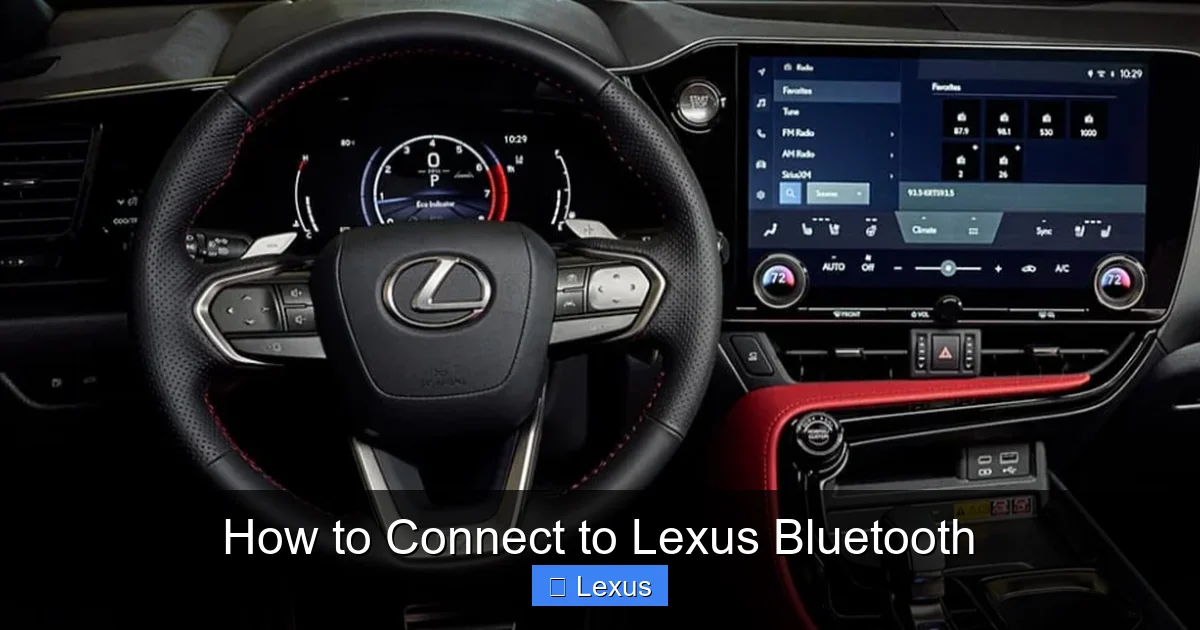
Your Lexus uses an infotainment system—often called the Lexus Enform or Multimedia System—to manage Bluetooth connections. This is typically controlled via a central touchscreen, physical buttons, or a touchpad near the gear shift. Familiarize yourself with the layout before starting.
Patience and a Quiet Environment
While the process is straightforward, it’s best to pair your device when the car is parked and quiet. This helps you hear voice prompts and focus on on-screen instructions without distractions.
Step-by-Step Guide to Connect to Lexus Bluetooth
Now that you’re prepared, let’s walk through the actual process of connecting your phone to Lexus Bluetooth. The steps are similar across most models, but slight variations may exist depending on your vehicle year and infotainment system. We’ll cover the most common method used in recent Lexus models (2018–2024).
Visual guide about How to Connect to Lexus Bluetooth
Image source: dealerinspire-image-library-prod.s3.us-east-1.amazonaws.com
Step 1: Turn On Your Car and Enable Bluetooth
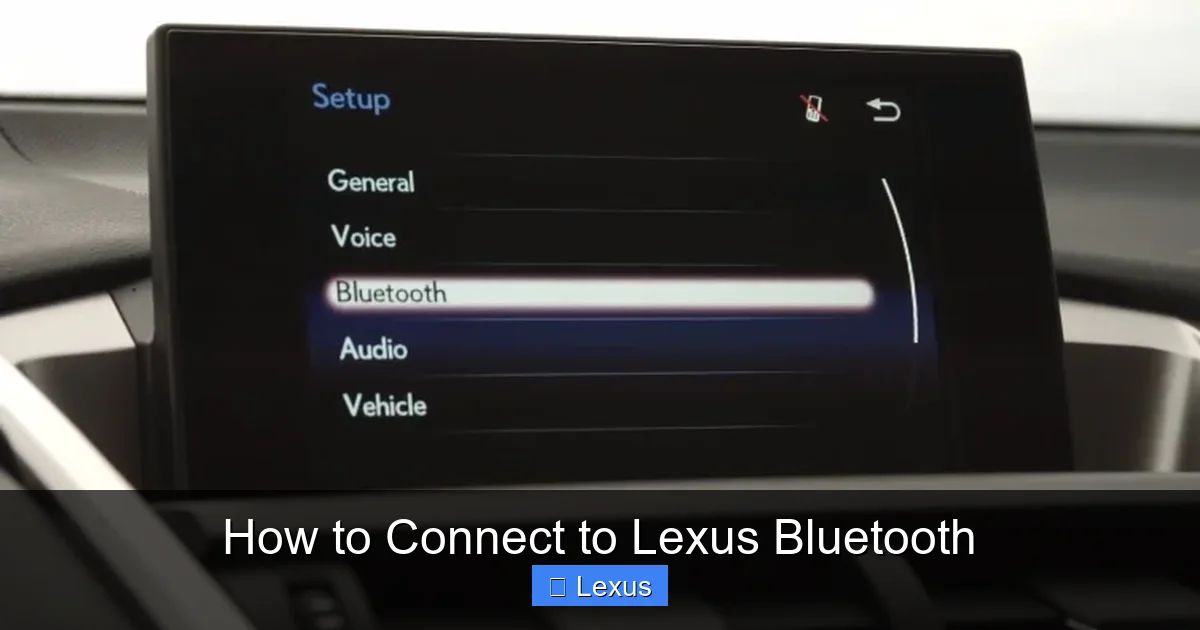
Start by turning on your Lexus. You don’t need to drive—just press the start button (or turn the key) to activate the infotainment system. Once the screen lights up, look for the “Setup” or “Settings” menu. This is usually represented by a gear icon.
Navigate to the “Bluetooth” or “Phone” section. On some models, you may need to select “Device List” or “Pair New Device.” Make sure Bluetooth is enabled on both your car and your phone. On your phone, go to Settings > Bluetooth and toggle it on. Your phone should now be in “discoverable” mode, meaning it’s ready to be found by other devices.
Step 2: Search for Your Phone on the Lexus System
Back in your Lexus, select “Add New Device” or “Search for Devices.” The system will begin scanning for nearby Bluetooth-enabled phones. This may take 10–30 seconds. When your phone’s name appears on the screen (e.g., “iPhone” or “Samsung Galaxy”), tap it to select it.
If your phone doesn’t appear, try refreshing the search or moving closer to the infotainment system. Some phones require you to confirm the connection on both devices. If prompted, tap “Pair” or “Connect” on your phone.
Step 3: Enter the Pairing Code
Once selected, the Lexus system will generate a 4- or 6-digit pairing code. This code will appear on both the car’s screen and your phone. Confirm that the codes match, then tap “OK” or “Pair” on both devices. This step ensures a secure connection and prevents unauthorized access.
In some cases, the code may auto-confirm, especially with Apple CarPlay or Android Auto integration. If you’re using an iPhone, you might see a prompt asking if you want to allow the car to access your contacts and messages. For convenience, select “Allow”—this enables hands-free calling and message reading.
Step 4: Test the Connection
After pairing, your phone should automatically connect to the Lexus Bluetooth system. You’ll see a Bluetooth icon appear on the infotainment screen, and your phone may display a notification confirming the connection.
To test it, try making a hands-free call. Dial a number using the car’s voice command (say “Call [contact name]”) or manually enter it on the touchscreen. The call should route through the car’s speakers and microphone. You can also play music from your phone—open Spotify, Apple Music, or any audio app and start a song. The sound should come through the car’s audio system.
Step 5: Save and Name Your Device
Once connected, the Lexus system will save your phone as a paired device. You can usually rename it for easier identification (e.g., “John’s iPhone” or “Work Phone”). This is helpful if multiple people use the car.
Most Lexus systems allow up to 10 paired devices, though only one can be active at a time. To switch between devices, go to the Bluetooth menu and select the desired phone. The system will reconnect automatically when that device is in range.
Troubleshooting Common Bluetooth Issues
Even with the best setup, Bluetooth problems can happen. Don’t worry—most issues are easy to fix. Here are some common problems and how to resolve them.

Visual guide about How to Connect to Lexus Bluetooth
Image source: lexus.eu
Phone Not Showing Up in Device List
If your phone doesn’t appear when searching, first check that Bluetooth is enabled and your phone is discoverable. Some phones require you to manually enable “Visibility” or “Discoverable Mode” in Bluetooth settings. Also, ensure your phone isn’t already connected to another device (like headphones or a smartwatch), as this can block new connections.
If the issue persists, try restarting both your phone and the car’s infotainment system. Turn off the car, wait 30 seconds, then restart. This resets the Bluetooth module and often resolves glitches.
Connection Drops Frequently
Intermittent disconnections can be frustrating. This often happens due to interference from other wireless devices or low phone battery. Keep your phone charged and avoid placing it near metal objects or other electronics.
Another fix is to delete the existing pairing and reconnect from scratch. Go to the Bluetooth menu, select your phone, and choose “Delete” or “Forget Device.” Then repeat the pairing process. This clears any corrupted data and establishes a fresh connection.
Audio Quality Is Poor or Delayed
If music sounds choppy or calls have echo, it could be a codec mismatch. Lexus systems typically support SBC and AAC codecs. iPhones use AAC, which works well, but some Android phones default to lower-quality codecs. Check your phone’s Bluetooth settings and select “High-Quality Audio” or “AAC” if available.
Also, ensure your phone’s volume and the car’s audio volume are balanced. If one is too low, it can cause distortion. Adjust both to a comfortable level.
Voice Commands Aren’t Working
If you can’t use voice commands like “Call Mom” or “Play Jazz,” check that your phone’s microphone permissions are enabled for the car. On iPhones, go to Settings > Privacy > Microphone and ensure your car app (e.g., CarPlay) has access. On Android, check app permissions in Settings > Apps > [Your Car App].
Also, speak clearly and wait for the system to respond. Some systems require a brief pause after the wake word (like “Hey Siri” or “OK Google”).
Tips for a Better Bluetooth Experience
Once you’re connected, there are ways to make your Lexus Bluetooth experience even better. These tips will help you get the most out of your system and avoid common pitfalls.
Keep Your Software Updated
Lexus regularly releases software updates for its infotainment systems. These updates can improve Bluetooth performance, fix bugs, and add new features. Check for updates through the Lexus app or by visiting a dealership. Some newer models support over-the-air (OTA) updates, which you can download directly from the car.
Use the Lexus App
The Lexus app (available for iOS and Android) lets you remotely start your car, lock doors, and even check your vehicle’s status. It also helps manage connected devices and provides troubleshooting tips. Download it from your app store and link it to your vehicle using your VIN.
Organize Your Paired Devices
If multiple people use your car, give each phone a clear name (e.g., “Dad’s iPhone,” “Mom’s Galaxy”). This makes it easier to switch between devices. You can also set a default device for calls and music, so the system prioritizes it when multiple phones are nearby.
Clean Your Phone’s Bluetooth Cache
Over time, your phone’s Bluetooth cache can fill up with old data, causing slowdowns. On Android, go to Settings > Apps > Show System Apps > Bluetooth > Storage > Clear Cache. On iPhone, restarting the phone clears temporary data. This simple step can improve connection speed and reliability.
Avoid Overloading the System
While it’s tempting to connect every device—phone, tablet, smartwatch—try to limit active connections. Too many devices can slow down the system or cause conflicts. Disconnect unused devices through the Bluetooth menu.
Advanced Features and Integrations
Beyond basic calling and music, Lexus Bluetooth supports advanced features that enhance your driving experience. Here’s what you can do once you’re connected.
Apple CarPlay and Android Auto
Many newer Lexus models support Apple CarPlay and Android Auto, which integrate your phone’s interface directly into the infotainment screen. You can use maps, send texts, and control apps with voice commands. While these systems often use USB for initial setup, they rely on Bluetooth for ongoing connectivity and notifications.
Text Message Reading
With Bluetooth enabled, your Lexus can read incoming text messages aloud. This feature uses text-to-speech technology to keep your eyes on the road. You can reply using voice commands or dismiss the message. Note: This feature may require enabling in your phone’s settings and the car’s privacy menu.
Voice Assistant Integration
Say “Hey Siri” or “OK Google” to activate your phone’s voice assistant through the car’s microphone. You can ask for directions, play music, or send messages without touching your phone. This is especially useful in heavy traffic or bad weather.
Remote Services via Lexus Enform
Lexus Enform offers remote services like emergency assistance, vehicle diagnostics, and destination send-to-car. These features often use Bluetooth and cellular data to communicate with your phone. Enroll in the service through the Lexus app to unlock these benefits.
Conclusion
Connecting to Lexus Bluetooth is a simple yet powerful way to enhance your driving experience. From hands-free calls to seamless music streaming, this feature adds convenience, safety, and enjoyment to every trip. With the step-by-step guide above, you can pair your phone in minutes and start enjoying all that your Lexus has to offer.
Remember, technology works best when it’s maintained. Keep your phone charged, update your software, and don’t hesitate to restart devices if something goes wrong. And if you ever get stuck, consult your owner’s manual or reach out to Lexus customer support—they’re there to help.
So the next time you slide into your Lexus, turn on the ignition, and let the music play. Your phone and your car are now in perfect harmony—thanks to Bluetooth.
Frequently Asked Questions
How do I connect my iPhone to Lexus Bluetooth?
Turn on your car and go to the Bluetooth menu on the infotainment screen. Enable Bluetooth on your iPhone, then select your phone from the device list. Confirm the pairing code and allow access to contacts and messages for full functionality.
Why won’t my phone connect to Lexus Bluetooth?
This could be due to Bluetooth being off, low battery, or interference. Try restarting both your phone and the car, then re-pair the devices. Also, ensure your phone is discoverable and not connected to other devices.
Can I connect multiple phones to my Lexus?
Yes, most Lexus models support up to 10 paired devices. However, only one can be active for calls or music at a time. Switch between devices in the Bluetooth menu.
Does Lexus Bluetooth work with Android phones?
Absolutely. Lexus Bluetooth is compatible with Android, iPhone, and most Bluetooth-enabled smartphones. The pairing process is similar across devices.
How do I delete a paired device from my Lexus?
Go to the Bluetooth menu, select the device you want to remove, and choose “Delete” or “Forget Device.” This clears the pairing and frees up space for new devices.
Can I use Bluetooth for navigation in my Lexus?
Yes, if your phone supports Apple CarPlay or Android Auto. These systems use Bluetooth to stream navigation prompts to your car’s screen and speakers. USB connection may be required for initial setup.