
How to Connect Iphone to Audi Q5

Connecting your iPhone to an Audi Q5 is simple and enhances your driving experience with hands-free calls, music streaming, and navigation. Whether you use Bluetooth, USB, or Apple CarPlay, this guide walks you through every method with clear, easy-to-follow steps.
So, you’ve got your shiny Audi Q5 parked in the driveway and your iPhone in hand—now what? You want to stream your favorite playlist, take hands-free calls, or get turn-by-turn directions without fumbling with your phone. The good news? Connecting your iPhone to your Audi Q5 is not only possible but surprisingly straightforward. Whether you’re a tech newbie or a seasoned driver, this guide will walk you through every method—Bluetooth, USB, and Apple CarPlay—so you can enjoy a smarter, safer, and more enjoyable ride.
The Audi Q5 is known for its luxury, performance, and advanced infotainment system. But even the most sophisticated car needs a little help from your iPhone to unlock its full potential. From making calls without taking your hands off the wheel to streaming Spotify or using Siri to send texts, integrating your iPhone enhances both convenience and safety. And the best part? You don’t need to be a tech expert to make it work. With a few simple steps, you’ll be navigating, calling, and jamming out like a pro.
In this comprehensive guide, we’ll cover everything you need to know about how to connect iPhone to Audi Q5. We’ll break down each method, explain the pros and cons, and offer practical tips to ensure a smooth connection every time. Whether you drive a 2015 Q5 or a 2023 model, there’s a solution for you. So buckle up, grab your iPhone, and let’s get connected.
Key Takeaways
- Multiple connection options: You can connect your iPhone to the Audi Q5 using Bluetooth, USB cable, or Apple CarPlay, depending on your model year and preferences.
- Bluetooth is wireless and convenient: Ideal for making calls and streaming music without cables, though it may have slight audio lag.
- USB offers better audio quality: A wired connection via USB provides stable, high-quality sound and keeps your iPhone charged during use.
- Apple CarPlay enhances functionality: Mirrors your iPhone screen on the Audi’s infotainment system, giving access to Maps, Messages, Music, and more.
- Compatibility varies by model year: Audi Q5 models from 2017 onward typically support Apple CarPlay, while older models may only support basic Bluetooth.
- Keep software updated: Ensure both your iPhone and Audi’s MMI system are updated to avoid connection issues.
- Troubleshooting tips included: Common problems like pairing failures or audio dropouts have simple fixes outlined in this guide.
📑 Table of Contents
- Understanding Your Audi Q5’s Infotainment System
- Method 1: Connecting iPhone to Audi Q5 via Bluetooth
- Method 2: Connecting iPhone to Audi Q5 via USB Cable
- Method 3: Using Apple CarPlay in Your Audi Q5
- Troubleshooting Common Connection Issues
- Tips for a Seamless iPhone and Audi Q5 Experience
- Conclusion
Understanding Your Audi Q5’s Infotainment System
Before diving into the connection process, it’s important to understand the technology behind your Audi Q5’s infotainment system. Audi uses the MMI (Multi Media Interface) system, which has evolved significantly over the years. Depending on your model year, you may have the older MMI Navigation Plus or the newer MMI Touch system with a larger, more responsive screen.
The MMI system controls everything from audio and navigation to phone connectivity and vehicle settings. It’s operated via a central control knob, touchpad, or touchscreen, depending on the model. Newer Q5s (2017 and later) typically feature a touchscreen and support Apple CarPlay, while older models rely more on Bluetooth and USB connections.
One key thing to note is that not all Audi Q5 models come with Apple CarPlay enabled by default. Some require a software update or a dealership activation. If you’re unsure, check your owner’s manual or visit Audi’s official website to verify compatibility. Also, keep in mind that Apple CarPlay requires an iPhone 5 or later running iOS 7.1 or higher.
Another feature to be aware of is Audi Connect, which provides internet access and real-time traffic data. While not directly related to iPhone connectivity, it works alongside your phone to enhance navigation and infotainment features. If your Q5 has Audi Connect, you’ll get even more out of your iPhone integration.
Checking Your Audi Q5 Model Year and Features
To determine which connection methods are available, start by identifying your Audi Q5’s model year and trim level. You can usually find this information on the driver’s side door jamb or in your owner’s manual. Here’s a quick breakdown:
– **2015–2016 Audi Q5:** Supports Bluetooth and USB connectivity. Apple CarPlay is not available unless retrofitted.
– **2017–2019 Audi Q5:** Introduced Apple CarPlay support (may require activation). Bluetooth and USB are standard.
– **2020–2023 Audi Q5:** Full Apple CarPlay support, improved MMI Touch system, and wireless CarPlay on select trims.
If you’re not sure, you can also check by going to the MMI menu and looking for “Apple CarPlay” under the Phone or Media settings. If it’s listed, you’re good to go. If not, you may need to visit an Audi dealer for an update.
Preparing Your iPhone for Connection
Before connecting, make sure your iPhone is ready. Here’s a quick checklist:
– **Update iOS:** Go to Settings > General > Software Update to ensure you’re running the latest version.
– **Enable Bluetooth:** Turn on Bluetooth in Settings > Bluetooth.
– **Enable Wi-Fi (for wireless CarPlay):** If your Q5 supports wireless CarPlay, keep Wi-Fi on.
– **Allow CarPlay:** Go to Settings > General > CarPlay and make sure it’s enabled.
– **Charge your iPhone:** A low battery can cause connection issues, so plug it in if needed.
Taking these steps beforehand can save you time and frustration during the setup process.
Method 1: Connecting iPhone to Audi Q5 via Bluetooth
Visual guide about How to Connect Iphone to Audi Q5
Image source: wallpapers.com
Bluetooth is the most common and convenient way to connect your iPhone to your Audi Q5. It’s wireless, easy to set up, and works for calls, music, and voice commands. Here’s how to do it step by step.
Step-by-Step Bluetooth Pairing
1. **Turn on your Audi Q5** and ensure the infotainment system is active.
2. **On your iPhone**, go to Settings > Bluetooth and make sure it’s turned on.
3. **On the Audi MMI screen**, navigate to Menu > Telephone > Bluetooth > Search for Devices.
4. Your Audi should appear as “Audi Q5” or a similar name on your iPhone’s Bluetooth list. Tap it to pair.
5. A PIN will appear on both screens (usually 0000 or 1234). Confirm that they match and tap “Pair” on your iPhone.
6. Once connected, you’ll see a Bluetooth icon on the MMI screen and your iPhone will show “Connected” under the device name.
Now you can make and receive calls hands-free, stream music, and use Siri voice commands.
Using Bluetooth for Calls and Music
Once paired, your iPhone will automatically connect to the Audi Q5 whenever both devices are on and in range. To make a call, use the voice command button on your steering wheel and say, “Call [contact name].” The call will route through the car’s speakers and microphone.
For music, open your preferred app (Apple Music, Spotify, etc.) and start playing. The audio will stream through the car’s sound system. You can control playback using the MMI controls or your iPhone.
Tips for Better Bluetooth Performance
– **Keep devices close:** Bluetooth range is about 30 feet, but obstacles like metal can weaken the signal.
– **Avoid interference:** Other wireless devices (key fobs, garage door openers) can disrupt the connection.
– **Re-pair if needed:** If the connection drops frequently, delete the device from both your iPhone and Audi, then re-pair.
– **Use high-quality codecs:** Some newer iPhones support AAC audio, which offers better sound than standard SBC.
Bluetooth is great for everyday use, but if you want higher audio quality or access to more apps, consider using USB or Apple CarPlay.
Method 2: Connecting iPhone to Audi Q5 via USB Cable
Visual guide about How to Connect Iphone to Audi Q5
Image source: images.caricos.com
A wired connection via USB offers several advantages over Bluetooth: better audio quality, faster data transfer, and the ability to charge your iPhone while using it. It’s also the preferred method for using Apple CarPlay.
Choosing the Right USB Cable
Not all USB cables are created equal. For the best experience, use an Apple-certified Lightning to USB cable (for iPhone 5 to iPhone 14) or a USB-C to Lightning cable (for iPhone 15 and newer). Avoid cheap, off-brand cables, as they may not support data transfer or could damage your devices.
Step-by-Step USB Connection
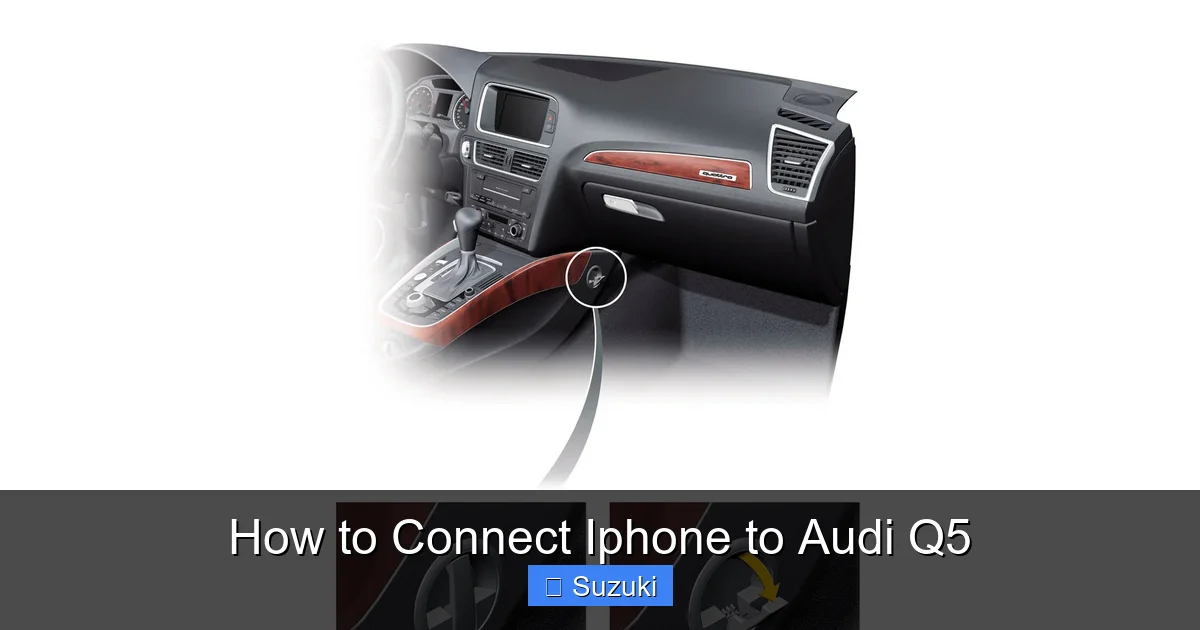
1. **Locate the USB port** in your Audi Q5. It’s usually in the center console or glove compartment.
2. **Plug one end of the cable** into your iPhone and the other into the USB port.
3. The MMI system should automatically detect your iPhone. If prompted, select “Trust This Computer” on your iPhone.
4. The screen may display options like “Phone,” “Music,” or “CarPlay.” Choose the one you want.
If Apple CarPlay is supported, it should launch automatically. If not, you can still use the USB connection for music and calls.
Benefits of USB Over Bluetooth
– **Higher audio quality:** USB supports lossless audio formats, while Bluetooth compresses sound.
– **Faster response:** Apps load quicker, and navigation updates in real time.
– **Charging capability:** Your iPhone stays powered during long drives.
– **Stable connection:** No risk of signal dropouts or interference.
For the best experience, especially on road trips, a USB connection is hard to beat.
Method 3: Using Apple CarPlay in Your Audi Q5
Visual guide about How to Connect Iphone to Audi Q5
Image source: forums.audipassion.com
Apple CarPlay is a game-changer for iPhone users. It mirrors your iPhone’s interface on the Audi’s infotainment screen, giving you access to Maps, Messages, Music, Podcasts, and more—all with a driver-friendly design.
What Is Apple CarPlay?
Apple CarPlay is a smart driving companion that integrates your iPhone with your car’s display. It simplifies access to essential apps while minimizing distractions. You can use Siri, touch controls, or voice commands to interact with it.
Setting Up Apple CarPlay via USB
1. **Connect your iPhone** to the Audi Q5 using a USB cable.
2. If CarPlay is supported, the system will prompt you to enable it. Tap “Allow” on your iPhone.
3. The CarPlay interface will appear on the MMI screen.
4. Use the touchscreen, steering wheel controls, or Siri to navigate.
You can customize which apps appear on the CarPlay home screen by going to Settings > General > CarPlay on your iPhone.
Wireless Apple CarPlay (If Supported)
Some newer Audi Q5 models (2020 and later) support wireless CarPlay. Here’s how to set it up:
1. **Ensure Wi-Fi and Bluetooth are on** on your iPhone.
2. **Go to Settings > General > CarPlay** and select your Audi Q5.
3. **Follow the on-screen prompts** to pair wirelessly.
4. Once connected, CarPlay will launch automatically when you start the car.
Wireless CarPlay is incredibly convenient, but it may drain your battery faster than a wired connection.
Using CarPlay Features
– **Navigation:** Use Apple Maps or Google Maps (if installed) for turn-by-turn directions.
– **Messages:** Dictate and send texts using Siri.
– **Music:** Control Apple Music, Spotify, or Pandora from the car screen.
– **Podcasts & Audiobooks:** Listen to your favorite shows hands-free.
– **Phone Calls:** Make and receive calls with voice commands.
CarPlay keeps your eyes on the road and your hands on the wheel—exactly what you want while driving.
Troubleshooting Common Connection Issues
Even with the best setup, you might run into problems. Here are some common issues and how to fix them.
iPhone Not Connecting to Audi Q5
– **Restart both devices:** Turn off your iPhone and restart the car. This often resolves temporary glitches.
– **Forget and re-pair:** Go to Settings > Bluetooth on your iPhone, tap the “i” next to your Audi, and select “Forget This Device.” Then re-pair.
– **Check software updates:** Ensure your iPhone and Audi’s MMI system are up to date.
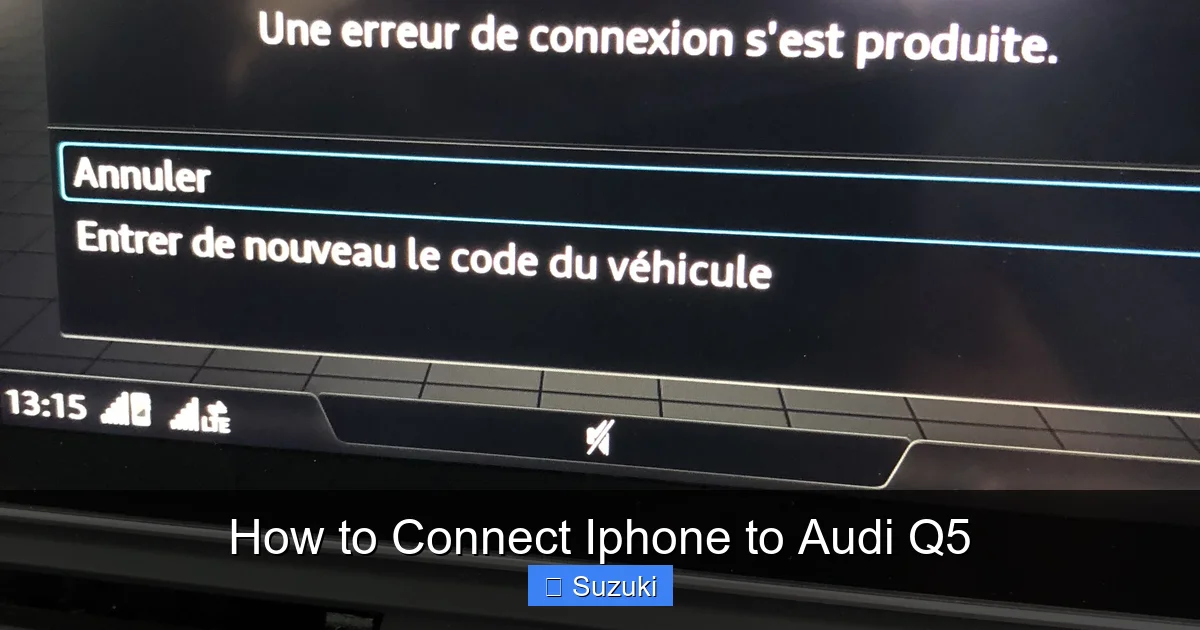
CarPlay Not Launching
– **Use a certified cable:** Non-Apple cables may not support CarPlay.
– **Enable CarPlay:** Go to Settings > General > CarPlay and make sure it’s turned on.
– **Check USB port:** Try a different port or clean the current one with compressed air.
Audio Not Playing Through Car Speakers
– **Check audio source:** Make sure the MMI is set to “Phone” or “CarPlay” instead of radio or CD.
– **Adjust volume:** Increase the volume on both your iPhone and the car.
– **Disable Do Not Disturb:** This mode can block audio output.
Bluetooth Keeps Disconnecting
– **Move iPhone closer:** Keep it in the center console or passenger seat.
– **Turn off other devices:** Nearby Bluetooth devices can cause interference.
– **Reset network settings:** On your iPhone, go to Settings > General > Reset > Reset Network Settings (note: this will erase saved Wi-Fi passwords).
Tips for a Seamless iPhone and Audi Q5 Experience
To get the most out of your connection, follow these best practices:
– **Keep your iPhone charged:** Use a high-quality car charger or the USB port.
– **Organize your apps:** Prioritize navigation, music, and messaging apps on your iPhone home screen.
– **Use Siri:** Say “Hey Siri” to send texts, make calls, or start navigation without touching your phone.
– **Update regularly:** Check for iOS and MMI updates every few months.
– **Clean your ports:** Dust and debris can interfere with USB connections.
By maintaining your devices and staying updated, you’ll enjoy a smooth, reliable connection every time you drive.
Conclusion
Connecting your iPhone to your Audi Q5 opens up a world of convenience, safety, and entertainment. Whether you choose Bluetooth for quick pairing, USB for superior audio, or Apple CarPlay for full integration, the process is simple and rewarding. With the right setup, you can stream music, navigate with ease, and stay connected—all while keeping your focus on the road.
Remember, the key to a successful connection is preparation and maintenance. Check your model year, use certified cables, and keep your software updated. And if you run into issues, don’t panic—most problems have quick fixes.
So the next time you hop into your Audi Q5, don’t just start the engine. Connect your iPhone, fire up your favorite playlist, and enjoy the drive. Your car and your phone were made for each other.
Frequently Asked Questions
Can I connect my iPhone to a 2015 Audi Q5?
Yes, you can connect your iPhone to a 2015 Audi Q5 using Bluetooth or a USB cable. However, Apple CarPlay is not supported on this model unless retrofitted with an aftermarket solution.
Does the Audi Q5 support wireless Apple CarPlay?
Wireless Apple CarPlay is available on Audi Q5 models from 2020 onward, depending on the trim and options. Check your owner’s manual or the MMI settings to confirm.
Why won’t my iPhone connect to my Audi Q5 via Bluetooth?
Common causes include outdated software, interference from other devices, or a weak signal. Try restarting both devices, re-pairing, or moving your iPhone closer to the infotainment system.
Can I use Android Auto in my Audi Q5?
No, the Audi Q5 does not support Android Auto. It only supports Apple CarPlay for smartphone integration.
How do I update my Audi Q5’s MMI system?
You can update the MMI system via an SD card or by visiting an Audi dealership. Check Audi’s official website for the latest software and instructions.
Will connecting my iPhone drain the car battery?
No, connecting your iPhone via USB or Bluetooth will not drain the car battery. In fact, USB connections can charge your phone while driving.
