How to Connect Bluetooth on a Lexus

Contents
- 1 Key Takeaways
- 2 📑 Table of Contents
- 3 How to Connect Bluetooth on a Lexus: A Complete Guide
- 4 Why Bluetooth Matters in Your Lexus
- 5 Step-by-Step Guide to Connecting Bluetooth on a Lexus
- 6 Connecting Bluetooth on Different Lexus Models
- 7 Troubleshooting Common Bluetooth Issues
- 8 Tips for a Smoother Bluetooth Experience
- 9 Conclusion
- 10 Frequently Asked Questions

Car Seat Organizer

Car Sunshade for Windshield

Car Fog Light Bulb
Side Window Sunshade
Connecting Bluetooth on a Lexus is simple and enhances your driving experience with hands-free calling and audio streaming. This guide walks you through every step, from pairing your device to troubleshooting common issues, ensuring seamless connectivity in your luxury vehicle.
Key Takeaways
- Bluetooth compatibility varies by Lexus model and year: Older models may require different steps than newer ones with updated infotainment systems.
- Always start with your phone’s Bluetooth turned on: This is the first step in establishing a connection with your Lexus.
- Use the “Setup” or “Phone” menu on the infotainment screen: This is where you’ll initiate pairing in most Lexus vehicles.
- Enter the correct PIN when prompted: Most Lexus systems use “0000” or “1234” as the default pairing code.
- Ensure your phone is discoverable: Without this setting enabled, your Lexus won’t detect your device.
- Test the connection after pairing: Make a test call or play music to confirm audio works properly.
- Update your infotainment system if issues persist: Software updates can fix bugs and improve Bluetooth performance.
📑 Table of Contents
How to Connect Bluetooth on a Lexus: A Complete Guide
Driving a Lexus means enjoying a blend of luxury, performance, and cutting-edge technology. One of the most convenient features in modern Lexus vehicles is Bluetooth connectivity. Whether you’re making hands-free calls, streaming your favorite playlist, or using navigation apps, Bluetooth keeps you connected without the hassle of cords. But if you’re new to the system or upgrading from an older model, you might be wondering: How do I connect Bluetooth on a Lexus?
You’re not alone. Many drivers find the initial setup a bit confusing, especially with different models using slightly different interfaces. The good news? It’s easier than you think—once you know the steps. This guide will walk you through the entire process, from turning on your phone’s Bluetooth to enjoying seamless audio and call integration in your Lexus. We’ll cover multiple model years, troubleshoot common problems, and share insider tips to make your experience smooth and stress-free.
By the end of this article, you’ll be able to confidently pair your smartphone with your Lexus, whether you drive a sleek ES, a rugged RX, or a sporty IS. No tech degree required—just follow along, and you’ll be hands-free in minutes.
Why Bluetooth Matters in Your Lexus
Visual guide about How to Connect Bluetooth on a Lexus
Image source: dealerinspire-image-library-prod.s3.us-east-1.amazonaws.com
Bluetooth isn’t just a fancy feature—it’s a practical tool that enhances safety, convenience, and entertainment. In today’s world, staying connected while driving is essential, but it must be done responsibly. Bluetooth allows you to answer calls, send voice messages, and control music without taking your hands off the wheel or your eyes off the road.
Lexus has long prioritized driver safety and comfort, and their Bluetooth systems reflect that. Once connected, your phone integrates with the car’s audio system, steering wheel controls, and even voice commands. You can dial contacts, skip songs, or ask for directions using simple voice prompts. This level of integration makes driving more enjoyable and less distracting.
Beyond calls and music, Bluetooth in newer Lexus models supports advanced features like Apple CarPlay and Android Auto. These systems mirror your phone’s interface on the infotainment screen, giving you access to apps like Spotify, Google Maps, and WhatsApp—all while keeping your focus on driving. So, connecting Bluetooth isn’t just about convenience; it’s about unlocking the full potential of your Lexus’s technology.
Benefits of Bluetooth Connectivity
Let’s break down the key advantages of using Bluetooth in your Lexus:
- Hands-free calling: Answer and make calls using voice commands or steering wheel buttons. This reduces distractions and helps you stay compliant with hands-free laws in many states.
- Audio streaming: Play music, podcasts, or audiobooks from your phone through the car’s premium sound system. Whether you’re into classical or hip-hop, the audio quality in a Lexus is top-notch.
- Voice control integration: Use voice commands to control your phone. Say “Call Mom” or “Play my workout playlist,” and your Lexus will respond instantly.
- Automatic reconnection: Once paired, your phone will automatically connect to your Lexus every time you start the car—no need to repeat the setup.
- Multi-device support: Many Lexus models allow you to pair multiple phones. This is great for families or couples who share a vehicle.
These benefits make Bluetooth a must-use feature in any modern vehicle, especially in a luxury brand like Lexus where technology and comfort go hand in hand.
Step-by-Step Guide to Connecting Bluetooth on a Lexus

Visual guide about How to Connect Bluetooth on a Lexus
Image source: cdnwp.dealerk.com
Now that you understand why Bluetooth is so valuable, let’s get into the nitty-gritty: how to actually connect it. The process is similar across most Lexus models, but there are slight variations depending on the year and infotainment system. We’ll cover the most common scenarios, including models with the Enform system and those with newer touchscreen interfaces.
Before you begin, make sure your phone is charged and within close range of the car. Also, ensure your Lexus is in “Park” or “Neutral” with the parking brake engaged—this is a safety requirement for most infotainment functions.
Step 1: Turn On Your Phone’s Bluetooth
Start by enabling Bluetooth on your smartphone. On an iPhone, go to Settings > Bluetooth and toggle it on. On an Android device, swipe down from the top of the screen to open the quick settings panel and tap the Bluetooth icon. Make sure your phone is set to “discoverable” or “visible to other devices.” This allows your Lexus to detect it during the pairing process.
Pro tip: If you’ve paired your phone with other devices before, it might automatically try to connect to them. To avoid confusion, temporarily turn off Bluetooth on other nearby devices like smartwatches or headphones.
Step 2: Access the Bluetooth Menu in Your Lexus
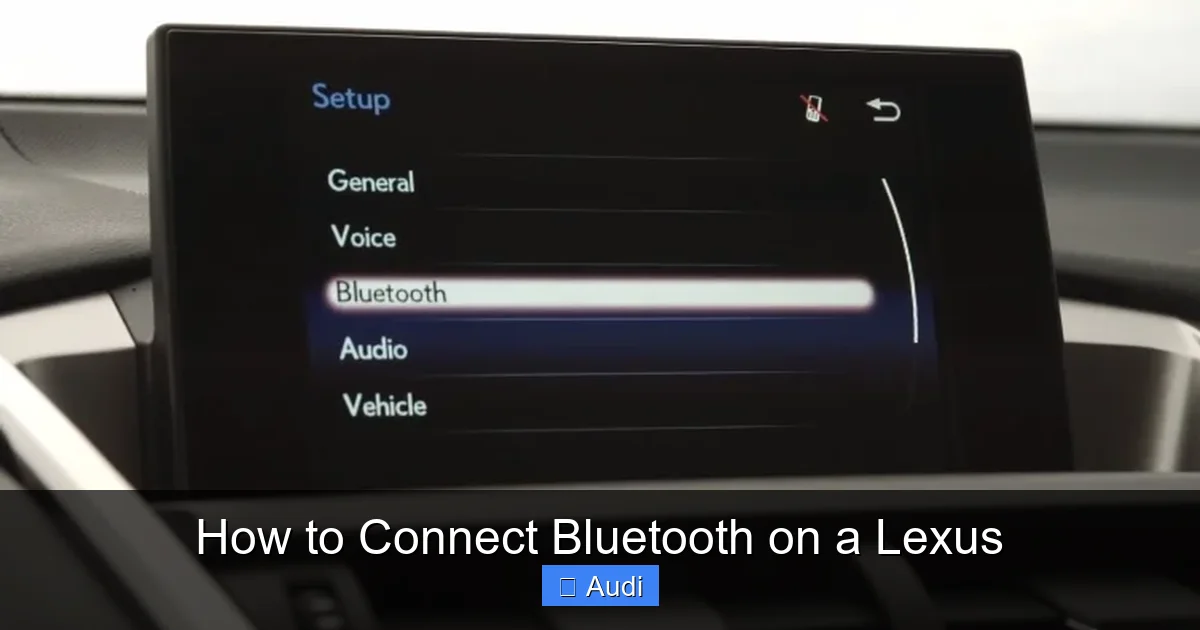
Next, turn on your Lexus and wait for the infotainment system to boot up. This usually takes 10–20 seconds. Once the screen is active, look for the “Phone” or “Setup” button. On older models, this might be a physical button below the screen. On newer models with touchscreens, tap the “Menu” icon and select “Phone” or “Bluetooth”.
In some Lexus vehicles, you’ll see a “Connect” or “Pair Device” option directly on the home screen. If not, navigate to Settings > Bluetooth > Add Device. The exact wording may vary, but the goal is the same: initiate a new device search.
Step 3: Search for Your Phone
Once you’ve opened the Bluetooth menu, your Lexus will begin scanning for nearby devices. This usually takes 10–15 seconds. When your phone appears on the list—usually labeled by its name (e.g., “John’s iPhone” or “Samsung Galaxy S23”)—select it.
If your phone doesn’t appear, double-check that Bluetooth is on and that it’s in discoverable mode. Sometimes, restarting your phone or the car’s infotainment system can help refresh the connection.
Step 4: Enter the Pairing PIN
After selecting your phone, the Lexus system will prompt you to enter a PIN. This is a security measure to ensure only authorized devices can connect. Most Lexus models use one of two default codes:
- 0000
- 1234
Enter the PIN using the on-screen keypad or your phone’s keyboard. On some phones, the PIN will appear on the screen automatically—just confirm it. Once entered correctly, the devices will pair.
Note: If the PIN doesn’t work, consult your owner’s manual. Some older models may use a different code, or you may need to generate a custom one.
Step 5: Confirm the Connection
After entering the PIN, your Lexus and phone will establish a connection. You’ll see a confirmation message on both screens, such as “Connected” or “Pairing Successful.” At this point, your phone may ask for permission to access contacts, messages, or media. Grant these permissions to unlock full functionality.
Once connected, test the system by making a quick call or playing music. Use the steering wheel controls or voice commands to ensure everything responds correctly.
Step 6: Save the Device (Optional but Recommended)
Most Lexus systems automatically save paired devices for future use. However, it’s a good idea to confirm this. Go back to the Bluetooth menu and check if your phone appears under “Paired Devices” or “Saved Devices.” If not, look for an option to “Save” or “Add to Favorites.”
This ensures your phone reconnects automatically the next time you start the car—no need to repeat the setup.
Connecting Bluetooth on Different Lexus Models

Visual guide about How to Connect Bluetooth on a Lexus
Image source: katynel.com
While the basic steps are similar, the exact process can vary depending on your Lexus model and year. Let’s look at a few common scenarios to help you navigate your specific vehicle.
Lexus Models with Enform System (2013–2020)
Many Lexus vehicles from this era use the Enform infotainment system. These models typically have a central display with physical buttons or a touchpad controller.
To connect Bluetooth:
- Press the “Phone” button on the center console.
- Select “Setup” > “Bluetooth” > “Add Device”.
- Follow the on-screen prompts to search and pair your phone.
- Enter the PIN when prompted (usually “0000”).
The Enform system may also allow you to sync your phonebook and call history. This makes dialing contacts even easier.
Lexus Models with Touchscreen (2021 and Newer)
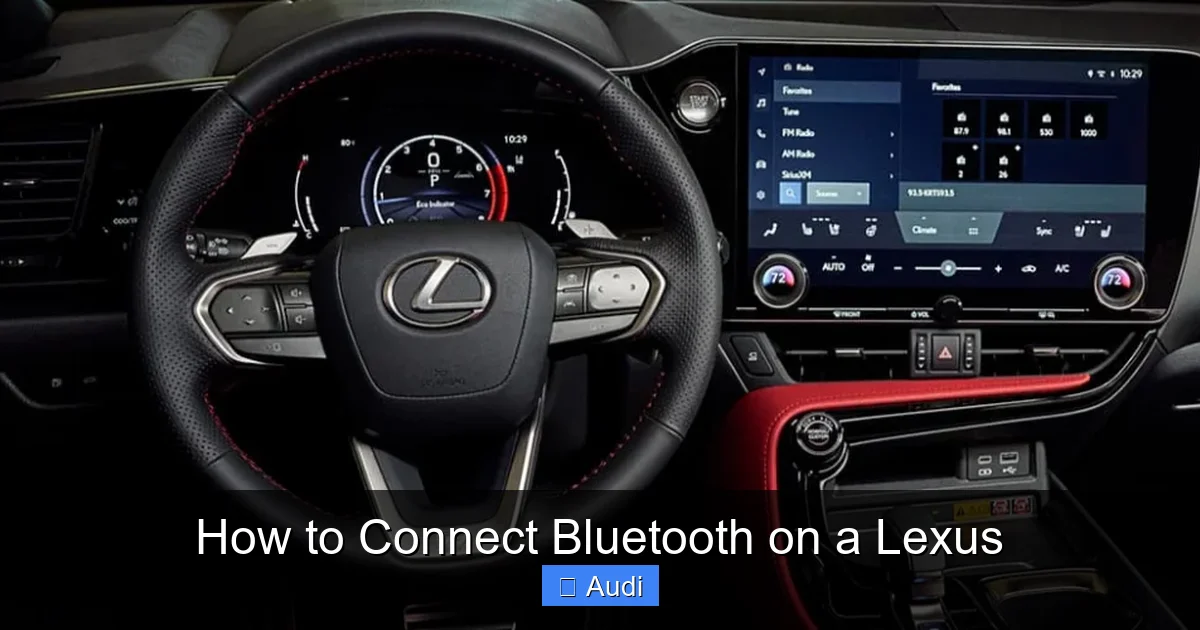
Newer Lexus vehicles, such as the 2021+ RX, ES, and NX, feature large touchscreens with updated software. The interface is more intuitive, with clearer menus and faster response times.
To connect Bluetooth:
- Tap the “Menu” icon on the home screen.
- Select “Phone” > “Bluetooth” > “Add New Device”.
- Wait for your phone to appear and tap it.
- Enter the PIN and confirm the connection.
These models often support wireless Apple CarPlay and Android Auto, which enhance the Bluetooth experience with app integration and voice control.
Lexus IS and GS Models (Older Versions)
Older sport sedans like the IS and GS may have slightly different menus. Some use a joystick controller instead of touch input.
To connect:
- Use the controller to navigate to “Setup” > “Bluetooth”.
- Select “Register Device” and follow the prompts.
- Enter the PIN when asked.
If you’re having trouble, consult the owner’s manual—Lexus provides model-specific instructions for each vehicle.
Troubleshooting Common Bluetooth Issues
Even with the best setup, Bluetooth problems can happen. Here are some common issues and how to fix them.
Phone Not Showing Up in the List
If your Lexus doesn’t detect your phone:
- Make sure Bluetooth is on and your phone is discoverable.
- Move your phone closer to the infotainment system.
- Restart both your phone and the car’s system.
- Forget the device on your phone and try pairing again.
Sometimes, interference from other devices can block the signal. Try turning off nearby Bluetooth gadgets.
Connection Drops Frequently
If your phone connects but keeps disconnecting:
- Check for software updates on your phone and Lexus system.
- Ensure your phone’s battery isn’t too low—some devices disable Bluetooth to save power.
- Clear the Bluetooth cache on your phone (Android: Settings > Apps > Bluetooth > Storage > Clear Cache).
Also, avoid placing your phone in a metal container or far from the dashboard, as this can weaken the signal.
Audio Quality Is Poor
If music sounds choppy or calls are unclear:
- Ensure your phone’s volume is up and not muted.
- Check that the audio source is set to Bluetooth (not radio or USB).
- Update your phone’s operating system—older versions may have compatibility issues.
In some cases, the issue is with the car’s speakers. Test with another device to rule out hardware problems.
Can’t Make or Receive Calls
If calls aren’t working:
- Verify that call permissions are enabled on your phone.
- Check if your phone is set as the default calling device in the Lexus menu.
- Try unpairing and re-pairing the device.
Also, ensure your phone plan includes hands-free calling—some carriers restrict this feature.
Tips for a Smoother Bluetooth Experience
Now that you’ve got Bluetooth working, here are some pro tips to keep things running smoothly.
Keep Your Software Updated
Lexus regularly releases software updates for its infotainment systems. These updates can fix bugs, improve Bluetooth performance, and add new features. Check for updates through the Lexus Enform app or visit a dealership.
Use a Phone Mount
Even with hands-free calling, it’s helpful to see your phone’s screen for navigation or messages. A sturdy phone mount keeps your device visible and secure.
Name Your Device Clearly
If you have multiple phones paired, give each one a distinct name (e.g., “Dad’s iPhone” or “Mom’s Galaxy”). This makes it easier to select the right device in the menu.
Reset Bluetooth if Needed
If you’re still having issues, try resetting the Bluetooth system. On most Lexus models, go to Settings > System > Reset and select “Bluetooth Settings.” This clears all paired devices and restores defaults.
Conclusion
Connecting Bluetooth on a Lexus is a straightforward process that opens the door to a safer, more enjoyable driving experience. Whether you’re making calls, streaming music, or using voice commands, Bluetooth keeps you connected without compromising safety. With the steps outlined in this guide, you can pair your phone in minutes—no matter which Lexus model you drive.
Remember, the key is patience and attention to detail. Make sure your phone is discoverable, enter the correct PIN, and test the connection afterward. If you run into issues, don’t hesitate to consult your owner’s manual or visit a Lexus dealer for assistance.
Once connected, take advantage of all the features your Lexus has to offer. From hands-free calling to seamless audio streaming, Bluetooth is one of the most useful tools in your luxury vehicle. So go ahead—pair your phone, hit the road, and enjoy the ride.
Frequently Asked Questions
Can I connect multiple phones to my Lexus via Bluetooth?
Yes, most Lexus models allow you to pair multiple phones. However, only one device can be active at a time for calls and audio. You can switch between devices in the Bluetooth menu.
Why won’t my Lexus recognize my phone during pairing?
This usually happens if Bluetooth is off, your phone isn’t discoverable, or there’s interference. Try restarting both devices and ensuring your phone is close to the infotainment system.
What if the default PIN doesn’t work?
If “0000” or “1234” doesn’t work, check your owner’s manual for the correct code. Some older models use different PINs, or you may need to generate a custom one.
Can I use Bluetooth for Apple CarPlay or Android Auto?
Bluetooth enables basic functions like calls and music, but Apple CarPlay and Android Auto often require a USB connection for full app integration. However, newer Lexus models support wireless versions.
How do I delete a paired device from my Lexus?
Go to the Bluetooth menu, select “Paired Devices,” find the device you want to remove, and choose “Delete” or “Forget.” This clears the connection and frees up space for new devices.
Will my phone automatically reconnect when I start the car?
Yes, once paired and saved, your phone should automatically reconnect to your Lexus when Bluetooth is on and the car is started. This works for most modern smartphones and Lexus models.