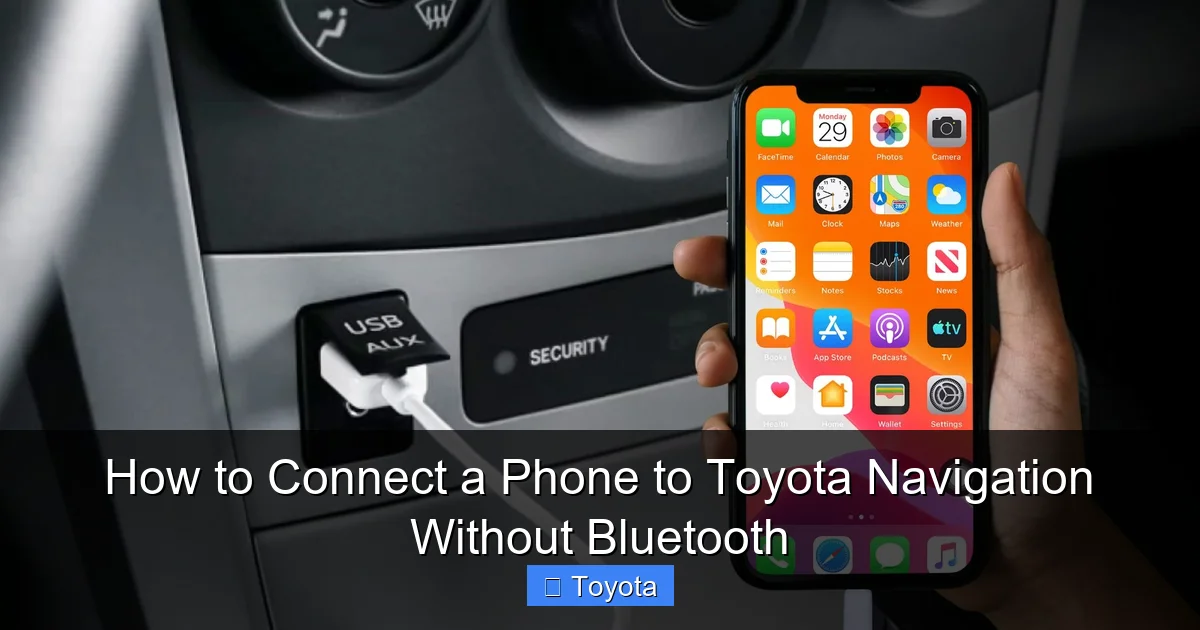
How to Connect a Phone to Toyota Navigation Without Bluetooth

Contents
- 1 Key Takeaways
- 2 📑 Table of Contents
- 3 Why Bluetooth Isn’t Always the Answer
- 4 Method 1: The USB Connection – Your Best Bet
- 5 Method 2: Auxiliary (AUX) Input – Audio-Only Navigation
- 6 Method 3: Aftermarket Solutions for Older Toyotas
- 7 Troubleshooting: When Your Phone Won’t Connect
- 8 Looking Ahead: The Future of Toyota Infotainment
- 9 Conclusion
- 10 Frequently Asked Questions



Struggling to connect your phone to your Toyota’s navigation system because of Bluetooth issues? You’re not alone. Many Toyota models, especially older ones, either lack Bluetooth or have finicky systems. The good news is you have reliable alternatives. Using a simple USB cable is the most effective method, providing both audio and on-screen navigation prompts. For audio-only directions, the AUX input works. If your car is really dated, aftermarket adapters can add modern smartphone integration. This guide covers every method in detail, so you can get your phone’s navigation working in your Toyota today.
Key Takeaways
- USB is the gold standard: For most Toyotas with a USB port, a direct cable connection provides the most reliable way to get both audio directions and on-screen map display without Bluetooth.
- AUX is audio-only: The auxiliary input will play navigation voice prompts through your car speakers, but you will not see the map or turn-by-turn directions on the factory navigation screen.
- Check your owner’s manual first: It will specify exactly what your model year’s USB port supports (charging only, audio, or data) and any required file formats for stored maps.
- Aftermarket adapters unlock modern features: For older Toyotas without a data USB port, adding an Android Auto/Apple CarPlay adapter or a new infotainment system provides a seamless, wireless-like experience.
- File management is key: When using USB for map storage, your phone’s storage must be formatted correctly (usually FAT32 or exFAT), and map files must be in a compatible format and folder structure.
- Software updates matter: Ensure your Toyota’s infotainment system firmware is up-to-date, as updates often improve smartphone compatibility and USB functionality.
- Safety first: Set your destination and start navigation before you begin driving, or use a passenger to help. The goal is to minimize distraction on the road.
📑 Table of Contents
Why Bluetooth Isn’t Always the Answer
Bluetooth has become the go-to for hands-free calling and music streaming in cars. But when it comes to getting your phone’s navigation apps—like Google Maps or Waze—to talk to your Toyota’s factory navigation screen, Bluetooth often falls short. In fact, most Toyota Bluetooth systems are designed primarily for audio (A2DP profile) and phone calls (HFP profile). They do not typically transmit the data needed to display the map and turn-by-turn instructions on your car’s built-in screen. This is a fundamental limitation, not a glitch you can fix.
Furthermore, many older Toyota models from the early 2010s and before may not have Bluetooth at all, or their systems are so outdated that pairing with modern smartphones is a frustrating, endless cycle of “pairing rejected” or “connection failed.” Even on newer models, you might experience audio dropouts, delayed prompts, or the dreaded “No media player found” message. So, if Bluetooth won’t get your Waze directions onto the dashboard display, what will? You need to think outside the wireless box and use a physical connection or an upgraded system. This article is your complete roadmap to making that happen.
Method 1: The USB Connection – Your Best Bet
For Toyota owners looking to integrate phone-based navigation, the USB port is your most powerful and reliable tool—but it comes with a big caveat. Not all USB ports are created equal. There are two main types: charging-only ports and data ports. A charging-only port will power your phone but do nothing else. A data port can communicate with the car’s infotainment system, allowing it to read files and, in some cases, project your phone’s screen or specific apps. The magic of connecting without Bluetooth lies in using this data-capable USB port correctly.
Visual guide about How to Connect a Phone to Toyota Navigation Without Bluetooth
Image source: headphonesaddict.com
Which Toyota Models Support USB Navigation?
This is the first critical question. Support varies wildly by model year and trim level. Generally:
- Pre-2017 Models: Many have USB ports, but they are often charging-only or support only USB audio (playing MP3s from a flash drive or phone). They will not display navigation apps.
- 2017-2020 Models with Entune™ 3.0 or Audio Plus: These are the sweet spot. The USB port in the center console is usually a data port. When you plug in a compatible iPhone or Android phone, the system may launch “Apple CarPlay” or “Android Auto” automatically. If your car does not have these features, it might still recognize your phone as a “media device” and allow you to browse stored map files.
- 2021+ Models with Toyota Audio Multimedia: These newer systems have standard USB data ports that support both Apple CarPlay and Android Auto (wired). This is the most straightforward experience—plug in, and your phone’s screen (including Google Maps or Waze) appears on the Toyota display.
How to Check: The absolute best source is your owner’s manual. Look for sections on “USB Port,” “Connecting a USB Device,” or “Smartphone Integration.” If you see icons for an iPhone or Android phone next to the USB symbol in your car, it’s a data port. You can also perform a simple test: plug your phone into the USB port with a good cable. If your phone’s screen lights up and shows a “Charging” icon only, it’s likely charging-only. If a prompt pops up on your phone’s screen asking to “Trust this computer” (iPhone) or “Allow USB debugging?” (Android), that’s a strong sign the port has data capabilities.
Step-by-Step USB Setup for Navigation
Assuming you have a data-capable USB port, here is the general process for getting navigation prompts on your Toyota’s screen. The exact menu names will vary by system (Entune, Audio, etc.).
For Phones with Apple CarPlay / Android Auto (Wired):
- Start your Toyota and ensure the infotainment system is on.
- Use a high-quality USB cable (preferably the one that came with your phone) and plug it into the console USB port.
- On your iPhone, a prompt will appear: “Allow ‘Toyota’ to access your data?” or similar. Tap “Allow.” On Android, you may need to select “USB for data transfer” or “Android Auto” from the notification shade.
- The Toyota screen should switch to the CarPlay/Android Auto interface automatically. If not, press the “HOME” or “APPS” button on the touchscreen and select the CarPlay/Android Auto icon.
- Open your navigation app (Google Maps, Waze, Apple Maps) on the projected screen. You’re done!
For Phones WITHOUT CarPlay/Android Auto (Using USB as a Media Device):
This older method relies on the car reading map files stored directly on your phone’s internal storage or a connected USB flash drive. It’s clunkier but functional.
- On your phone, download the map data for your region offline within your navigation app (e.g., in Google Maps, tap your profile > Offline maps). This is crucial; you need the maps stored locally.
- Connect your phone to the USB port. The Toyota system should recognize it as a “USB Device” or “Media.”
- Using the infotainment system’s menu, navigate to “Media,” “USB,” or “Audio.”
- You may need to browse folders to find the navigation app’s offline map files. This is often the trickiest part, as file structures are not standardized. Look for folders named “com.google.android.apps.maps” or similar.
- Once the map file is selected, the audio prompts from the app will play through the car’s speakers. However, you will not see the map on the Toyota screen; you must look at your phone. This method is essentially for audio-only navigation via USB.
File Formats and Map Storage Tips
If you’re using the USB-as-media-device method for audio prompts, file management is everything. Toyota’s older media readers are picky. They typically support FAT32 and exFAT file systems. If your phone’s internal storage is formatted as something else (like APFS on iPhones), the car may not read it at all. A workaround is to:
- Transfer your offline map files to a small USB flash drive (formatted as FAT32).
- Plug the flash drive directly into the Toyota’s USB port.
- Browse to the map file on the flash drive through the car’s media menu.
This bypasses phone formatting issues. Remember, this is a hacky audio solution. For a true on-screen experience, you need a system that supports CarPlay/Android Auto or a dedicated navigation app that the car’s firmware can interface with (very rare on stock Toyotas).
If your Toyota has a 3.5mm auxiliary input jack (usually in the center console or front of the radio), this is the simplest, most universal fallback. It requires no special data port, no Bluetooth pairing, and works with virtually any phone or audio player.
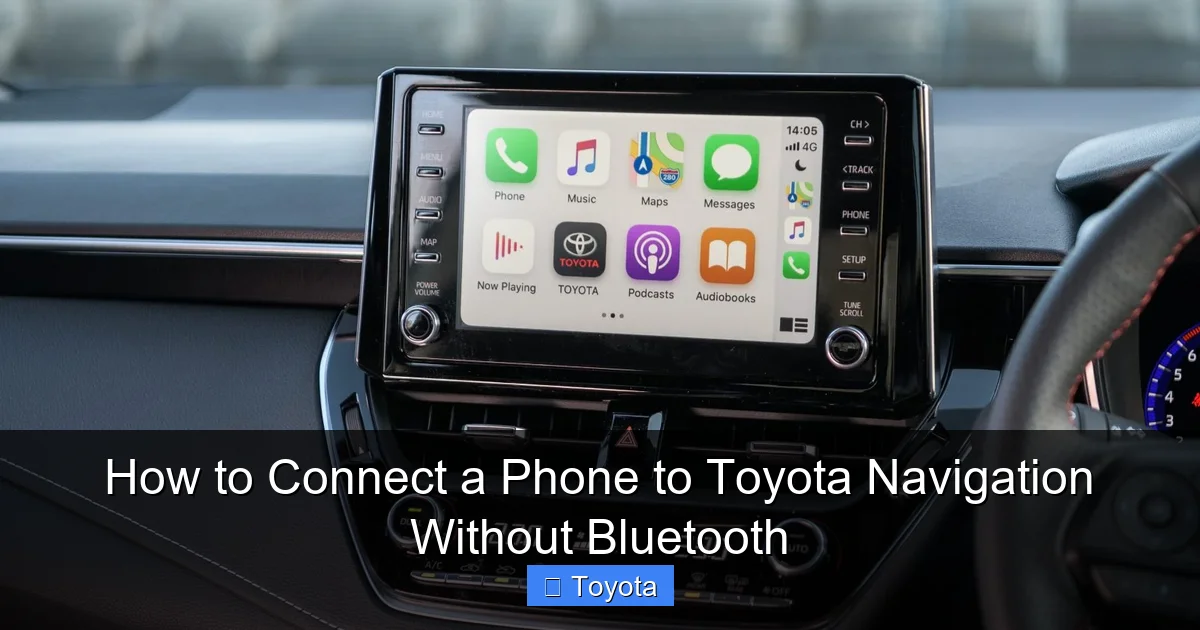
Visual guide about How to Connect a Phone to Toyota Navigation Without Bluetooth
Image source: mag.toyota.co.uk
How AUX Works for Navigation Prompts
The AUX input is a standard analog audio line-in. It carries sound only. Here’s how to set it up for navigation:
- Get a 3.5mm-to-3.5mm audio cable (male-to-male).
- Plug one end into your phone’s headphone jack (or use a USB-C-to-3.5mm or Lightning-to-3.5mm adapter if your phone lacks a jack).
- Plug the other end into your Toyota’s AUX port.
- On your Toyota’s infotainment system, press the “MEDIA” or “SOURCE” button and select “AUX” as the audio source.
- Set your phone’s volume to about 80% and start your navigation app. The voice directions will play clearly through your car’s speakers.
It’s that easy. You get clear, timely audio cues for “In 500 feet, turn right.”
Limitations of AUX for Turn-by-Turn Directions
The AUX method has one major, unavoidable drawback: no visual display on the factory navigation screen. You will have to glance at your phone mounted on your dashboard or windshield for the map. This is less safe and less convenient than having the directions integrated into your instrument cluster or center screen. Additionally, you cannot control the navigation app (like zooming or rerouting) from your car’s touchscreen or steering wheel controls. The audio cable is a one-way street for sound. For this reason, AUX is best considered a last resort or a temporary solution when USB data isn’t available. It’s vastly superior to Bluetooth for audio reliability (no compression, no dropouts), but it doesn’t solve the core problem of screen integration.
Method 3: Aftermarket Solutions for Older Toyotas
If your Toyota is from the mid-2000s to early 2010s and lacks a data USB port and sometimes even an AUX input, don’t despair. The aftermarket automotive electronics world has solutions that can effectively modernize your infotainment system, giving you seamless phone navigation integration that feels factory-fresh.
Visual guide about How to Connect a Phone to Toyota Navigation Without Bluetooth
Image source: windowsdigitals.com
Android Auto and Apple CarPlay Adapters
For Toyotas that have a functional (but basic) factory radio with a USB port that is charging-only, you can often add CarPlay/Android Auto capability with a small, plug-and-play adapter. These devices plug into your existing USB port and act as a bridge. They contain their own software that connects to your phone via Wi-Fi or Bluetooth (for initial handshake) and then streams the phone’s display to your factory screen. Popular brands like AAWireless (for Android Auto) and Carlinkit (for both) are common. Important: Compatibility is not guaranteed. You must research if your specific Toyota model, year, and factory radio type (e.g., Entune, Audio) is supported by the adapter manufacturer. Installation is usually trivial—just plug it in—but you may need to configure settings in your car’s menu to enable “USB Video” or similar.
Installing a New Infotainment System
The most comprehensive and reliable solution is to replace your factory head unit with a modern aftermarket one. Companies like Pioneer, Kenwood, Sony, and Alpine make double-DIN units that feature large, crisp touchscreens with native Apple CarPlay and Android Auto (both wired and wireless). These systems are designed to integrate flawlessly with your phone. The installation can range from simple plug-and-play (if a wiring harness adapter exists for your Toyota) to complex, requiring professional help to retain steering wheel controls, backup camera, and factory microphone. The benefits are immense: you get a superior user interface, better sound quality, and guaranteed navigation integration. The cost is higher ($500-$1500+ with installation), but it future-proofs your car for years. For specific model integration guides, resources like our article on how to connect a phone to a Toyota Camry often cover both factory and aftermarket scenarios.
Troubleshooting: When Your Phone Won’t Connect
Even with the right method, things can go wrong. Here’s how to diagnose common problems.
USB Port Not Recognizing Your Device
If you plug in and nothing happens:
- Try a different cable. Cheap or damaged cables often lack the data wires. Use the original equipment manufacturer (OEM) cable if possible.
- Check the USB port for debris. Lint and dirt can prevent a solid connection. Clean gently with compressed air or a plastic toothpick.
- Restart your car and phone. A simple reboot clears temporary glitches in both the infotainment system and the phone’s USB controller.
- On your phone, change the USB connection mode. When you plug in, swipe down the notification shade. If it says “Charging only,” tap it and select “File Transfer,” “MTP,” or “Transfer files.” This explicitly tells the phone to enable data communication.
- Update your phone’s OS and the Toyota’s firmware. Compatibility issues are often resolved with updates. Check for system updates in your Toyota’s “Settings” menu, often under “General” or “System Update.”
Navigation App Not Displaying on Screen
If audio works but the map doesn’t appear on the Toyota display:
- Confirm CarPlay/Android Auto is active. Look for the small Apple CarPlay or Android Auto icon in the status bar of your Toyota’s screen. If it’s not there, the connection is not in the correct mode.
- Check your car’s settings. Some Toyotas have a setting like “Smartphone Link” or “Apple CarPlay/Android Auto” that must be enabled. It might also be disabled for the specific USB port you’re using (some cars have multiple ports with different functions).
- It’s a system limitation. If your Toyota does not officially support CarPlay/Android Auto and you’re trying to use the “USB media device” method, the map will never appear on the factory screen. That method is fundamentally audio-only. You must look at your phone. The only ways to get the map on-screen are: 1) A factory system with CarPlay/Android Auto, 2) A factory system with a proprietary navigation app that reads your phone’s data (very rare), or 3) An aftermarket head unit.
- For iPhone users: Ensure “USB Accessories” is enabled in Settings > Face ID & Passcode (if you have a passcode). A locked iPhone with this disabled won’t communicate properly.
Looking Ahead: The Future of Toyota Infotainment
Toyota has been historically slow to adopt smartphone integration standards like Apple CarPlay and Android Auto, but they are now standard on most new models. Looking forward, the trend is toward wireless CarPlay/Android Auto (no USB cable needed after initial setup) and even deeper cloud-based integration. Newer Toyota models (2022+) with the Toyota Audio Multimedia system are receiving over-the-air (OTA) updates that can add features and improve compatibility. If you’re buying a new Toyota, research the infotainment specs meticulously. Ensure it lists “Apple CarPlay” and “Android Auto” as standard or available. For existing owners, the path forward is clear: leverage the USB data port if you have it, use AUX for audio if you don’t, or consider an aftermarket upgrade for the ultimate integrated experience. The days of being locked out of your own phone’s navigation by a proprietary Bluetooth system are numbered, but for now, these wired and adaptive solutions are your keys to a connected drive.
Conclusion
Connecting your phone’s navigation to your Toyota without Bluetooth is not only possible, it’s often more reliable than wrestling with a finicky wireless pairing. The USB data connection stands as the champion, offering a direct, lag-free pipeline for both audio and visual data when your car supports Apple CarPlay or Android Auto. For the many Toyotas that don’t, the humble AUX jack remains a steadfast ally for crystal-clear voice directions, even if you must keep your eyes on your phone’s screen. And for the classics—the Toyotas that predate these modern conveniences—the aftermarket world offers powerful, plug-and-play adapters or full head unit replacements that can bridge decades of technological gaps. The key is to first diagnose your car’s capabilities by consulting the manual and testing ports. From there, follow the method that matches your hardware. With the steps outlined in this guide, you can transform your daily commute or road trip, leaving behind the frustration of disconnected navigation and embracing a seamlessly integrated, phone-powered guiding star in your Toyota.
Frequently Asked Questions
Will any USB cable work to connect my phone for navigation?
No. Only a USB cable that supports data transfer (not just charging) will work. Use the cable that came with your phone or a certified high-quality replacement. Cheap charging cables often lack the internal data wires needed for communication with the car’s system.
My Toyota has a USB port, but my phone just charges and nothing else happens. Why?
Your Toyota’s USB port is likely a “charging-only” port, not a data port. This is common in older models or ports located in the storage bin. The data port is usually the one in the center console, specifically labeled with a smartphone icon. Check your owner’s manual to identify the correct port.
Can I use Google Maps or Waze on my Toyota’s factory navigation screen?
Only if your Toyota supports Apple CarPlay or Android Auto (wired or wireless). These systems project your phone’s entire interface, including Google Maps and Waze, onto the car’s screen. Without CarPlay/Android Auto, stock Toyota navigation systems do not accept third-party app data via USB; you can only hear audio prompts through AUX or USB audio, not see the map.
Is using an AUX cable for navigation safe while driving?
It’s safer than handling your phone directly, but it’s not ideal. You will still need to glance at your phone for the map, which is a distraction. For maximum safety, set your destination before you start driving and rely primarily on the audio prompts. A passenger can help with any needed route changes.
My car doesn’t have a USB data port or AUX input. Are my only options aftermarket?
For full on-screen integration, yes, an aftermarket solution like a CarPlay/Android Auto adapter (if your factory radio has a working USB port) or a new head unit is your best path. If you only need audio, a Bluetooth FM transmitter could work, but that reintroduces the very Bluetooth issues you’re trying to avoid and offers lower audio quality than a direct AUX connection.
Why does my navigation audio cut out when I receive a phone call via Bluetooth?
This is normal behavior for most factory Bluetooth systems. They are designed to prioritize phone calls. When a call comes in, the navigation audio (which is playing as a “media” source) will duck or pause. You must end the call for navigation prompts to resume. This is another limitation of using Bluetooth for navigation audio.