How Do You Connect Bluetooth to a Toyota Highlander?

Contents
- 1 Key Takeaways
- 2 📑 Table of Contents
- 3 Why Bluetooth in Your Toyota Highlander Isn’t Just a Luxury—It’s Essential
- 4 Know Your System: Identifying Your Highlander’s Infotainment Brain
- 5 The Universal Blueprint: Step-by-Step Bluetooth Pairing for Any Highlander
- 6 Model-Specific Nuances: What Changes Between a 2016 and a 2023 Highlander?
- 7 Diagnosing the Disconnect: Troubleshooting Common Bluetooth Problems
- 8 Beyond the Basics: Maximizing Your Highlander’s Bluetooth Capabilities
- 9 Conclusion: Your Connection, Your Command
- 10 Frequently Asked Questions

Parking Sensor Kit

Car Fog Light Bulb

Car Paint Touch Up Pen
Side Window Sunshade
Connecting Bluetooth to your Toyota Highlander is a straightforward process that unlocks hands-free calling and audio streaming. First, ensure your phone’s Bluetooth is enabled and discoverable, then navigate the Entune infotainment system to add a new device. Follow the on-screen prompts to complete the pairing, and troubleshoot common issues like connection drops by simply forgetting and re-pairing the device. This simple setup dramatically enhances your driving safety and convenience.
Key Takeaways
- Compatibility is Key: Your phone must have Bluetooth, and your Highlander’s model year determines the exact infotainment system (Entune 3.0, Audio, etc.) you’ll navigate.
- Enable Discoverability: Your smartphone’s Bluetooth must be turned on and set to “discoverable” or “visible” mode before starting the pairing process in the car.
- The Standard Pairing Flow: The universal steps are: Car Menu > Bluetooth > Add Device > Select your car on your phone > Confirm PIN code (usually 0000 or 1234).
- One Phone at a Time: The Highlander typically connects to one primary phone for calls and audio. You can store multiple devices but must manually switch the active connection.
- Troubleshooting Starts Simple: For most connection failures, the first fix is to “Forget” the device in both the car and phone menus, then restart both and try pairing again from scratch.
- Safety First: Always set up Bluetooth and program contacts/voice dialing while the vehicle is parked. Never fiddle with the infotainment screen while driving.
- Model Variations Exist: The exact menu names and button locations can differ between a 2014 Highlander with a basic touchscreen and a 2024 model with the large 12.3″ display.
📑 Table of Contents
- Why Bluetooth in Your Toyota Highlander Isn’t Just a Luxury—It’s Essential
- Know Your System: Identifying Your Highlander’s Infotainment Brain
- The Universal Blueprint: Step-by-Step Bluetooth Pairing for Any Highlander
- Model-Specific Nuances: What Changes Between a 2016 and a 2023 Highlander?
- Diagnosing the Disconnect: Troubleshooting Common Bluetooth Problems
- Beyond the Basics: Maximizing Your Highlander’s Bluetooth Capabilities
- Conclusion: Your Connection, Your Command
Why Bluetooth in Your Toyota Highlander Isn’t Just a Luxury—It’s Essential
Let’s be real: fumbling with your phone while driving is dangerous and, in most places, illegal. That tiny moment of looking down to change a song or answer a call can have huge consequences. This is where your Toyota Highlander’s Bluetooth system becomes your silent co-pilot. It’s the bridge that safely connects your digital life to your driving experience, transforming your SUV into a connected command center. Whether you have a base model or a Limited Platinum, the ability to make hands-free calls and stream your favorite podcasts or playlists is a game-changer for daily commutes and family road trips. But what happens when that bridge feels shaky? When the music stutters, or your phone just won’t pair? That frustration is real, and it usually comes down to not knowing the specific steps for your exact Highlander model year. This guide will walk you through everything, from the absolute basics to advanced tips, ensuring you get a rock-solid connection every time.
Know Your System: Identifying Your Highlander’s Infotainment Brain
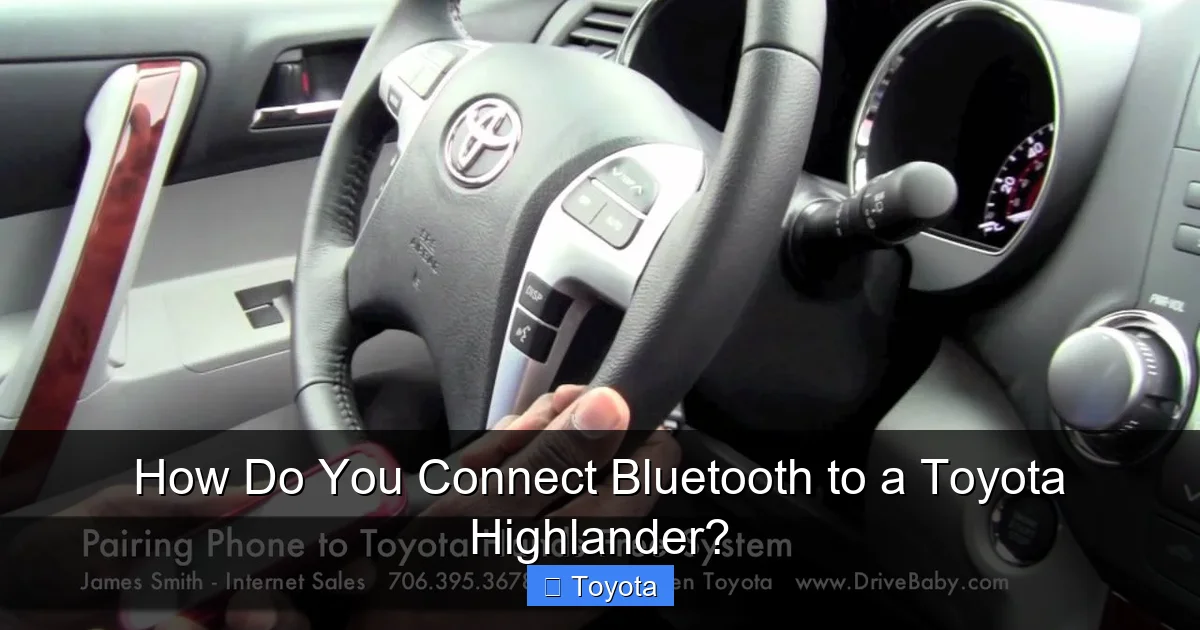
Before we touch a single button, we need to understand what we’re working with. Toyota has used several versions of its infotainment system over the Highlander’s lifespan. The core Bluetooth pairing logic is similar, but the menu names and screen layouts change. Think of it like this: the goal is always “Settings > Bluetooth,” but the road to get there looks different depending on your map.
Visual guide about How Do You Connect Bluetooth to a Toyota Highlander?
Image source: i.ytimg.com
Decoding the Entune Generations in Your Highlander
The system is called Entune, and it has evolved. If you have a Highlander from approximately 2014-2017, you likely have the original Entune system with a smaller 7-inch or 8-inch non-touchscreen (controlled by a touchpad) or a basic touchscreen. From 2018-2020, Entune 3.0 became standard, featuring a larger, more responsive touchscreen and improved app integration. Starting around 2021 for the fourth generation, Highlanders moved to the Toyota Audio Multimedia system (sometimes still branded as Entune 3.0), which is even faster and more intuitive. The good news? The Bluetooth pairing menu is almost always found under a “Setup” or “Menu” button on the home screen. The bad news? That button might be a physical key, a soft-touch key on the screen, or hidden in a grid of apps. Take 30 seconds now, with the car on but parked, to locate the “Menu,” “Setup,” or “Apps” button on your main display. This is your starting point for all system settings, including Bluetooth.
If you’re also looking to connect other devices, understanding your infotainment system is the first step. For instance, if you have an iPhone and want to use Apple CarPlay, the process is slightly different. You can find a detailed guide on how to connect an iPhone to a Toyota Highlander, which covers both USB and wireless CarPlay setups that often run parallel to your Bluetooth connection.
The Universal Blueprint: Step-by-Step Bluetooth Pairing for Any Highlander
Now, let’s get into the meat of it. While screens differ, the underlying Bluetooth “handshake” protocol is the same across all models. Follow these general steps, adapting the button locations to your specific screen.

Visual guide about How Do You Connect Bluetooth to a Toyota Highlander?
Image source: image.pintermekanik.com
Step 1: Prepare Your Phone (The Often-Forgotten Step)
This is the most critical prep work. On your smartphone—whether it’s the latest iPhone or an Android—go to your Settings. Find “Bluetooth” and toggle it ON. More importantly, ensure your device is set to “Discoverable” or “Visible.” On iPhones, this is automatic when Bluetooth is on. On Androids, it’s usually the default, but you can check in the Bluetooth settings under “Device Name.” Make sure your phone’s Bluetooth name is something you recognize (e.g., “John’s iPhone 14” instead of just “iPhone”). This helps you identify it easily in the car’s list later.
Step 2: Initiate Pairing from the Driver’s Seat
Get in your Highlander, turn the ignition to “ON” (you don’t always need to start the engine, but the dash must be powered), and let the infotainment system boot up fully. Press the Menu or Setup button. You’re looking for a section called “Bluetooth,” “Phone Settings,” “Connectivity,” or sometimes “Audio Settings.” Tap it. Inside, you’ll see options like “Add Device,” “Register Bluetooth Device,” or “Pair Device.” Select that option. The system will now broadcast a signal and say something like “Searching for device…” or “Please perform from your phone.” Your Highlander is now in pairing mode, waiting for your phone to see it.
Step 3: The Handshake—Select and Confirm on Your Phone
Grab your phone. In your Bluetooth settings, you should now see a new device appear. It will be named something like “TOYOTA,” “Entune,” or “HIGHLANDER.” Tap on it. Your phone will attempt to connect and will almost always ask you to confirm a PIN code or passkey. This is a security step. The code is typically displayed on your Highlander’s screen. It’s usually a simple 0000 or 1234. Confirm that the code on your phone matches the one on your car screen, and tap “Pair” or “OK” on your phone. On the car screen, you might need to tap “Yes” or “Accept” as well. Within a few seconds, you should hear a confirmation chime from the car’s speakers and see a “Connected” message. Your phone’s Bluetooth icon in the status bar might also change color or show a connected car icon.
Step 4: Finalize and Name Your Connection
Once connected, the system will often ask you to assign the device as a “Primary” phone for calls and/or audio. This is important! If you plan to use it for both, make sure both boxes are checked. You may also have the option to rename the device from the generic “TOYOTA” to something personal like “Highlander – Work” or “Highlander – Sarah.” This is helpful if you pair multiple family members’ phones. Save these settings. You should now be able to play music from your phone’s library or a streaming app like Spotify (if you have a data connection) through the car’s speakers. To make a call, you can use the voice command button on your steering wheel, say “Call [Contact Name],” and the system will dial via Bluetooth.
Model-Specific Nuances: What Changes Between a 2016 and a 2023 Highlander?
While the blueprint is universal, the execution has some key differences based on your model year and installed equipment. Knowing these can save you from minutes of frustration.
Visual guide about How Do You Connect Bluetooth to a Toyota Highlander?
Image source: fuseandrelay.com
Highlanders with the Standard 7″ or 8″ Touchscreen (Common in 2014-2017)
On these older systems, the “Menu” button is often a physical button below the screen or a soft-touch key on the screen bezel. The Bluetooth menu is usually under “Setup” > “Bluetooth.” The pairing process is identical, but the screen is less responsive. Be patient when tapping. A common issue here is that the system’s Bluetooth module can be slow to wake up. If “Add Device” doesn’t show any devices after 30 seconds, try turning the car off, opening and closing the driver’s door (to fully reset the system), and restarting.
Highlanders with Entune 3.0 (2018-2020 Models)
This is where things got smoother. The large 8-inch touchscreen is more intuitive. The “Apps” button on the home screen is your gateway. Tap it, find the “Setup” or “Phone” app icon, and proceed. Entune 3.0 also introduced better phonebook transfer. After pairing, you might be prompted to “Download Phonebook.” Say yes! This will sync your contacts for easy name-based dialing via voice command. If you skip this, you’ll have to dial numbers manually, which defeats part of the hands-free purpose.
The Latest Toyota Audio Multimedia (2021+)
The newest Highlanders have a fantastic, fast system. The “Menu” is a triple-dot (…) icon or a “Settings” gear icon on the home screen. The Bluetooth menu is cleaner. A great feature here is the ability to see the battery level of your connected phone on the screen—a small but useful detail. Pairing is often more reliable due to updated Bluetooth hardware. If you have a 2023 or 2024 Highlander Hybrid, the process is identical to the gas models.
For those who also use their phone for navigation, the Bluetooth connection handles audio directions, but for full-screen turn-by-turn, you’ll want to use Apple CarPlay or Android Auto, which require a USB connection (or wireless in newer models). Integrating Google Maps with the Toyota navigation system is a separate process that some drivers prefer. You can read more about how to connect Google Maps to Toyota Navigation for a comprehensive look at that option, which works alongside your Bluetooth audio connection.
Diagnosing the Disconnect: Troubleshooting Common Bluetooth Problems
So you followed the steps, but your music won’t play, or calls are dropping. Don’t panic. This is the most common part of the Bluetooth journey. Let’s fix it.
“My Phone Doesn’t See the Toyota” or “Pairing Failed”
This is the most frequent complaint. First, forget the Toyota device on your phone. Go to Bluetooth settings, find “TOYOTA” in your list of paired devices, tap the “i” or settings icon next to it, and select “Forget This Device” or “Unpair.” Next, forget your phone in the Highlander. Go to the car’s Bluetooth menu, find your phone’s name in the registered list, and select “Delete” or “Remove.” Now, power cycle both devices. Turn your phone completely off and on. Turn your Highlander off (key to “ACC” or open/close the door to fully reset the infotainment), then restart it. Now, start the pairing process from Step 1 above. This “reset and forget” procedure solves 80% of persistent pairing failures.
“It Connects but Audio is Crackling or Dropping”
This is often an interference issue. Bluetooth operates on the 2.4 GHz band, the same as many Wi-Fi routers, microwave ovens, and even some tire pressure monitors. If you’re in a dense urban area or a parking lot full of cars, interference is likely. Try these fixes: 1) Move your phone closer to the infotainment screen (the antenna is usually there). 2) Turn off your phone’s Wi-Fi temporarily to see if the Bluetooth stream stabilizes. 3) Ensure your phone’s software is up-to-date. 4) If the problem only happens with a specific music app, try a different app to isolate the issue. A failing phone battery can also cause unstable Bluetooth connections.
“My Phonebook Won’t Transfer”
After pairing, if the car doesn’t ask to download contacts or the download fails, go back into the Bluetooth settings for that registered device in your Highlander. There should be an option like “Download Phonebook” or “Update Contacts.” Select it. Make sure your phone is unlocked and the contacts app is allowed to share data. On Android, you may need to grant the “Contacts” permission to the “Toyota” or “Entune” app in your phone’s application settings.
“It Pairs but Won’t Connect Automatically When I Get In”
This usually means your phone isn’t set as the Primary device. In your Highlander’s Bluetooth menu, select your phone, and look for “Set as Primary” or “Connect Automatically.” Enable it. Also, on your phone, in the Bluetooth settings for the Toyota device, ensure “Auto-Connect” or “Media Audio” and “Call Audio” are all toggled on. Some phones have a setting to only auto-connect to “trusted” devices; make sure your Highlander is in that trusted list.
Beyond the Basics: Maximizing Your Highlander’s Bluetooth Capabilities
Once you have a solid connection, you can unlock more of what your system offers.
Managing Multiple Phones: The Family Fleet
Your Highlander can store the Bluetooth profiles of up to 5 or 6 different phones. This is perfect for families. Each driver can have their phone paired and stored. However, only one phone can be actively connected for calls and audio at a time. To switch, the active driver usually needs to go to their phone’s Bluetooth settings and manually connect to the Highlander, or sometimes the car will automatically connect to the last-used phone. Some newer systems have a “Device List” on the home screen where you can tap the name of the phone you want to connect. If you’re having trouble with the wrong phone connecting, you can delete the profile of the old, unused phone from the car’s system to simplify the list.
Voice Command: Your Truly Hands-Free Assistant
The steering wheel button with a talk icon is your best friend. Press it, wait for the beep, and say “Call Mom” or “Play artist Taylor Swift.” For best results, use natural language and ensure your contacts are properly nicknamed in your phone (e.g., “Call Mom Mobile” instead of just “Mom” if you have multiple Moms). You can also use it to control playback: “Pause music,” “Next track,” or “Volume up.” The system learns your voice over time, so the more you use it, the better it gets.
Audio Streaming: More Than Just Music
While music is the obvious use, Bluetooth A2DP (the profile for audio) is great for audiobooks, podcasts, and even YouTube videos (for passengers, of course!). Some navigation apps like Waze or Google Maps will send turn-by-turn voice prompts over Bluetooth even if you’re playing music, pausing the music briefly for directions. If you find the directions are too quiet, go into your phone’s navigation app settings and increase the “voice volume” or “prompt volume” specifically. Also, remember that streaming uses your phone’s data plan if you’re not using downloaded content.
If you find the stock audio experience lacking, you might explore upgrading your Highlander’s sound system. While that’s a bigger project, understanding your current Bluetooth connection is the first step. For other common Toyota maintenance questions, like how to reset the maintenance light on a Toyota Highlander, the process is usually a simple button sequence on your dash, completely unrelated to the infotainment system but equally useful to know.
Conclusion: Your Connection, Your Command
Connecting Bluetooth to your Toyota Highlander is one of those simple yet profoundly impactful setups. It takes a few minutes of focused effort while parked, but it pays dividends every single time you drive. You’re no longer a person holding a phone; you’re a driver with a connected command center. Remember the core sequence: Phone Bluetooth ON > Car Menu > Bluetooth > Add Device > Select Car on Phone > Confirm PIN. When things go wrong, the “Forget and Re-pair” method is your universal reset button. Take the time to learn your specific model’s menu layout, and don’t hesitate to consult your owner’s manual—it has the exact screenshots for your trim level. With a solid Bluetooth connection, your Highlander’s cabin becomes a safer, more enjoyable, and infinitely more convenient space. Now, go ahead, pair that phone, and enjoy the ride.
Frequently Asked Questions
Why won’t my phone discover my Toyota Highlander’s Bluetooth?
First, ensure your phone’s Bluetooth is turned on and set to “discoverable.” Make sure the Highlander’s infotainment system is fully on and you’ve navigated to the “Add Device” or “Pair” menu. If it still doesn’t appear, try power cycling both the phone and the car’s system. Forgetting previously paired devices in both systems often resolves this.
Can I connect two phones to my Highlander at the same time?
You can store multiple phone profiles in your Highlander’s memory, but only one phone can be actively connected for calls and audio streaming at any given time. You must manually switch the active connection via your phone’s Bluetooth settings or the car’s device list. The system will typically auto-connect to the last-used phone.
My music connects, but calls won’t go through the car speakers. How do I fix this?
This usually means the “Call Audio” profile isn’t enabled. Go to your phone’s Bluetooth settings, find the entry for your “TOYOTA” device, and ensure both “Media Audio” and “Call Audio” (or “Phone Audio”) are checked/toggled on. You may also need to set the device as “Primary” for phone calls in the car’s Bluetooth settings menu.
How do I delete an old phone from my Highlander’s Bluetooth system?
Go to the Bluetooth settings menu in your Highlander’s infotainment system. Look for a list of “Registered Devices” or “Paired Devices.” Find the name of the old phone, select it, and choose “Delete,” “Remove,” or “Forget.” Confirm the deletion. You should also forget the car on the old phone itself to clear the old pairing.
Do I need to re-pair my phone every time I start the car?
No, a properly paired and set as “Primary” device should automatically reconnect within a few seconds of the car’s infotainment system powering on. If you have to re-pair every time, it indicates an unstable connection. Try the full “forget and re-pair” process on both devices, and ensure your phone’s operating system is updated.
My 2020 Highlander has a large screen. Is the process different from older models?
The core steps are identical, but the navigation is easier. On models with Entune 3.0 or the newer Toyota Audio Multimedia system, look for a “Menu” or “Apps” button on the home screen to access the “Setup” or “Phone” app. The larger, more responsive touchscreen makes selecting options simpler compared to older models with smaller screens or touchpad controllers.