How Do I Connect My Iphone to My Toyota Highlander Map

Contents
- 1 Key Takeaways
- 2 📑 Table of Contents
- 3 Why Connect Your iPhone to Your Highlander’s Map System?
- 4 Prerequisites: What You Need Before You Start
- 5 Method 1: The Standard Wired Connection (Apple CarPlay)
- 6 Method 2: Going Cordless with Wireless CarPlay
- 7 Method 3: Understanding Apple CarPlay vs. Mirroring
- 8 Troubleshooting Common Connection Problems
- 9 Advanced Tips for a Seamless Experience
- 10 Conclusion: Your Highlander, Supercharged with Your iPhone
- 11 Frequently Asked Questions


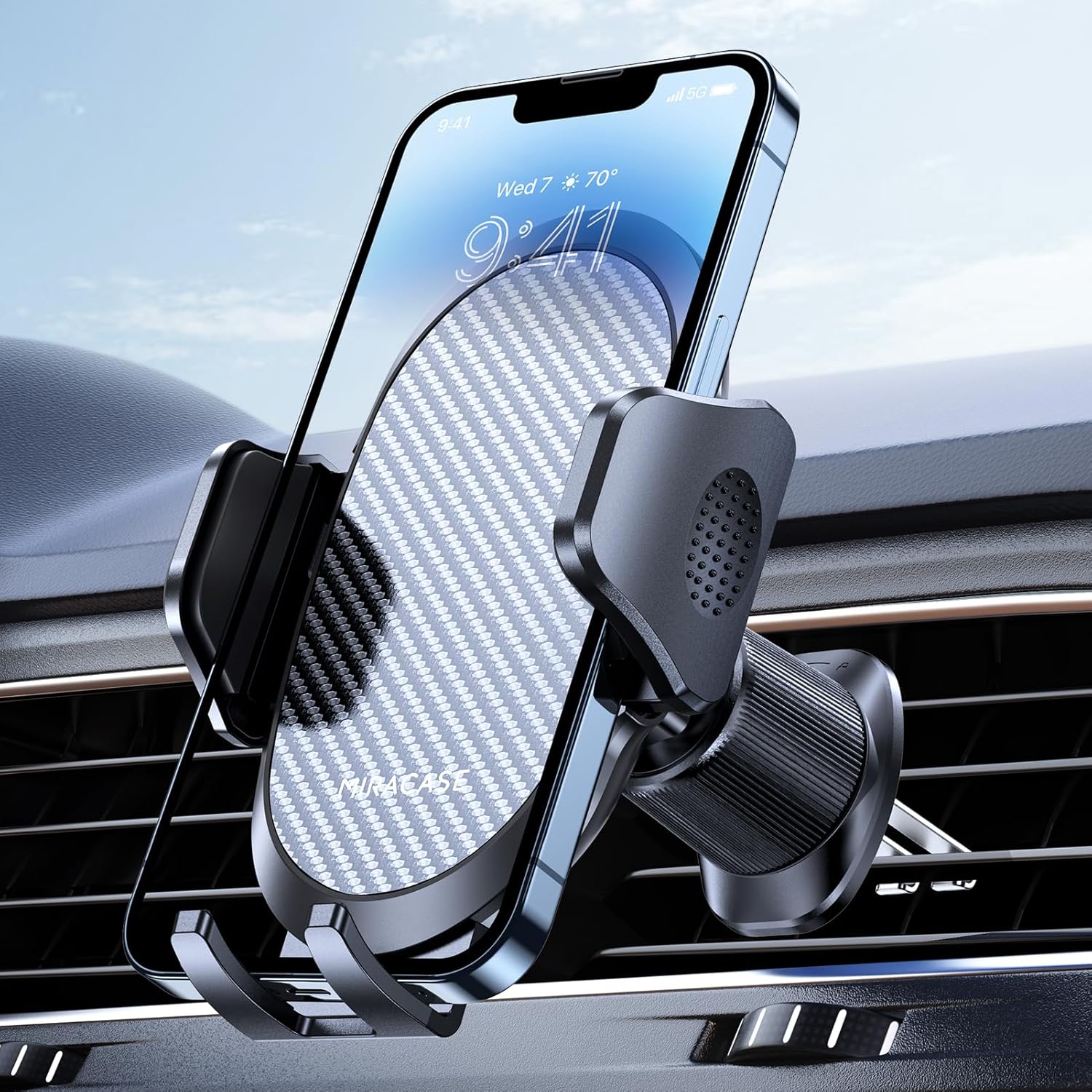
Connecting your iPhone to your Toyota Highlander’s map system is straightforward and unlocks powerful navigation features. You can typically do this via a USB cable for Apple CarPlay or, on newer models, through a wireless connection. This integration lets you use Apple Maps, Google Maps, and other apps directly on your Highlander’s touchscreen, providing real-time traffic and hands-free control for a safer, more informed drive.
Key Takeaways
- Check Your Model Year: Compatibility and connection methods (USB vs. wireless) depend heavily on your Highlander’s model year and its equipped infotainment system.
- USB is the Universal Method: For most Highlanders, a simple USB cable connection is the primary way to activate Apple CarPlay and mirror your iPhone’s navigation apps.
- Wireless CarPlay Requires Specifics: Wireless Apple CarPlay is only available on Highlander models with the premium audio system and a built-in Wi-Fi hotspot, typically from 2021 onward.
- Enable Bluetooth First: While CarPlay uses USB/Wi-Fi, a separate Bluetooth pairing is needed for phone calls and audio streaming outside of CarPlay mode.
- Troubleshooting is Often Simple: Many connection issues are resolved by restarting the infotainment system, using a certified Apple cable, or updating your iPhone’s iOS and the vehicle’s software.
📑 Table of Contents
- Why Connect Your iPhone to Your Highlander’s Map System?
- Prerequisites: What You Need Before You Start
- Method 1: The Standard Wired Connection (Apple CarPlay)
- Method 2: Going Cordless with Wireless CarPlay
- Method 3: Understanding Apple CarPlay vs. Mirroring
- Troubleshooting Common Connection Problems
- Advanced Tips for a Seamless Experience
- Conclusion: Your Highlander, Supercharged with Your iPhone
Why Connect Your iPhone to Your Highlander’s Map System?
Let’s be honest: the built-in navigation system in your Toyota Highlander, while capable, can sometimes feel like it’s from a past era. Map updates are infrequent, points of interest (POI) databases get stale, and the user interface might not be as intuitive as the apps you use every day on your iPhone. Connecting your iPhone changes all that. It essentially transplants the powerful, constantly updated world of your smartphone’s mapping apps—like Apple Maps, Google Maps, or Waze—right onto your vehicle’s large, easy-to-see touchscreen. This means you get real-time traffic, accurate rerouting, user-submitted speed traps and alerts (in Waze), and the familiar layout you already know. It’s about bringing the freshness and accuracy of your personal device into your car’s cockpit for a dramatically better navigation experience.
Beyond just maps, this connection, primarily through Apple CarPlay (or Android Auto for Android users), transforms your Highlander’s infotainment system. You can send messages, listen to podcasts and music from your favorite apps, and get turn-by-turn directions, all while keeping your eyes on the road and hands on the wheel thanks to Siri voice control. For a family SUV like the Highlander, which is often used for road trips and daily school runs, having reliable, up-to-date navigation isn’t just a luxury—it’s a major safety and convenience feature. This guide will walk you through every single step, from the initial setup to solving those frustrating hiccups, no matter your Highlander’s model year.
Prerequisites: What You Need Before You Start
Before we dive into cables and settings, let’s get our ducks in a row. Having the right equipment and settings prepared will save you a lot of guesswork and head-scratching.
Visual guide about How Do I Connect My Iphone to My Toyota Highlander Map
Image source: cdn-illustrations.revolutionparts.io
Your Toyota Highlander’s Compatibility
This is the most critical step. Not all Highlanders can connect to an iPhone in the same way. The key factor is your vehicle’s infotainment system. Apple CarPlay became standard on all Toyota models, including the Highlander, starting with the 2020 model year. However, the way it’s implemented varies:
- 2014-2019 Models: These earlier Highlanders may have a basic USB port that allows for music playback and charging, but they do not support Apple CarPlay. You cannot project your iPhone’s screen or apps onto the factory stereo in these models without an expensive aftermarket head unit replacement.
- 2020-2022 Models: These are the first standard-bearers for CarPlay. They almost universally support Apple CarPlay via a wired USB connection (usually a USB-A port in the center console). Wireless CarPlay is typically not available on base trims.
- 2023 and Newer Models: The latest Highlanders, especially the XLE, Limited, and Platinum trims, often come with the Toyota Audio Multimedia system. This system frequently includes both wired and wireless Apple CarPlay and Android Auto, thanks to an integrated Wi-Fi module. The port may be a USB-C instead of the older USB-A.
To be absolutely sure, your best bet is to check your owner’s manual under the “Connectivity” or “Smartphone Integration” section. You can also look for the Apple CarPlay or Android Auto logo on your infotainment screen’s startup menu.
Your iPhone’s Requirements
Your iPhone also has to meet a few basic criteria:
- iPhone Model: You need an iPhone 5 or newer. However, for the best experience and to ensure compatibility with the latest iOS features, an iPhone 8 or newer is highly recommended.
- iOS Version: CarPlay requires a relatively recent version of iOS. As a general rule, your iPhone should be running an iOS version that is no more than 2-3 generations behind the current public release. Go to Settings > General > Software Update to check and install any available updates. An outdated iOS is a common cause of connection failures.
- Cable Quality: If using a wired connection, this is non-negotiable. Use a genuine Apple USB cable or an MFi (Made for iPhone) certified cable from a reputable brand like Anker or Belkin. Cheap, off-brand cables often lack the necessary data wires and will only charge your phone, not establish a data connection for CarPlay.
Other Setup Essentials
Make sure your Highlander is in park (or at least the parking brake is engaged for some models) and the infotainment system is powered on. Have your Apple ID and password handy, as you may be prompted to sign in on the car screen for certain services like Messages or Maps. Finally, ensure your iPhone’s Bluetooth and Wi-Fi are turned on in Settings, even for a wired connection, as CarPlay uses these radios for certain functions.
Method 1: The Standard Wired Connection (Apple CarPlay)
For the vast majority of Highlander owners, this is your go-to method. It’s reliable, simple, and works on every model year that supports CarPlay. The process is designed to be plug-and-play.
Visual guide about How Do I Connect My Iphone to My Toyota Highlander Map
Image source: cdn-illustrations.revolutionparts.io
Step-by-Step Wired Connection Guide
- Locate the Correct USB Port: This is crucial. Your Highlander likely has multiple USB ports. The one for Apple CarPlay is almost always located in the center console, often labeled with a smartphone or Apple CarPlay icon. It may be a USB-A (the classic rectangular shape) or a newer USB-C port. The ports in the rear seat entertainment system or the ones labeled for charging only will not work for CarPlay.
- Connect Your iPhone: Using your certified cable, plug your iPhone directly into the identified vehicle USB port. You should see a small lightning bolt or battery icon on your iPhone’s status bar, indicating it’s charging.
- Unlock Your iPhone: For security, your iPhone’s screen must be unlocked. If it’s locked with a passcode or Face ID, unlock it when prompted.
- Follow the On-Screen Prompts: The first time you connect, your Highlander’s screen will display a welcome message for Apple CarPlay. You may be asked to grant permission for Siri, Messages, and other apps. Read and accept these prompts. You might also see a prompt on your iPhone asking to “Enable CarPlay” while the car is locked—tap “Allow.”
- Navigate to the CarPlay Interface: After setup, you can usually access CarPlay by pressing the “Home” or “CarPlay” physical button on your steering wheel or infotainment screen. The screen will switch to the familiar Apple CarPlay layout with large app icons for Maps, Phone, Messages, Music, etc.
Using Your Maps via CarPlay
Once connected, using your iPhone’s maps is seamless. Simply tap the green Maps icon on the car screen. You can:
- Search for destinations using the on-screen keyboard or by tapping the microphone icon for Siri voice commands (“Hey Siri, take me to the nearest gas station”).
- See your calendar appointments with locations pre-loaded.
- View your current ETA and traffic conditions on the route.
- Use other navigation apps like Google Maps or Waze if they are installed on your iPhone and enabled for CarPlay in your iPhone’s Settings > General > CarPlay > [Your Highlander].
Pro Tip: You can set your default navigation app for CarPlay in your iPhone settings. If you prefer Google Maps, make sure it’s toggled on in the CarPlay settings list.
Method 2: Going Cordless with Wireless CarPlay
If you have a newer Highlander (typically 2021+ with the premium audio package), you can ditch the cable. Wireless CarPlay uses a combination of your vehicle’s built-in Wi-Fi and Bluetooth to create a seamless connection the moment you start your car.
Visual guide about How Do I Connect My Iphone to My Toyota Highlander Map
Image source: cdn-illustrations.revolutionparts.io
Setting Up Wireless CarPlay for the First Time
The initial setup for wireless CarPlay must be done with a USB cable. Think of it as pairing the two devices. Here’s how:
- Perform the Wired Setup: Follow all the steps in Method 1 exactly. Connect your iPhone via USB, go through all the permission prompts, and confirm CarPlay is working with the cable.
- Enable Wireless Settings: Once the wired connection is active and confirmed, go to your Highlander’s infotainment settings. Navigate to Settings > Apple CarPlay (or a similar connectivity menu). You should see an option for “Connect Wireless CarPlay” or “Enable Wireless Connection.” Turn this feature on.
- Disconnect the Cable: You can now unplug the USB cable. Your iPhone and Highlander should remain connected via Wi-Fi. The next time you start your Highlander (with Bluetooth and Wi-Fi on for your iPhone), CarPlay should automatically connect within 10-15 seconds.
Troubleshooting Wireless Connection Drops
Wireless is convenient but can be less stable than a direct cable connection. If your wireless CarPlay keeps disconnecting:
- Forget and Re-pair: In your Highlander’s settings, select your iPhone from the CarPlay device list and choose “Forget This Device.” Then, reconnect using the USB cable and go through the setup again.
- Check Wi-Fi Congestion: If you live in an apartment complex or area with many Wi-Fi networks, the 5GHz band used by CarPlay can get crowded. Try turning off your home Wi-Fi on your iPhone when in the car to see if it helps, or ensure your vehicle’s system is set to use a less congested channel (this is usually automatic).
- Restart Everything: A classic fix. Restart your iPhone and power cycle your Highlander’s infotainment system (hold the power button until it reboots).
Method 3: Understanding Apple CarPlay vs. Mirroring
It’s important to understand what Apple CarPlay actually is. It is not a full screen mirroring of your iPhone. Instead, it’s a smart, automotive-optimized interface that projects a curated set of apps onto your car’s display. You cannot run any arbitrary iPhone app on your Highlander’s screen; only apps that have been specifically designed and approved for CarPlay will appear. This is a safety feature to minimize distraction.
The Apps You Can and Cannot Use
For navigation, this is perfect. Apple Maps is a native CarPlay app. Google Maps and Waze also have excellent CarPlay versions. These apps will give you a full-screen, touch-friendly navigation experience. However, you cannot, for example, open the Yelp app, browse a restaurant’s website in Safari, or play a YouTube video on the car screen while driving. Audio apps like Spotify, Apple Music, and Podcasts are supported, allowing you to browse your libraries and playlists.
If your goal is specifically to use Google Maps on your Highlander’s screen, the process is identical to using Apple Maps. Simply install the Google Maps app on your iPhone, ensure it’s enabled for CarPlay in your settings, and its icon will appear on your CarPlay home screen. For a deep dive into specifically connecting Google Maps to your Toyota’s navigation system, which involves slightly different steps than the general CarPlay setup, you can refer to this detailed guide on how to connect Google Maps to Toyota Navigation.
Troubleshooting Common Connection Problems
Even with perfect setup, things can go wrong. Don’t panic. Here’s a systematic approach to fixing the most common issues.
“CarPlay Not Available” or No Icon Appears
If you plug in your iPhone and nothing happens:
- Confirm the USB Port: Double-check you are using the correct port in the center console, not a charging-only port.
- Inspect the Cable: Try a different, known-good MFi certified cable. Examine the cable for fraying or damage.
- Restart the Infotainment System: Hold the physical “Power” or “Audio” button on your stereo for 10 seconds until it reboots. Alternatively, disconnect the negative battery cable for a minute (a more advanced step).
- Reset CarPlay Settings: On your iPhone, go to Settings > General > CarPlay > [Your Highlander’s Name] > Forget This Car. Then, reconnect via USB and start fresh.
CarPlay Connects but Navigation Cuts Out
If directions start stuttering or the app crashes:
- iPhone Overheating: Using GPS navigation plus screen mirroring is demanding. If your iPhone is very hot, it may throttle performance. Ensure your phone has adequate ventilation, maybe direct a vent toward it.
- Poor Cellular Signal: While maps cache data, real-time traffic and rerouting require a stable data connection. A weak signal can cause hiccups. Consider a signal booster if this is a consistent issue in your area.
- App Update Needed: Ensure your navigation app (Apple Maps, Google Maps, Waze) is updated to the latest version from the App Store.
No Sound from Navigation Prompts
If you hear music but not the turn-by-turn voice:
- Check the volume level specifically for navigation prompts. In Apple Maps, tap the speaker icon during navigation. In other apps, check their individual audio settings.
- Ensure your Highlander’s media source is set to “CarPlay” and not “USB” or “Bluetooth Audio” separately.
- Go to your Highlander’s audio settings and verify that the “Navigation Voice” or “Prompt Volume” is turned up and not muted.
Advanced Tips for a Seamless Experience
Once you have the basics down, you can optimize your setup for maximum convenience and safety.
Use Siri Eyes-Free for True Hands-Free Control
The true power of CarPlay is in your voice. Instead of looking at the screen, simply hold the voice control button on your steering wheel (or say “Hey Siri” if you have that enabled) and give natural commands. “Hey Siri, give me directions to 123 Main Street.” “Hey Siri, find the closest coffee shop.” “Hey Siri, call Mom.” The system is remarkably good at understanding natural speech, even with background road noise. Practice these commands to build muscle memory.
Customize Your CarPlay Home Screen
You can rearrange the apps on your CarPlay screen to suit your preferences. While connected, go to Settings > General > CarPlay > [Your Highlander] on your iPhone. Here, you can drag and drop app icons to reorder them or hide apps you never use. Put Maps and your favorite audio app front and center.
Leverage “Do Not Disturb While Driving”
To minimize distractions, enable “Do Not Disturb While Driving” on your iPhone. This can be set to activate automatically when your iPhone connects to your Highlander’s Bluetooth. It will silence non-urgent notifications and send auto-replies to contacts. You can allow important calls and messages from specific people to come through.
Maintaining Your System
For long-term reliability, periodically check for updates. Toyota occasionally releases software updates for the infotainment system that can improve CarPlay stability and add features. These updates are often done via a USB drive at the dealer or sometimes over-the-air (OTA) on newer models. Also, keep your iPhone’s iOS updated. A comprehensive guide on maintaining your vehicle’s tech, including how to seamlessly connect your iPhone to your Toyota Highlander with all the latest tips, can be a valuable resource as models evolve.
Conclusion: Your Highlander, Supercharged with Your iPhone
Connecting your iPhone to your Toyota Highlander’s map system isn’t just a tech trick; it’s about upgrading your entire driving experience. You’re trading static, outdated maps for dynamic, living navigation that knows about traffic jams, road closures, and the best new coffee shop. You’re gaining the safety of voice control and the convenience of your own music and message ecosystem, all integrated beautifully into your dashboard. For most owners, the process is as simple as plugging in a USB cable and following a few on-screen prompts. For those with the latest models, cutting the cord entirely is a reality. Remember to start with the basics: a good cable, a compatible model year, and updated software. If you hit a snag, the systematic troubleshooting steps outlined above will resolve 90% of common problems. Now, buckle up, plug in, and enjoy the journey with the most powerful navigation tool in your pocket now guiding your family safely in your Highlander.
Frequently Asked Questions
Why won’t my iPhone connect to my Highlander’s CarPlay?
First, ensure you’re using the correct USB port (usually in the center console) and an MFi-certified cable. Restart your Highlander’s infotainment system and your iPhone. If that fails, go to your iPhone’s Settings > General > CarPlay, forget your Highlander, and reconnect to start the pairing process fresh.
Can I use Google Maps or Waze on my Highlander’s screen?
Yes! If your Highlander supports Apple CarPlay, you can use Google Maps and Waze. Simply install the app on your iPhone, make sure it’s enabled in your iPhone’s CarPlay settings (Settings > General > CarPlay), and its icon will appear on your car’s CarPlay home screen alongside Apple Maps.
My 2018 Highlander doesn’t seem to have CarPlay. What are my options?
Unfortunately, factory Apple CarPlay was not available on the 2018 Highlander. Your only options are to use your iPhone’s audio via Bluetooth for turn-by-turn voice directions (you’ll have to look at your phone’s screen) or install an aftermarket Android Auto/Apple CarPlay head unit from a brand like Pioneer or Kenwood, which replaces your factory stereo.
Is wireless CarPlay worth it, and does my Highlander have it?
Wireless CarPlay is extremely convenient—no cable to plug in each time. It’s available on most Highlander trims from the 2021 model year onward, but usually only on models equipped with the premium audio package. Check your owner’s manual or look for a Wi-Fi symbol on your infotainment screen’s startup menu to confirm.
Can I charge my phone while using CarPlay?
Absolutely. When using a wired connection, your iPhone is charging through the same USB cable. For wireless CarPlay, you will need to use a separate USB port or a wireless charging pad (if your Highlander trim is equipped with one in the console) to keep your phone powered up during long trips.
Why does my CarPlay disconnect when I get a phone call?
This is usually a Bluetooth priority issue. CarPlay uses both USB/Wi-Fi and Bluetooth. Ensure your phone’s Bluetooth is on. Sometimes, the system may momentarily switch audio focus to the Bluetooth phone call. This is normal behavior. The navigation prompt should resume automatically after the call ends. If it doesn’t, you may need to manually re-select the CarPlay source from your audio menu.