How Do I Connect Google Maps to Toyota Navigation?

Contents
- 1 Key Takeaways
- 2 📑 Table of Contents
- 3 Why Connect Google Maps to Your Toyota Navigation?
- 4 Understanding Your Toyota’s Infotainment System
- 5 Method 1: Using Apple CarPlay (for iPhone Users)
- 6 Method 2: Using Android Auto (for Android Users)
- 7 Method 3: Wireless Connection (CarPlay & Android Auto)
- 8 Alternative Methods for Older Toyota Models
- 9 Troubleshooting Common Connection Issues
- 10 Data Usage and Privacy Considerations
- 11 Final Thoughts: Drive Smarter, Not Harder
- 12 Frequently Asked Questions


Connecting Google Maps to your Toyota Navigation system lets you enjoy real-time traffic, voice directions, and up-to-date routes. This guide walks you through every method—from Apple CarPlay and Android Auto to Bluetooth and USB—so you can drive smarter, not harder.
Key Takeaways
- Use Apple CarPlay or Android Auto: The easiest way to mirror Google Maps on your Toyota’s screen is through smartphone integration features available in most newer models.
- Check your Toyota model year: Vehicles from 2018 onward typically support smartphone projection; older models may require aftermarket upgrades or alternative methods.
- Ensure your phone and infotainment system are updated: Outdated software can prevent successful connection—always install the latest updates for both devices.
- Bluetooth alone won’t display maps: While Bluetooth handles calls and audio, it doesn’t support map projection—you’ll need wired or wireless projection instead.
- USB cable quality matters: A damaged or low-quality cable can cause connection drops—use an OEM or certified third-party cable for reliability.
- Google Maps must be installed and set as default: Make sure the app is installed on your phone and selected as your preferred navigation app in CarPlay or Android Auto settings.
- Consider data usage: Google Maps uses mobile data for live traffic and rerouting—connect to Wi-Fi when possible or monitor your plan to avoid overages.
📑 Table of Contents
- Why Connect Google Maps to Your Toyota Navigation?
- Understanding Your Toyota’s Infotainment System
- Method 1: Using Apple CarPlay (for iPhone Users)
- Method 2: Using Android Auto (for Android Users)
- Method 3: Wireless Connection (CarPlay & Android Auto)
- Alternative Methods for Older Toyota Models
- Troubleshooting Common Connection Issues
- Data Usage and Privacy Considerations
- Final Thoughts: Drive Smarter, Not Harder
You’re cruising down the highway, GPS voice calmly guiding you—“In 500 feet, turn right.” But then you hit unexpected construction, and your Toyota’s built-in navigation hasn’t updated in months. Suddenly, you’re rerouted onto a backroad with no signal. Sound familiar?
That’s where Google Maps comes in. Unlike many factory-installed systems, Google Maps offers real-time traffic updates, accident alerts, speed camera warnings, and constantly refreshed points of interest. It learns your routines, suggests faster routes, and even integrates with your calendar to predict departure times. By connecting Google Maps to your Toyota Navigation, you’re not just upgrading your GPS—you’re upgrading your entire driving experience.
But here’s the good news: you don’t need a brand-new car to enjoy these benefits. Whether you drive a 2018 Camry or a 2023 RAV4 Hybrid, there’s likely a straightforward way to get Google Maps on your dashboard screen. And no, it doesn’t involve complicated wiring or expensive subscriptions. With the right setup—and this guide—you’ll be navigating like a pro in under ten minutes.
Understanding Your Toyota’s Infotainment System
Visual guide about How Do I Connect Google Maps to Toyota Navigation?
Image source: fastdarfur.org
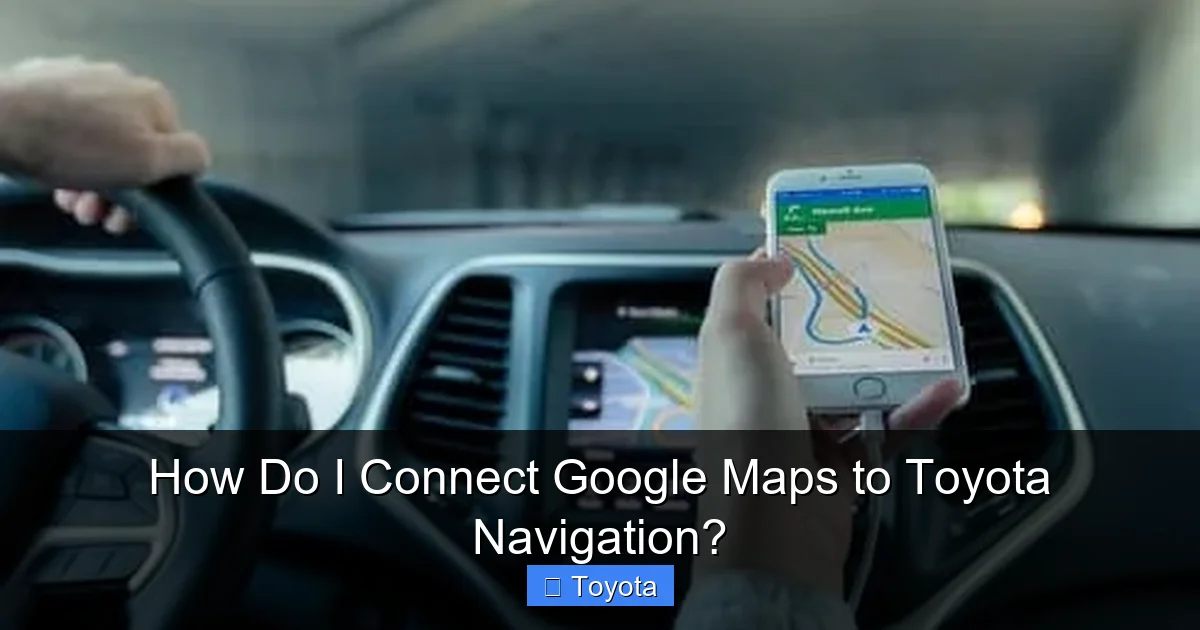
Before we dive into connection steps, let’s talk about what’s under the hood—or rather, under the dashboard. Toyota’s infotainment systems have evolved significantly over the past decade. Older models (pre-2016) often came with basic touchscreens that only supported AM/FM radio, CD playback, and maybe Bluetooth calling. These systems rarely support smartphone projection, meaning your options for using Google Maps are limited to holding your phone or using a mount.
However, starting around 2018, Toyota began rolling out Entune 3.0 and later Toyota Audio Multimedia (TAM) systems. These newer platforms support Apple CarPlay and Android Auto—the two primary gateways for mirroring Google Maps onto your vehicle’s display. If your Toyota has a 7-inch or larger touchscreen, steering wheel controls for phone/media, and USB ports labeled “Smartphone” or “Data,” chances are you’re in luck.
To confirm compatibility:
– Check your owner’s manual under “Infotainment” or “Connectivity.”
– Look for icons like the Apple CarPlay logo (a phone with a curved arrow) or Android Auto symbol (a green robot head) on your home screen.
– Visit Toyota’s official website and enter your VIN to see your vehicle’s tech specs.
If your car doesn’t support CarPlay or Android Auto, don’t panic. We’ll cover workarounds later—but for now, assume you’re working with a compatible system if your model is 2018 or newer.
Method 1: Using Apple CarPlay (for iPhone Users)
Visual guide about How Do I Connect Google Maps to Toyota Navigation?
Image source: syukcars.co.uk
If you’re an iPhone user, Apple CarPlay is your best friend. It’s clean, responsive, and deeply integrated with iOS—including seamless Google Maps support. Here’s how to set it up:
Step 1: Update Your iPhone and Toyota System
First, ensure your iPhone is running iOS 13 or later (iOS 16+ recommended). Go to Settings > General > Software Update. Next, check if your Toyota’s infotainment system has the latest firmware. You can usually do this by going to Settings > System > Software Update on your car’s screen, or by visiting a Toyota dealer for a free update.
Step 2: Enable CarPlay on Your iPhone
Open Settings > General > CarPlay. If you’ve never used it, tap “Add Car” and follow the prompts. Make sure “Automatic” is enabled so CarPlay launches whenever you plug in.
Step 3: Connect via USB
Use a high-quality Lightning-to-USB cable (Apple-certified is ideal) and plug your iPhone into the USB port labeled “Smartphone” or “Data” (not the one marked “Charge Only”). Within seconds, your Toyota screen should switch to CarPlay mode.
Step 4: Launch Google Maps
On the CarPlay home screen, tap the Google Maps icon. If you don’t see it, go to your iPhone’s Settings > General > CarPlay > [Your Car] > Customize, and add Google Maps to your favorites.
Once open, Google Maps will display full-screen with turn-by-turn voice guidance through your car’s speakers. You can search destinations using Siri (“Hey Siri, navigate to the nearest gas station”) or by typing on the car’s touchscreen.
Pro Tip: Enable “Do Not Disturb While Driving” on your iPhone to minimize distractions. Google Maps will still announce turns, but texts and calls won’t interrupt your navigation.
Method 2: Using Android Auto (for Android Users)
Visual guide about How Do I Connect Google Maps to Toyota Navigation?
Image source: itsourdecision.org
Android users aren’t left out! Android Auto offers nearly identical functionality to CarPlay and works flawlessly with Google Maps—since, well, they’re both Google products.
Step 1: Install Android Auto and Update Apps
Download the Android Auto app from the Google Play Store if it’s not preinstalled. Also, make sure Google Maps and Google Play Services are updated to the latest versions.
Step 2: Enable Developer Options (Optional but Helpful)
If you’ve never used Android Auto, go to Settings > About Phone > Build Number and tap it seven times to enable Developer Options. This isn’t required, but it gives you more control over debugging if connection issues arise.
Step 3: Connect Your Phone
Plug your Android device into the correct USB port using a USB-C or micro-USB cable (depending on your phone). Use a cable that supports data transfer—not just charging. Cheap cables often fail here.
When prompted on your phone, allow USB debugging and select “File Transfer” or “MTP” mode. Your Toyota screen should switch to Android Auto within 10–15 seconds.
Step 4: Set Google Maps as Default Navigation
On your Android phone, open Settings > Apps > Default Apps > Maps App, and select Google Maps. This ensures Android Auto uses Google Maps instead of any other preinstalled navigation app.
Now, tap the Google Maps icon on the Android Auto home screen. You’ll get live traffic, voice commands via Google Assistant (“OK Google, take me home”), and even integration with Waze if you prefer that interface.
Bonus Feature: Android Auto supports split-screen mode on some Toyota models, letting you view Google Maps alongside music or messaging apps—perfect for multitaskers.
Method 3: Wireless Connection (CarPlay & Android Auto)
Tired of fumbling with cables? Many newer Toyotas (2020 and later) support wireless Apple CarPlay and Android Auto. This means you can connect without plugging in—every time you enter the car.
How to Enable Wireless Mode
For iPhone (CarPlay):
1. Connect your iPhone via USB first to establish the initial link.
2. On your Toyota screen, go to Settings > Apple CarPlay > [Your Phone] > Enable “Wireless.”
3. Disconnect the cable. The next time you start the car with your iPhone nearby (Bluetooth + Wi-Fi on), CarPlay will launch automatically.
For Android (Android Auto):
1. Connect via USB initially.
2. Open the Android Auto app on your phone, tap the three-line menu, then Settings > Wireless Android Auto.
3. Follow the on-screen prompts to pair your phone with the car over Wi-Fi Direct.
4. Once paired, future connections happen automatically when you enter the vehicle.
Important Notes:
– Wireless mode uses more battery. Keep your phone charged or use a wireless charger mount.
– Not all Toyota trims support wireless projection—check your owner’s manual or Toyota’s configurator.
– Initial setup requires a one-time wired connection.
Alternative Methods for Older Toyota Models
If your Toyota predates 2018 or lacks CarPlay/Android Auto, you’re not out of options—just slightly more creative ones.
Option A: Use a Phone Mount and Bluetooth Audio
Mount your phone on the dashboard or windshield (check local laws—some states restrict windshield mounts). Open Google Maps on your phone, start navigation, and pair your phone to the car via Bluetooth. While the map won’t appear on the car screen, turn-by-turn voice directions will play through the speakers.
Tip: Use Google Assistant hands-free: “Hey Google, navigate to [address].” Keep your screen locked to save battery.
Option B: Aftermarket Head Unit Upgrade
Replace your factory stereo with an aftermarket unit that supports Apple CarPlay and Android Auto (e.g., Pioneer, Kenwood, or Sony models). Many are plug-and-play with Toyota harnesses and retain steering wheel controls. Expect to spend $200–$500 plus installation.
Option C: Portable GPS Devices with Google Maps
Devices like the Garmin DriveSmart series or TomTom Go can sync with Google Maps via smartphone apps. While not integrated into your Toyota’s screen, they offer large displays and real-time data.
Troubleshooting Common Connection Issues
Even with perfect setup, hiccups happen. Here’s how to fix the most common problems:
“My phone won’t connect to CarPlay/Android Auto”
– Restart both your phone and the car’s infotainment system.
– Try a different USB cable—many fail after repeated use.
– Reset network settings on your phone (Settings > General > Reset > Reset Network Settings on iPhone; Settings > System > Reset > Reset Wi-Fi, mobile & Bluetooth on Android).
“Google Maps crashes or freezes on the car screen”
– Force-close and reopen Google Maps on your phone.
– Clear the app cache (Android: Settings > Apps > Google Maps > Storage > Clear Cache).
– Ensure your phone has sufficient storage—low space causes app instability.
“Voice directions aren’t playing through the car speakers”
– Check audio output settings in Google Maps (tap profile icon > Settings > Navigation Settings > Voice Selection).
– Make sure your car isn’t muted and volume is up.
– On Android, verify that “Play voice over Bluetooth” is enabled in Android Auto settings.
“Wireless connection keeps dropping”
– Move your phone closer to the center console (Wi-Fi Direct range is short).
– Disable battery optimization for Android Auto/CarPlay apps.
– Update your car’s firmware—Toyota frequently releases connectivity patches.
Data Usage and Privacy Considerations
Google Maps is a data-hungry app. A single hour of navigation can use 50–100 MB, especially with live traffic and satellite view enabled. If you’re on a limited mobile plan, consider:
– Connecting to Wi-Fi at home to preload maps (Google Maps allows offline area downloads).
– Disabling “Traffic Layer” when not needed.
– Using your car’s built-in Wi-Fi hotspot (if equipped) instead of your phone’s data.
Privacy-wise, Google Maps collects location history by default. To manage this:
– Go to Google Maps > Profile > Settings > Personal Content > Delete last activity.
– Turn off “Web & App Activity” in your Google Account settings.
– Use Incognito Mode in Google Maps for one-time trips (tap profile > Turn on Incognito mode).
Remember: your Toyota doesn’t store Google Maps data—it only mirrors what’s on your phone. Once you disconnect, no trace remains on the car’s system.
Final Thoughts: Drive Smarter, Not Harder
Connecting Google Maps to your Toyota Navigation isn’t just about convenience—it’s about safety, efficiency, and peace of mind. Real-time rerouting saves fuel and reduces stress. Voice-guided turns keep your eyes on the road. And knowing you’re always using the most accurate map data? That’s priceless.
Whether you’re commuting daily, road-tripping across states, or just trying to avoid that pesky toll road, Google Maps transforms your Toyota from a simple vehicle into a smart mobility companion. And the best part? It’s free, easy, and works with almost any modern Toyota.
So grab your phone, find that USB cable, and take the first step toward smarter driving today. Your future self—and your passengers—will thank you.
Frequently Asked Questions
Can I use Google Maps on a 2015 Toyota Camry?
Unfortunately, the 2015 Camry doesn’t support Apple CarPlay or Android Auto. However, you can still use Google Maps on your phone with a dashboard mount and Bluetooth audio for voice directions.
Does connecting Google Maps drain my phone battery faster?
Yes, especially when using GPS and screen mirroring. To conserve battery, lower your screen brightness, close unused apps, and consider using a car charger or wireless pad.
Will Google Maps work if I don’t have cell service?
Only if you’ve downloaded offline maps beforehand. Open Google Maps, search your destination area, tap the menu, and select “Download offline map.” This lets you navigate without data.
Can I use Waze instead of Google Maps with Toyota Navigation?
Absolutely! Both Apple CarPlay and Android Auto support Waze. Just install Waze on your phone and add it to your projection settings—it offers similar real-time features with a more community-driven approach.
Why does my Toyota screen go blank when I plug in my phone?
This usually means the USB port is set to “Charge Only” or the cable doesn’t support data transfer. Try a different port (look for one labeled “Data”) and use a certified cable.
Is it legal to use Google Maps on my car’s screen while driving?
Yes, as long as the interface is simplified (like CarPlay or Android Auto) and you’re not manually typing addresses while moving. Voice commands and pre-set destinations are fully compliant with distracted driving laws in most regions.