
How Do I Delete the Primary Driver from the Toyota App?

Deleting the primary driver from the Toyota app is a key step when selling your vehicle, transferring ownership, or securing your personal data. The process requires access to the vehicle itself or the original account credentials and is typically done through the app’s settings or with dealer assistance. Understanding the prerequisites and correct procedure ensures a smooth transition of vehicle connectivity for the new owner.
Key Takeaways
- The “Primary Driver” is the main account holder with full control over the vehicle’s connected services in the Toyota app. This role must be transferred or removed before a new owner can fully register the car.
- You must have the original primary driver’s login credentials and physical access to the vehicle to complete the deletion process. The system is designed this way for security and to prevent unauthorized removal.
- The deletion is performed within the Toyota app under Account/Vehicle Settings, but may require a dealer’s help if the car is no longer in your possession.
- Removing the primary driver does not delete the vehicle from Toyota’s backend system; it severs the link between that specific user account and the car’s VIN.
- Always confirm the deletion was successful by having the new owner attempt to register the vehicle with their own account. This avoids future connectivity issues.
- Before initiating, ensure all personal data (navigation history, saved locations, contacts) is manually removed from the app’s cloud storage.
- If you encounter errors like “Vehicle Not Found” or greyed-out options, updating the Toyota app and ensuring a strong cellular/Bluetooth connection are first troubleshooting steps.
📑 Table of Contents
- Understanding the Primary Driver in the Toyota Ecosystem
- The Prerequisites: What You Need Before You Start
- Step-by-Step: Deleting the Primary Driver via the Toyota App
- What If the Deletion Fails or You Can’t Access the Car?
- Special Scenarios: Leased Vehicles, Total Losses, and Family Transfers
- Best Practices for a Smooth Transition and Future-Proofing
- Conclusion: Taking Control of Your Connected Car Journey
Understanding the Primary Driver in the Toyota Ecosystem
So, you’re looking at your Toyota app and wondering, “How do I delete the primary driver?” It’s a common question that pops up during major life events involving your car—like selling it, trading it in, or even just wanting to hand the keys (and the digital keys) over to a family member. To get this right, we first need to understand what a “Primary Driver” really means in Toyota’s connected car world.
Think of your Toyota vehicle’s connected services (like Safety Connect, Service Connect, Remote Connect, and the in-car multimedia system) as a private clubhouse. The Primary Driver is the club president. This is the person whose Toyota account is officially and permanently linked to the car’s Vehicle Identification Number (VIN). This person has the master keys: they can add or remove other secondary drivers, manage connected services subscriptions, view vehicle health data, and control remote functions like locking, starting, and locating the car. They are the administrative anchor for that specific vehicle in Toyota’s cloud database.
Why This Role Matters
The primary driver designation isn’t just a label; it’s a functional requirement for the system’s security and usability. Toyota’s system is built on the principle that a vehicle must have one, and only one, primary driver at any given time. This prevents chaos and ensures there’s a clear point of contact for safety services, warranty notifications, and software updates. When you, as the primary driver, decide to step down from that role—because you no longer own the car—you must formally “delete” or “release” that primary driver association. Until you do, the car’s digital soul remains tied to your personal Toyota account, leaving the new owner locked out of the full suite of connected features. They might be able to create their own account, but they’ll hit a wall when trying to register the vehicle because the system still sees it as “yours.” This is why the deletion process is non-negotiable for a clean handoff.
The Prerequisites: What You Need Before You Start
Before you dive into the Toyota app menus, take a breath and gather your digital and physical tools. Rushing into this without the right setup is the #1 cause of frustration and failed attempts. The system has built-in safeguards, and you need to satisfy them all.
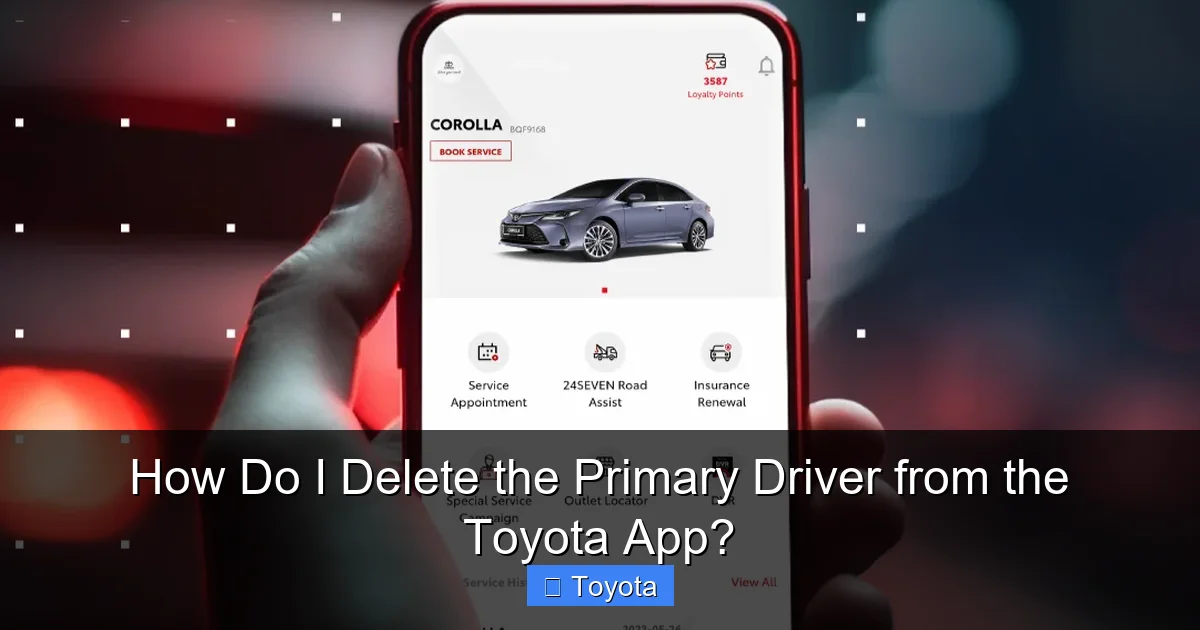
Visual guide about How Do I Delete the Primary Driver from the Toyota App?
Image source: bigwheels.my
First and foremost, you must be logged into the original primary driver account. This seems obvious, but it’s crucial. If you’re trying to delete the primary driver from a secondary account, or from an account that was never the primary, the option simply won’t exist. You are the administrator, and only you can perform this action. Have your Toyota account username and password ready. If you’ve forgotten your password, use the “Forgot Password” link on the Toyota login page (not within the app) to reset it before proceeding.
Second, you need physical access to the vehicle. This is a major security feature. The app will require you to be in or near the car to verify your intent. Specifically, you’ll need to have the vehicle’s ignition turned on (to the “ON” position, engine doesn’t need to be running) or have the doors unlocked and be within Bluetooth range. The car and the app need to communicate directly to confirm you have the physical keys. This prevents someone from remotely hijacking your account if your phone is lost or stolen. So, have your keys, fob, or smart key with you, and be prepared to sit in the driver’s seat for a few minutes.
Third, ensure your smartphone has a stable internet connection (Wi-Fi or cellular data) and that Bluetooth is turned on. The Toyota app uses a combination of cloud communication (internet) and local Bluetooth pairing to execute the driver profile change. A weak signal can cause the process to stall or fail midway. It’s a good idea to close other apps running in the background to free up resources.
Finally, check your Toyota app version. An outdated app can have bugs or missing menu options. Go to your phone’s app store (Google Play Store or Apple App Store), search for “Toyota,” and update to the latest version. While you’re there, you might also want to review other connected features. For instance, if you’re managing profiles, you might have previously used the app to check tire pressure on the Toyota app or set up navigation. Knowing your way around the app’s interface will help.
Step-by-Step: Deleting the Primary Driver via the Toyota App
Alright, you’re logged in as the primary driver, you’re sitting in the car with the ignition on, and your phone is updated and connected. Let’s walk through the in-app process. Note that menu names and layouts can vary slightly between Toyota models (like a Camry vs. a Tacoma) and app versions, but the general flow is consistent.
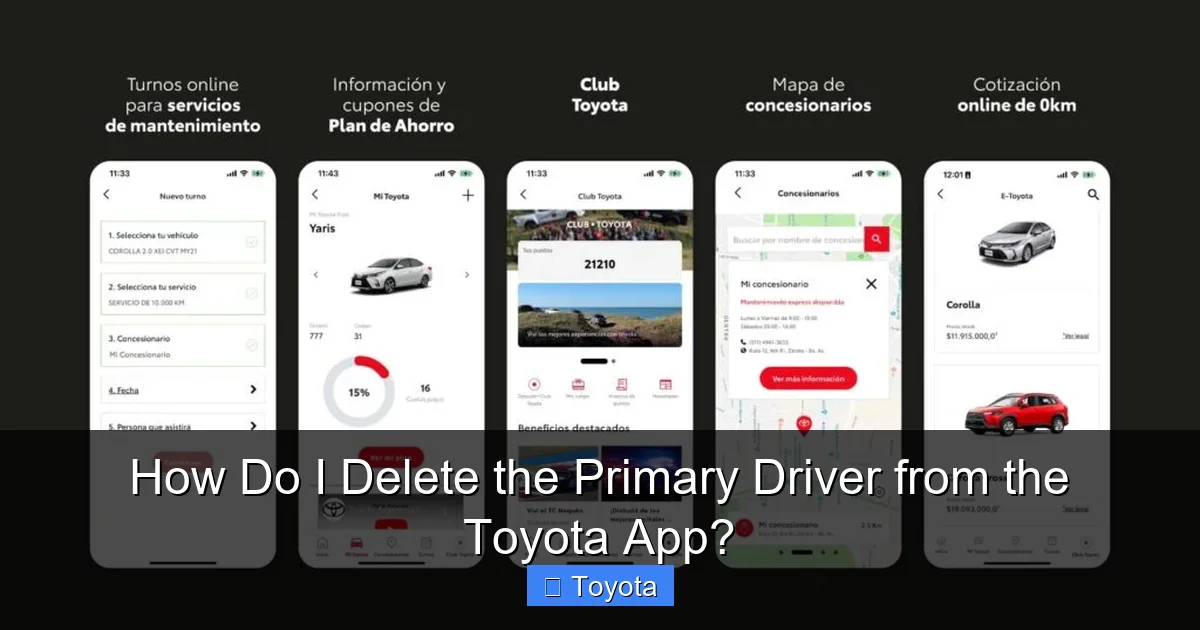
Visual guide about How Do I Delete the Primary Driver from the Toyota App?
Image source: cuyomotor.com.ar
Navigating to the Account & Vehicle Settings
Open the Toyota app. You’ll typically land on the “Home” screen, which shows your vehicle’s status (locked/unlocked, fuel level, range). Look for a menu icon, often represented by three horizontal lines (☰) or a profile icon in the bottom right or top left corner. Tap it to open the side drawer or settings menu. Here, you’ll find options like “Vehicles,” “Profile,” “Settings,” and “Messages.”
The primary driver management is nested under either “Vehicles” or “Profile.” Tap on “Vehicles.” You should see your car listed, usually with its nickname (e.g., “My Camry”) and VIN. Tap on that specific vehicle. This opens the vehicle-specific dashboard. Now, look for a button or link that says “Manage Drivers,” “Driver Profiles,” “Account Settings,” or a gear icon (⚙️) for settings. This is the gateway. In some app versions, you might need to go to “Profile” first, then select “Connected Vehicle Settings” or “Vehicle Manager.”
Initiating the Primary Driver Deletion
Once you’re in the driver/vehicle management section, you should see a list of all driver profiles associated with this VIN. The primary driver will be clearly marked, often with a badge or the word “Primary” next to the name/email. There should be an option to “Edit,” “Manage,” or an ellipsis (…) next to the primary driver entry. Tap that.
You will now see actions available for that profile. One of these should be “Remove Driver,” “Delete Profile,” or “Release Primary Driver.” This is the critical button. Before it executes, the app will almost certainly show a warning screen. Read it carefully. It will explain the consequences: you will lose all remote control functions, the vehicle will be unlinked from your account, and your connected services subscription (if any) tied to this VIN will be canceled or become inactive. It will state that this action cannot be easily undone without contacting dealer support. This is your last chance to back out. If you’re sure, tap “Confirm,” “Delete,” or “Remove.”
Completing the Verification Cycle
After confirming, the app will start a verification process. It will likely prompt you with a specific action to perform in the car to prove you have physical possession. This could be:
- Turning the ignition to the “ON” position (if not already done).
- Pressing the engine start/stop button twice without touching the brake pedal (to cycle the ignition).
- Opening and closing a door.
- Pressing any button on the key fob.
The app will give you on-screen instructions. Follow them precisely. You may see a countdown or a “Searching for vehicle…” message. This is the app and the car’s telematics module (the DCM – Data Communication Module) shaking hands over Bluetooth and cellular networks to authorize the change. Once the car responds, you’ll see a success message: “Primary driver successfully removed,” or “Vehicle unlinked from your account.”
At this point, the link is broken. Your account is no longer associated with that VIN. The vehicle is now in a ” virgin” state, ready to be claimed by a new primary driver. You should receive a confirmation email from Toyota. Keep this for your records, especially if you’re selling the car.
What If the Deletion Fails or You Can’t Access the Car?
Life is messy. You might try the steps above and hit a snag. Maybe the “Remove Driver” option is greyed out. Maybe the app says “Vehicle Not Found” even though you’re sitting in it. Or perhaps the car is already with the new owner, and you can’t get physical access. Here’s how to troubleshoot and the official fallback plan.
Visual guide about How Do I Delete the Primary Driver from the Toyota App?
Image source: toyota.ubigi.com
Common Error Messages and Quick Fixes
“Option Unavailable” or Greyed-Out Button: This usually means one of the prerequisites isn’t met. Double-check you are logged in as the primary driver (not a secondary). Verify the car’s ignition is ON (not just in accessory mode). Ensure Bluetooth is on and the phone is paired with the car’s system (you might see a Toyota logo in your phone’s Bluetooth paired devices list). Restart the Toyota app and, if needed, restart your phone.
“Cannot Connect to Vehicle” or “Signal Weak”: Move closer to the vehicle. If you’re in a parking garage or a remote area, cellular data might be spotty. The deletion requires a brief data transaction. Try moving to a location with better reception. Also, check that your car’s built-in cellular connection (for Safety Connect, etc.) is active. A severely deactivated or expired subscription might block this process. This is a good time to remind new owners that they can connect Google Maps to Toyota Navigation once they have their own account set up.
App Crashes or Freezes: This is often an app version issue. Uninstall the Toyota app completely and reinstall the latest version from the app store. Before reinstalling, ensure your phone’s operating system (iOS or Android) is also up to date.
The Dealer or Customer Service Path
If you’ve exhausted the in-app troubleshooting and still can’t delete the primary driver, or if you no longer have the vehicle in your possession (e.g., you sold it and the new owner is now trying and failing to register it), you must involve Toyota. This is a deliberate security measure to prevent fraud.
Your first call should be to the finance or business office of the Toyota dealership where the vehicle was originally purchased or leased. They have access to internal dealer systems (like the Toyota Dealer Management System) that can manually release the primary driver association from their end. They will likely ask for:
- The vehicle’s 17-digit VIN (found on the registration, windshield, or driver’s door jamb).
- Proof of sale or ownership transfer (a bill of sale, signed title, or lease termination document).
- Your government-issued ID to confirm your identity.
- The original primary driver’s Toyota account email address.
Explain the situation clearly: “I sold my 2022 RAV4 and need to release my Toyota account as primary driver so the buyer can register it.” The dealer can submit a request to Toyota Customer Experience to have the VIN “cleared” in the system. This process can take anywhere from a few hours to a couple of business days. There is typically no fee for this service, as it’s part of the ownership transfer process, but policies can vary by dealer. If the original dealer is unhelpful or unavailable, you can call general Toyota Customer Service at 1-800-331-4331, but be prepared for a longer process as they will still need to verify documents and may refer you to a local dealer for final processing.
Special Scenarios: Leased Vehicles, Total Losses, and Family Transfers
The basic process is the same, but specific situations add layers of complexity. Let’s address the most common special cases.
When the Car is Leased or Financed
If your vehicle is under a lease or an active finance contract with Toyota Financial Services (TFS) or another lender, you cannot delete yourself as the primary driver until the lease is terminated or the loan is paid off and the title is released. The lender is the legal owner, and the primary driver account is tied to the contractual obligation. Attempting to delete the primary driver while the lease/loan is active can cause confusion and may be against your contract terms. The correct procedure is: once you return the leased vehicle or pay off the loan and receive the title, then follow the standard deletion process. For a lease return, the leasing company will handle the vehicle’s re-registration in their system. You should still delete your account for privacy, but do it after the official turn-in is complete. If you’re trading in a financed car at a dealership, the dealer’s finance team will handle the payoff and title transfer; you can then request they also process the primary driver release as part of the transaction.
After an Insurance Total Loss
If your car has been declared a total loss by an insurance company and the title has been surrendered, the vehicle is essentially off the road and will likely be scrapped or sold at auction. In this case, you should still delete yourself as the primary driver. Even though the car is destroyed, its VIN exists in Toyota’s system. Deleting your account removes your personal data and service association. The process is the same as normal, but be prepared to explain the situation if you call customer service. Have the final settlement paperwork from the insurance company handy, as it serves as proof of ownership termination. This is also a crucial step for data privacy, ensuring your connected account history isn’t lingering on a salvaged VIN.
Transferring to a Family Member
Gifting a car to a spouse, child, or parent is a happy scenario but still requires the formal primary driver deletion. The steps are identical to a sale. The key difference is in documentation. While a bill of sale is still a good idea for paper trails, you may also need a signed gift affidavit or the properly endorsed title to present to the dealer if you need their assistance. Before the new owner (say, your son) sets up his Toyota account, you must complete the deletion from your account. Once done, he can then register the vehicle as the new primary driver using his own account and the VIN. It’s a clean, two-step handoff: 1) You release, 2) He claims. This avoids any conflict where two accounts claim primary status for the same VIN.
Best Practices for a Smooth Transition and Future-Proofing
Deleting the primary driver is a one-time administrative task, but handling it correctly sets the stage for a positive ownership experience for everyone involved. Here are some pro tips to make it seamless and avoid headaches down the road.
Do It Before the Handoff: Never wait until after you’ve handed over the keys and the car has left your driveway. Complete the entire deletion process—from app initiation to receiving the success confirmation—while you still have the vehicle. This gives you immediate feedback. If it fails, you’re there to troubleshoot with the car present. If you wait, you’ll be calling the dealer from your home while the new owner is stuck at the dealership or DMV, which creates a frustrating bottleneck.
Document Everything: Take screenshots of the successful deletion message in the app. Save the confirmation email from Toyota. If you had to visit a dealer, get a business card and a note on their letterhead stating they processed the primary driver release for VIN [XXX] on [Date]. This paper trail is your insurance policy if the new owner later claims the car is “still linked” to your account. It also helps if you need to dispute any lingering subscription charges.
Purge Your Personal Data First: Before you delete the primary driver, open the Toyota app and manually clear out any personal information. This includes:
- Saved destinations and home/work addresses in the navigation system.
- Contacts synced from your phone to the vehicle’s infotainment system.
- Call history and Bluetooth device pairings (though these are often stored locally in the car, it’s good to clear them).
- Any connected third-party accounts (like Spotify, Amazon Alexa) that are logged in.
You can find options for this in the app under “Vehicle Settings” > “Privacy” or “Data Management.” While the primary driver deletion severs the cloud link, manually wiping this data adds an extra layer of privacy. For more on managing contacts, you can refer to guides on how to remove a contact from the Toyota home screen, as the principles are similar.
Communicate with the New Owner: A simple conversation can prevent major stress. Tell them: “I have deleted my Toyota account as the primary driver. You now need to download the Toyota app, create your own account, and register the vehicle using the VIN. You may need to wait 24-48 hours for the system to fully update.” This manages their expectations and directs them to the correct next step. If you’re using a dealer for the transaction, ask them to brief the new owner on this process as well.
Cancel Subscriptions Proactively: If you have an active paid subscription like Safety Connect or Remote Connect, check with Toyota Customer Service whether the deletion automatically cancels it or if you need to cancel it separately to avoid future billing. Sometimes, subscriptions are tied to the account, not the VIN, so removing the VIN link might not stop the monthly charge. Be proactive here to save money.
Conclusion: Taking Control of Your Connected Car Journey
Figuring out how to delete the primary driver from the Toyota app might feel like navigating a digital maze, but it’s a critical piece of responsible car ownership, especially during a transfer of possession. The core principle is simple: the primary driver is the administrative master of the vehicle’s digital identity in Toyota’s cloud. To pass that master key to someone else, you must formally relinquish it through a secure process that verifies both your identity and your physical possession of the car.
We’ve walked through the prerequisites—your credentials, the car itself, and a good internet connection. We detailed the in-app steps, from finding the vehicle settings to confirming the deletion. We tackled what to do when things go wrong, highlighting the vital role of your dealer or Toyota Customer Service as the ultimate backstop. And we covered special situations for leases, total losses, and family gifts, emphasizing that the “release” step is universal but must align with your legal ownership status.
Ultimately, this isn’t just about clicking buttons in an app. It’s about data privacy, preventing service interruptions for the next driver, and closing a loop. By taking the time to do this correctly—and documenting it—you save immense hassle for yourself and the person getting your Toyota. You transition from being the connected account holder to simply being a former owner with a clean record. In our increasingly connected automotive world, managing these digital handoffs is becoming as important as signing over the pink slip. So, gather your keys, your password, and your patience, and follow the steps. You’ve got this. And once it’s done, you can fully focus on your next adventure, whether that’s in a new car or just enjoying the freedom of a disconnected, worry-free driveway.
Frequently Asked Questions
Can I delete the primary driver if I no longer have the vehicle in my possession?
No, you cannot complete the standard in-app deletion without physical access to the car for verification. If the vehicle is already with a new owner, you must contact the selling dealership or Toyota Customer Service with proof of sale/ownership transfer to have them manually release the primary driver association from their internal systems.
What happens to my paid subscription (like Safety Connect) after I delete the primary driver?
Deleting the primary driver severs the link between your account and the vehicle’s VIN, which typically cancels the vehicle-specific services. However, the subscription itself may remain active on your account until its term ends. You should contact Toyota Customer Service to confirm and request cancellation of any recurring charges to avoid paying for a service you can no longer use.
How long does the primary driver deletion process take once initiated in the app?
The in-app process is nearly instantaneous once you complete all verification steps (like turning the ignition on). You should see a success confirmation within 2-5 minutes. If a dealer or customer service needs to process it manually, it can take 24-48 business hours for the VIN to be fully cleared in the system.
Is there a difference between deleting a primary driver and deleting a secondary driver?
Yes. A secondary driver can be removed by the primary driver at any time with a few taps in the app, with no vehicle verification needed. Deleting the primary driver is a much more significant action that requires vehicle access because it completely disconnects the main administrative account from the VIN, affecting all services and the ability for any new owner to register the car.
Will deleting the primary driver affect the car’s existing settings (like seat memory or radio presets)?
No. Those settings are stored locally in the vehicle’s infotainment and body control modules and are not tied to your cloud-based primary driver profile. Deleting your account only affects connected services (remote start, lock/unlock, maintenance alerts, navigation updates) and the ability to view vehicle data remotely. All physical, in-car settings will remain as they are.
What should the new owner do immediately after I delete myself as primary driver?
The new owner should download the Toyota app, create their own Toyota account, and then attempt to register the vehicle by entering its VIN. They may need to wait a few hours for the system to update after your deletion. If registration fails, they should double-check with you that the process was completed and may need to contact a dealer with the VIN to confirm it’s in a “release” state.
