
How to Turn on the Digital Speedometer in Infiniti Qx80

Activating the digital speedometer in your Infiniti QX80 is a simple process done through the vehicle’s steering wheel controls or infotainment system menu. This feature replaces the traditional analog needle with a clear, digital readout of your speed, often integrated into a larger customizable display. The exact steps can vary slightly depending on your model year and trim level, but the core method involves navigating the vehicle settings. Mastering this allows you to personalize your dashboard for better clarity and a high-tech feel.
Key Takeaways
- The digital speedometer is part of the QX80’s customizable driver information display. It’s not a separate physical gauge but a view mode within the central screen between the analog dials.
- Activation is typically done via steering wheel-mounted controls. Look for a “Menu,” “Info,” or “Trip” button on the left spoke of the steering wheel to cycle through display options.
- Some model years may also allow activation through the central infotainment touchscreen. You would navigate to “Settings,” then “Vehicle,” and finally “Driver Assistance” or “Meter” settings.
- The feature might be labeled as “Digital Speed,” “Speedometer (Digital),” or simply appear as a mode when cycling trip computer data. The specific wording varies by year.
- If the digital speed option is missing, your QX80’s firmware or hardware may not support it. Not all trims or early model years included this customizable digital gauge cluster.
- Once activated, you can often customize the entire digital cluster layout. This can include changing what information (fuel economy, compass, navigation) surrounds the central digital speed readout.
- Consult your owner’s manual for the definitive guide for your specific vehicle. It will have the exact instructions and diagrams for your QX80’s model year and trim.
📑 Table of Contents
- Unlocking Modern Clarity: Your Infiniti QX80’s Digital Speedometer
- The “Where” and “Why”: Understanding Your QX80’s Display System
- Step-by-Step: How to Activate the Digital Speedometer
- Navigating the Menu: What You Might See
- Troubleshooting: What If the Digital Speedometer Option Is Missing?
- Beyond the Speedometer: Customizing Your Entire Digital Cluster
- The Bigger Picture: Dashboard Features and Troubleshooting
- Conclusion: Your Speed, Your Way
Unlocking Modern Clarity: Your Infiniti QX80’s Digital Speedometer
Stepping into the luxurious cabin of your Infiniti QX80, you’re greeted by a blend of traditional craftsmanship and modern technology. One of the most useful pieces of tech is often hiding in plain sight: the digital speedometer. That classic, sweeping analog needle is reliable, but a large, easy-to-read digital number offers unmatched clarity at a glance. Whether you’re navigating city streets or cruising on the highway, knowing your exact speed without squinting is a safety and convenience win. But how do you switch from the analog to the digital display? It’s easier than you think, and it all starts with understanding your vehicle’s driver information system.
The Infiniti QX80, especially in its later model years (typically 2018 and newer), features a highly customizable instrument cluster. The central display—the area between the speedometer and tachometer analog gauges—is an LCD screen capable of showing a wealth of data. The digital speedometer is one of its primary views. Think of it not as turning on a new device, but as changing the “channel” on that central screen to the “Speedometer” station. The controls to do this are almost always mounted on your steering wheel, keeping your hands on the wheel and your eyes on the road as you make the switch.
The “Where” and “Why”: Understanding Your QX80’s Display System
The Anatomy of the Instrument Cluster
Before we dive into button-pressing, let’s get familiar with what we’re working with. Your QX80’s dash has two large, permanent analog gauges: the speedometer on the left and the tachometer on the right. Sandwiched between them is a rectangular color LCD screen. This is your command center for digital information. By default, it might show a simple twin-clock setup, trip computer data (like average fuel economy or distance to empty), or navigation prompts. The digital speedometer mode will replace whatever is currently there with a large, prominent numerical value for your vehicle’s speed.
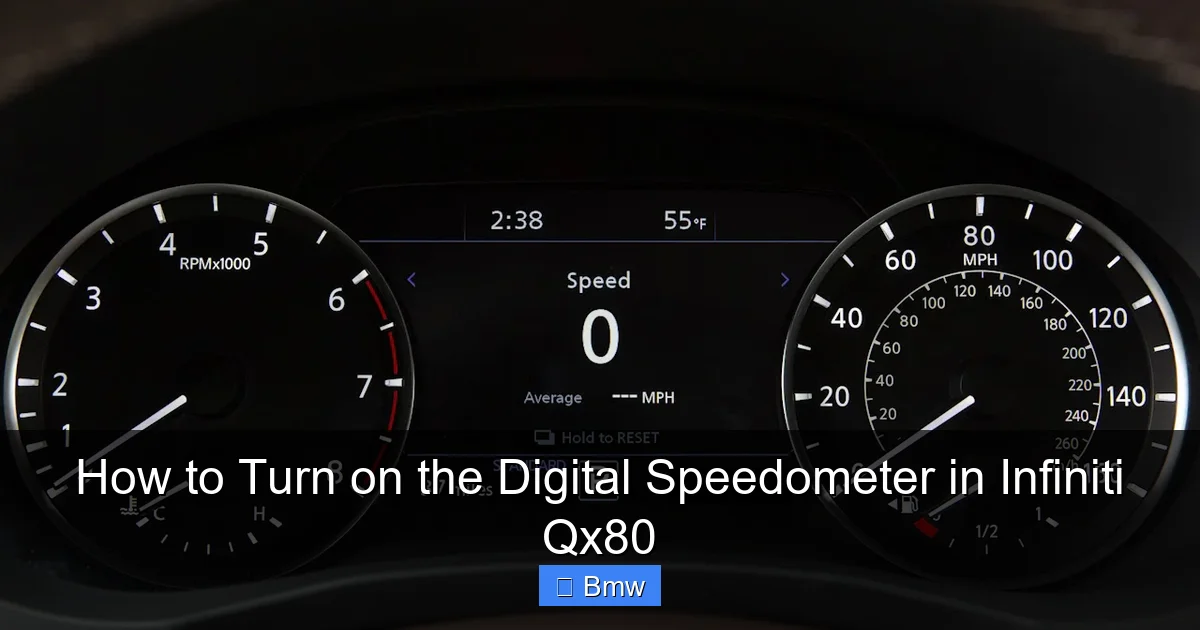
Visual guide about How to Turn on the Digital Speedometer in Infiniti Qx80
Image source: i.ytimg.com
Why Choose Digital?
You might be wondering, “Why bother?” The analog needle is classic. But the digital readout has distinct advantages. First, precision. You get an exact number, say 52 MPH, versus estimating between 50 and 55 on a needle. This is crucial in zones with strict speed limits. Second, readability. Large digits are easier to read quickly, especially for drivers with vision challenges or in poor lighting conditions. Third, it’s the foundation for a customizable experience. When you turn on the digital speedometer, you’re often accessing a suite of display layouts where you can choose what other information (like turn-by-turn directions, fuel range, or drive mode) surrounds that big speed number. It makes your dashboard feel tailored to your preferences.
Step-by-Step: How to Activate the Digital Speedometer
Now, for the main event. The process is straightforward but varies slightly. We’ll cover the most common method first, then note alternatives. Remember, the key is the steering wheel controls.
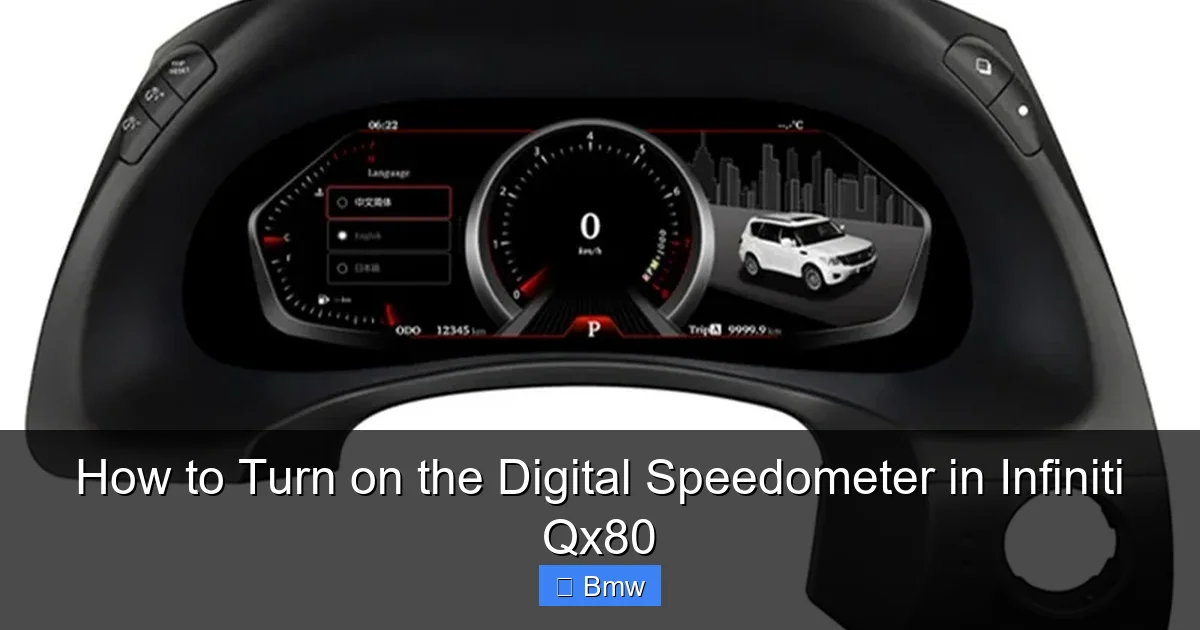
Visual guide about How to Turn on the Digital Speedometer in Infiniti Qx80
Image source: canaviet.com
Method 1: The Standard Steering Wheel Control Method
This is the primary method for the vast majority of Infiniti QX80 models equipped with the feature. Get in the driver’s seat, start the car, and ensure the dashboard is illuminated.
- Locate the Control Stalks: On the left side of your steering wheel, you’ll find a stalk with several buttons. The one we need is typically labeled with a “Menu” icon (often looks like a sheet of paper with lines) or has a “Trip” or “Info” label. On some models, it’s a thumbwheel or a dedicated button on the spoke itself.
- Press or Scroll: While the car is running and in “Park” or “Drive,” press this “Menu” or “Info” button. You may need to press it repeatedly or scroll the thumbwheel. Each press or scroll will cycle the central display through its available modes.
- Watch the Display: As you cycle, you’ll see the screen change. Common modes include: “Compass,” “Trip A,” “Trip B,” “Fuel Economy,” “Navigation,” and finally, the one you want—“Speedometer” or a screen that prominently displays a large number in the center where the analog speedometer would be.
- Confirm Activation: Once you see the large digital number representing your current speed, you’ve succeeded! The analog needle will still be present and functional, but the digital readout will now be your primary focus in that central space. The digital number will update in real-time as you accelerate and brake.
Method 2: Using the Infiniti InTouch™ Touchscreen
For some newer QX80 model years (like the 2022+ refresh), there might be a secondary way to set your preferred default display via the central touchscreen. This doesn’t change the display on the fly while driving (use the steering wheel for that) but sets which screen appears when you start the car.
- Access Settings: From the home screen of your Infiniti InTouch system, tap the “Settings” icon (usually a gear or wrench symbol).
- Navigate to Vehicle Settings: Scroll through the settings categories and select “Vehicle.”
- Find Meter or Display Settings: Look for an option like “Meter Settings,” “Driver Assistance,” “Instrument Cluster,” or “Display.” The exact naming varies.
- Select Default Display: Within this menu, you should see a list of available screens for the central display. Select “Speedometer” or “Digital Speed” to set it as the default view when you start the vehicle.
Important Note: Even if you set a default via the touchscreen, you can still override it on the fly using the steering wheel controls. The touchscreen method is about setting your preferred startup view.
Cycling through the display options can feel like a treasure hunt if you don’t know what you’re looking for. Here’s a cheat sheet of common screen labels on the QX80’s central display:
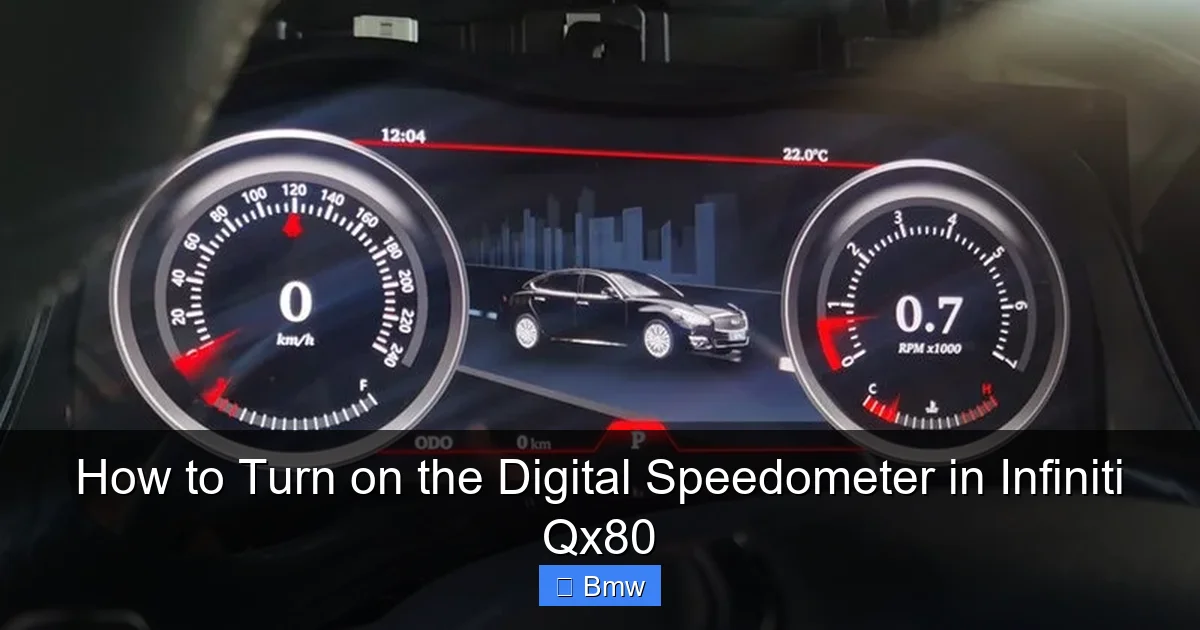
Visual guide about How to Turn on the Digital Speedometer in Infiniti Qx80
Image source: canaviet.com
- Speedometer / Digital Speed: This is your target. It will show a very large number in the center of the screen, usually with smaller ancillary data around it (like a small analog speedometer graphic, odometer, or drive mode).
- Twin Clock: Shows two analog-style clock faces, often for dual time zones.
- Compass: A graphical compass rose showing direction.
- Trip A / Trip B: Displays mileage, average speed, and fuel economy for a specific trip segment.
- Fuel Economy: Shows instantaneous or average MPG.
- Navigation: When a route is active, this screen shows a simplified map and next-turn information.
- Audio/Phone: Displays current media track or call information.
- Drive Mode Information: Shows the current drive mode (e.g., “Standard,” “Sport,” “Eco”) and may include a graphical representation of throttle or transmission response.
If you cycle past the speedometer and don’t see it, it’s possible your specific QX80 trim or model year does not have this feature enabled in its software. This was more common on base trims of earlier models. The next section addresses what to do if you can’t find it.
Troubleshooting: What If the Digital Speedometer Option Is Missing?
So you’ve pressed the button a hundred times, cycling through every conceivable mode, but the large digital speed number never appears. Don’t panic. There are a few logical reasons for this, and most have straightforward explanations.
Reason 1: Model Year and Trim Level Limitations
The customizable full LCD instrument cluster, including the selectable digital speedometer view, was not standard on all QX80s. It was often a feature bundled with higher trim packages (like the “Premium” or “Sport” packages) or became standard in later model generations. A 2015 QX80 base model, for instance, may have a fixed central display that only shows trip computer data and cannot be changed to a pure speedometer view. A 2021 QX80, especially a Sensory or Platinum trim, almost certainly has it. Your first step is to check your window sticker or owner’s manual to see what display features your specific VIN came with.
Reason 2: Software/Firmware Version
Infiniti occasionally updates the vehicle’s software (firmware) to add features or fix bugs. It’s possible, though rare, that an update is needed to unlock certain display modes. This is not something you can do yourself; it requires a visit to an Infiniti dealership. If you suspect this is the case (perhaps you saw a YouTube video of a similar-year QX80 with the feature), call your service advisor, give them your VIN, and ask if there are any pending software updates for the instrument cluster.
Reason 3: You’re Looking in the Wrong Place
Double-check that you’re using the correct steering wheel button. On some vehicles, the “Trip” button on the turn signal stalk cycles trip data, while a separate button on the steering wheel spoke itself cycles the main display modes. Also, ensure you’re pressing the button while the car is running. Some systems disable display changes when the vehicle is off to prevent accidental changes.
Pro Tip: If you have access to your owner’s manual (physical or digital PDF), use the search function for “instrument panel,” “driver information,” or “display settings.” The manual will have the definitive, model-specific instructions and a diagram of all steering wheel controls.
Beyond the Speedometer: Customizing Your Entire Digital Cluster
Once you’ve found the digital speedometer mode, you’ve opened the door to a more personalized cockpit. Many QX80 models allow you to customize the entire layout of that central LCD screen. You might not just be choosing “Speedometer” vs. “Compass”; you might be choosing between different “themes” or “layouts” that arrange information in different ways.
For example, a “Sport” layout might frame the large digital speed with a tachometer bar graph and G-force meter. A “Touring” layout might put a small map on one side and fuel range on the other. To access these deeper customization options, you will almost certainly need to use the infotainment touchscreen menu (Settings > Vehicle > Meter/Display). Here, you can often select the default layout for the central screen, and sometimes even choose which data fields appear on the left and right sides of the main speed readout. Play with these settings to create a dashboard that gives you the most important information at a glance. Want your navigation prompts front and center? There’s likely a layout for that. Prefer to monitor your fuel consumption? Choose a different layout.
The Bigger Picture: Dashboard Features and Troubleshooting
Your dashboard is a communication hub. While focusing on the speedometer, it’s good to be aware of other indicators. For instance, if you’re dealing with persistent warning lights, knowing how to address them is key. A common issue across many Nissan/Infiniti vehicles is the tire pressure monitoring system (TPMS) light. If that illuminates, you’ll need to check your tire pressures and potentially reset the system. Our guide on how to turn off the tire pressure light on a Honda Civic covers the general process, which is very similar in principle across brands: adjust pressure, then find the reset procedure in your vehicle settings menu. Similarly, if you encounter other dashboard warnings like an ABS light or a master warning light, the approach is consult the manual, diagnose the issue, and then follow a reset procedure if applicable. Guides on how to turn off the ABS light on a Nissan Altima or how to turn off the master warning light on a Nissan Altima provide frameworks for handling such alerts. Always address the underlying cause of a warning light before attempting a reset.
Furthermore, while your QX80 is a luxury SUV, many basic vehicle functions share logic with other models in the Nissan family. For example, if you need to turn on the heated steering wheel or seats, the process for activating climate controls might feel familiar if you’ve read about how to turn on the heat in a Nissan Altima. The architecture of the infotainment and climate menus often carries over. So, exploring guides for related models can provide helpful context for navigating your QX80’s systems.
Conclusion: Your Speed, Your Way
Turning on the digital speedometer in your Infiniti QX80 is a small act of personalization that makes a big impact on your daily drive. It’s a one-time setup (though you can toggle it anytime) that rewards you with clearer, more precise speed information every time you get behind the wheel. The key is patience and a careful eye on your steering wheel controls. Start with the left-spoke “Menu” or “Info” button and cycle methodically. If the option doesn’t appear, your owner’s manual is your best friend to confirm feature availability for your specific model year and trim.
Remember, your QX80’s dashboard is designed to be adaptable. Once you’ve mastered the digital speedometer, explore the other display modes and customization settings in the vehicle menu. You might discover a layout that perfectly suits your needs, putting navigation, fuel data, or drive mode information exactly where you want it. In a vehicle as capable and luxurious as the QX80, taking a few minutes to tailor your instrument cluster is part of the enjoyment. It transforms the cockpit from a generic space into your personalized command center, ensuring you have the most critical data—your speed—displayed in the clearest way possible. Now, go ahead, press that button, and enjoy the modern, digital view of your journey.
Frequently Asked Questions
Is the digital speedometer available on all Infiniti QX80 model years?
No, it is not. The fully customizable LCD instrument cluster with selectable digital speedometer mode became widely available on the QX80 starting around the 2018 model year and was often standard on higher trims. Earlier models (2014-2017) typically have a fixed central display that may show digital speed as part of a trip computer but not as a dedicated, large-format “speedometer” mode you can select. Always check your specific vehicle’s manual.
What if I press the steering wheel button but the display doesn’t change?
First, ensure the vehicle is turned on (in “Run” mode, not just “Accessory”). Second, confirm you are using the correct button—it’s usually on the left steering wheel stalk or spoke and is labeled “Menu,” “Info,” or has a trip computer icon. If it still doesn’t cycle, your QX80 may not be equipped with this specific display feature. Consult your owner’s manual or an Infiniti dealer for confirmation.
Can I make the digital speedometer the default screen that appears when I start the car?
Yes, on models that support it. You can usually set this through the central infotainment touchscreen. Go to Settings > Vehicle > Meter Settings or Display Settings. Look for an option like “Default Display” or “Startup Display” and select “Speedometer” or the specific layout you prefer that features the large digital speed readout.
Will turning on the digital speedometer affect my car’s performance or fuel economy?
Absolutely not. The digital speedometer is purely a visual display of data the car’s computer is already calculating. It consumes a negligible amount of extra electrical power and has zero impact on engine performance, transmission behavior, or fuel efficiency. It is simply a different way of showing you information.
My digital speedometer is on, but the number seems wrong or jumps around. Is that normal?
A healthy digital speedometer should be very stable and accurate, typically matching your analog gauge within 1-2 MPH. If the number is fluctuating wildly or clearly reads incorrectly (e.g., showing 70 MPH when you’re stopped), there may be an issue with the vehicle speed sensor (VSS) or a problem with the instrument cluster itself. This requires diagnostic scanning by a qualified mechanic.
Can I change the color or brightness of the digital speedometer?
The color scheme (usually white, black, or red) and overall brightness of the instrument cluster are typically tied to the vehicle’s ambient lighting settings and headlight status (day/night mode). You can often adjust the overall brightness using a dedicated knob or wheel on the dashboard or through the lighting settings in the infotainment menu. However, you usually cannot change the specific color of just the speedometer digits independently from the rest of the display.
