
How to Connect Bluetooth to a Nissan Sentra

Connecting Bluetooth to your Nissan Sentra is simple and enhances your driving experience with hands-free calling and wireless audio. This guide walks you through every step, from locating the system to troubleshooting common issues, ensuring a smooth and reliable connection every time.
Key Takeaways
- Check Compatibility: Ensure your phone supports Bluetooth and is compatible with Nissan’s infotainment system.
- Access the Audio Menu: Use the touchscreen or steering wheel controls to navigate to the Bluetooth settings.
- Enable Pairing Mode: Put your phone in discoverable mode and select “Nissan Sentra” from the device list.
- Enter the PIN: Use the default code (usually 0000 or 1234) when prompted to complete the pairing process.
- Test the Connection: Make a test call or play music to confirm audio is working through the car’s speakers.
- Update Software: Keep your Sentra’s infotainment system updated to avoid connectivity issues.
- Troubleshoot Common Problems: Restart devices, delete old pairings, or reset the system if connection fails.
📑 Table of Contents
- Why Connecting Bluetooth to Your Nissan Sentra Matters
- Understanding Your Nissan Sentra’s Bluetooth System
- Step-by-Step Guide: How to Connect Bluetooth to a Nissan Sentra
- Tips for a Smooth Bluetooth Connection
- Troubleshooting Common Bluetooth Issues
- Advanced Features and Hidden Gems
- Maintaining Your Bluetooth Connection Over Time
- Conclusion
Why Connecting Bluetooth to Your Nissan Sentra Matters
Imagine driving down the highway, your favorite playlist streaming seamlessly through your car’s speakers, or taking an important call without ever touching your phone. That’s the convenience Bluetooth brings to your Nissan Sentra. Whether you’re commuting to work, running errands, or embarking on a road trip, wireless connectivity transforms your driving experience. It’s not just about entertainment—Bluetooth enhances safety by allowing hands-free communication, reducing distractions, and keeping your focus on the road.
The Nissan Sentra, known for its sleek design and modern tech features, comes equipped with Bluetooth capability across most recent models. This feature lets you pair your smartphone to the car’s audio system, enabling you to make and receive calls, stream music, access voice assistants, and even use navigation apps with audio directions. Setting it up might seem intimidating at first, but once you know the steps, it’s as easy as connecting your earbuds to your phone.
In this guide, we’ll walk you through everything you need to know about how to connect Bluetooth to a Nissan Sentra. From understanding your car’s infotainment system to troubleshooting connection hiccups, we’ve got you covered. Whether you’re driving a 2018 model or a brand-new 2024 Sentra, the process is straightforward and user-friendly. By the end of this article, you’ll be able to pair your device confidently and enjoy all the benefits of wireless connectivity.
Understanding Your Nissan Sentra’s Bluetooth System
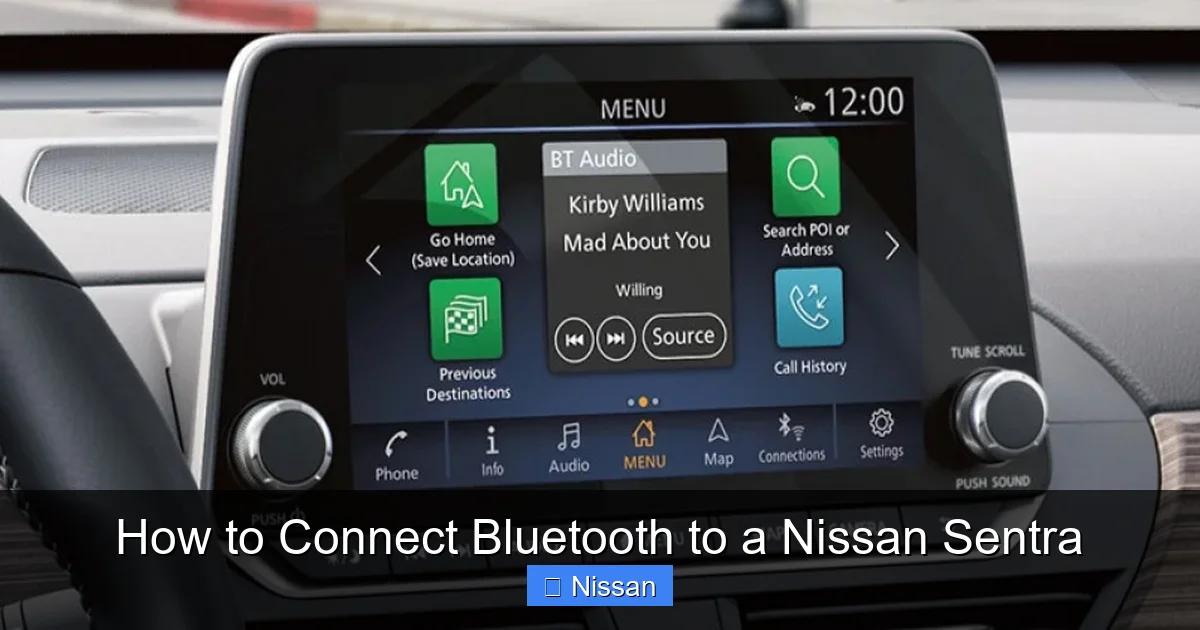
Visual guide about How to Connect Bluetooth to a Nissan Sentra
Image source: majorworld.com
Before diving into the connection process, it’s helpful to understand how Bluetooth works in your Nissan Sentra. The car uses an integrated infotainment system—typically called NissanConnect—that manages audio, navigation, phone connectivity, and more. Bluetooth is a core feature of this system, allowing wireless communication between your phone and the car.
Most Nissan Sentras from 2013 onward come with Bluetooth support, though the interface and menu layout may vary slightly depending on the model year and trim level. For example, newer models (2020 and later) often feature a larger touchscreen with more intuitive menus, while older versions may rely more on physical buttons and a smaller display.
Bluetooth in the Sentra supports two main functions: hands-free calling and audio streaming. Hands-free calling lets you answer or make calls using voice commands or the steering wheel controls. Audio streaming allows you to play music, podcasts, or audiobooks from your phone through the car’s stereo system. Some models also support text message reading and voice assistant integration (like Siri or Google Assistant), though this depends on your phone and the Sentra’s software version.
It’s also worth noting that the Sentra can store multiple paired devices—usually up to seven—so you and your passengers can easily switch between phones. However, only one device can be actively connected at a time for calls and audio.
What You’ll Need to Get Started
To connect Bluetooth to your Nissan Sentra, you’ll need just a few things:
- A compatible smartphone: Most modern phones (iPhone, Android, etc.) support Bluetooth 4.0 or higher, which works with the Sentra.
- Your vehicle’s ignition turned on: You don’t need to start the engine, but the car’s electrical system must be active (turn the key to “ACC” or press the start button without pressing the brake).
- Access to the infotainment screen: This is usually a 7- to 8-inch touchscreen in the center dashboard.
- Your phone’s Bluetooth turned on: Make sure it’s enabled and discoverable.
Having these ready will make the pairing process quick and hassle-free.
Step-by-Step Guide: How to Connect Bluetooth to a Nissan Sentra
Visual guide about How to Connect Bluetooth to a Nissan Sentra
Image source: i.imgur.com
Now that you understand the basics, let’s walk through the actual process of connecting your phone to your Nissan Sentra. The steps are similar across most model years, but we’ll highlight any variations where necessary.
Step 1: Turn on Your Vehicle and Access the Audio Menu
Start by turning on your Sentra. You don’t need to drive—just turn the key to the “ACC” position or press the start button (without pressing the brake pedal). This powers up the infotainment system.
Once the screen lights up, look for the “Audio” or “Source” button. This is usually located on the center console or as a touchscreen icon. Tap it to open the audio menu. From here, you’ll see options like AM/FM, USB, AUX, and Bluetooth.
Step 2: Select Bluetooth and Enter Pairing Mode
In the audio menu, select “Bluetooth Audio” or “BT Audio.” This tells the car you want to connect a device wirelessly. Next, choose “Pair Device” or “Add New Device.” The system will now enter pairing mode and begin searching for nearby Bluetooth devices.
At this point, your Sentra is ready to connect—but your phone isn’t yet visible to it. That’s where the next step comes in.
Step 3: Enable Bluetooth on Your Phone and Make It Discoverable
Grab your smartphone and go to the Settings app. Tap “Bluetooth” and make sure it’s turned on. Then, ensure your phone is set to “discoverable” or “visible to other devices.” On most phones, this happens automatically when Bluetooth is on, but some older models may require you to tap “Make Discoverable” or “Pair New Device.”
Once your phone is discoverable, it will appear in the list of available devices on your Sentra’s screen. Look for your phone’s name—like “iPhone” or “Samsung Galaxy”—and tap it to initiate the connection.
Step 4: Enter the Pairing PIN
After selecting your phone, the Sentra will prompt you to enter a PIN (Personal Identification Number). This is a security measure to ensure only authorized devices can connect.
The default PIN for most Nissan vehicles is 0000 or 1234. Enter this code using the touchscreen or steering wheel controls. Your phone may also display the same PIN—confirm it matches before accepting.
Once the PIN is entered correctly, the devices will pair. You’ll see a confirmation message like “Connected” or “Pairing Successful” on both the car screen and your phone.
Step 5: Test the Connection
Now it’s time to make sure everything works. Try making a test call—either dial a number or ask someone to call you. Use the steering wheel controls to answer. You should hear the caller through the car’s speakers, and they should hear you clearly through the built-in microphone.
Next, open a music app like Spotify, Apple Music, or YouTube Music and play a song. The audio should stream wirelessly to your Sentra’s stereo. Adjust the volume using the car’s controls to confirm full functionality.
If both calling and audio work, congratulations—you’ve successfully connected Bluetooth to your Nissan Sentra!
Tips for a Smooth Bluetooth Connection
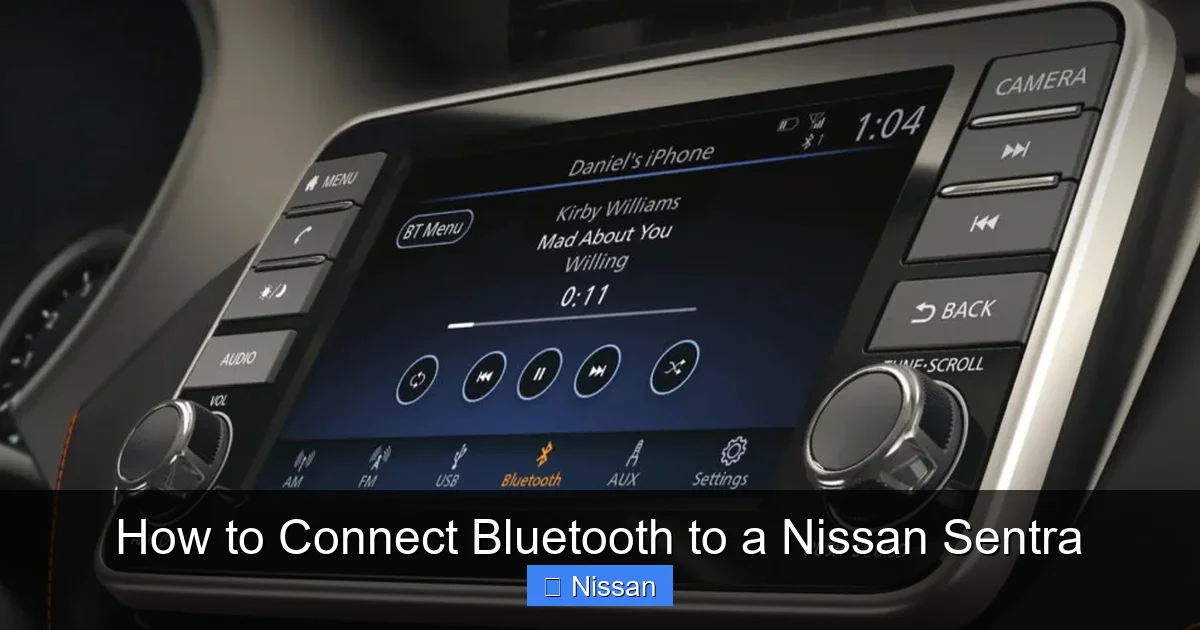
Visual guide about How to Connect Bluetooth to a Nissan Sentra
Image source: dealerinspire-image-library-prod.s3.us-east-1.amazonaws.com
Even with clear instructions, sometimes things don’t go as planned. Here are some practical tips to ensure a smooth and reliable Bluetooth experience in your Sentra.
Keep Your Phone Charged and Close
Bluetooth has a limited range—usually about 30 feet. Keep your phone within the cabin, preferably in a cup holder or phone mount. A low battery can also affect performance, so charge your phone before long drives.
Delete Old or Unused Devices
If your Sentra has paired with multiple phones in the past, it may struggle to connect to a new one. Go to the Bluetooth settings on the infotainment screen and delete any old or unused devices. This clears up memory and reduces interference.
Update Your Phone and Car Software
Manufacturers frequently release software updates that improve Bluetooth stability and compatibility. Check for updates on your phone (in Settings > System > Software Update) and in your Sentra (usually under Settings > System > Software Update or via Nissan’s website). Keeping both up to date prevents glitches.
Use Voice Commands for Hands-Free Control
Once connected, take advantage of voice commands. Press the voice button on your steering wheel and say things like “Call Mom” or “Play jazz music.” This keeps your hands on the wheel and eyes on the road.
Restart the System if Needed
If Bluetooth suddenly stops working, try restarting both your phone and the car’s infotainment system. Turn off the car, wait 30 seconds, then restart. This often resolves temporary software hiccups.
Troubleshooting Common Bluetooth Issues
Despite your best efforts, you might run into problems. Here’s how to fix the most common Bluetooth issues in the Nissan Sentra.
Phone Not Showing Up in Device List
If your phone doesn’t appear when the Sentra searches for devices, make sure:
- Bluetooth is enabled on your phone.
- Your phone is in discoverable mode.
- You’re within range (inside the car).
- No other device is currently connected.
Try turning Bluetooth off and on again on your phone, or restart the infotainment system.
Connection Drops Frequently
Intermittent disconnections can be frustrating. This often happens due to interference from other electronic devices or a weak signal. Move your phone closer to the center console, away from metal objects or charging cables. Also, ensure no other Bluetooth devices (like smartwatches) are competing for connection.
Audio Plays Through Phone, Not Car Speakers
If music or calls play through your phone instead of the car, check the audio output settings. On iPhones, swipe down from the top-right corner and tap the audio icon to select “Nissan Sentra.” On Android, go to Settings > Connected Devices > Bluetooth and ensure the correct device is selected for media audio.
PIN Not Accepted
If the PIN is rejected, double-check that you’re entering the correct code (0000 or 1234). Some older models may use a different default—consult your owner’s manual. If all else fails, reset the Bluetooth system by deleting all paired devices and starting over.
No Sound During Calls
If you can’t hear the caller, check the call volume (separate from media volume) using the steering wheel controls. Also, ensure the microphone isn’t blocked—it’s usually near the rearview mirror or overhead console.
Advanced Features and Hidden Gems
Once you’ve mastered the basics, explore these advanced features to get even more out of your Sentra’s Bluetooth system.
Dual Phone Pairing (If Supported)
Some newer Sentra models allow two phones to be paired simultaneously—one for calls, one for music. This is great for couples or families sharing a car. Check your owner’s manual to see if your model supports this.
Text Message Reading
If your phone supports it, the Sentra can read incoming text messages aloud. Enable this in your phone’s Bluetooth settings under “Message Access” or “Notification Access.” You can then reply using voice commands.
Voice Assistant Integration
Link Siri, Google Assistant, or Alexa to your Sentra. Press and hold the voice button on the steering wheel to activate your assistant and give commands like “Navigate to the nearest gas station” or “Send a message to John.”
Automatic Reconnection
Once paired, your phone should automatically reconnect to the Sentra when you enter the car and turn it on. This works best if your phone’s Bluetooth is always on and the car recognizes it as a trusted device.
Maintaining Your Bluetooth Connection Over Time
To keep your Bluetooth connection reliable, follow these maintenance tips:
- Re-pair after major phone updates: iOS or Android updates can sometimes break Bluetooth compatibility. Re-pair your device if issues arise.
- Clean the infotainment screen: Dust and fingerprints can interfere with touch sensitivity. Wipe the screen gently with a microfiber cloth.
- Avoid extreme temperatures: Very hot or cold conditions can affect electronic performance. Park in the shade or garage when possible.
- Check for Nissan service bulletins: Occasionally, Nissan releases technical service bulletins (TSBs) related to Bluetooth issues. Visit a dealership if problems persist.
Conclusion
Connecting Bluetooth to your Nissan Sentra is a simple yet powerful upgrade that enhances safety, convenience, and enjoyment behind the wheel. With just a few taps on your phone and the car’s touchscreen, you can enjoy hands-free calling, wireless music streaming, and voice-controlled navigation. Whether you’re a tech novice or a seasoned driver, this feature is designed to make your life easier.
By following the steps in this guide—checking compatibility, entering pairing mode, entering the correct PIN, and testing the connection—you’ll be up and running in minutes. And if you run into issues, the troubleshooting tips and maintenance advice will help you resolve them quickly.
Remember, technology works best when it’s seamless. The goal isn’t just to connect Bluetooth—it’s to forget it’s even there, so you can focus on the road ahead. So go ahead, pair your phone, and enjoy the freedom of a truly connected drive in your Nissan Sentra.
Frequently Asked Questions
Can I connect multiple phones to my Nissan Sentra via Bluetooth?
Yes, most Nissan Sentras can store up to seven paired devices, though only one can be actively connected at a time for calls and audio. You can switch between devices manually through the Bluetooth menu.
Why won’t my phone connect to the Sentra even though Bluetooth is on?
This could be due to your phone not being in discoverable mode, interference from other devices, or an outdated software version. Try restarting both devices and ensuring your phone is visible to other Bluetooth devices.
What is the default PIN for pairing Bluetooth in a Nissan Sentra?
The default PIN is usually 0000 or 1234. Enter this code when prompted during the pairing process. If it doesn’t work, consult your owner’s manual for model-specific details.
Can I use Bluetooth for both calls and music at the same time?
Yes, once paired, your phone can handle both hands-free calling and audio streaming. However, if a call comes in while music is playing, the music will pause automatically and resume after the call ends.
How do I delete a paired device from my Nissan Sentra?
Go to the Bluetooth settings on the infotainment screen, select “Paired Devices,” find the device you want to remove, and tap “Delete” or “Forget.” This clears the connection and frees up space for new pairings.
Does the Nissan Sentra support wireless Apple CarPlay or Android Auto?
Most recent Sentra models (2020 and later) support wired Apple CarPlay and Android Auto. Wireless versions are not standard, so you’ll need a USB cable to connect. Check your specific model and trim for compatibility.