
How to Connect Your Phone to Uconnect in a Dodge

Connecting your phone to Uconnect in a Dodge is simple and enhances your driving experience with hands-free calls, music streaming, and navigation. Whether you use Apple CarPlay, Android Auto, or basic Bluetooth, this guide walks you through every step to ensure a seamless connection every time.
Key Takeaways
- Uconnect supports multiple connection methods: Bluetooth, Apple CarPlay, and Android Auto allow you to integrate your smartphone with your Dodge vehicle.
- Bluetooth pairing is the foundation: Most Uconnect systems start with Bluetooth for calls and audio, and it’s required for wireless CarPlay and Android Auto.
- Wired connections offer reliability: Using a USB cable ensures a stable link for Apple CarPlay and Android Auto, especially on longer drives.
- Keep your software updated: Regular Uconnect and phone updates prevent compatibility issues and improve performance.
- Reset if connection fails: If your phone won’t connect, try restarting both devices or resetting the Uconnect system.
- Multiple phones can be paired: Uconnect allows several devices to be saved, but only one can be active at a time.
- Use voice commands for safety: Once connected, use Uconnect’s voice control to make calls, send texts, or play music without taking your eyes off the road.
📑 Table of Contents
- Introduction: Why Connecting Your Phone to Uconnect Matters
- Understanding Uconnect: What It Is and How It Works
- Step-by-Step: How to Connect Your Phone via Bluetooth
- Setting Up Apple CarPlay in Your Dodge
- Using Android Auto with Uconnect
- Troubleshooting Common Connection Issues
- Maximizing Your Uconnect Experience
- Conclusion: Stay Connected, Stay Safe
Introduction: Why Connecting Your Phone to Uconnect Matters
Imagine you’re driving down the highway, your favorite playlist paused, your GPS silent, and your hands glued to the wheel. Now imagine the same drive—but this time, your phone is seamlessly synced to your Dodge’s Uconnect system. Your music plays through the speakers, your turn-by-turn directions pop up on the dashboard screen, and you can answer calls with a simple voice command. That’s the power of connecting your phone to Uconnect.
Uconnect is Dodge’s advanced infotainment system designed to keep you connected, entertained, and safe on the road. Whether you drive a Dodge Charger, Durango, Ram truck, or Challenger, Uconnect offers a range of features that make driving more convenient. From hands-free calling to streaming music and using navigation apps, integrating your smartphone with Uconnect transforms your vehicle into a smart, responsive command center.
But for many drivers, the process of connecting a phone to Uconnect can feel confusing or intimidating. With multiple options like Bluetooth, Apple CarPlay, and Android Auto, it’s easy to get overwhelmed. That’s why this guide exists—to walk you through every step, clarify the differences between connection types, and help you get the most out of your Dodge’s technology. By the end, you’ll know exactly how to connect your phone to Uconnect in a Dodge, troubleshoot common issues, and enjoy a smoother, smarter drive.
Understanding Uconnect: What It Is and How It Works
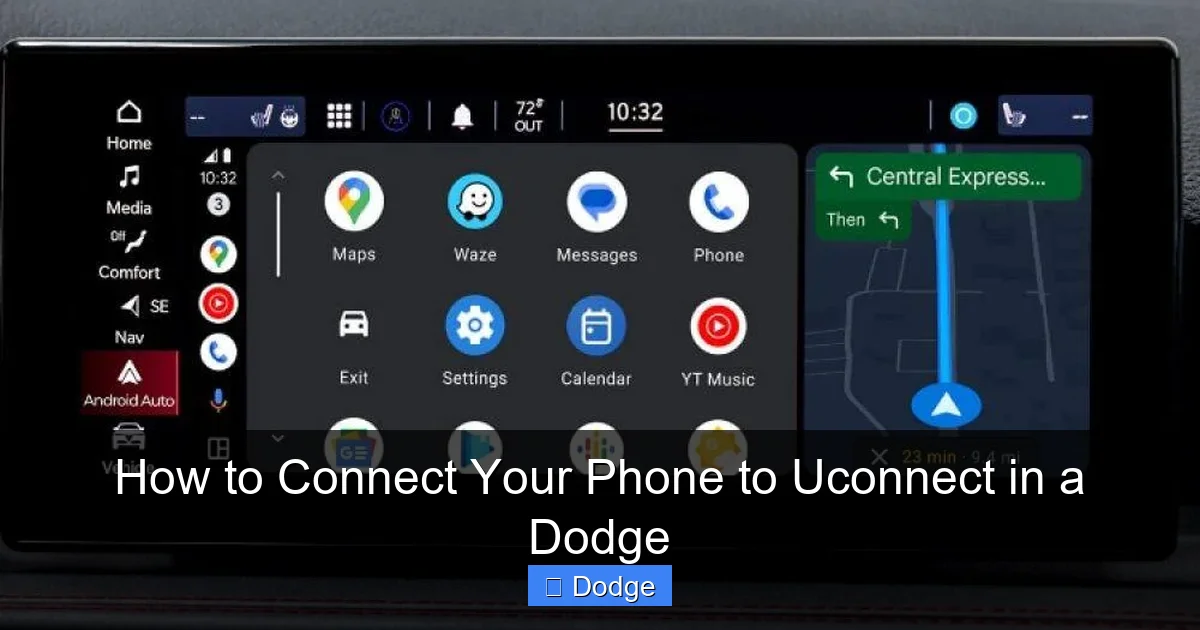
Visual guide about How to Connect Your Phone to Uconnect in a Dodge
Image source: dodge.com
Before diving into the connection process, it’s important to understand what Uconnect actually is and how it functions. Uconnect is Dodge’s proprietary infotainment system, developed in partnership with technology companies like Harman and later Stellantis. It’s built into most modern Dodge vehicles and serves as the central hub for entertainment, communication, navigation, and vehicle settings.
At its core, Uconnect is a touchscreen interface—typically 5, 7, 8.4, or even 12 inches—mounted on the dashboard. It runs on an embedded operating system that supports Bluetooth, USB, Wi-Fi (in some models), and smartphone integration platforms like Apple CarPlay and Android Auto. Depending on your Dodge model and trim level, Uconnect may also include features like SiriusXM satellite radio, navigation with real-time traffic, climate control, and even remote start via the Uconnect app.
One of the key strengths of Uconnect is its flexibility. It doesn’t force you to use one type of phone or operating system. Whether you’re an iPhone user, an Android fan, or someone who prefers basic Bluetooth audio, Uconnect has a solution. This inclusivity makes it accessible to a wide range of drivers.
But how does it actually work? When you connect your phone to Uconnect, the system communicates with your device using wireless (Bluetooth or Wi-Fi) or wired (USB) protocols. Once paired, Uconnect can access certain functions on your phone—like your contacts, music library, messaging apps, and navigation—while keeping your hands on the wheel and your eyes on the road.
For example, when you connect via Apple CarPlay, your iPhone’s interface appears on the Uconnect screen, allowing you to use Maps, Messages, Music, and third-party apps like Spotify or Waze. Similarly, Android Auto mirrors your Android phone’s interface, giving you access to Google Assistant, Google Maps, and compatible apps.
Understanding these basics sets the stage for a successful connection. Now that you know what Uconnect is and what it can do, let’s explore the different ways you can connect your phone.
Step-by-Step: How to Connect Your Phone via Bluetooth
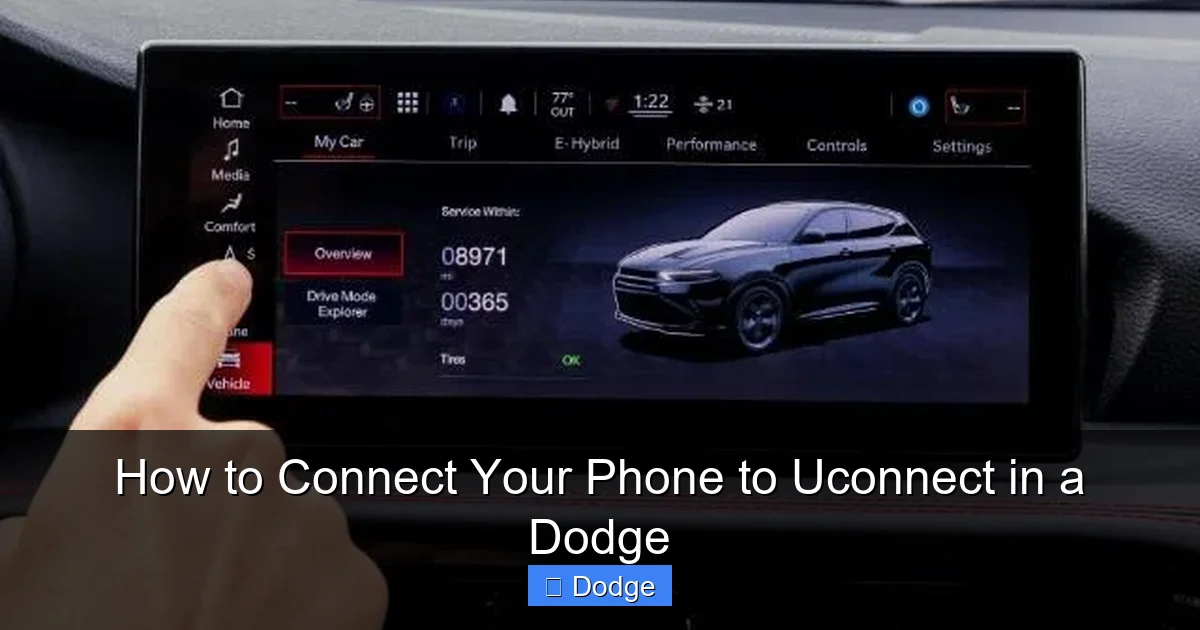
Visual guide about How to Connect Your Phone to Uconnect in a Dodge
Image source: dodge.com
Bluetooth is the most common and foundational way to connect your phone to Uconnect. It enables hands-free calling, audio streaming, and basic phone controls. Even if you plan to use Apple CarPlay or Android Auto, Bluetooth pairing is often the first step—especially for wireless versions of those platforms.
Here’s a detailed, step-by-step guide to pairing your phone with Uconnect using Bluetooth:
Step 1: Prepare Your Vehicle and Phone
Start by ensuring your Dodge is in park with the ignition on (or the engine running). This powers up the Uconnect system. Next, unlock your phone and make sure Bluetooth is enabled. On most smartphones, you can find this in the Settings menu under “Bluetooth” or in the quick settings panel (swipe down from the top of the screen).
It’s also a good idea to close any unnecessary apps running in the background on your phone. This reduces interference and ensures a smoother pairing process.
Step 2: Access the Uconnect Menu
On your Uconnect touchscreen, tap the “Phone” or “Settings” button (depending on your model). Look for an option labeled “Bluetooth,” “Pair Device,” or “Add Device.” Some newer Uconnect systems have a dedicated “Phone” tab on the home screen.
Once you’re in the Bluetooth menu, select “Add New Device” or “Pair Phone.” The system will begin searching for available devices in range.
Step 3: Put Your Phone in Discovery Mode
On your phone, go to Bluetooth settings and make sure it’s set to be discoverable. Most phones do this automatically when you open the Bluetooth menu, but if not, look for a toggle or option like “Make Discoverable” or “Visible to Other Devices.”
Your phone should now appear in the list of available devices on the Uconnect screen. It may show up as your phone’s name (e.g., “John’s iPhone” or “Samsung Galaxy S23”).
Step 4: Pair the Devices
Tap on your phone’s name from the Uconnect screen. A pairing code (usually a 4- or 6-digit number) will appear on both the Uconnect display and your phone. Confirm that the codes match, then tap “Pair” or “OK” on both devices.
If the codes don’t match, cancel the process and try again. Sometimes interference or timing issues can cause mismatches.
Step 5: Complete the Setup
Once paired, Uconnect may ask for permission to access your phone’s contacts and call history. Grant these permissions to enable full functionality. You’ll also be prompted to allow audio streaming—select “Yes” to play music through the car’s speakers.
After setup, your phone should automatically connect to Uconnect whenever it’s in range and the car is on. You’ll see a Bluetooth icon on the Uconnect screen, and your phone may display a notification confirming the connection.
Tips for a Smooth Bluetooth Connection
– Keep your phone within 3 feet of the Uconnect system during pairing.
– Avoid pairing in areas with heavy Bluetooth traffic (like parking lots with many cars).
– If pairing fails, restart both your phone and the Uconnect system.
– Delete old or unused paired devices from the Uconnect menu to free up space.
Bluetooth is reliable for calls and music, but for richer features like navigation and app integration, you’ll want to use Apple CarPlay or Android Auto—which we’ll cover next.
Setting Up Apple CarPlay in Your Dodge
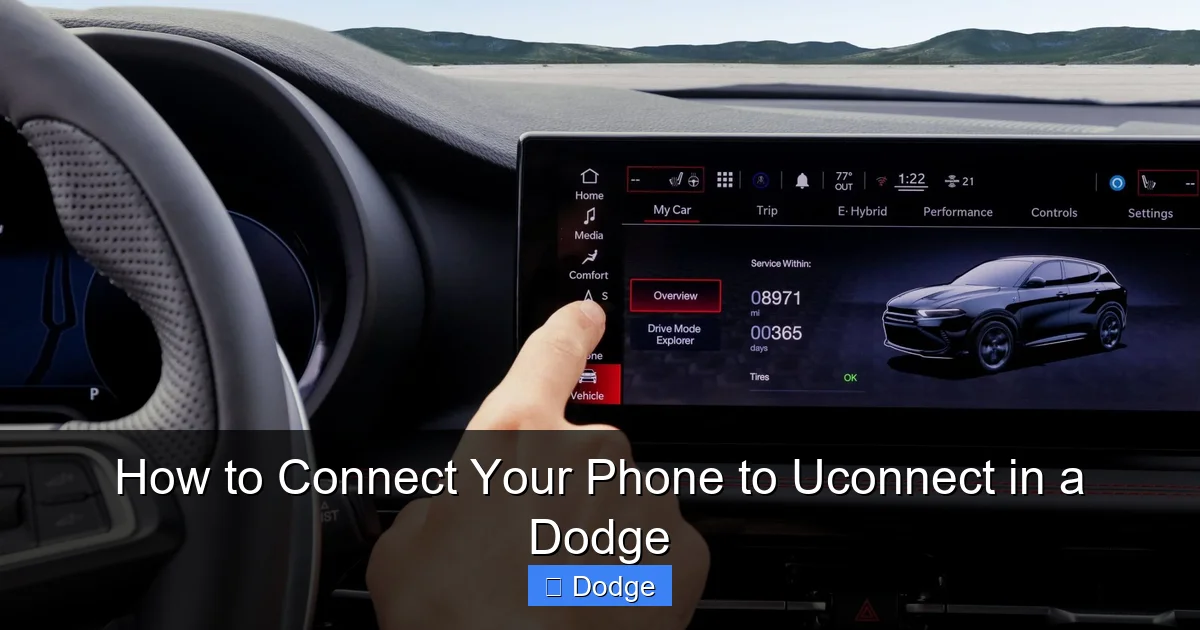
Visual guide about How to Connect Your Phone to Uconnect in a Dodge
Image source: dodge.com
If you’re an iPhone user, Apple CarPlay is one of the best ways to connect your phone to Uconnect. It brings your iPhone’s interface to the Uconnect screen, allowing you to use Maps, Messages, Music, Podcasts, and third-party apps like Spotify, Audible, and WhatsApp—all with minimal distraction.
Apple CarPlay works in two ways: wired (via USB cable) and wireless (on supported Uconnect systems). Let’s walk through both methods.
Wired Apple CarPlay Setup
1. **Use a Certified Lightning Cable**: Apple recommends using an MFi (Made for iPhone) certified cable. Cheap or damaged cables can cause connection issues.
2. **Connect Your iPhone**: Plug the Lightning end into your iPhone and the USB end into one of the Uconnect USB ports (usually located in the center console or dashboard).
3. **Trust This Computer**: When prompted on your iPhone, tap “Trust” to allow the Uconnect system to access your device.
4. **Launch CarPlay**: The Uconnect screen should automatically switch to the CarPlay interface. If not, tap the “CarPlay” icon on the Uconnect home screen.
5. **Start Using Apps**: You can now use Siri, make calls, send messages, play music, and navigate using Apple Maps or Google Maps (if installed on your iPhone).
Wireless Apple CarPlay Setup
Wireless CarPlay is available on select Dodge models with newer Uconnect systems (typically 8.4-inch or larger screens with Uconnect 4C or 5). Here’s how to set it up:
1. **Ensure Bluetooth and Wi-Fi Are On**: Wireless CarPlay uses both Bluetooth (for initial pairing) and Wi-Fi (for data transfer).
2. **Pair via Bluetooth First**: Follow the Bluetooth pairing steps outlined earlier. This creates the initial link.
3. **Enable Wireless CarPlay**: On your iPhone, go to Settings > General > CarPlay. Select your vehicle from the list and toggle on “Allow Wireless CarPlay.”
4. **Connect Automatically**: The next time you enter your Dodge with your iPhone, CarPlay should launch wirelessly. You may need to confirm the connection on your phone.
Tips for Apple CarPlay Success
– Keep your iPhone updated to the latest iOS version.
– If CarPlay doesn’t launch, unplug and reconnect the cable.
– Use voice commands (“Hey Siri”) to minimize screen interaction.
– Disable “Do Not Disturb While Driving” if you want notifications to appear.
Apple CarPlay makes driving safer and more enjoyable by keeping your iPhone’s most-used features within easy reach—without handling the phone.
Using Android Auto with Uconnect
Android users aren’t left out—Android Auto offers a similar experience to Apple CarPlay, bringing your Android phone’s interface to the Uconnect screen. It supports Google Assistant, Google Maps, Waze, Spotify, YouTube Music, and more.
Like CarPlay, Android Auto works via wired and wireless connections (on compatible systems).
Wired Android Auto Setup
1. **Download Android Auto App**: Make sure the Android Auto app is installed on your phone (available on Google Play).
2. **Use a High-Quality USB Cable**: A USB 2.0 or 3.0 cable with data transfer capability is essential. Charging-only cables won’t work.
3. **Connect Your Phone**: Plug your Android phone into the Uconnect USB port.
4. **Allow Permissions**: When prompted, allow Android Auto to access your phone’s data, notifications, and location.
5. **Launch Android Auto**: The Uconnect screen should switch to the Android Auto interface. If not, tap the “Android Auto” icon.
6. **Start Using Features**: Use Google Assistant (“Hey Google”), navigate with Google Maps or Waze, play music, and send messages—all hands-free.
Wireless Android Auto Setup
Wireless Android Auto is supported on select Dodge models with Uconnect 4C/NAV or newer. Here’s how to enable it:
1. **Pair via Bluetooth**: Complete the Bluetooth pairing process first.
2. **Enable Wireless Projection**: On your Android phone, open the Android Auto app, go to Settings > Wireless projection, and toggle it on.
3. **Connect Automatically**: When you enter your Dodge, Android Auto should launch wirelessly. Confirm the connection if prompted.
Tips for Android Auto Users
– Keep your Android Auto app and phone OS updated.
– Use Google Assistant for voice commands to reduce screen use.
– If connection fails, try a different USB port or cable.
– Disable battery optimization for Android Auto in your phone’s settings.
Android Auto turns your Uconnect system into a smart, voice-controlled dashboard—perfect for staying connected on the go.
Troubleshooting Common Connection Issues
Even with the best setup, connection problems can happen. Here are some common issues and how to fix them:
Phone Won’t Pair with Uconnect
– **Solution**: Restart both your phone and the Uconnect system. Turn the car off, wait 30 seconds, then restart. Also, delete the phone from Uconnect’s paired list and re-pair.
CarPlay or Android Auto Doesn’t Launch
– **Solution**: Check your USB cable—use a certified one. Ensure the correct app (CarPlay or Android Auto) is enabled on your phone. Try a different USB port.
Audio Doesn’t Play Through Car Speakers
– **Solution**: Make sure audio output is set to Bluetooth or USB in your phone’s settings. Check volume levels on both devices.
Connection Drops Frequently
– **Solution**: Update your phone’s OS and Uconnect software. Interference from other devices can also cause drops—turn off unused Bluetooth devices.
Voice Commands Don’t Work
– **Solution**: Ensure the microphone isn’t blocked. Check that voice recognition is enabled in Uconnect settings. Speak clearly and at a normal volume.
Uconnect Screen Freezes or Lags
– **Solution**: Perform a soft reset by holding the Power and Volume Down buttons for 10 seconds. If problems persist, visit a Dodge dealer for a software update.
Regular maintenance—like updating software and using quality cables—can prevent most issues.
Maximizing Your Uconnect Experience
Once your phone is connected, there’s more you can do to enhance your Uconnect experience:
– **Use Voice Commands**: Say “Hey Siri” or “Hey Google” to control music, navigation, and messages without touching the screen.
– **Download the Uconnect App**: Available for iOS and Android, it lets you remotely start your car, lock/unlock doors, and check fuel levels.
– **Customize Your Home Screen**: Rearrange icons on the Uconnect display to prioritize your most-used features.
– **Enable Wi-Fi Hotspot**: Some Uconnect systems support in-car Wi-Fi—great for passengers with tablets or laptops.
– **Explore Third-Party Apps**: Both CarPlay and Android Auto support apps like Pandora, Amazon Music, and WhatsApp (for messaging).
By taking full advantage of these features, you’ll get the most out of your Dodge’s technology.
Conclusion: Stay Connected, Stay Safe
Connecting your phone to Uconnect in a Dodge is more than just a convenience—it’s a smart way to stay connected while keeping your focus on the road. Whether you use Bluetooth for calls, Apple CarPlay for navigation, or Android Auto for music, the process is straightforward once you know the steps.
Remember to keep your software updated, use quality cables, and take advantage of voice commands to minimize distractions. With the right setup, your Dodge becomes more than just a vehicle—it becomes a mobile command center that enhances every drive.
So the next time you hop in your Charger, Durango, or Ram, take a few minutes to connect your phone. You’ll wonder how you ever drove without it.
Frequently Asked Questions
Can I connect multiple phones to Uconnect?
Yes, Uconnect allows you to pair multiple phones, but only one can be active at a time. You can switch between paired devices from the Phone or Bluetooth menu.
Why won’t my iPhone connect to CarPlay?
This is often due to a faulty USB cable or outdated software. Try using a certified Lightning cable and ensure your iPhone and Uconnect system are updated.
Does Uconnect work with older phones?
Uconnect supports most modern smartphones. For CarPlay, you need an iPhone 5 or later with iOS 7.1+. For Android Auto, Android 5.0 (Lollipop) or higher is required.
Can I use Uconnect without a phone?
Yes, you can use Uconnect for radio, climate control, and vehicle settings without a phone. However, features like navigation, music streaming, and hands-free calling require a connected device.
How do I reset Uconnect if it’s not working?
Perform a soft reset by holding the Power and Volume Down buttons for 10 seconds. For persistent issues, visit a Dodge dealer for a system update or hard reset.
Is wireless CarPlay or Android Auto available on all Dodge models?
No, wireless connectivity is only available on select models with Uconnect 4C/NAV or newer systems. Check your owner’s manual or the Dodge website to confirm compatibility.
