
How to Connect an Iphone to the Toyota Sienna Entertainment System

Connecting your iPhone to the Toyota Sienna entertainment system is easier than you think. Whether you’re using Bluetooth, USB, or Apple CarPlay, this guide walks you through every step for seamless audio, navigation, and hands-free control.
Key Takeaways
- Multiple connection options: The Toyota Sienna supports Bluetooth, USB, and wireless Apple CarPlay for iPhone connectivity.
- Apple CarPlay is the best experience: It mirrors your iPhone screen and allows safe use of apps like Maps, Messages, and Music while driving.
- Bluetooth is great for audio and calls: Pair your iPhone via Bluetooth for hands-free calling and streaming music without cables.
- USB connection offers reliability: Plugging in your iPhone ensures a stable connection and charges your device at the same time.
- Wireless CarPlay requires setup: Once configured, you can connect your iPhone without plugging it in—just get in and go.
- Keep your software updated: Ensure both your iPhone and Sienna’s infotainment system are running the latest software for compatibility.
- Troubleshooting is simple: Most connection issues can be fixed by restarting devices, re-pairing, or checking settings.
📑 Table of Contents
- Introduction: Why Connect Your iPhone to Your Toyota Sienna?
- Understanding Your Toyota Sienna’s Entertainment System
- Method 1: Connecting via Bluetooth
- Method 2: Using USB Cable for Wired Connection
- Method 3: Wireless Apple CarPlay (2021+ Models)
- Using the Rear-Seat Entertainment System
- Maintaining a Stable Connection
- Conclusion: Enjoy a Smarter, Safer Drive
Introduction: Why Connect Your iPhone to Your Toyota Sienna?
Imagine this: You’re driving your Toyota Sienna with the family on a weekend road trip. The kids are in the back, and you want to play their favorite playlist or let them watch a movie. Or maybe you’re heading to a new city and need turn-by-turn directions without fumbling with your phone. That’s where connecting your iPhone to the Toyota Sienna entertainment system comes in handy.
The Toyota Sienna isn’t just a spacious, reliable minivan—it’s also packed with smart tech designed to make your drive more enjoyable and convenient. From the 2017 model onward, Toyota has integrated advanced infotainment systems that support seamless smartphone integration. Whether you’re using an iPhone 15 or an older model like the iPhone 8, you can connect it to your Sienna in several ways.
But here’s the thing: not everyone knows how to do it. Some drivers assume it’s complicated or only works with certain models. Others might have tried once and given up after a failed Bluetooth pairing. The truth is, connecting your iPhone to the Toyota Sienna entertainment system is straightforward—once you know the right steps.
In this guide, we’ll walk you through every method available, from basic Bluetooth pairing to setting up wireless Apple CarPlay. We’ll also share tips to keep your connection stable and troubleshoot common issues. By the end, you’ll be able to enjoy music, podcasts, navigation, and hands-free calling—all from your iPhone, safely integrated into your Sienna’s dashboard.
Understanding Your Toyota Sienna’s Entertainment System
Visual guide about How to Connect an Iphone to the Toyota Sienna Entertainment System
Image source: bryansgarage.com
Before we dive into the how-to, let’s take a moment to understand what you’re working with. The Toyota Sienna’s entertainment system has evolved over the years, especially with the introduction of the 2021 redesign, which brought a more modern, tablet-style touchscreen.
Most Sienna models from 2017 onward come with a 7- or 8-inch touchscreen infotainment system. Higher trims, like the Limited and Platinum, often feature a larger 9-inch display. These systems run on Toyota’s Entune or newer Toyota Audio Multimedia (TAM) platform, depending on the model year.
One of the standout features is Apple CarPlay compatibility. Introduced in 2018 models and standard on nearly all 2021 and newer Siennas, CarPlay allows you to mirror key iPhone functions directly on your car’s screen. This means you can use Apple Maps, send texts via Siri, play music from Apple Music or Spotify, and even take calls—all without touching your phone.
But CarPlay isn’t the only way to connect. The Sienna also supports Bluetooth for wireless audio and hands-free calling. And if you prefer a wired connection, the USB port offers a reliable way to charge your iPhone while streaming content.
It’s also worth noting that newer Siennas (2021+) support wireless Apple CarPlay, meaning you don’t need to plug in your phone every time. Once set up, your iPhone connects automatically when you start the car—just like magic.
So whether you’re driving a 2018 Sienna LE or a 2023 Sienna XSE Hybrid, you have options. The key is knowing which method works best for your needs and how to set it up correctly.
Method 1: Connecting via Bluetooth
Visual guide about How to Connect an Iphone to the Toyota Sienna Entertainment System
Image source: bryansgarage.com
Bluetooth is one of the most common and convenient ways to connect your iPhone to the Toyota Sienna. It’s wireless, easy to set up, and perfect for streaming music or making hands-free calls.
Step-by-Step Bluetooth Pairing
Let’s walk through the process. First, make sure your iPhone is unlocked and Bluetooth is turned on. You can check this by swiping down from the top-right corner of your screen (or up from the bottom on older iPhones) to open Control Center. Look for the Bluetooth icon—it should be blue and active.
Next, turn on your Sienna and wait for the infotainment system to boot up. On the home screen, tap the “Menu” or “Settings” button—usually found in the top-right corner. From there, select “Bluetooth” or “Phone/Bluetooth.”
Now, tap “Add Device” or “Pair New Device.” Your Sienna will start searching for nearby Bluetooth devices. On your iPhone, go to Settings > Bluetooth. You should see your Toyota Sienna listed—something like “Toyota Sienna” or “Tundra_Sienna_1234.” Tap it to connect.
A pairing code will appear on both your iPhone and the car’s screen—something like “123456.” Make sure the codes match, then tap “Pair” on both devices. Once connected, you’ll hear a confirmation tone, and your iPhone should show “Connected” under the Sienna’s name.
Using Bluetooth for Audio and Calls
Once paired, your iPhone will automatically connect to the Sienna every time you start the car (as long as Bluetooth is on). You can now stream music from apps like Apple Music, Spotify, or Pandora. Just open your music app, play a song, and the audio will route through the car’s speakers.
For phone calls, the Sienna’s built-in microphone and speakers let you talk hands-free. When a call comes in, you’ll see the caller’s name on the screen, and you can answer or decline using the steering wheel controls or touchscreen.
One tip: If your music keeps cutting out or calls sound choppy, try moving your iPhone closer to the center console. Bluetooth signals can weaken if the phone is in the back seat or a far cup holder.
Troubleshooting Bluetooth Issues
Sometimes, Bluetooth connections fail. Maybe your iPhone won’t pair, or it keeps disconnecting. Here’s how to fix it.
First, try turning Bluetooth off and on again—on both your iPhone and the Sienna. If that doesn’t work, go to your iPhone’s Bluetooth settings, tap the “i” next to your Sienna, and select “Forget This Device.” Then, re-pair from scratch.
Another common fix is restarting both devices. Turn off your iPhone, wait 10 seconds, then turn it back on. Do the same with your Sienna—turn the car off, wait a minute, then restart it.
If you’re still having trouble, check for software updates. Go to Settings > General > Software Update on your iPhone. For the Sienna, visit Toyota’s official website or consult your owner’s manual for infotainment system updates.
Finally, make sure no other devices are interfering. If your spouse’s phone is also paired, it might be trying to connect instead. You can manage paired devices in the Sienna’s Bluetooth menu and remove old ones.
Method 2: Using USB Cable for Wired Connection
Visual guide about How to Connect an Iphone to the Toyota Sienna Entertainment System
Image source: bryansgarage.com
While Bluetooth is convenient, a USB cable offers a more stable and reliable connection. It’s especially useful if you want to use Apple CarPlay or charge your iPhone while driving.
What You’ll Need
All you need is a Lightning-to-USB cable (for iPhones with Lightning ports) or a USB-C to USB-A cable (for newer iPhones with USB-C). Make sure it’s an Apple-certified cable—cheap knockoffs can cause connection issues or even damage your phone.
Plug one end into your iPhone and the other into the USB port in your Sienna. These are usually located in the center console, front dashboard, or inside the storage compartment. Some models have multiple ports—use the one labeled “Data” or “Media” for the best results.
Setting Up Apple CarPlay via USB
Once plugged in, your Sienna should automatically detect your iPhone. If Apple CarPlay is enabled, the screen will switch to the CarPlay interface. You’ll see icons for Maps, Messages, Music, Phone, and more.
If CarPlay doesn’t launch automatically, tap the “CarPlay” or “Phone” button on the Sienna’s home screen. Your iPhone may ask for permission to connect—tap “Allow” or “Trust This Computer” when prompted.
Now you can use your iPhone’s apps safely. For example, open Apple Maps, and it will display on the Sienna’s screen with voice-guided directions. You can also dictate messages using Siri—just press and hold the voice button on the steering wheel.
Benefits of a Wired Connection
There are several advantages to using a USB cable. First, it charges your iPhone while you drive, so you won’t run out of battery on long trips. Second, the connection is more stable than Bluetooth—no dropouts or lag.
It’s also required for certain features. For instance, if you want to watch videos on the rear-seat entertainment system (available on higher trims), you’ll need to connect via USB. Some apps, like YouTube or Netflix, may not stream over Bluetooth due to copyright restrictions.
One downside? You’re tethered to the car. But if you’re using CarPlay for navigation or music, that’s usually not a problem.
Tips for a Smooth USB Experience
To avoid issues, always use a high-quality cable. Avoid wrapping it tightly or bending it at sharp angles, as this can damage the wires inside.
Also, keep your iPhone updated. Apple frequently releases updates that improve CarPlay compatibility. And if your Sienna has a software update available, install it—Toyota often improves USB and CarPlay performance with new firmware.
If your iPhone isn’t recognized, try a different USB port or cable. Sometimes the port itself can be faulty. And if you’re using a phone case, make sure it doesn’t block the Lightning or USB-C port.
Method 3: Wireless Apple CarPlay (2021+ Models)
If you have a 2021 or newer Toyota Sienna, you’re in luck—wireless Apple CarPlay is available. This feature lets you connect your iPhone without plugging in a cable. Once set up, your phone connects automatically when you start the car.
How Wireless CarPlay Works
Wireless CarPlay uses a combination of Bluetooth and Wi-Fi. Bluetooth handles the initial handshake, while Wi-Fi provides the high-speed data connection needed for smooth performance.
To use it, your iPhone must support wireless CarPlay (iPhone 5 or later with iOS 9 or newer). Your Sienna must also be equipped with the feature—most 2021+ models are, but check your owner’s manual to confirm.
Setting Up Wireless CarPlay
Start by making sure your iPhone is connected to the Sienna via Bluetooth (see Method 1). Then, plug your iPhone into the USB port once to enable CarPlay. This initial wired connection tells the system to remember your phone for wireless use.
After that, unplug your iPhone. On the Sienna’s screen, go to Settings > Apple CarPlay > Enable Wireless. You may see a prompt on your iPhone asking to allow wireless CarPlay—tap “Allow.”
Now, the next time you get in the car, your iPhone should connect automatically. You’ll see the CarPlay interface appear on the screen within 10–15 seconds of starting the engine.
Using Wireless CarPlay
Once connected, wireless CarPlay works just like the wired version. You can use Maps, send messages, play music, and make calls—all without touching your phone.
One thing to note: wireless CarPlay uses more battery than Bluetooth alone. If you’re on a long drive and your iPhone is low on power, consider plugging it in halfway through.
Also, the connection range is limited. If you walk away from the car with your phone, it will disconnect. But as soon as you return and start the engine, it reconnects.
Common Wireless CarPlay Issues
Sometimes, wireless CarPlay won’t connect. Here’s how to fix it.
First, make sure your iPhone is within range and not in Low Power Mode. Low Power Mode can disable Wi-Fi and Bluetooth features.
Next, check that wireless CarPlay is enabled in both your iPhone and Sienna settings. On your iPhone, go to Settings > General > CarPlay > [Your Vehicle] and make sure “Allow Wireless CarPlay” is on.
If it still won’t connect, try resetting the connection. Unpair your iPhone from the Sienna’s Bluetooth menu, then re-pair and set up wireless CarPlay again.
Finally, restart both devices. Turn off your iPhone and the car, wait a minute, then restart. This often resolves temporary glitches.
Using the Rear-Seat Entertainment System
If you have a Toyota Sienna with rear-seat entertainment (available on Limited and Platinum trims), you can connect your iPhone to play videos or music for passengers in the back.
Connecting via HDMI or USB
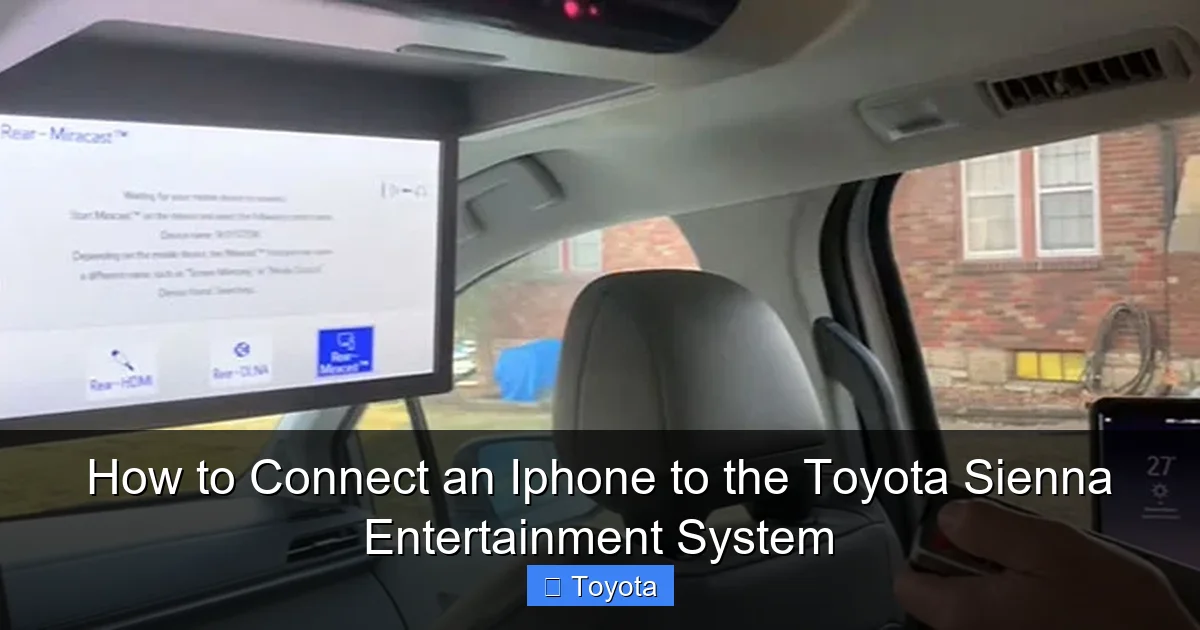
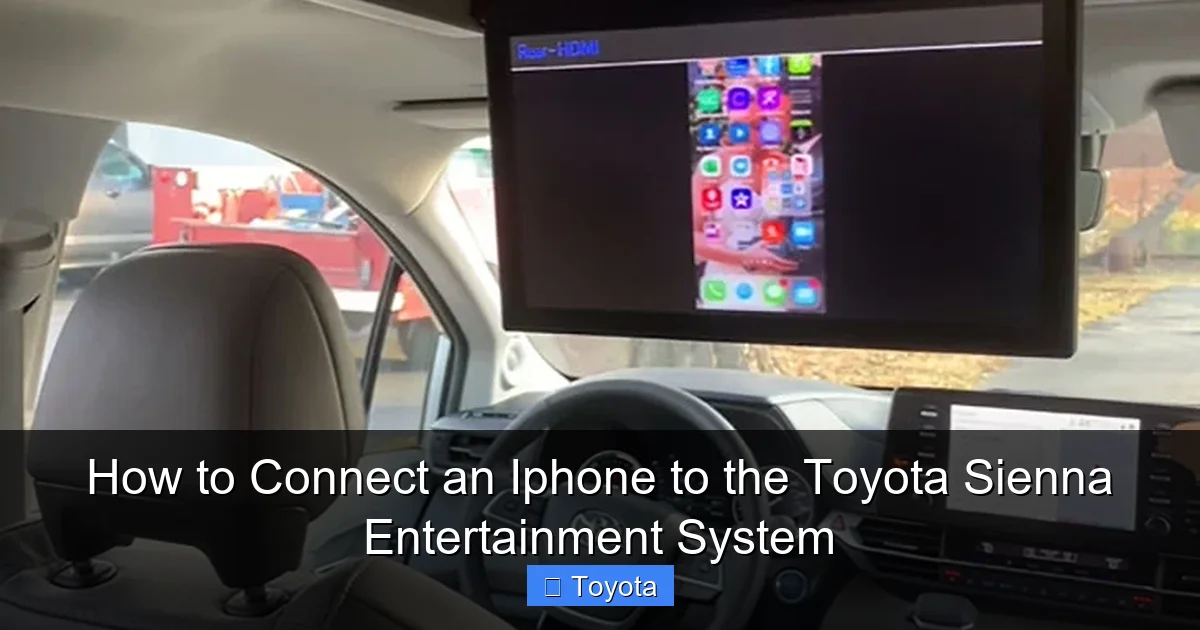
Most rear-seat systems support HDMI input or USB media playback. To use your iPhone, you’ll need a compatible adapter—like a Lightning to HDMI or USB-C to HDMI cable.
Plug the adapter into your iPhone and the other end into the rear entertainment system’s HDMI or USB port. The screen should switch to the input source automatically.
Now, open a video app like YouTube, Netflix, or Apple TV. Play a movie or show, and it will display on the rear screen. Audio will play through the car’s rear speakers or wireless headphones (if supported).
Streaming Tips for Passengers
To keep things smooth, download content in advance if you’re driving through areas with poor cell service. Use apps that support offline playback, like Netflix or Disney+.
Also, consider using wireless headphones. Many Sienna models come with built-in headphone jacks or Bluetooth headphone support, so passengers can watch without disturbing the driver.
One tip: Set up a playlist or queue before you start driving. Once the car is in motion, it’s harder to navigate apps safely.
Limitations to Know
Not all apps work with rear entertainment. Some, like YouTube, may restrict playback when connected to external displays due to licensing.
Also, the rear system may not support touch controls from the iPhone. You’ll need to use the rear screen’s remote or touch interface to pause or skip.
And remember: only passengers should use the rear screen. The driver should never watch videos while the car is in motion—it’s illegal in most states and extremely dangerous.
Maintaining a Stable Connection
Once your iPhone is connected, you’ll want to keep it that way. Here are some tips to ensure a reliable experience every time you drive.
Keep Software Updated
Both your iPhone and Sienna’s infotainment system should be running the latest software. Apple releases iOS updates regularly, often improving CarPlay and Bluetooth performance. Toyota also pushes updates for its systems—check your owner’s manual or visit a dealership to see if an update is available.
Manage Paired Devices
If multiple people use the car, their phones might interfere with your connection. Go to the Sienna’s Bluetooth menu and remove old or unused devices. This prevents accidental pairing and speeds up connection time.
Use High-Quality Accessories
Invest in a good Lightning or USB-C cable, and consider a phone mount near the USB port. This keeps your iPhone secure and makes it easy to plug in.
Also, avoid using third-party apps that claim to “boost” Bluetooth or CarPlay. These can cause instability or security risks.
Reset When Needed
If your connection becomes unreliable, don’t panic. A simple reset often fixes the issue. Turn off your iPhone, unplug it, and restart the car. Then reconnect using your preferred method.
For persistent problems, consult your Toyota dealer. They can run diagnostics on the infotainment system and ensure everything is working correctly.
Conclusion: Enjoy a Smarter, Safer Drive
Connecting your iPhone to the Toyota Sienna entertainment system opens up a world of convenience and entertainment. Whether you’re using Bluetooth for hands-free calls, USB for reliable CarPlay, or wireless connectivity for a cable-free experience, the process is simpler than most people think.
The key is choosing the right method for your needs. For everyday use, Bluetooth is fast and easy. For navigation and apps, Apple CarPlay is the gold standard. And if you have a newer Sienna, wireless CarPlay offers the ultimate in convenience.
By following the steps in this guide, you’ll be able to enjoy music, stay connected, and keep your passengers entertained—all while keeping your hands on the wheel and your eyes on the road.
So the next time you hop into your Sienna, don’t just drive—connect, control, and enjoy the journey.
Frequently Asked Questions
Can I connect any iPhone to the Toyota Sienna?
Yes, most iPhones from the iPhone 5 onward can connect to the Toyota Sienna via Bluetooth or USB. For Apple CarPlay, you’ll need an iPhone 5 or newer running iOS 7.1 or later.
Does the Toyota Sienna support wireless Apple CarPlay?
Wireless Apple CarPlay is available on 2021 and newer Toyota Sienna models. Older models require a USB cable to use CarPlay.
Why won’t my iPhone connect to the Sienna via Bluetooth?
Common causes include outdated software, interference from other devices, or a faulty cable. Try restarting both devices, re-pairing, or checking for updates.
Can I watch movies from my iPhone on the rear-seat screen?
Yes, if your Sienna has rear-seat entertainment, you can connect your iPhone using a Lightning or USB-C to HDMI adapter and stream content via supported apps.
Does using CarPlay drain my iPhone battery?
Using CarPlay, especially wireless, can use more battery than normal. Plugging in your iPhone while driving helps maintain charge and ensures a stable connection.
How do I update my Toyota Sienna’s infotainment system?
Check your owner’s manual or visit a Toyota dealership. Some updates can be downloaded via USB, while others require professional installation.