
How to Connect an Iphone to an Audi Q5

Connecting your iPhone to an Audi Q5 is easier than you think—whether you’re using Bluetooth, USB, or Apple CarPlay. This guide walks you through every method, troubleshooting tips, and model-specific details to ensure a smooth, hands-free experience every time you drive.
So, you’ve just slid into the driver’s seat of your sleek Audi Q5, iPhone in hand, and you’re ready to hit the road. But before you can stream your favorite playlist, answer calls hands-free, or get turn-by-turn directions, you need to connect your iPhone to your car. Don’t worry—it’s not as complicated as it sounds. In fact, with a few simple steps, you can have your iPhone synced up and working seamlessly with your Audi’s infotainment system.
The Audi Q5, known for its luxury, performance, and advanced technology, supports several ways to connect your iPhone. Whether you drive a 2015 model or a brand-new 2024 Q5, there’s a method that will work for you. The most popular options include Bluetooth pairing, USB connection, and Apple CarPlay—especially if your Q5 was made in 2017 or later. Each method has its perks: Bluetooth is wireless and great for calls and music, USB offers faster charging and more stable connectivity, and CarPlay gives you full access to your iPhone’s apps right on the dashboard screen.
In this guide, we’ll walk you through every step to connect your iPhone to your Audi Q5, no matter which year or trim you have. We’ll cover setup instructions, troubleshooting tips, and even some pro tricks to make your driving experience smoother and safer. By the end, you’ll be able to enjoy your music, navigate with ease, and stay connected—all without taking your hands off the wheel.
Key Takeaways
- Multiple Connection Options: You can connect your iPhone to an Audi Q5 using Bluetooth, USB cable, or Apple CarPlay, depending on your model year and preferences.
- Apple CarPlay is Ideal for Navigation and Apps: For 2017 and newer Q5 models, Apple CarPlay offers the best integration for maps, music, messages, and voice commands.
- Bluetooth Works for Calls and Audio: Even older Q5 models support Bluetooth pairing for hands-free calling and streaming music from your iPhone.
- USB Offers Faster Charging and Stable Connection: Using a Lightning cable provides reliable connectivity and keeps your phone charged during long drives.
- Keep Software Updated: Ensure both your iPhone and Audi MMI system are updated to avoid compatibility issues.
- Troubleshooting is Simple: Most connection problems can be fixed by restarting devices, re-pairing, or checking settings.
- Siri Integration Enhances Safety: Use voice commands via Siri Eyes Free or CarPlay to stay focused on the road.
📑 Table of Contents
Understanding Your Audi Q5’s Infotainment System
Before you start connecting your iPhone, it helps to understand what you’re working with. The Audi Q5 comes equipped with the MMI (Multi Media Interface) system, which has evolved over the years. Depending on your model year, you might have the older MMI Navigation Plus or the newer MMI Touch system with a larger, responsive touchscreen.
Starting around 2017, Audi began integrating Apple CarPlay and Android Auto into the Q5, making it much easier to mirror your iPhone’s interface directly onto the car’s display. If your Q5 has a touchscreen (typically 7 or 8 inches), there’s a good chance it supports CarPlay. You can usually confirm this by looking for a “CarPlay” or “Smartphone Interface” option in the MMI menu.
Even if your Q5 doesn’t support CarPlay, don’t worry—Bluetooth and USB connectivity are still available on most models. These methods allow you to stream audio, make hands-free calls, and even charge your phone while driving. The key is knowing which features your specific Q5 supports and how to access them.
Checking Your Q5’s Compatibility
To determine what connection options are available, check your vehicle’s model year and infotainment setup:
– **2015–2016 Audi Q5:** Supports Bluetooth and USB, but no Apple CarPlay.
– **2017–2019 Audi Q5:** Introduced Apple CarPlay (wired only, via USB).
– **2020–2024 Audi Q5:** Supports wireless Apple CarPlay (on higher trims) and enhanced MMI Touch with faster processing.
You can also check your owner’s manual or visit the Audi website and enter your VIN to see your exact features. If you’re unsure, a quick look at the MMI screen for a “Phone” or “Media” menu will give you clues about what’s supported.
What You’ll Need
Before you begin, make sure you have the following:
– Your iPhone (iOS 7.1 or later for CarPlay, iOS 13+ recommended)
– A Lightning to USB cable (for USB and wired CarPlay)
– Your Audi Q5 powered on (engine running or ignition in accessory mode)
– Bluetooth enabled on your iPhone
Having these ready will save you time and frustration when setting up your connection.
How to Connect iPhone to Audi Q5 via Bluetooth
Visual guide about How to Connect an Iphone to an Audi Q5
Image source: wallpapers.com
Bluetooth is the most common and convenient way to connect your iPhone to your Audi Q5—especially if you don’t have CarPlay or prefer a wireless setup. It allows you to make hands-free calls, stream music, and even use voice commands through Siri.
The process is straightforward and works on nearly all Q5 models, even older ones. Here’s how to do it step by step.
Step 1: Enable Bluetooth on Your iPhone
First, make sure Bluetooth is turned on. Go to **Settings > Bluetooth** and toggle it on. You should see “Bluetooth” at the top of your screen with a blue icon.
Step 2: Access the MMI System in Your Q5
Turn on your Audi Q5 and wait for the MMI system to boot up. Press the **Menu** button on the center console, then navigate to **Phone** or **Connectivity**. Select **Bluetooth** or **Bluetooth Devices**.
Step 3: Put Your Q5 in Pairing Mode
On the MMI screen, select **Add New Device** or **Search for Devices**. The system will begin scanning for nearby Bluetooth devices. This may take 10–20 seconds.
Step 4: Select Your iPhone
On your iPhone, you should see “Audi Q5” or a similar name appear in the Bluetooth devices list. Tap it to initiate pairing.
Step 5: Confirm the Pairing Code
A 4- or 6-digit code will appear on both your iPhone and the Q5’s screen. Make sure they match, then tap **Pair** on your iPhone and confirm on the car’s display.
Once paired, your iPhone will connect automatically whenever you start the car (as long as Bluetooth is on). You’ll see a “Phone” icon on the MMI screen, and you can now make calls or stream audio.
Tips for Better Bluetooth Performance
– Keep your iPhone within a few feet of the car’s Bluetooth antenna (usually near the center console).
– Avoid placing your phone in a metal case or glove compartment, which can block the signal.
– If audio skips or calls drop, try re-pairing the devices or restarting your iPhone.
How to Connect iPhone to Audi Q5 via USB
Visual guide about How to Connect an Iphone to an Audi Q5
Image source: images.caricos.com
Using a USB cable to connect your iPhone to your Audi Q5 offers several advantages over Bluetooth. It provides a more stable connection, faster data transfer, and keeps your phone charged during long drives. Plus, if your Q5 supports Apple CarPlay, USB is the way to go.
This method is especially useful for navigation, using Siri, or accessing apps like Spotify, Apple Music, or Google Maps through the car’s screen.
Step 1: Use a High-Quality Lightning Cable
Not all cables are created equal. Use an Apple-certified Lightning to USB cable to ensure compatibility and avoid error messages like “This accessory is not supported.” Cheap or damaged cables can cause connection issues.
Step 2: Plug Into the USB Port
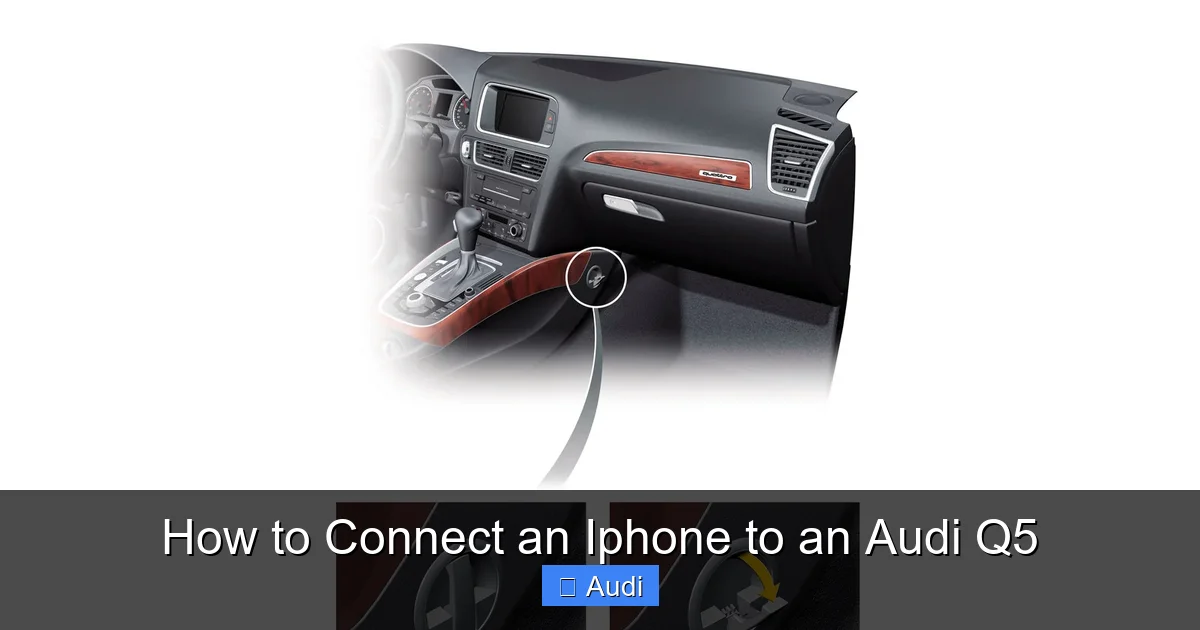
Locate the USB port in your Q5. It’s usually in the center console armrest or near the gear shifter. Plug your iPhone into the port using the Lightning cable.
Step 3: Trust the Device (if prompted)
When you plug in your iPhone, a prompt may appear on the screen asking, “Trust This Computer?” Tap **Trust** and enter your passcode if required. This allows the car to access your phone’s media and data.
Step 4: Select the Correct Source on MMI
On the MMI screen, press the **Media** or **Source** button and select **USB** or **iPod**. Your iPhone’s music library should appear, and you can start playing songs.
If your Q5 supports Apple CarPlay, the screen may automatically switch to the CarPlay interface. If not, you can manually select it from the MMI menu under **Smartphone Interface** or **CarPlay**.
Benefits of USB Over Bluetooth
– **Faster charging:** USB delivers more power than Bluetooth.
– **Better audio quality:** Wired connections reduce lag and interference.
– **Full app access:** CarPlay only works over USB (or wireless on newer models).
– **Reliability:** Less likely to disconnect during drives.
How to Set Up Apple CarPlay in Your Audi Q5
Visual guide about How to Connect an Iphone to an Audi Q5
Image source: forums.audipassion.com
If your Audi Q5 was made in 2017 or later, you’re in luck—Apple CarPlay is likely available. CarPlay mirrors your iPhone’s interface onto the car’s display, letting you use apps like Maps, Messages, Music, and Podcasts safely while driving.
It’s one of the best ways to integrate your iPhone with your Q5, offering a clean, driver-friendly experience.
Step 1: Check CarPlay Compatibility
Make sure your Q5 supports CarPlay. Look for a “CarPlay” option in the MMI menu under **Smartphone Interface**. If you don’t see it, your model may not have it—or it might need a software update.
Step 2: Connect via USB
Plug your iPhone into the USB port using a Lightning cable. Wait a few seconds for the system to recognize the device.
Step 3: Enable CarPlay on iPhone
On your iPhone, go to **Settings > General > CarPlay**. If your Q5 is listed, tap it and follow the prompts. If not, CarPlay should activate automatically when connected.
Step 4: Use CarPlay on the MMI Screen
Once connected, the CarPlay interface will appear on your Q5’s screen. You can now:
– Use Apple Maps or Google Maps for navigation
– Send and receive texts via Siri
– Play music from Apple Music, Spotify, or other apps
– Make calls using the on-screen dialer
You can control CarPlay using the touchscreen, voice commands, or the MMI control knob.
Wireless CarPlay (2020+ Models)
On newer Q5 models (2020 and later, especially Prestige trims), wireless Apple CarPlay is available. This means you don’t need a cable—just pair your iPhone via Bluetooth and Wi-Fi.
To set it up:
1. Connect your iPhone via USB first to enable wireless pairing.
2. Go to **Settings > General > CarPlay** on your iPhone.
3. Select your Q5 and toggle on **Allow Wireless CarPlay**.
4. After setup, you can connect wirelessly by starting the car with your iPhone nearby.
Wireless CarPlay is incredibly convenient, but keep in mind it may drain your battery faster than wired connections.
Troubleshooting Common Connection Issues
Even with the best setup, you might run into problems from time to time. Here are some common issues and how to fix them.
iPhone Not Connecting to Bluetooth
– **Solution:** Turn Bluetooth off and on again on both devices. Delete the Q5 from your iPhone’s Bluetooth list and re-pair.
– **Tip:** Restart your iPhone and restart the car’s MMI system (turn ignition off and on).
CarPlay Not Appearing
– **Solution:** Make sure you’re using a certified Lightning cable. Try a different USB port.
– **Check:** Ensure CarPlay is enabled in iPhone Settings > General > CarPlay.
Audio Skipping or Delayed
– **Solution:** This is often a Bluetooth interference issue. Move your phone closer to the center console.
– **Alternative:** Switch to USB for a more stable connection.
Phone Not Charging
– **Solution:** The USB port may not support data transfer and charging simultaneously. Try a different port or use a 12V charger.
MMI System Freezing
– **Solution:** Perform a soft reset by holding the Menu, Radio, and Media buttons for 10 seconds until the screen restarts.
Software Out of Date
– **Solution:** Check for updates on your iPhone (Settings > General > Software Update) and your Q5 (via Audi’s website or dealership).
Tips for a Smarter, Safer Driving Experience
Now that your iPhone is connected, here are some tips to make the most of it:
– **Use Siri for Hands-Free Control:** Say “Hey Siri” to send texts, make calls, or get directions without touching your phone.
– **Download Offline Maps:** In case you lose signal, download your route in Apple Maps before you go.
– **Organize Your Playlists:** Create driving playlists in Apple Music or Spotify so you don’t have to search while driving.
– **Enable Do Not Disturb While Driving:** Go to Settings > Do Not Disturb > Activate “When Connected to Car Bluetooth” to minimize distractions.
– **Keep Your Phone Updated:** Regular iOS updates improve compatibility and security.
Conclusion
Connecting your iPhone to your Audi Q5 doesn’t have to be a headache. Whether you’re using Bluetooth for quick calls, USB for reliable audio and charging, or Apple CarPlay for full app integration, the process is simple once you know the steps.
Start by checking your Q5’s model year and infotainment features, then choose the connection method that best fits your needs. With a little setup and the right cable, you’ll be streaming music, navigating with ease, and staying connected—all while keeping your hands on the wheel and your eyes on the road.
Remember, technology works best when it’s seamless. By following this guide, you’re not just connecting a phone to a car—you’re enhancing your entire driving experience. So plug in, pair up, and enjoy the ride.
Frequently Asked Questions
Can I connect my iPhone to a 2015 Audi Q5?
Yes, you can connect your iPhone to a 2015 Audi Q5 using Bluetooth or USB. However, Apple CarPlay is not available on this model year, so you’ll need to use the MMI system for calls and audio streaming.
Does the Audi Q5 support wireless Apple CarPlay?
Wireless Apple CarPlay is available on 2020 and newer Audi Q5 models, especially higher trims like Prestige. Older models require a USB cable for CarPlay connectivity.
Why won’t my iPhone connect to my Audi Q5 via Bluetooth?
This could be due to outdated software, interference, or a pairing error. Try restarting both devices, deleting the old pairing, and re-pairing. Also, ensure Bluetooth is enabled and your phone is in range.
Can I use Google Maps on my Audi Q5 with my iPhone?
Yes, if your Q5 supports Apple CarPlay, you can use Google Maps through the CarPlay interface. Just download the app on your iPhone and it will appear in CarPlay.
How do I update the software on my Audi Q5?
You can check for MMI updates through the car’s system menu or visit an Audi dealership. Some updates may require a USB drive with the latest software downloaded from Audi’s website.
Is it safe to use my iPhone while driving in the Audi Q5?
As long as you use hands-free features like Bluetooth, Siri, or CarPlay, it’s safe and legal in most areas. Avoid touching your phone while driving—use voice commands or the MMI controls instead.
