
How to Start a Car with the My Cadillac App

Starting your Cadillac remotely has never been easier thanks to the My Cadillac App. With just a few taps on your smartphone, you can start your vehicle, warm up the engine, and even precondition the cabin—no matter where you are. This guide walks you through setup, troubleshooting, and pro tips to get the most out of this smart feature.
Key Takeaways
- Download and set up the My Cadillac App: Available on iOS and Android, the app requires a free account and vehicle pairing.
- Ensure your vehicle is compatible: Most 2018 and newer Cadillac models support remote start via the app.
- Use the remote start feature safely: Always park in a well-ventilated area and never leave your car running unattended in enclosed spaces.
- Check your data and connectivity: A stable cellular connection is essential for the app to communicate with your vehicle.
- Enable location services for best results: This helps the app verify your proximity and improve security.
- Troubleshoot common issues: From login problems to failed starts, most issues have simple fixes.
- Explore additional app features: Beyond remote start, you can lock doors, check fuel levels, and even schedule service.
📑 Table of Contents
- Introduction: The Future of Car Control Is in Your Pocket
- What Is the My Cadillac App?
- Is Your Cadillac Compatible with the My Cadillac App?
- Step-by-Step Guide: How to Start a Car with the My Cadillac App
- Troubleshooting Common Issues
- Best Practices for Safe and Effective Remote Start
- Beyond Remote Start: Other Useful Features
- Conclusion: Take Control of Your Cadillac Experience
Introduction: The Future of Car Control Is in Your Pocket
Imagine stepping out of your house on a freezing winter morning, only to find your Cadillac already warmed up and ready to go. No scraping ice off the windshield, no shivering while the engine sputters to life—just a comfortable, cozy cabin waiting for you. That’s the magic of remote start, and with the My Cadillac App, it’s not just a luxury—it’s a daily convenience.
The My Cadillac App is more than just a remote starter. It’s a digital command center for your vehicle, putting control of your car’s most important functions right in your hands—literally. Whether you’re at the grocery store, in the office, or lounging at home, you can start your engine, lock or unlock doors, check fuel levels, and even locate your car in a crowded parking lot. But one of the most popular and practical features? Starting your car remotely.
In this guide, we’ll walk you through everything you need to know about how to start a car with the My Cadillac App. From downloading and setting up the app to troubleshooting common issues, we’ve got you covered. Whether you’re a new Cadillac owner or just exploring the app’s capabilities, this step-by-step breakdown will help you get the most out of your vehicle’s smart technology.
What Is the My Cadillac App?
The My Cadillac App is a free mobile application developed by Cadillac to enhance the ownership experience. Available for both iOS and Android devices, the app connects your smartphone to your Cadillac vehicle via cellular and GPS technology. It acts as a remote control, allowing you to interact with your car from virtually anywhere—within reason, of course.
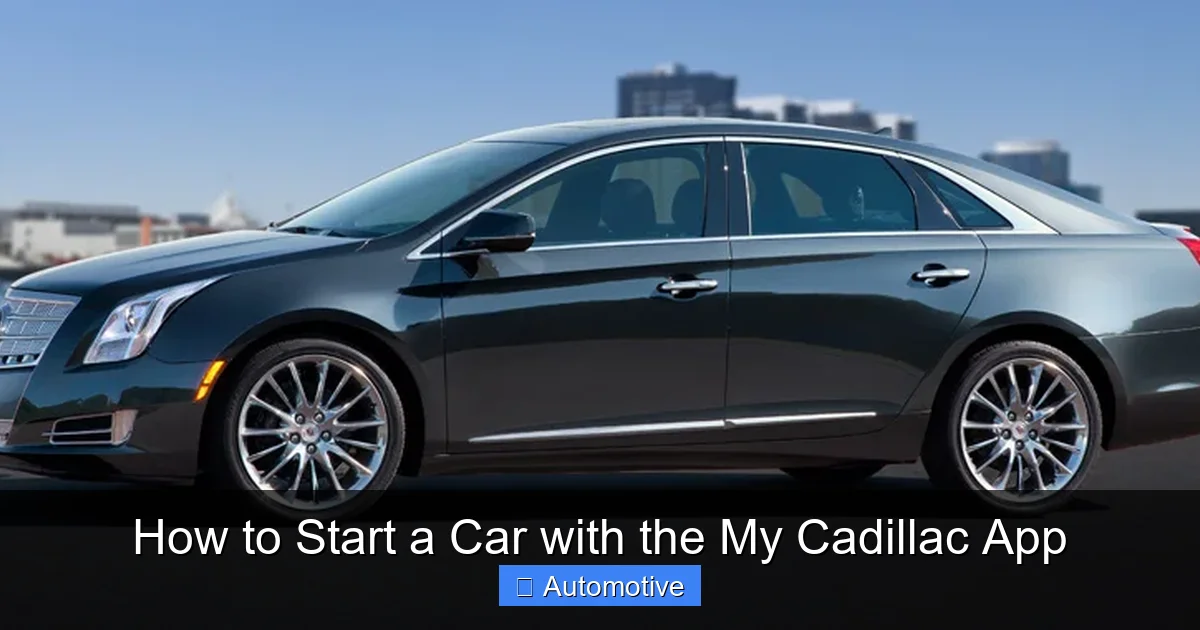
Visual guide about How to Start a Car with the My Cadillac App
Image source: techglimpse.com
Think of it as your car’s personal assistant. Need to warm up the engine before a long drive? Done. Forgot if you locked the doors after running into the store? Just tap a button. Worried about fuel levels on a road trip? The app gives you real-time updates. It’s designed to make your life easier, safer, and more connected.
Key Features of the My Cadillac App
- Remote Start: Start your engine from up to 200 feet away (depending on signal strength).
- Lock/Unlock Doors: Secure your vehicle or grant access without fumbling for keys.
- Horn & Lights: Flash your lights and sound the horn to locate your car in a busy lot.
- Vehicle Locator: See your car’s GPS location on a map.
- Fuel & Oil Levels: Monitor fuel, oil life, tire pressure, and more.
- Service Reminders: Get alerts for maintenance and schedule appointments directly through the app.
- Emergency Assistance: Connect to OnStar or roadside assistance with one tap.
While all these features are useful, the remote start function is often the most sought-after—especially in extreme weather. And the best part? It’s incredibly easy to use once you’ve set it up.
Is Your Cadillac Compatible with the My Cadillac App?
Before you get excited about remote starting your Cadillac, it’s important to confirm that your vehicle is compatible with the My Cadillac App. Not all models or model years support every feature, so let’s break it down.
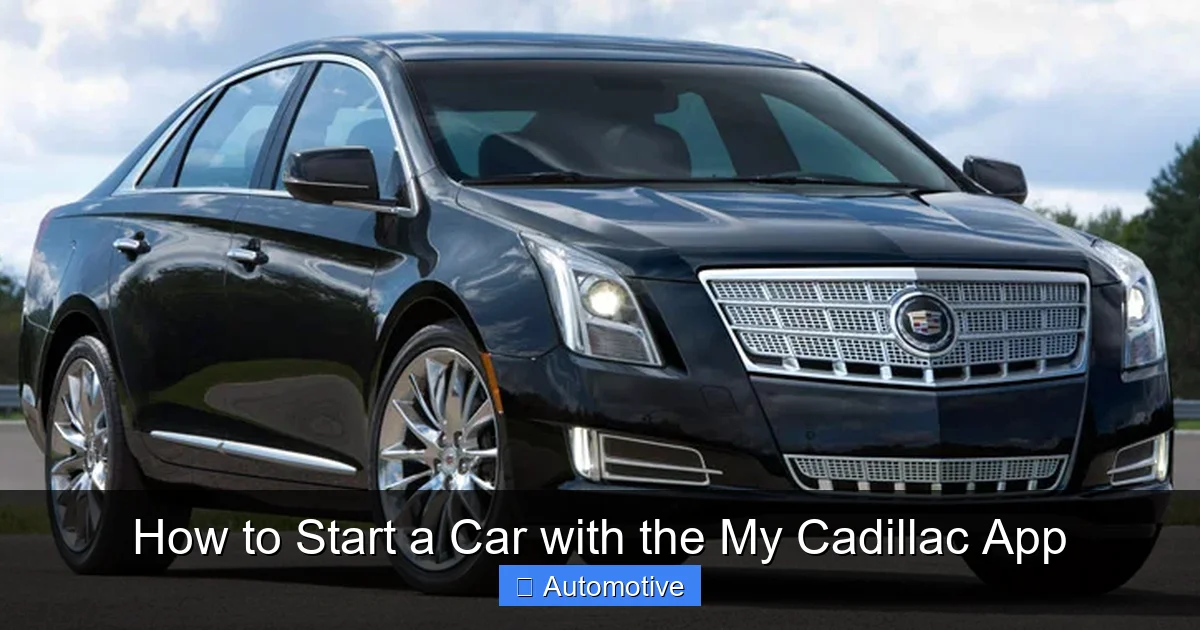
Visual guide about How to Start a Car with the My Cadillac App
Image source: techglimpse.com
Most Cadillac vehicles from 2018 onward come equipped with the necessary hardware to support the My Cadillac App’s remote functions. This includes popular models like the Cadillac XT4, XT5, XT6, Escalade, CT4, CT5, and CT6. However, older models (pre-2018) may have limited or no app connectivity, depending on the trim level and optional packages.
How to Check Compatibility
The easiest way to verify compatibility is to check your vehicle’s owner’s manual or visit the official Cadillac website. You can also use the VIN (Vehicle Identification Number) lookup tool on the My Cadillac App or Cadillac’s support page. Simply enter your 17-digit VIN, and the system will tell you which features are available for your specific vehicle.
Another quick method? Look for the “Cadillac Connected Services” badge on your vehicle or in the infotainment system. If your car has OnStar or Cadillac Connected Services, there’s a good chance it supports the app.
Required Equipment
To use the remote start feature, your Cadillac must have:
- A compatible infotainment system (usually with Cadillac User Experience or CUE)
- OnStar or Cadillac Connected Services subscription (some features may require an active plan)
- Cellular connectivity (built into the vehicle)
Note: While the app itself is free, some advanced features—like remote start—may require an active OnStar or Cadillac Connected Services plan. These plans typically start around $20–$30 per month, but Cadillac often includes a trial period (usually 3–12 months) when you purchase a new vehicle.
Step-by-Step Guide: How to Start a Car with the My Cadillac App
Now that you’ve confirmed your Cadillac is compatible, it’s time to learn how to start your car remotely using the My Cadillac App. The process is straightforward, but there are a few key steps to follow to ensure everything works smoothly.
Visual guide about How to Start a Car with the My Cadillac App
Image source: is1-ssl.mzstatic.com
Step 1: Download the My Cadillac App
First, head to your smartphone’s app store—Apple App Store for iPhone users or Google Play Store for Android users. Search for “My Cadillac” and download the official app. Make sure you’re downloading the app developed by General Motors, not a third-party imitation.
Once installed, open the app and create a free account using your email address. You’ll need to verify your email and set up a secure password. This account will be linked to your vehicle, so keep your login details safe.
Step 2: Pair Your Vehicle
After creating your account, the app will prompt you to add your vehicle. You’ll need your VIN (found on your dashboard, driver’s side door jamb, or registration documents) to complete this step. Enter the VIN, and the app will search for your vehicle in Cadillac’s database.
Next, you’ll be asked to confirm ownership. This usually involves entering a verification code sent to your registered email or phone number. Once verified, your vehicle will appear in the app’s dashboard.
Step 3: Enable Remote Services
Before you can start your car remotely, you may need to enable remote services through your vehicle’s infotainment system. Here’s how:
- Start your Cadillac and go to the main menu on the touchscreen.
- Navigate to “Settings” > “My Cadillac” or “Connected Services.”
- Select “Remote Access” or “Remote Start.”
- Follow the on-screen prompts to activate the feature.
Some models may require you to accept terms and conditions or confirm your OnStar subscription status. If prompted, make sure your subscription is active.
Step 4: Use the Remote Start Feature
Now for the fun part—starting your car remotely! Here’s how:
- Open the My Cadillac App on your phone.
- Tap on your vehicle from the dashboard.
- Select the “Remote Start” button (usually represented by a car icon with a power symbol).
- Choose your preferred settings:
- Climate control (auto, heat, or A/C)
- Duration (typically 5, 10, or 15 minutes)
- Tap “Start” to send the command.
Within seconds, your Cadillac’s engine should start, and the climate system will begin adjusting the cabin temperature. You’ll receive a confirmation notification on your phone once the command is successfully executed.
Tips for Best Results
- Stay within range: While the app uses cellular data (not Bluetooth), signal strength can affect performance. If you’re in a basement or remote area, move to a spot with better reception.
- Check fuel levels: Remote start won’t work if your fuel is too low (usually below 1/4 tank).
- Ensure doors are locked: For security, the app typically requires the vehicle to be locked before remote start can be activated.
- Use the climate presets: Set your preferred temperature in the app to avoid manually adjusting it after starting.
Troubleshooting Common Issues
Even with the best technology, things don’t always go as planned. If you’re having trouble starting your car with the My Cadillac App, don’t panic—most issues have simple solutions.
App Won’t Connect to Your Vehicle
If the app says “Unable to connect” or “Vehicle not found,” try these steps:
- Ensure your phone has a strong cellular or Wi-Fi connection.
- Restart the app and your phone.
- Check that your vehicle is powered on (even if the engine is off, the infotainment system needs to be active).
- Verify that your OnStar or Connected Services subscription is active.
- Re-pair your vehicle in the app settings.
Remote Start Fails to Activate
If you tap “Start” but nothing happens, consider these possibilities:
- The vehicle is not locked—lock it manually or via the app first.
- The fuel level is too low—refuel if necessary.
- The hood is open—remote start won’t work for safety reasons.
- The vehicle is in “Valet Mode”—disable it in the settings.
- There’s a software glitch—update the app and restart your phone.
Delayed Response or Slow Performance
Sometimes the app takes a few seconds (or longer) to respond. This is usually due to network congestion or poor signal. Try:
- Moving to an area with better cellular coverage.
- Closing other apps running in the background.
- Using the app during off-peak hours (early morning or late evening).
Login or Account Issues
Forgot your password? Can’t log in? Use the “Forgot Password” link on the login screen to reset it. If you’re still having trouble, contact Cadillac Customer Support or visit a dealership for assistance.
Best Practices for Safe and Effective Remote Start
While remote starting your Cadillac is convenient, it’s important to use the feature responsibly. Here are some best practices to keep in mind:
Never Start Your Car in an Enclosed Space
Never use remote start in a garage, especially an attached one. Carbon monoxide from the exhaust can build up quickly and become deadly. Always park in a well-ventilated area when using remote start.
Limit Runtime
Most remote start systems automatically shut off after 10–15 minutes to conserve fuel and prevent overheating. Avoid extending the runtime unless absolutely necessary.
Check Your Surroundings
Before starting your car remotely, make sure the area is clear of people, pets, or obstacles. A running vehicle can pose a safety risk if someone is near the wheels or exhaust.
Use Climate Control Wisely
In extreme heat or cold, pre-conditioning your cabin can improve comfort—but it also uses fuel. Use the feature sparingly to avoid unnecessary consumption.
Keep Your App Updated
Cadillac regularly releases app updates to improve performance and fix bugs. Enable automatic updates on your phone to ensure you’re always using the latest version.
Beyond Remote Start: Other Useful Features
While remote start is a standout feature, the My Cadillac App offers much more. Here are a few other ways to make the most of your app:
Lock and Unlock Doors Remotely
Forgot to lock your car after a quick stop? No problem. Use the app to lock or unlock your doors from anywhere. This is especially useful if you’ve lent your car to a friend or family member.
Locate Your Vehicle
Lost your Cadillac in a massive parking lot? Tap the “Find My Car” feature to see its exact GPS location on a map. You can even make the horn honk and lights flash to help you spot it.
Monitor Vehicle Health
The app provides real-time updates on fuel level, oil life, tire pressure, and battery status. If something needs attention, you’ll get an alert—so you can address issues before they become serious.
Schedule Service Appointments
Need an oil change or brake inspection? Use the app to find nearby dealerships, check availability, and book appointments—all without making a phone call.
Access Roadside Assistance
If you’re stranded due to a flat tire, dead battery, or other issue, tap the “Emergency” button in the app to connect with OnStar or roadside assistance instantly.
Conclusion: Take Control of Your Cadillac Experience
Starting your car with the My Cadillac App is more than just a cool trick—it’s a practical, time-saving feature that enhances your daily driving experience. Whether you’re braving a snowstorm or escaping a summer heatwave, remote start ensures your Cadillac is ready when you are.
By following the steps in this guide, you can easily set up and use the app to start your vehicle, monitor its status, and stay connected no matter where life takes you. Just remember to use the feature safely, keep your app updated, and take advantage of the many other tools available at your fingertips.
So go ahead—download the My Cadillac App, pair your vehicle, and experience the future of automotive convenience. Your Cadillac is waiting.
Frequently Asked Questions
Can I start my Cadillac remotely without the app?
Yes, some Cadillac models come with a key fob that includes a remote start button. However, the My Cadillac App offers more control, including climate settings and real-time feedback, making it a more versatile option.
Does using the My Cadillac App drain my phone’s battery?
The app uses minimal battery when idle. However, frequent use—like checking vehicle status multiple times a day—may have a small impact. Closing the app when not in use can help preserve battery life.
Is the My Cadillac App free to use?
Yes, the app itself is free to download and use. However, some features like remote start may require an active OnStar or Cadillac Connected Services subscription, which has a monthly fee.
How far away can I be to start my car with the app?
The app uses cellular data, so distance isn’t a limiting factor—unlike traditional key fobs. As long as your phone and vehicle have cellular coverage, you can start your car from virtually anywhere.
What if my car doesn’t start when I use the app?
Check that your vehicle is locked, has sufficient fuel, and isn’t in valet mode. Also, ensure your OnStar subscription is active and your phone has a strong signal. Restarting the app or your phone may also help.
Can I let someone else use the app to start my car?
Yes, you can share access by adding them as a “Guest User” in the app settings. This allows trusted friends or family to start, lock, or unlock your vehicle without needing your login credentials.