
How to Set Radio Stations in Audi A4

Setting radio stations in your Audi A4 is simple once you know the system. Whether you’re using the MMI touchscreen, steering wheel controls, or voice commands, this guide walks you through every method to save and access your favorite stations quickly and easily.
So, you’ve just hopped into your sleek Audi A4, adjusted the seat, cranked up the climate control, and now you’re ready to enjoy some music or catch up on the news—only to realize you don’t remember how to set your favorite radio stations. Don’t worry—you’re not alone. Even though Audi’s MMI (Multi Media Interface) system is intuitive, it can feel a bit overwhelming if you’re new to it or haven’t used it in a while.
The good news? Setting radio stations in an Audi A4 is actually pretty straightforward once you get the hang of it. Whether you’re driving a 2016 model with the classic rotary knob or a newer 2023 A4 with a full touchscreen interface, the core principles remain the same. This guide will walk you through every method—from manual tuning to voice commands—so you can save your go-to stations and switch between them effortlessly. Plus, we’ll share some pro tips to make your audio experience even smoother.
By the end of this article, you’ll know exactly how to set radio stations in your Audi A4, customize your presets, and use advanced features like RDS and auto-store. No more fumbling around while driving—just pure, uninterrupted audio enjoyment.
Key Takeaways
- Use the MMI Touchscreen: Navigate to the Media menu, select Radio, and browse or search for stations manually or via auto-scan.
- Save Favorites with One Touch: Press and hold any preset button (1–6) on the screen or steering wheel to store a station for instant access.
- Voice Command Support: Say “Save current station” or “Tune to [station name]” to control the radio hands-free.
- Steering Wheel Controls: Use the preset buttons on the left side of the wheel to switch between saved stations without taking your eyes off the road.
- Auto-Store Function: Let the system automatically find and save strong FM/AM signals for quick setup on long drives.
- RDS and Station Info: Take advantage of Radio Data System features like station names, song titles, and traffic alerts.
- Compatibility Across Models: These steps work for most Audi A4 models from 2015 onward, including those with Bang & Olufsen sound systems.
📑 Table of Contents
- Understanding the Audi A4 Audio System
- Accessing the Radio Menu
- Manually Tuning and Scanning for Stations
- Saving Radio Stations as Presets
- Using Voice Commands to Control the Radio
- Advanced Features: RDS, Auto-Store, and More
- Troubleshooting Common Radio Issues
- Tips for a Better Radio Experience
- Conclusion
Understanding the Audi A4 Audio System
Before diving into the steps, it helps to understand what you’re working with. The Audi A4 comes equipped with a sophisticated infotainment system known as MMI (Multi Media Interface). Depending on your model year and trim level, you might have a touchscreen, a rotary controller, or a combination of both.
Most modern Audi A4 models (2015 and newer) feature a central touchscreen display—usually 7 or 8 inches—located in the dashboard. This screen is your main hub for controlling audio, navigation, phone, and vehicle settings. Older models may use a rotary knob near the gearshift, which you turn and press to navigate menus. But even those systems support the same core radio functions.
The radio in your A4 supports FM, AM, and in some regions, HD Radio and satellite radio (if equipped). It also includes RDS (Radio Data System), which displays station names, song titles, and traffic updates directly on the screen. This means you’re not just listening to static—you’re getting a rich, informative audio experience.
One of the best things about the Audi A4’s radio system is its integration with other features. For example, you can use voice commands to change stations, or save presets that sync across different audio sources. Whether you’re tuning into a local rock station or a national news broadcast, the system is designed to make it quick and easy.
Accessing the Radio Menu
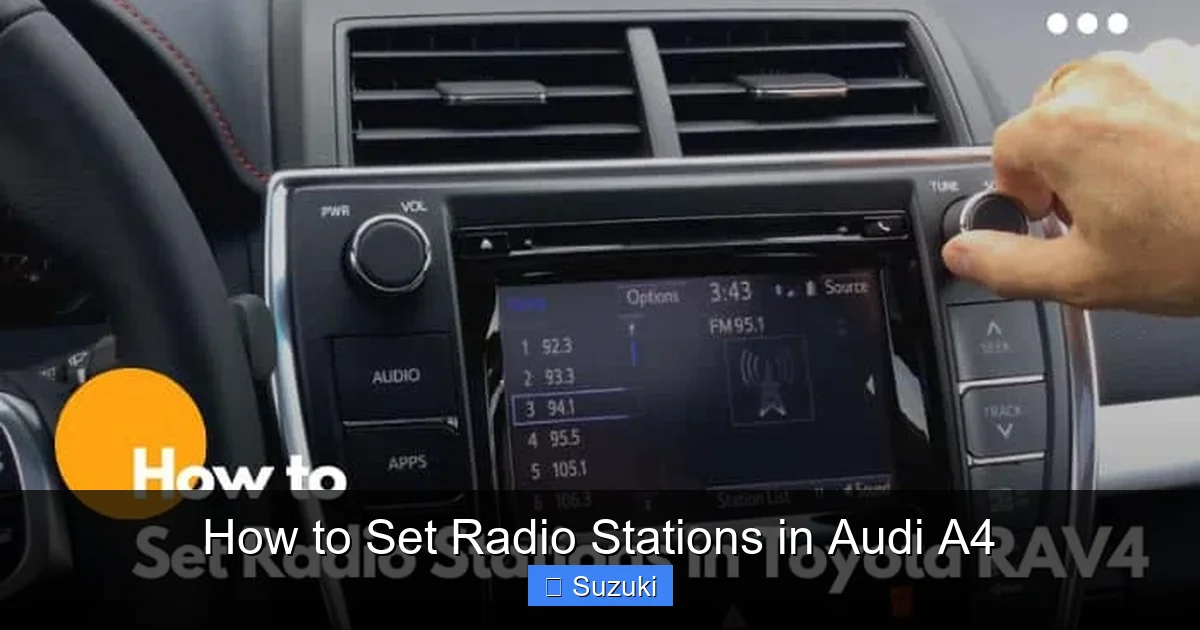
Visual guide about How to Set Radio Stations in Audi A4
Image source: windupradio.com
The first step to setting radio stations in your Audi A4 is getting to the right menu. Here’s how to do it, depending on your setup.
Using the Touchscreen (2017 and Newer Models)
If your A4 has a touchscreen, start by tapping the “Media” button on the home screen. This will bring up a list of audio sources—like Radio, Bluetooth, USB, and Satellite. Tap “Radio” to enter the radio interface.
Once inside, you’ll see options for FM, AM, and possibly HD or Satellite. Tap the band you want (usually FM for music stations). The screen will show the current frequency, station name (if available via RDS), and a list of presets at the bottom.
From here, you can use the on-screen tuner to scroll through frequencies manually. Just tap the up or down arrows to move in small increments, or swipe left or right on the frequency display for faster scanning.
Using the Rotary Controller (Older Models)
If your A4 uses the rotary knob, press the “Media” button on the center console. Use the knob to scroll through the audio sources until “Radio” is highlighted, then press the knob to select it.
Next, turn the knob to switch between FM and AM bands. Once you’ve selected a band, you can turn the knob to tune to different frequencies. Press the knob to confirm your selection.
You’ll also see preset buttons (usually labeled 1 through 6) on the screen or around the knob. These are your saved stations—more on that in a moment.
Using the Steering Wheel Controls
Don’t forget about the controls on your steering wheel! Most Audi A4 models have audio buttons on the left side of the wheel. Press the “Source” button to cycle through audio inputs until you land on Radio.
Once in Radio mode, use the “+” and “-” buttons to tune up or down the frequency. You can also press and hold these buttons to scan through stations automatically.
This method is great for quick adjustments without taking your hands off the wheel—perfect for when you’re driving and want to find a new station fast.
Manually Tuning and Scanning for Stations

Visual guide about How to Set Radio Stations in Audi A4
Image source: i.pinimg.com
Now that you’re in the radio menu, let’s talk about finding stations. There are a few ways to do this—manual tuning, auto-scan, and search by name.
Manual Tuning
This is the most basic method. Whether you’re using the touchscreen or rotary knob, simply adjust the frequency until you find a station you like.
On the touchscreen, tap the frequency display and use the on-screen arrows to fine-tune. On older models, turn the rotary knob slowly to move in small steps.
Pro tip: If you know the exact frequency (like 98.5 FM), you can often enter it directly. On touchscreen models, tap the frequency field and use the on-screen keypad to type it in.
Auto-Scan or Seek Function
If you’re not sure what’s playing, use the auto-scan feature. This automatically searches for the next strong signal and stops when it finds one.
On touchscreen models, look for a “Scan” or “Seek” button—usually near the tuner. Tap it, and the system will cycle through available stations, playing each for a few seconds.
On rotary models, press and hold the “Tune” or “Seek” button. The system will scan forward until it locks onto a station.
You can usually stop the scan by pressing the button again or selecting a station manually.
Search by Station Name (RDS)
Thanks to RDS, many stations broadcast their name and other info. This means you can search for stations by name instead of frequency.
On touchscreen models, tap the “Search” or “List” button in the radio menu. A list of available RDS stations will appear. Scroll through and tap the one you want.
This is especially useful in cities with lots of stations. Instead of guessing frequencies, you can just pick “NPR,” “Classic Rock 101,” or “Jazz FM” from the list.
Note: Not all stations broadcast RDS info, especially smaller or regional ones. In those cases, you’ll need to tune manually.
Saving Radio Stations as Presets

Visual guide about How to Set Radio Stations in Audi A4
Image source: windupradio.com
Once you find a station you love, you’ll want to save it so you can get back to it quickly. That’s where presets come in.
Most Audi A4 models have six preset buttons—labeled 1 through 6—either on the screen, around the rotary knob, or on the steering wheel. Here’s how to save and use them.
How to Save a Preset
1. Tune to the station you want to save.
2. Press and hold the preset button (on screen or steering wheel) where you want to store it.
3. Hold for about 2–3 seconds until you see a confirmation message or hear a beep.
4. The station is now saved to that preset.
For example, if you love 102.7 FM, tune to it, then press and hold “Preset 1.” Now, whenever you press that button, you’ll jump straight to 102.7.
You can save up to six stations this way—perfect for your morning commute playlist.
Editing or Replacing Presets
Changed your mind? No problem. Just tune to a new station and press and hold the same preset button. The old station will be overwritten.
Some models also let you rename presets. On touchscreen systems, tap the preset button, then select “Edit” or “Rename.” You can label it “Work Mix,” “News,” or anything you like.
Using Presets While Driving
The best part? You can access presets without looking at the screen. Use the steering wheel buttons to switch between saved stations instantly.
Press the “Preset” button (usually labeled with numbers) on the left side of the wheel. Then use the “+” and “-” buttons to cycle through your saved stations.
This keeps your eyes on the road and your hands on the wheel—exactly how it should be.
Using Voice Commands to Control the Radio
If you’d rather not touch anything at all, voice commands are your best friend. Audi’s MMI system supports natural language voice control, so you can manage your radio with simple spoken phrases.
Activating Voice Control
Press and hold the voice command button on your steering wheel (usually marked with a microphone icon). Wait for the beep or visual cue, then speak your command.
You can say things like:
– “Tune to 98.5 FM”
– “Play Classic Rock 101”
– “Save current station”
– “Switch to AM”
– “Find NPR”
The system will confirm your request and tune to the station—or save it if you asked to store it.
Tips for Better Voice Recognition
– Speak clearly and at a normal pace.
– Avoid background noise (roll up windows, pause music).
– Use full station names when possible (“NPR” instead of “that news station”).
– If it doesn’t understand, try rephrasing: “Tune to 104.3” instead of “Go to the rock station.”
Voice control works best with RDS-enabled stations, since the system can match names more easily.
Limitations to Know
Voice commands can’t always find every station—especially if it’s not broadcasting RDS data. Also, regional accents or fast speech might confuse the system. When in doubt, use the touchscreen or presets.
But for everyday use, voice control is a game-changer—especially on long drives or in heavy traffic.
Advanced Features: RDS, Auto-Store, and More
Your Audi A4’s radio isn’t just about tuning—it’s packed with smart features that enhance your listening experience.
Radio Data System (RDS)
RDS sends extra info along with the radio signal, like:
– Station name (e.g., “KISS FM”)
– Song and artist (if supported)
– Traffic alerts
– Program type (news, sports, music)
This info appears on your screen, so you always know what you’re listening to. You can even set the system to prioritize traffic stations or skip certain genres.
To enable RDS, go to the Radio menu, tap “Settings,” and make sure “RDS” is turned on.
Auto-Store Function
If you’re driving through different areas and losing signal, use the auto-store feature. This scans all available FM and AM frequencies and saves the strongest ones to your presets automatically.
To use it:
1. Go to the Radio menu.
2. Tap “Auto-Store” or “Auto Scan.”
3. The system will search and save up to six strong stations.
This is great for road trips—no need to manually retune every time you cross into a new city.
HD Radio and Digital Signals
Some Audi A4 models support HD Radio, which offers clearer sound and additional channels. If available, you’ll see “HD” next to the frequency.
HD Radio stations often broadcast extra sub-channels—like “98.5-1” for news and “98.5-2” for jazz. You can tune to these just like regular stations.
Note: HD Radio is mostly available in the U.S. and Canada. Check your owner’s manual to see if your model supports it.
Satellite Radio (If Equipped)
If your A4 has satellite radio (like SiriusXM), you’ll find it under the Radio menu. Satellite offers hundreds of commercial-free channels, but requires a subscription.
To set satellite stations, follow the same preset process—tune to a channel, then press and hold a preset button to save it.
Troubleshooting Common Radio Issues
Even the best systems can have hiccups. Here’s how to fix common radio problems in your Audi A4.
No Signal or Weak Reception
If your radio keeps cutting out:
– Check your location—tunnels, parking garages, and rural areas can block signals.
– Make sure the antenna is intact (located in the rear windshield or roof).
– Try switching to AM, which travels farther than FM.
If the problem persists, the antenna or radio module may need service.
Presets Not Saving
If your stations won’t save:
– Make sure you’re pressing and holding the preset button long enough (2–3 seconds).
– Check if the system is in “Demo” or “Showroom” mode—this prevents saving.
– Restart the car; sometimes a simple reboot fixes software glitches.
Voice Commands Not Working
If voice control fails:
– Ensure the microphone isn’t blocked (usually near the rearview mirror).
– Check that voice control is enabled in MMI settings.
– Update your MMI software—Audi releases updates that improve voice recognition.
RDS Info Not Displaying
If station names aren’t showing:
– Confirm RDS is enabled in settings.
– The station may not broadcast RDS data.
– Try tuning manually—sometimes the system needs a moment to sync.
Tips for a Better Radio Experience
Now that you know how to set radio stations in your Audi A4, here are some extra tips to make the most of your system.
Organize Your Presets by Use
Instead of saving random stations, group them by purpose:
– Preset 1: Morning news
– Preset 2: Work playlist
– Preset 3: Weekend rock
– Preset 4: Traffic updates
This makes it easier to find what you want quickly.
Use the “Favorites” List
Some models let you create a “Favorites” list in the Radio menu. Add your top stations here for quick access—even if they’re not on the preset buttons.
Update Your System Regularly
Audi releases software updates that improve performance and add features. Visit your dealer or check online to see if your MMI system needs an update.
Pair Your Phone for More Options
While this guide focuses on radio, don’t forget you can also stream music via Bluetooth or USB. But for live talk shows, sports, and local news, nothing beats a good old-fashioned radio station.
Conclusion
Setting radio stations in your Audi A4 doesn’t have to be complicated. With the MMI system’s intuitive design, you can tune, save, and switch stations using the touchscreen, steering wheel, or voice commands—all while keeping your focus on the road.
Whether you’re commuting to work, heading out on a road trip, or just running errands, having your favorite stations saved means less fumbling and more enjoyment. Use the auto-store feature for new areas, take advantage of RDS for station info, and don’t forget to organize your presets for maximum convenience.
Now that you’re a pro at setting radio stations in your Audi A4, you can sit back, relax, and let the music—or the morning news—play on. Happy driving!
Frequently Asked Questions
How do I save a radio station in my Audi A4?
To save a station, tune to it first, then press and hold one of the preset buttons (1–6) on the screen or steering wheel for 2–3 seconds. You’ll see a confirmation when it’s saved.
Can I use voice commands to change radio stations?
Yes! Press and hold the voice command button on your steering wheel and say something like “Tune to 98.5 FM” or “Save current station.” The system will respond if the station is available.
Why won’t my presets save in the Audi A4?
This could be due to not holding the preset button long enough, being in demo mode, or a software glitch. Try restarting the car or checking the MMI settings.
Does the Audi A4 support HD Radio?
Some models do, especially in the U.S. Look for “HD” next to the frequency on the screen. Check your owner’s manual to confirm if your vehicle is equipped.
How do I find stations by name instead of frequency?
Use the RDS search feature. Tap “Search” or “List” in the Radio menu to see a list of stations broadcasting their names. Select the one you want.
Can I auto-save strong radio stations?
Yes! Use the “Auto-Store” function in the Radio menu. It will scan and save up to six strong FM/AM signals to your presets automatically.
