
How to Play Bluetooth Music in Infiniti Qx60

Streaming music via Bluetooth in your Infiniti QX60 is a straightforward process that unlocks wireless audio freedom. By accessing the INFINITI InTouch™ system settings, you can pair your smartphone in under a minute. Once connected, control your playlist using the touchscreen, steering wheel buttons, or voice commands for a safe, convenient driving experience.
So, you’ve got a beautiful Infiniti QX60, that luxurious and capable midsize SUV. You love the smooth ride, the premium interior, and the commanding view of the road. But there’s one modern convenience you’re missing: the ability to wirelessly stream your favorite playlists, podcasts, or audiobooks directly from your smartphone. Say goodbye to tangled cables and hello to the clean, clutter-free audio experience that Bluetooth provides. Playing Bluetooth music in your Infiniti QX60 isn’t just a luxury; it’s a straightforward feature that transforms every commute or road trip. This comprehensive guide will walk you through everything, from the initial pairing to advanced troubleshooting, ensuring you get the most out of your vehicle’s INFINITI InTouch™ infotainment system.
Whether you have a 2014 model with the early iteration of the system or a brand-new 2024 QX60 with the latest touchscreen technology, the core principles are the same. We’ll break down the process into clear, manageable steps, highlight the different ways you can control your music, and provide solutions for those occasional technical hiccups that can frustrate any driver. By the end, you’ll be a Bluetooth maestro, effortlessly navigating your digital music library while keeping your eyes on the road and your hands on the wheel. Let’s dive in and cut the cord.
Key Takeaways
- Pairing is Simple: The process involves accessing the vehicle’s Bluetooth menu and confirming a PIN on both your phone and the QX60’s screen.
- Multiple Control Options: You can manage music playback via the central touchscreen, steering wheel audio controls, or the INFINITI Voice Recognition system.
- Troubleshooting is Common: Issues like failed pairing or audio drops are often fixed by restarting the phone, clearing old device pairs, or updating the vehicle’s firmware.
- System Varies by Model Year: The exact menu structure may differ slightly between older QX60 models with a standard display and newer ones with a larger touchscreen.
- USB is a Reliable Backup: For charging or a more stable connection, using a USB cable is an excellent alternative to Bluetooth.
- Device Management is Key: Regularly review and delete old, unused Bluetooth devices from your QX60’s memory to prevent connection conflicts.
📑 Table of Contents
- Understanding Your Infiniti QX60’s Infotainment System
- Step-by-Step: Pairing Your Smartphone for Bluetooth Music
- Playing and Controlling Your Bluetooth Music
- Troubleshooting Common Bluetooth Issues in the QX60
- Advanced Tips for an Optimal Bluetooth Experience
- When Bluetooth Isn’t Enough: Exploring Other Audio Options
- Conclusion: Enjoy the Freedom of Wireless Sound
Understanding Your Infiniti QX60’s Infotainment System
Before we start pairing, it helps to know your way around the command center. The heart of your QX60’s tech is the INFINITI InTouch™ system. This isn’t just a radio; it’s a hub that controls audio, navigation, vehicle settings, and connectivity. Its interface has evolved over the years, but the core functions remain consistent. Typically, you’ll interact with it through a central display screen controlled by a combination of physical buttons, a rotary knob, and/or touch-sensitive inputs, depending on your model year.
System Overview: The INFINITI InTouch™ Display
The display is your window to Bluetooth settings. On older QX60 models (2014-2017), you’ll likely have a non-touch screen controlled by a center console knob and dedicated buttons. Newer models (2018+) feature a larger, full-color touchscreen that operates more like a tablet. The menu labels are similar: you’re looking for “Settings,” “Phone,” or “Bluetooth.” The “Menu” or “Home” button is your starting point for almost all setup tasks. Taking a moment to familiarize yourself with the layout of the “Audio” and “Settings” menus will make the pairing process feel much more intuitive.
Physical Controls on the Steering Wheel
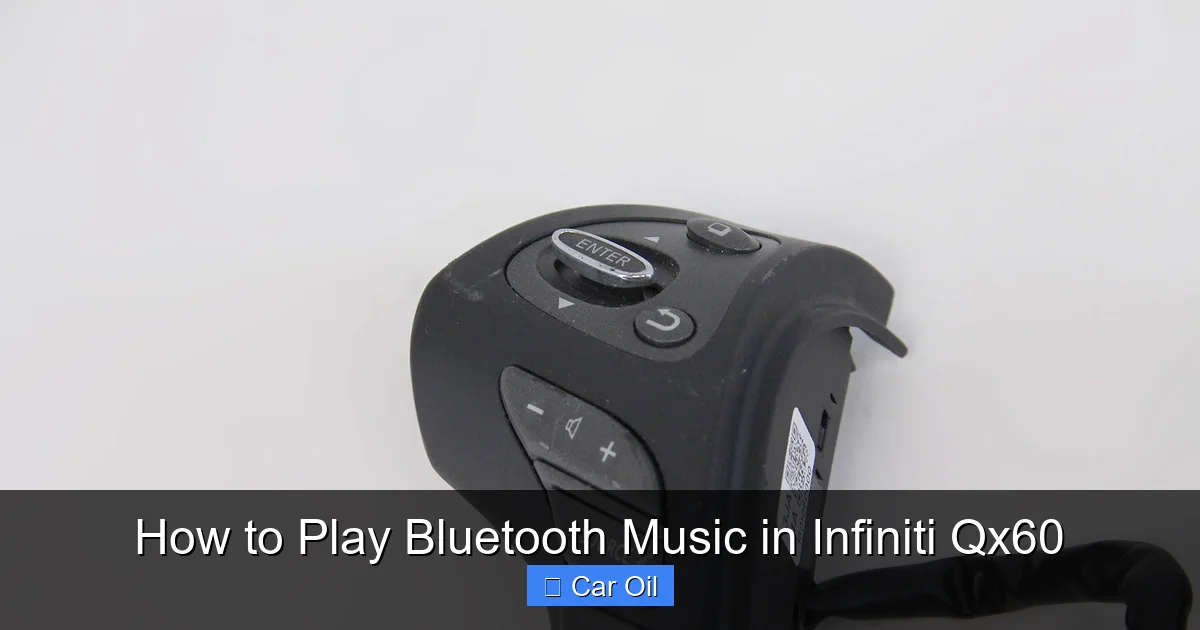
Your steering wheel is the primary control panel for safe, eyes-on-the-road audio management. It almost always features a dedicated “Phone” button (often with a call icon) and volume +/- controls. Crucially, there are also track skip forward/back buttons and a “Source” or “Mode” button. This “Source” button is your key to switching between radio, USB, AUX, and your Bluetooth music source once it’s paired. Learning to use these wheel controls is the safest way to change songs or adjust volume while driving.
Voice Command: Your Hands-Free Assistant
The INFINITI Voice Recognition system is a powerful tool that can do much more than make calls. You can use it to control music playback by simply saying commands like “Play [artist name],” “Play ,” “Next track,” or “Pause music.” To activate it, press the voice command button on your steering wheel (usually with a talk icon) and wait for the prompt. Speaking clearly and using natural language usually yields the best results. This feature is especially useful when your hands are full or you need to make a quick change without looking at the screen.
Step-by-Step: Pairing Your Smartphone for Bluetooth Music
Now for the main event. Pairing is the one-time process that creates a secure, wireless link between your phone and your QX60. Think of it like introducing two friends. Once they’ve met and exchanged contact info (the PIN), they’ll recognize each other automatically in the future. The process is designed to be user-friendly, but the exact button presses can vary slightly. Here is the universal method that covers virtually all QX60 model years.
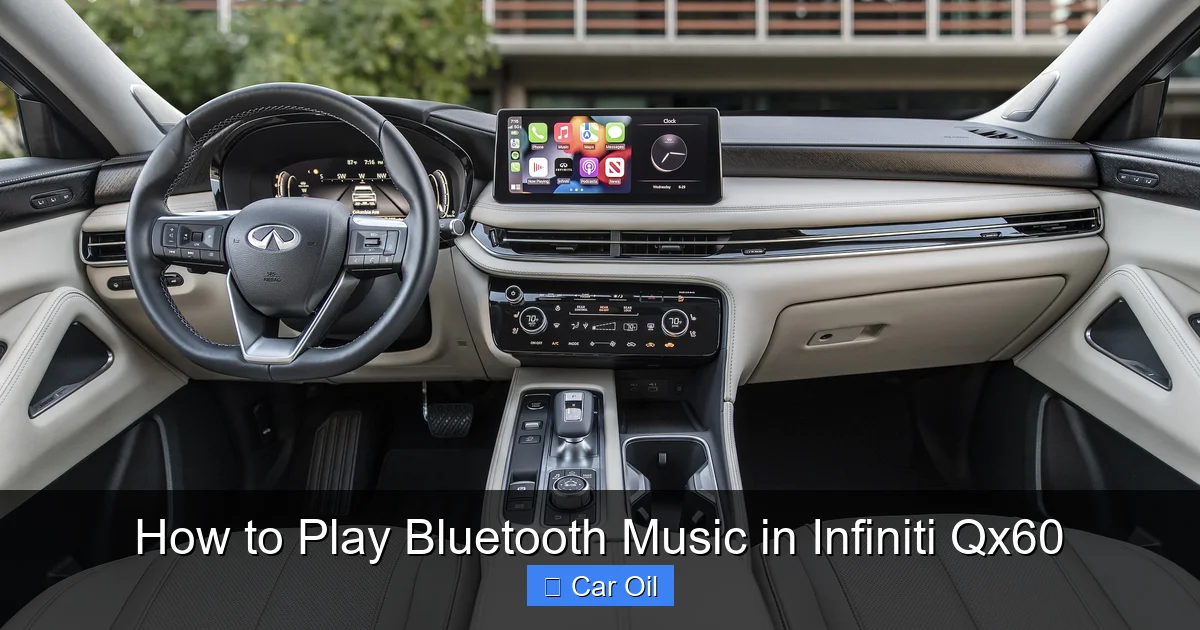
Visual guide about How to Play Bluetooth Music in Infiniti Qx60
Image source: images.caricos.com
Initial Preparation: Put Both Devices in Discovery Mode
Start by ensuring your vehicle is on (or in accessory mode) and the INFINITI InTouch™ system is booted up. On your smartphone, go to Settings > Bluetooth and make sure Bluetooth is turned ON. Your phone should be scanning for nearby devices. On the vehicle side, you need to access the Bluetooth setup menu. Press the “Menu” or “Home” button on your center console. Use the knob or touchscreen to navigate to “Settings” (it often looks like a gear icon). Within Settings, look for “Bluetooth” or “Phone” settings and select “Add Bluetooth Device” or “Pair Device.” The vehicle’s system will now become visible to your phone and will often display a name like “INFINITI” or “QX60” along with a PIN code (usually a 4-6 digit number).
The Pairing Dance: Confirming the PIN
This is the critical handshake step. On your phone’s Bluetooth scan list, you should see an entry for your Infiniti (e.g., “INFINITI Audio”). Tap it. Your phone will likely show a screen asking you to confirm a PIN code. This PIN MUST match the one displayed on your QX60’s screen. If they match, confirm “Pair” or “OK” on your phone. Simultaneously, you may need to confirm “Yes” or “Connect” on the vehicle’s display using the “Enter” or “OK” button. The systems will negotiate the connection. If successful, you’ll see a confirmation message like “Connected” on both devices, and your phone’s name will appear in the QX60’s paired device list. The entire process should take less than 30 seconds.
Verifying the Connection and Setting as Primary
Don’t assume it worked! Test it. Press the “Source” or “Mode” button on your steering wheel repeatedly until the display shows “Bluetooth Audio” or the name of your phone. Start a song or podcast on your phone. You should hear it clearly through your QX60’s premium speakers. If you hear audio, success! It’s also a smart move to go back into the vehicle’s Bluetooth settings and set your phone as the “Primary” or “Priority” device if the option exists. This ensures that if multiple phones are paired, yours will automatically connect when you start the car.
Playing and Controlling Your Bluetooth Music
With the pairing complete, the real fun begins. Your smartphone’s entire audio library is now at your fingertips, integrated seamlessly into your driving experience. But how do you actually control it? You have three primary, safe methods, each suited for different situations.
Visual guide about How to Play Bluetooth Music in Infiniti Qx60
Image source: d3inagkmqs1m6q.cloudfront.net
Using the Steering Wheel Controls (The Safest Method)
This is your go-to for 95% of driving situations. Once your audio source is set to Bluetooth, the steering wheel buttons take over. The Volume +/- rocker is obvious. The Track Skip Forward/Back buttons (often with double arrows) let you change songs. The most important button is the “Source” or “Mode” button. If your phone’s audio stops (e.g., you get a navigation prompt from another app), you may need to press this button to cycle back to “Bluetooth Audio” as the active source. Some models also have a dedicated “Play/Pause” button on the wheel. Mastering these controls allows you to manage your music without ever taking your hands off the wheel or eyes off the road for more than a split second.
Navigating the Touchscreen
When you’re parked or at a stoplight, the touchscreen offers more granular control. Once in the “Bluetooth Audio” source, the screen will typically display Now Playing information: song title, artist, album art. You’ll often have on-screen buttons for Play/Pause, Next/Previous, and sometimes a larger library browser. This browser might let you navigate your phone’s music folders, playlists, or artists directly from the car’s screen. The interface is designed to mimic your phone’s, but it’s operated via the vehicle’s controller, which can be less intuitive. Use this method for deep diving into specific playlists or albums when it’s safe to do so.
Leveraging Voice Commands for Hands-Free Control
When your hands are on the wheel and your eyes are forward, voice is king. Press the voice command button on your steering wheel. After the chime, say something like, “Play jazz music” or “Play my driving playlist.” The system will search your connected phone’s library and start playback. You can also use commands like “Pause music,” “Volume up,” “Next track,” or “Who is this artist?”. The accuracy has improved greatly in recent years, but it helps to speak clearly and use simpler artist or song names. If your phone uses a specific music app like Spotify or Apple Music, you can often include the app name: “Play on Spotify.”
Troubleshooting Common Bluetooth Issues in the QX60
Even with a straightforward system, you might encounter a snag. Bluetooth, after all, is a wireless radio technology subject to interference and software quirks. Don’t worry—most problems have simple fixes. Here’s how to diagnose and solve the most common headaches.
Visual guide about How to Play Bluetooth Music in Infiniti Qx60
Image source: d3inagkmqs1m6q.cloudfront.net
“Device Not Found” or Pairing Failure
This is the most frequent issue. Your phone can’t see the QX60, or the PIN doesn’t match. First, ensure the vehicle’s Bluetooth menu is actively waiting to pair. The “Add Device” screen must be open and displaying the PIN. Second, check your phone’s Bluetooth settings. Is Bluetooth on? Is it scanning? Try turning Bluetooth off and back on. Third, clear the slate. Go into your QX60’s Bluetooth settings and delete any old, unused devices. A full memory can cause new pairings to fail. On your phone, “forget” the Infiniti from your paired list and start fresh. Finally, perform a simple reboot: turn the car off and back on, and restart your phone. This resolves most temporary software glitches.
Audio is Choppy, Stuttering, or Dropping
If the music plays but sounds like a skipping CD, the wireless connection is unstable. The culprit is almost always interference. Bluetooth operates on the 2.4 GHz band, the same as many Wi-Fi routers, baby monitors, and even some car accessories. First, check your surroundings. Are you parked near a building with strong Wi-Fi? Is there a dashcam or other wireless device plugged in? Try moving to a different location. Second, check your phone’s signal. A poor cellular signal can sometimes cause the phone’s Bluetooth radio to work harder and less efficiently. Third, ensure your phone’s software is up to date. iOS and Android updates often include Bluetooth stack fixes. If problems persist in multiple locations, your QX60’s Bluetooth module may need a firmware update. This is done via a USB drive at a dealership or sometimes over-the-air in newer models.
Phone Connects but No Audio Plays
This is a frustrating but clear symptom: the devices are paired, but the sound is silent. The issue is almost always the audio source. Your phone may have connected for “Phone Audio” (calls) but not “Media Audio.” On Android, when you pair, a pop-up should ask to enable “Media Audio.” Make sure you checked “OK” or “Allow.” On an iPhone, this is less common but can still happen. The fix is to manually set the audio source. On your QX60’s screen, go to the audio source selector (via the “Source” button or touchscreen menu) and explicitly choose “Bluetooth Audio” or the name of your phone. If that doesn’t work, unpair the phone completely, reboot both devices, and pair again, paying close attention to any permission prompts on your phone.
Advanced Tips for an Optimal Bluetooth Experience
You’ve got the basics down. Now, let’s fine-tune your setup for rock-solid reliability and the best possible sound quality, making your Infiniti QX60 Bluetooth music experience truly premium.
Managing Multiple Paired Devices
Your QX60 can store multiple phone pairings (often 5-10). This is great for families, but it can lead to confusion. If you and a passenger both have phones paired, the car might connect to the “wrong” one automatically. The solution is the “Primary” or “Priority” setting mentioned earlier. In the Bluetooth device list, find your phone and look for an option to set it as Primary. This tells the car, “Connect to this device first whenever it’s on.” Also, periodically go into the Bluetooth settings and delete devices you no longer use. A cluttered list increases the chance of connection errors. For a deeper clean, you can perform a full “Factory Reset” of the INFINITI InTouch™ system (found in Settings > System > Factory Reset), but this will erase all paired devices, navigation history, and settings, so use it as a last resort.
Keeping Your System Updated
Your QX60’s infotainment computer is like the one in your phone—it needs software updates to fix bugs, improve security, and add features. Infiniti has historically released updates via USB flash drive that you can download from their owner’s portal and install yourself. For newer models with connected services (like Infiniti InTouch Services), updates may download and install automatically over the vehicle’s built-in cellular connection when parked and connected to Wi-Fi. A firmware update can dramatically improve Bluetooth stability, audio codec support (like AAC for better iPhone audio), and overall system speed. Check your owner’s manual or the Infiniti website for your specific model year’s update procedure. This is a critical step often overlooked by owners.
USB as a Superior, Charging-Friendly Backup
While Bluetooth is convenient, a direct USB connection is technically superior for audio quality. It uses a digital connection that avoids the potential compression and latency of Bluetooth’s analog conversion. It’s also rock-solid stable—no dropouts. Furthermore, and this is a huge plus, it charges your phone simultaneously. Most QX60 models have at least one USB port in the center console, ideally a USB-A port that provides power and data. Simply plug your phone’s cable into this port and the other end into your phone. The INFINITI system should automatically switch the audio source to “USB.” Use this for long trips when you need to conserve battery or when you’re experiencing persistent Bluetooth issues. It’s the most reliable method available.
When Bluetooth Isn’t Enough: Exploring Other Audio Options
Bluetooth is the king of convenience, but your QX60 is equipped with other ways to get sound into its excellent speakers. Knowing these alternatives ensures you’re never without music, even if Bluetooth takes a day off.
The Trusty Auxiliary (AUX) Input
Almost every QX60 has a 3.5mm auxiliary jack, usually located in the center console or behind a cover near the USB ports. This is the old-school, universal analog audio input. You need a simple 3.5mm-to-3.5mm cable (aux cable). Plug one end into your phone’s headphone jack (if it has one) or into a headphone-to-aux adapter for newer phones. Plug the other end into the QX60’s AUX port. Then, press the “Source” button until “AUX” or “External” is selected. The sound quality is very good, comparable to Bluetooth, as it’s a direct analog wire. The downside? You need that extra cable, and it doesn’t charge your phone. It’s a perfect, clutter-free solution for a phone that lives in the cup holder.
Wireless Charging Considerations
If you have a newer QX60 with a Qi-compatible wireless charging pad in the center console, you might wonder if you can use Bluetooth and charge wirelessly at the same time. Absolutely! Wireless charging and Bluetooth operate on completely different frequencies and do not interfere with each other. This is the ultimate setup: place your compatible phone on the charging pad, pair it via Bluetooth once, and enjoy both a full battery and wireless audio every time you drive. Just ensure your phone case isn’t too thick for the charging pad to work effectively.
Conclusion: Enjoy the Freedom of Wireless Sound
Mastering Bluetooth audio in your Infiniti QX60 is one of the easiest and most rewarding upgrades you can make to your daily drive. It replaces clutter with clean elegance and puts your entire music collection at your fingertips through a system designed for crystal-clear sound. Remember the core steps: access the vehicle’s Bluetooth menu, put it in pairing mode, select it on your phone, and confirm the PIN. From there, use your steering wheel controls for safe operation, your voice commands for ultimate convenience, and your touchscreen for detailed browsing.
When issues arise, don’t panic. A simple reboot, a forgotten device deletion, or a software update often resolves everything. Keep your system updated and consider using the USB port for the best quality and charging when needed. You’ve now unlocked a core feature of your luxury SUV. So plug in (or rather, don’t plug in), cue up your favorite driving playlist, and enjoy the journey with the perfect soundtrack, delivered wirelessly through your Infiniti QX60’s superb sound system.
Frequently Asked Questions
Why won’t my phone pair with my Infiniti QX60?
This is usually due to a simple oversight. Ensure your vehicle’s Bluetooth menu is actively waiting to pair (“Add Device” screen is open) and your phone’s Bluetooth is discoverable. Delete old pairings from both devices, reboot your phone, and try again. If problems persist, check for a pending infotainment firmware update from Infiniti.
My Bluetooth music is skipping and cutting out. How do I fix it?
Audio dropouts are typically caused by wireless interference. Move away from areas with strong Wi-Fi signals or other electronic devices. Ensure your phone’s software is up to date. If the issue happens everywhere, your QX60’s Bluetooth module may need a software update from a dealership.
How do I delete an old phone from my QX60’s Bluetooth memory?
Go to Settings > Bluetooth on your INFINITI InTouch™ screen. You’ll see a list of paired devices. Select the old phone you want to remove and choose the option to “Delete” or “Remove.” Confirm the action. This frees up a memory slot and prevents automatic connection to old devices.
Can I stream music from two phones at the same time?
No. The QX60’s Bluetooth system, like nearly all car audio systems, can only connect to one device for media streaming at a time. You can have multiple phones paired, but only one can be the active “media audio” source. You must manually switch the source if you want to change which phone’s music is playing.
Why does my phone say “Connected for calls only” and not play music?
This means the “Media Audio” profile was not enabled during pairing. On your phone, go to Settings > Bluetooth, find your Infiniti in the paired list, and tap the “i” or settings icon next to it. Ensure the switch for “Media Audio” or “Audio Streaming” is turned ON. If it’s already on, try unpairing and re-pairing, carefully accepting all permission prompts on your phone.
Is Bluetooth audio quality as good as using a USB cable?
While Bluetooth quality has improved significantly with newer codecs, a direct USB connection is technically superior. USB transfers a clean digital signal, avoiding the analog conversion and potential compression of Bluetooth. For the absolute best, most stable audio—especially for audiophiles—using the USB port in your QX60 is the recommended method, with the added benefit of charging your phone.
