How to Delete Favorites on Toyota Navigation

Contents
- 1 Key Takeaways
- 2 📑 Table of Contents
- 3 Why You Might Want to Delete Favorites on Toyota Navigation
- 4 Understanding Your Toyota Navigation System
- 5 Step-by-Step Guide to Deleting Favorites
- 6 Deleting Favorites via the Toyota App (If Supported)
- 7 Troubleshooting Common Issues
- 8 Tips for Keeping Your Navigation System Organized




Deleting favorites on Toyota navigation is simple once you know where to look. Whether you’re clearing outdated addresses or organizing your saved locations, this guide walks you through the process for various Toyota models and infotainment systems.
Key Takeaways
- Access the Navigation Menu: Start by opening the navigation system from your Toyota’s main screen to locate your saved favorites.
- Use the “Favorites” or “Saved Places” Tab: Most Toyota systems label saved locations under “Favorites,” “Saved,” or “My Places.”
- Select and Delete Individual Entries: Tap on the favorite you want to remove and choose the delete or trash icon to erase it.
- Clear All Favorites at Once (if supported): Some newer Toyota models allow bulk deletion through settings or a “Clear All” option.
- Sync with Toyota App (Optional): If you use the Toyota app, changes may sync across devices—manage favorites there too.
- Restart the System if Needed: If favorites reappear, a quick system restart can resolve glitches.
- Keep Your Navigation Organized: Regularly review and delete unused favorites for faster, more efficient routing.
📑 Table of Contents
Your Toyota’s navigation system is designed to make driving easier, not more complicated. Over time, however, your list of saved favorites can grow cluttered with old addresses, outdated work locations, or places you no longer visit. This clutter doesn’t just look messy—it can slow down your search process and make it harder to find the places you actually need.
Imagine you’re heading to a new restaurant across town, and you type in the name. Instead of seeing just a few relevant results, you’re greeted with a long list of old favorites—your former gym, a closed-down coffee shop, or a friend’s house you haven’t visited in years. That’s frustrating, right? Deleting unused favorites keeps your navigation system clean, fast, and user-friendly. Plus, it helps the system prioritize your most-used locations, improving route suggestions and search accuracy.
Whether you’ve moved to a new city, changed jobs, or simply want a fresh start with your navigation preferences, knowing how to delete favorites on Toyota navigation is a valuable skill. The good news? It’s easier than you might think. Toyota has designed its infotainment systems with user-friendly interfaces, and deleting favorites is typically just a few taps away. In this guide, we’ll walk you through the process step by step, covering multiple Toyota models and software versions so you can keep your navigation system running smoothly.
Before diving into the deletion process, it’s helpful to understand the different types of navigation systems Toyota uses. Over the years, Toyota has partnered with various technology providers—like Entune, Toyota Audio Multimedia (TAM), and the newer Toyota Connected Services—to deliver in-dash navigation. While the core functionality remains similar, the interface and menu layouts can vary slightly between models and model years.
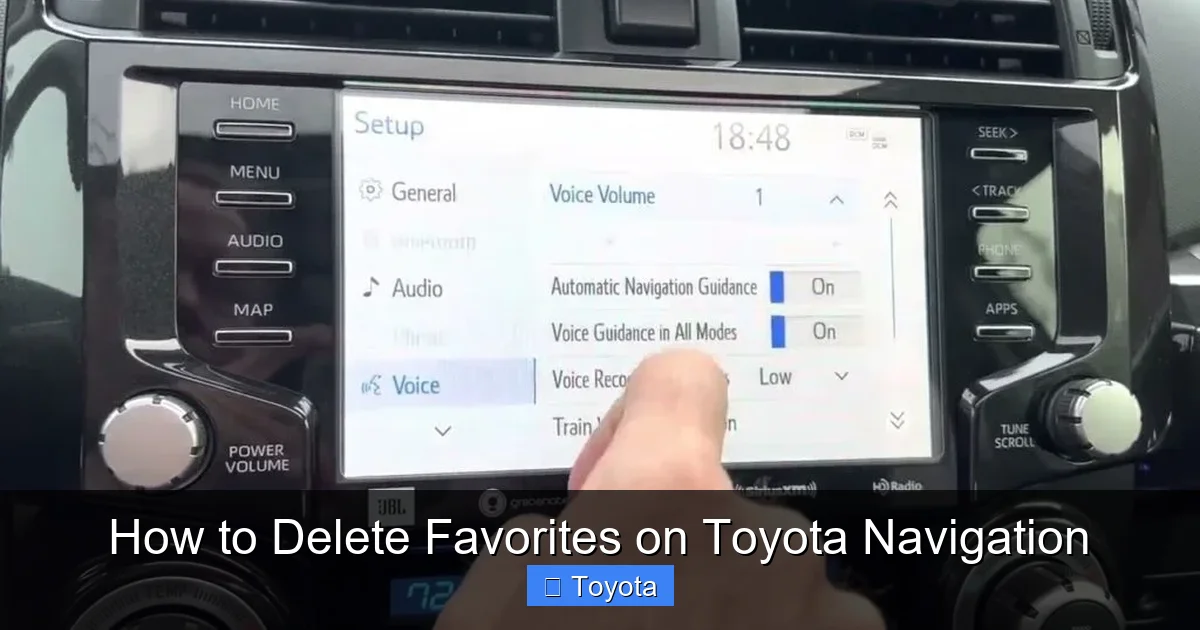
Visual guide about How to Delete Favorites on Toyota Navigation
Image source: thecarhow.com
Common Toyota Navigation Interfaces
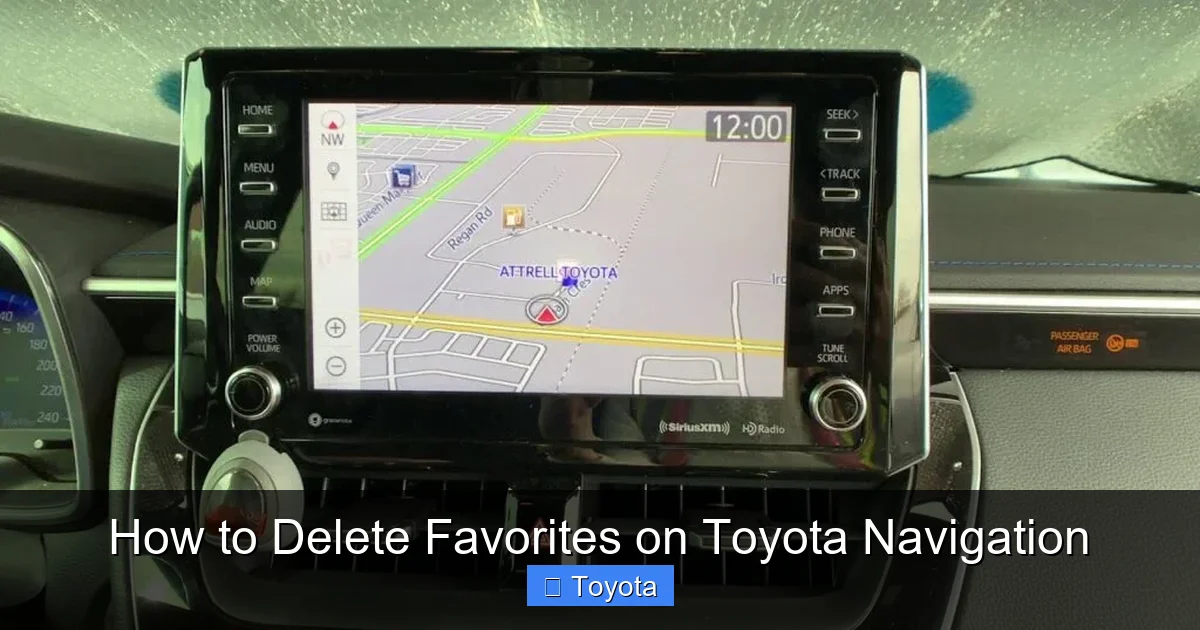
Most Toyota vehicles from the mid-2010s onward feature touchscreen infotainment systems with built-in navigation. These systems typically include a home screen with icons for music, climate, phone, and navigation. The navigation app is usually labeled “Nav” or “Navigation” and may feature a map icon. Once opened, you’ll see a search bar, recent destinations, and a menu button (often three horizontal lines or a gear icon) that leads to settings and saved locations.
Newer models, such as the 2020 and later Toyota Camry, RAV4, and Highlander, often come equipped with Toyota Audio Multimedia (TAM), which offers a more modern, smartphone-like interface. These systems support voice commands, wireless Apple CarPlay and Android Auto, and cloud-based features like real-time traffic and remote destination input via the Toyota app. Despite these upgrades, the process for managing favorites remains intuitive and consistent across platforms.
Where Are Favorites Stored?
Favorites—also called “Saved Places,” “My Places,” or “Frequent Destinations”—are stored locally on your vehicle’s system or synced with your Toyota account if you’ve enabled cloud connectivity. This means that if you delete a favorite on your car’s screen, it may also disappear from the Toyota app on your phone, and vice versa. However, not all models support full syncing, so it’s important to check your specific system’s capabilities.
For example, if you own a 2022 Toyota Prius with Toyota Connected Services, your favorites may sync automatically when you log in with your Toyota ID. But if you drive an older model like a 2015 Toyota Corolla with Entune, your favorites are likely stored only on the vehicle and won’t sync with any app. Knowing where your data lives helps you manage it more effectively and avoid accidentally losing important locations.
Step-by-Step Guide to Deleting Favorites
Now that you understand how your system works, let’s get into the nitty-gritty: how to delete favorites on Toyota navigation. The exact steps may vary slightly depending on your model and software version, but the overall process is straightforward. Below, we’ll walk you through the most common methods used across Toyota vehicles.
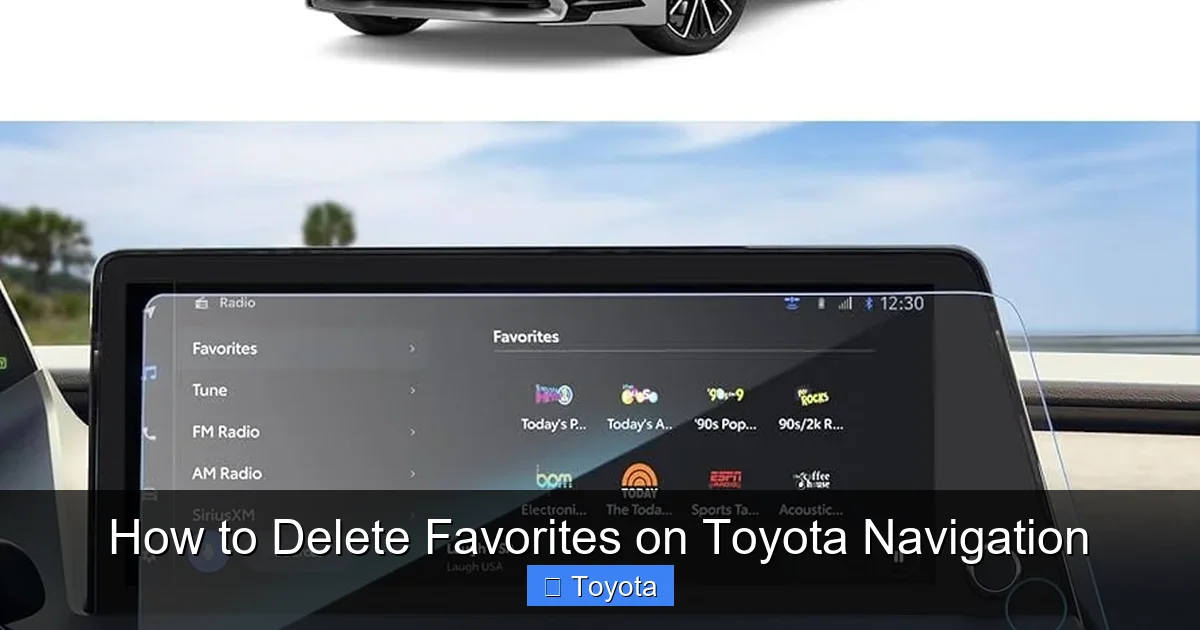
Visual guide about How to Delete Favorites on Toyota Navigation
Image source: m.media-amazon.com
Method 1: Deleting Favorites from the Navigation Screen
This is the most direct way to remove a favorite. Here’s how to do it:
- Turn on your vehicle and wait for the infotainment system to fully load.
- Tap the “Navigation” icon on the home screen to open the map interface.
- Look for the “Favorites” or “Saved Places” tab—this is usually located at the bottom of the screen or in a side menu. On some systems, you may need to tap the menu button (☰) first.
- Browse your list of saved locations until you find the one you want to delete.
- Tap and hold the favorite entry for about 2–3 seconds. A pop-up menu should appear with options like “Edit,” “Delete,” or “Remove.”
- Select “Delete” or “Remove” and confirm when prompted.
For example, if you’re driving a 2021 Toyota Tacoma, you’d open the navigation app, tap the three-line menu in the top-left corner, select “Favorites,” then press and hold the entry for your old office to delete it. The system will ask, “Are you sure you want to delete this favorite?” Tap “Yes,” and it’s gone.
Method 2: Using the Search or Recent Destinations Menu
Sometimes, favorites appear in your recent destinations or search history, even if they’re not labeled as “Favorites.” If you can’t find a saved location in the dedicated favorites menu, try this alternative approach:
- Open the navigation app and tap the search bar at the top.
- Start typing the name of the location you want to delete. As you type, the system will show suggestions from your favorites, recent searches, and contacts.
- When the location appears in the dropdown list, tap the small “X” or trash icon next to it (if available). This removes it from recent searches but may not delete it from favorites.
- To fully remove it, go back to the Favorites menu and delete it using Method 1.
This method is especially useful if you’re not sure whether a location is saved as a favorite or just appears in your search history. It’s a good way to clean up both areas at once.
Method 3: Bulk Deletion (Clear All Favorites)
If you have dozens of outdated favorites and don’t want to delete them one by one, some Toyota systems offer a “Clear All” or “Reset Favorites” option. This is typically found in the navigation settings. Here’s how to access it:
- Open the navigation app and tap the menu button (☰) or settings icon (⚙️).
- Look for “Settings,” “Preferences,” or “Manage Favorites.”
- Scroll down to find “Clear All Favorites” or “Reset Saved Places.” Note: This option is not available on all models.
- Tap the option and confirm when prompted. This will erase all saved favorites at once.
For instance, in a 2023 Toyota Sienna with Toyota Audio Multimedia, you’d go to Navigation > Settings > Manage Favorites > Clear All. A warning message will appear: “This will delete all saved favorites. This action cannot be undone.” Tap “OK” to proceed.
Pro Tip: Before using bulk deletion, consider backing up your favorites if possible. While most Toyota systems don’t offer a built-in export feature, you can manually note down important addresses or use the Toyota app to save them elsewhere.
Deleting Favorites via the Toyota App (If Supported)
If your Toyota vehicle is equipped with Toyota Connected Services and you’ve linked your car to the Toyota app on your smartphone, you may be able to manage your favorites remotely. This is a convenient option if you prefer using your phone or want to organize your locations before getting in the car.
Visual guide about How to Delete Favorites on Toyota Navigation
Image source: thecarhow.com
How to Sync and Delete Favorites Using the Toyota App
Here’s how to do it:
- Download and open the Toyota app on your iPhone or Android device.
- Log in with your Toyota ID (the same account linked to your vehicle).
- Tap the “Navigation” or “Destinations” tab at the bottom of the screen.
- You’ll see a list of saved destinations—these are synced from your car’s navigation system.
- Swipe left on any favorite and tap “Delete,” or tap the edit button and select multiple entries to remove.
- Changes will sync to your vehicle the next time your car connects to the internet (usually when you start the engine).
For example, if you’re planning a road trip and want to remove old vacation spots from your favorites, you can do it from the comfort of your couch using the app. This is especially helpful for families who share a vehicle and want to keep the navigation system personalized for each driver.
Note: Not all Toyota models support full app-to-vehicle syncing. Older vehicles or base trim levels may only allow remote destination input (sending a new address to the car) but not editing existing favorites. Check your owner’s manual or Toyota’s support page to confirm your model’s capabilities.
Troubleshooting Common Issues
Even with clear instructions, you might run into a few hiccups when trying to delete favorites on Toyota navigation. Don’t worry—most issues are easy to fix with a little troubleshooting.
Favorites Won’t Delete or Keep Reappearing
If you delete a favorite but it keeps coming back, it could be due to syncing with your Toyota app or a glitch in the system. Try these steps:
- Check the Toyota app: If you deleted the favorite on your car but it’s still in the app, it may sync back. Delete it from the app as well.
- Restart the infotainment system: Turn off your vehicle, wait 30 seconds, then restart it. This refreshes the system and can resolve temporary bugs.
- Update your software: Outdated navigation software can cause syncing issues. Visit your local Toyota dealer or check for over-the-air updates in your vehicle settings.
Can’t Find the Favorites Menu
If the “Favorites” tab is missing or hard to locate, try these tips:
- Look for synonyms: Some systems use “My Places,” “Saved Locations,” or “Frequent Destinations.”
- Check the menu hierarchy: On older models, favorites may be nested under “Recent Destinations” or “Address Book.”
- Use voice commands: Say “Hey Toyota, show my favorites” (if supported) to bring up the list.
Touchscreen Is Unresponsive
If your screen isn’t responding when you try to delete a favorite:
- Clean the screen: Dust or fingerprints can interfere with touch sensitivity. Use a microfiber cloth to wipe it down.
- Restart the system: A full reboot often resolves touch issues.
- Visit a dealer: If the problem persists, there may be a hardware issue with the display.
Deleting favorites is just one part of maintaining a smooth navigation experience. Here are some additional tips to keep your Toyota’s system running efficiently:
Regularly Review Your Saved Locations
Set a reminder every few months to go through your favorites list. Remove places you no longer visit and update addresses that have changed (like a new office or home).
Use Descriptive Names
Instead of saving a location as “Home” or “Work,” try “Mom’s House – Springfield” or “Downtown Office – 123 Main St.” This makes it easier to identify and manage your favorites.
Limit the Number of Favorites
Most systems allow up to 100 saved locations, but you don’t need to fill them all. Keeping your list under 20–30 entries makes searching faster and reduces clutter.
Use Categories (If Available)
Some Toyota systems let you organize favorites into folders or categories like “Family,” “Work,” or “Travel.” This is especially helpful for frequent travelers or families with multiple drivers.
Sync with Your Phone
If your model supports it, link your Toyota app to your vehicle. This allows you to manage favorites, send destinations remotely, and keep your navigation system up to date across devices.
Conclusion
Knowing how to delete favorites on Toyota navigation is a small but powerful skill that can significantly improve your driving experience. A clean, organized list of saved locations means faster searches, more accurate routing, and less frustration when you’re trying to get somewhere new. Whether you’re using the touchscreen, the Toyota app, or voice commands, the process is designed to be simple and intuitive.
Remember, regular maintenance of your navigation system—like deleting outdated favorites and updating your saved places—keeps your Toyota running smoothly and your drives stress-free. So the next time you notice an old address cluttering your list, don’t ignore it. Take a few minutes to clean it up. Your future self will thank you when you’re navigating to that new coffee shop or weekend getaway with ease.
With the steps and tips in this guide, you’re now equipped to manage your Toyota navigation favorites like a pro. Safe travels!
Frequently Asked Questions
How do I delete a favorite on my Toyota navigation?
Open the navigation app, go to the “Favorites” or “Saved Places” menu, tap and hold the entry you want to remove, then select “Delete” and confirm.
Can I delete all favorites at once on Toyota?
Yes, on some newer models with Toyota Audio Multimedia, you can find a “Clear All Favorites” option in the navigation settings. This is not available on all vehicles.
Will deleting favorites on my car also remove them from the Toyota app?
If your vehicle is synced with the Toyota app using the same Toyota ID, changes may sync across devices. However, this depends on your model and connectivity settings.
Why can’t I find the “Favorites” menu on my Toyota?
The menu may be labeled differently—try “My Places,” “Saved Locations,” or check under “Recent Destinations.” It may also be hidden in a submenu or require a software update.
What if my touchscreen isn’t responding when I try to delete a favorite?
Clean the screen, restart your vehicle, or check for software updates. If the issue persists, visit a Toyota dealer for assistance.
How often should I clean up my navigation favorites?
It’s a good idea to review and update your favorites every 3–6 months, especially after moving, changing jobs, or traveling frequently.