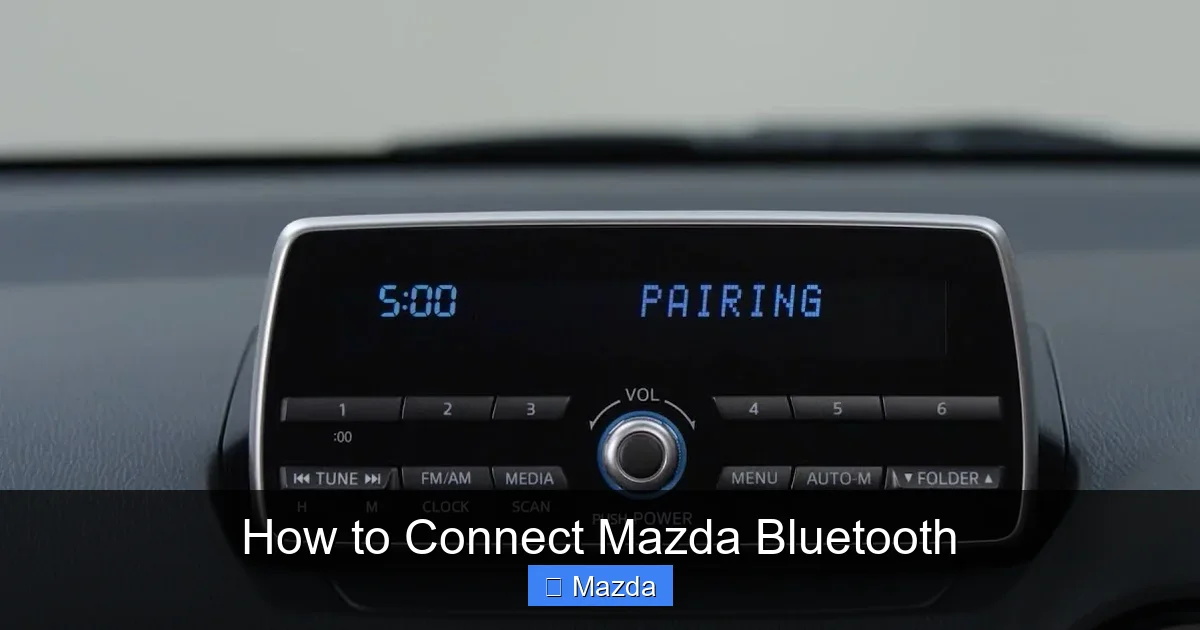
How to Connect Mazda Bluetooth

Contents
- 1 Key Takeaways
- 2 📑 Table of Contents
- 3 Understanding Your Mazda’s Infotainment System (2020-2026)
- 4 Preparing Your Phone for Connection
- 5 The Step-by-Step Pairing Process
- 6 Troubleshooting Common Bluetooth Issues
- 7 Advanced Features and Tips
- 8 Maintaining a Strong Bluetooth Connection
- 9 Conclusion
- 10 Frequently Asked Questions
Interior Cleaner Spray

Car Tool Kit Set

Car Paint Touch Up Pen

Side Mirror Rain Guard
Connecting your phone to Mazda Bluetooth is simple with Mazda Connect. Follow our step-by-step guide for all 2020-2026 models, including troubleshooting tips. Ensure your device is compatible and discoverable for a smooth pairing process.
Hey there! Let’s talk about one of the most useful features in your Mazda: Bluetooth. Whether you have a 2024 Mazda3, a 2025 CX-50, or even the latest 2026 models, connecting your phone wirelessly for calls and music is a game-changer. But sometimes, that simple process can get frustrating. I’m here to walk you through everything, step by step, so you can master how to connect Mazda Bluetooth without any headaches. We’ll cover all the different systems, common problems, and pro tips to keep your connection solid. By the end, you’ll be streaming your favorite podcasts and taking calls like a pro. Let’s dive in!
Key Takeaways
- Enable Bluetooth first: Always turn on Bluetooth and set your phone to “discoverable” mode before starting the pairing process in your Mazda.
- Know your system: Mazda Connect interfaces vary by model year; older models use physical buttons, while newer ones (2023+) rely on touchscreen menus.
- Delete old devices: Clear out unused devices from your car’s memory to prevent connection conflicts and ensure a clean pairing.
- Restart if stuck: A simple reboot of your phone and car’s infotainment system resolves many temporary glitches and pairing failures.
- Update software: Keep your Mazda’s infotainment firmware updated via USB or Wi-Fi for the best compatibility and performance.
- i-stop can interfere: In some models, the i-stop system may cause Bluetooth instability; disabling it temporarily can help during pairing.
- Use USB for music: For higher-quality audio streaming, consider using a USB cable instead of Bluetooth for music playback.
📑 Table of Contents
Understanding Your Mazda’s Infotainment System (2020-2026)
First things first: know what you’re working with. Mazda calls its infotainment system “Mazda Connect.” Over the years, it’s evolved a lot. From 2020 to 2022, most models used a commander knob on the center console to navigate menus. Starting around 2023, Mazda shifted to larger touchscreens (like the 10.25-inch display in the CX-50) with more intuitive touch controls. The 2026 models continue this trend, with even smoother interfaces and faster processors.
The core Bluetooth function is similar across all these versions, but the steps to get there differ slightly. Your car’s manual is always the best reference, but this guide will cover all the common layouts. A quick tip: look for the “Menu” or “Home” button on your screen or the commander knob. That’s your starting point for almost all settings.
Where to Find the Bluetooth Menu
No matter your model year, the Bluetooth settings live inside the “Settings” or “Connectivity” menu. Here’s the typical path:
- For knob-controlled systems (pre-2023): Press the “Comander” knob > Select “Settings” > “Bluetooth”
- For touchscreen systems (2023+): Tap the “Home” icon > Select “Settings” (gear icon) > “Bluetooth”
- Some older models: May have a dedicated “Phone” button on the infotainment screen.
If you’re unsure, just poke around the main menu for a few seconds—it’s usually pretty obvious. Once you’re in the Bluetooth menu, you’ll see options to “Add Device,” “Delete Device,” and sometimes “Pair Phone.” That’s our destination.
Preparing Your Phone for Connection
Before you touch your Mazda, get your phone ready. This step is crucial and often where people get stuck.
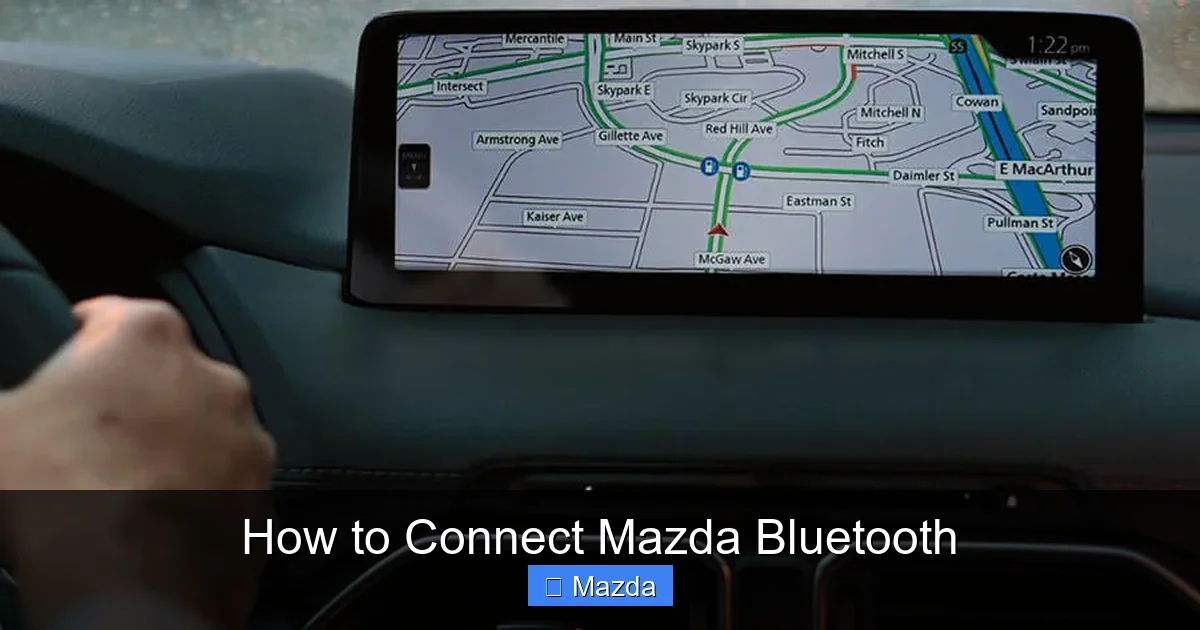
Visual guide about How to Connect Mazda Bluetooth
Image source: prod.mazda.ca
Start by turning on Bluetooth. On an iPhone, go to Settings > Bluetooth and toggle it on. On Android, swipe down for Quick Settings and tap the Bluetooth icon, or go to Settings > Connected Devices. Make sure your phone is set to “discoverable” or “visible” to other devices—this is usually automatic when Bluetooth is on, but double-check in your phone’s Bluetooth settings.
Pro tip: If you’ve previously paired your phone with another car or a home stereo, it might still be “connected” to that device. Turn off Bluetooth on those other devices or “forget” them in your phone’s settings to avoid conflicts. Your phone can only actively connect to one Bluetooth audio device at a time.
Also, ensure your phone’s battery is at least 50% charged. Low battery can sometimes cause unstable Bluetooth connections. And if your phone has a recent software update (iOS 18 or Android 15 as of 2026), it’s generally a good thing—newer OS versions often improve Bluetooth stability. But if you just updated and pairing fails, a quick phone restart can iron out any bugs.
The Step-by-Step Pairing Process
Now, let’s pair. The exact steps depend on your Mazda’s system, but the logic is the same: you tell the car to search, you confirm on the phone, and you’re done. I’ll break it down for the three main types of Mazda Connect interfaces.
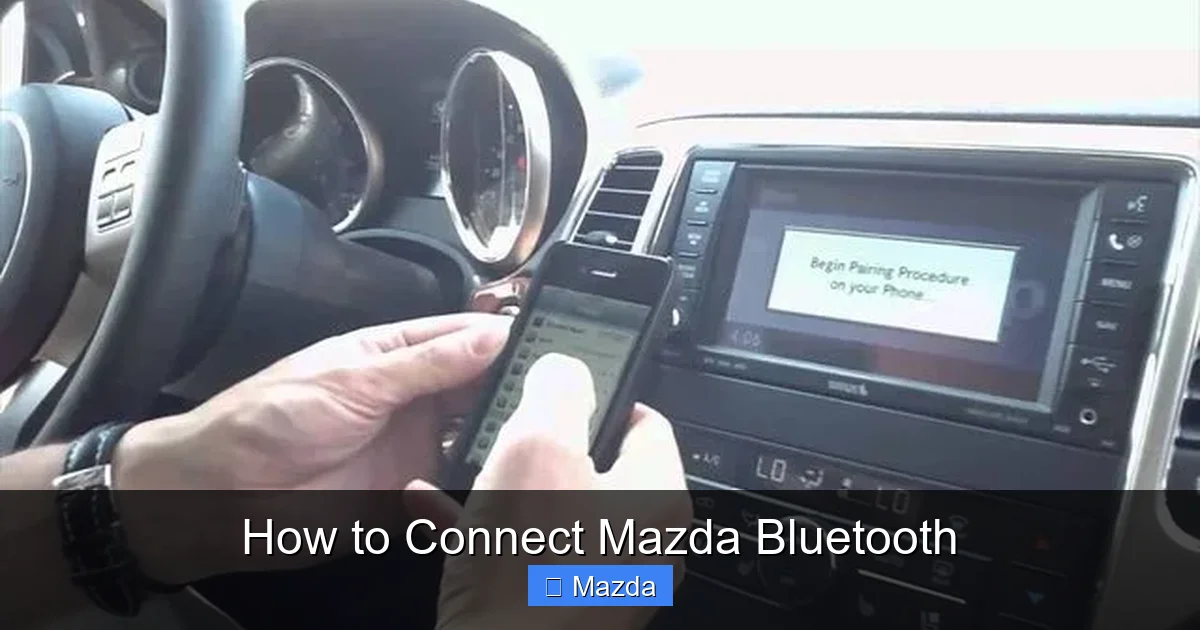
Visual guide about How to Connect Mazda Bluetooth
Image source: s3.amazonaws.com
For Models with the Commander Knob (2020-2022 Most Models)
This is the classic Mazda setup. You have a rotary knob and buttons between the front seats.
- Start your Mazda (or turn the ignition to “ON” or “ACC” position). The infotainment system will boot up.
- Press the Comander knob inward to select “Menu” if you’re not already there.
- Rotate the knob to highlight “Settings” and press it in.
- Rotate to “Bluetooth” and press.
- Select “Add Device” or “Pair Device.” The system will say “Searching…” and may show a PIN or passkey on screen.
- On your phone, in the Bluetooth settings, you should see “Mazda” or “Mazda Connect” appear. Tap it.
- If a PIN appears on both your car screen and phone, confirm they match. Often, you’ll just tap “Pair” or “OK” on your phone. The car might say “Connecting” then “Connected.”
- You’ll usually be prompted to set the device as “Primary” for calls and music. Say yes.
That’s it! You should see your phone’s name appear in the car’s Bluetooth device list.
For Touchscreen Models (2023-2026)
This is even simpler with a touchscreen, but the menu names are slightly different.
- Start the car. On the home screen, tap the Settings gear icon.
- Tap “Bluetooth” or “Connectivity.”
- Tap “Add New Device” or the “+” symbol.
- The system will broadcast its name (e.g., “Mazda CX-50”). On your phone, go to Bluetooth settings and tap “Mazda CX-50” when it appears in the list.
- Accept any pairing request. On newer Mazdas, you might see a 6-digit code on the screen—confirm it matches on your phone if prompted.
- After pairing, you’ll be asked to enable “Phone” and “Audio” functions. Make sure both are checked.
- You might also set your device as “Primary” for automatic connection when you start the car.
Easy, right? The touchscreen makes it very visual.
For Older Models (Pre-2020) or Special Cases
If you have a 2018-2019 Mazda with an older system, the process is nearly identical to the commander knob method. The only difference might be menu wording: look for “Setup” > “Bluetooth” > “Device List” > “Add.”
For the very rare cases where the car’s Bluetooth won’t enter pairing mode (sometimes called “discoverable” mode), you may need to first delete all existing paired devices from the car’s memory. Go to the Bluetooth device list, select each old phone, and choose “Delete.” Then try adding your device again.
Troubleshooting Common Bluetooth Issues
Even with perfect steps, things can go wrong. Let’s fix the most common problems.
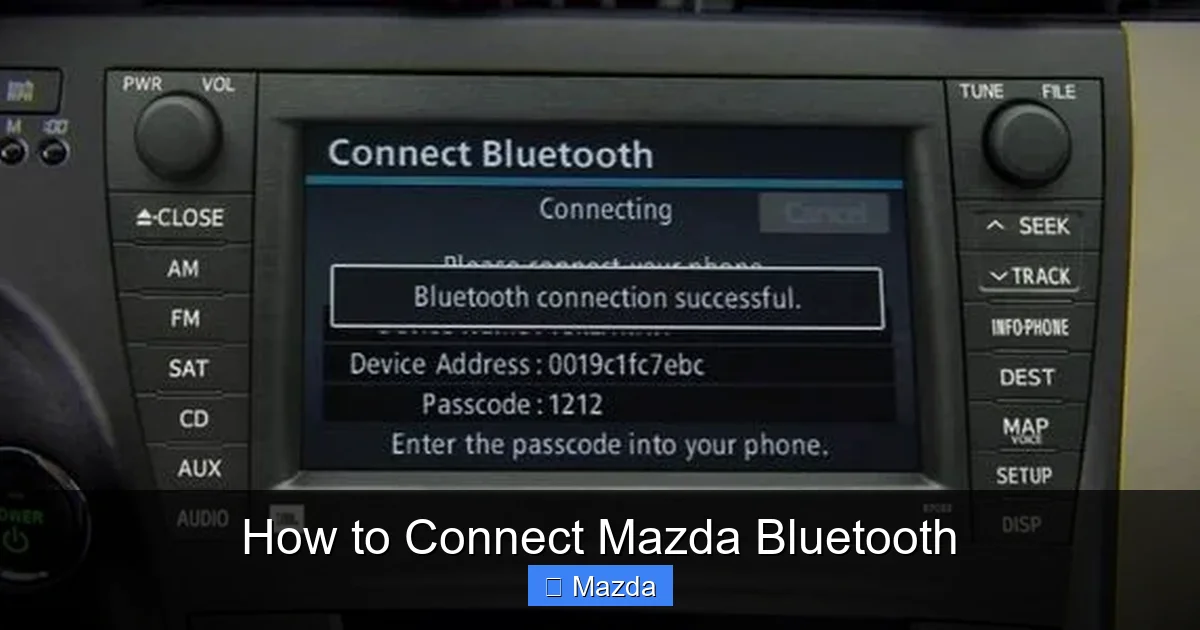
Visual guide about How to Connect Mazda Bluetooth
Image source: s3.amazonaws.com
“My Phone Doesn’t Show Up in the Mazda’s Search”
This is the #1 issue. First, double-check that Bluetooth is ON and your phone is discoverable. Restart your phone’s Bluetooth by toggling it off and on. If that fails, restart your phone entirely. On the Mazda side, make sure you’re in “Add Device” mode—the system should be actively searching and might say “Searching…” or “Make your device discoverable.”
If it still doesn’t appear, your car’s Bluetooth module might be stuck. A simple infotainment reboot often works: hold down the audio power button and the back/exit button on the commander knob for about 10 seconds until the screen goes black and restarts. For touchscreens, go to Settings > System > Reboot. If problems persist, a more thorough reset of the Mazda infotainment system may be necessary—this clears all settings and restores defaults.
“It Paired but Won’t Connect Automatically”
Did you pair successfully once, but now your phone doesn’t connect when you start the car? First, check if your phone is set as the “Primary” device in the car’s Bluetooth list. If not, set it as primary. Also, in your phone’s Bluetooth settings, make sure “Auto-connect” is enabled for the Mazda. Sometimes, if you have multiple Mazdas or other cars paired, your phone might connect to the wrong one. Delete old, unused Mazda entries from your phone’s Bluetooth list.
Another sneaky culprit: the i-stop system. In some Mazda models, the i-stop (auto start-stop) can create a voltage dip when the engine restarts, which might cause the Bluetooth module to reset and drop the connection. If you notice disconnections specifically at stoplights, try disabling i-stop temporarily via the button near the gearshift. If the problem goes away, you’ve found your cause.
“Audio is Choppy or Drops Out”
Bluetooth audio should be smooth. If it’s cutting out, check for interference. Keep your phone out of your pocket if possible—your body can block the signal. Avoid placing the phone directly on the center console near the commander knob; metal components can interfere. Also, other wireless devices (like a portable Wi-Fi hotspot) can cause congestion. Try turning off Wi-Fi on your phone and see if audio improves.
If audio issues persist only with Bluetooth but not with a USB connection, your car’s Bluetooth antenna might have a problem. This is rare but can happen if the windshield was recently replaced (some antennas are in the glass). In such cases, consult a Mazda dealer. For general audio quality, remember Bluetooth compresses audio slightly. For audiophiles, using a USB cable (if your Mazda supports USB audio) will give you lossless, higher-quality sound.
Advanced Features and Tips
Once you’re connected, you can unlock more than just basic calls and music.
Multi-Device Pairing
Your Mazda can store up to 5-7 paired devices. This is great for families. Both you and your partner can have your phones paired. The car will usually auto-connect to the last used device, or you can manually select which phone to connect from the Bluetooth device list on screen. To add another phone, just repeat the pairing process. No need to delete the first one.
Using Voice Commands
After pairing, press the voice command button on your steering wheel (usually a button with a talk icon). Say “Call [Contact Name]” or “Play [Artist]” and the system will use your phone’s contacts and music library via Bluetooth. This is a safe way to stay focused on driving. Make sure your phone’s voice assistant (Siri or Google Assistant) is enabled to work with the car.
Bluetooth vs. Apple CarPlay / Android Auto
Important distinction: Bluetooth handles calls and simple audio streaming. For full smartphone integration (Google Maps, Spotify app interface, messaging readouts), you need Apple CarPlay or Android Auto. These use a USB cable (or wireless in newer Mazdas). If you want the full smartphone experience on your car screen, plug in via USB after pairing Bluetooth. The two systems work together: Bluetooth for calls, USB for apps. In 2026 models, wireless CarPlay/Android Auto is becoming standard, so you might not need a cable at all for that—but Bluetooth remains essential for hands-free calls without a cable.
Maintaining a Strong Bluetooth Connection
To keep your Mazda Bluetooth running smoothly for years, follow these habits.
Regularly update your infotainment software. Mazda releases updates to improve compatibility with new phones and fix bugs. Updates can be done via USB (download from Mazda’s owner portal) or over Wi-Fi if your car has a built-in hotspot. Check Settings > System > Updates periodically.
Clear old devices. Every year or so, go into your Bluetooth device list and delete phones you no longer use. A cluttered list can cause confusion and occasional pairing hiccups.
Mind your battery. A weak car battery can cause voltage fluctuations that affect the Bluetooth module. If your Mazda has a service light on, get it checked—electrical issues can impact all onboard systems, including Bluetooth. For the i-stop system, if you notice Bluetooth disconnecting when the engine auto-stops, consider disabling i-stop as mentioned earlier.
Keep your phone updated. iOS and Android updates often include Bluetooth stack improvements. Keep your phone’s OS current.
Conclusion
There you have it! Connecting Bluetooth in your Mazda is a straightforward process once you know where to look and how to prepare. Remember: enable Bluetooth on your phone, navigate to the correct menu in Mazda Connect, and follow the on-screen prompts. If you hit a snag, a restart of both devices solves most issues, and a system reset clears deeper glitches. With these steps, you’ll enjoy hands-free calls and wireless music in your Mazda for every drive. Now go ahead, pair that phone, and hit the road with your favorite tunes!
Frequently Asked Questions
Why won’t my Mazda Bluetooth discover my phone?
Ensure Bluetooth is enabled and your phone is set to “discoverable.” Restart both the phone and car’s infotainment system. If problems continue, delete old paired devices from the car’s memory and try again.
How do I delete an old phone from my Mazda Bluetooth?
Go to Settings > Bluetooth > Device List. Select the old phone’s name and choose “Delete” or “Remove.” This clears it from memory, preventing auto-connection conflicts.
Can I connect two phones to my Mazda Bluetooth at once?
You can store multiple devices, but only one can be actively connected for calls and audio at a time. The car will usually connect to the last used device automatically, or you can manually switch via the Bluetooth menu.
Does Mazda Bluetooth support high-quality audio (AAC or aptX)?
Mazda’s Bluetooth system supports standard SBC codec and often AAC for iPhones. It does not typically support aptX HD. For the highest audio quality, use a USB cable which provides lossless playback.
Why does my Bluetooth disconnect when I stop at a light?
This is often caused by the i-stop (auto start-stop) system. When the engine shuts off, voltage can dip briefly, resetting the Bluetooth module. Try disabling i-stop using the button near the gearshift to see if the issue resolves.
Do I need to pair my phone every time I start the car?
No, once paired and set as primary, your phone should connect automatically when you start the car and Bluetooth is on. If it doesn’t, check that both devices have Bluetooth enabled and that no other device is interfering.