How to Connect Bluetooth to Mitsubishi Outlander Quickly and Easily
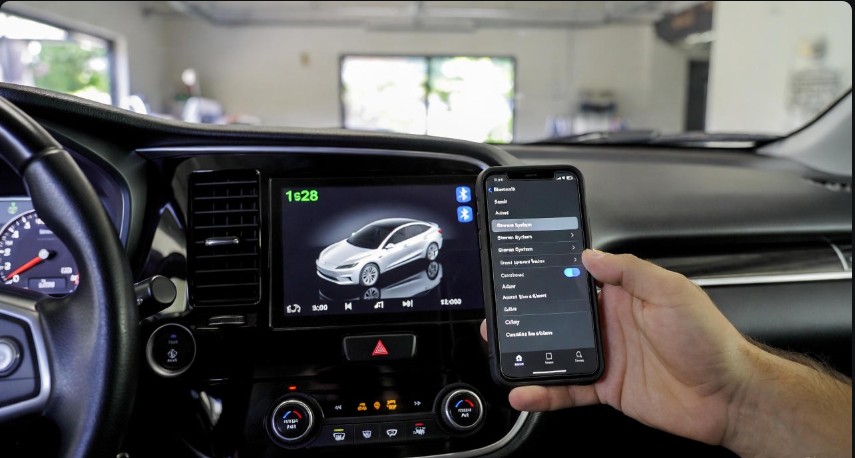
Connecting Bluetooth to your Mitsubishi Outlander is a simple way to make driving safer and more enjoyable. By pairing your phone with the vehicle’s Bluetooth system, you can make hands-free calls, stream music, and use apps without taking your hands off the wheel. The process works across most model years from 2013 to 2025 and only takes a few minutes to set up.
I found that the key steps involve turning on Bluetooth on both your phone and the Outlander’s system, then following the vehicle’s on-screen prompts to pair devices. Once connected, your phone should automatically link to your car each time you get in. Having Bluetooth ready means less distraction and more convenience on the road.
If your device isn’t connecting right away, there are easy troubleshooting steps like deleting old pairings or restarting your phone that often fix the problem. This guide will walk you through everything you need to know to get Bluetooth working smoothly in your Mitsubishi Outlander.
In This Article
- 1 Preparing Your Mitsubishi Outlander for Bluetooth Pairing
- 2 Accessing the Bluetooth Settings in Mitsubishi Outlander
- 3 Activating Bluetooth on Your Smartphone
- 4 Pairing Your Device With Mitsubishi Outlander
- 5 Verifying Successful Bluetooth Connection
- 6 Connecting Multiple Devices
- 7 Troubleshooting Common Bluetooth Issues
- 8 Resetting Bluetooth Settings in Mitsubishi Outlander
- 9 Bluetooth Feature Limitations in Mitsubishi Outlander
- 10 Maintaining Bluetooth Connectivity for Future Use
Key Takeways
- Make sure Bluetooth is active on both your phone and vehicle.
- Follow on-screen directions to pair your device successfully.
- Use simple troubleshooting if the connection fails initially.
Preparing Your Mitsubishi Outlander for Bluetooth Pairing
Before connecting my phone to the Mitsubishi Outlander, I make sure everything is ready. This means checking if my phone and car can work together, updating the car’s system if needed, and having the right items on hand. These steps help avoid problems during pairing.
Checking Bluetooth Compatibility
First, I verify that my phone supports Bluetooth and that it works with the Outlander’s system. Most smartphones with Bluetooth version 4.0 or newer connect easily. I check my phone’s Bluetooth version in the settings.
Next, I confirm the Outlander’s model year. Bluetooth compatibility can vary by year and trim level. For example, models from 2022 onward generally support most modern phones without issues.
If my phone or car uses older Bluetooth technology, I might face problems pairing. In that case, I consider updating my phone’s software or checking if my car’s system can be updated.
Updating the Infotainment System
Keeping the Outlander’s infotainment system up to date is important. I check for system updates through the car’s settings or the Mitsubishi website. New updates can fix bugs and improve Bluetooth features.
To update, I usually connect a USB drive with the update files or use a wireless connection if available. I follow the instructions on the infotainment screen carefully to avoid interruptions.
Updating ensures smoother pairing and better connection quality. It also helps add support for newer phones or Bluetooth functions that were not available before.
Gathering Required Devices
Before pairing, I make sure I have my phone and the Outlander’s ignition is on. The car’s Bluetooth system activates only with the power on, so I start the engine or at least turn the key to accessory mode.
I also put my phone’s Bluetooth in pairing or discoverable mode. This lets the car find my phone during the search.
Sometimes, I keep the vehicle’s manual or pairing guide nearby in case I need extra help. Having everything ready saves time and avoids frustration.
Accessing the Bluetooth Settings in Mitsubishi Outlander
To connect Bluetooth, I first need to get to the right menu on the Outlander’s screen. This involves using the physical buttons or the touchscreen to find the Bluetooth settings quickly. Understanding how to navigate and where to find these options saves time.
I start by turning on my Mitsubishi Outlander’s ignition to the “On” or “Accessory” position. This powers up the infotainment system.
Next, I press the “Setup” button, usually found near the center of the dashboard or on the touchscreen. This opens the main settings menu.
From here, I use either the touchscreen or the physical buttons to scroll through the different menu options. The goal is to find the section related to connectivity or devices.
Locating Bluetooth Options
Within the setup menu, I look specifically for “Bluetooth” or something similar like “Phone Settings.”
Once I select that, the screen shows options like “Pair New Device,” “Connected Devices,” or “Bluetooth Settings.” Here, I confirm Bluetooth is turned on in the system.
If I plan to pair a new device, I choose “Pair New Device,” which makes the Outlander’s system discoverable to my phone.
I keep my phone’s Bluetooth active and visible during this process, so the car can find it and connect.
Activating Bluetooth on Your Smartphone
To connect my Mitsubishi Outlander to my phone, I first make sure Bluetooth is turned on. The steps vary a bit between iOS and Android phones. I follow simple actions on my device to find and enable Bluetooth quickly.
Turning On Bluetooth for iOS
On my iPhone, I swipe down from the upper right corner of the screen to open the Control Center. Then, I tap the Bluetooth icon. It turns blue when Bluetooth is active.
Alternatively, I go to Settings > Bluetooth and toggle the switch to on. This screen shows me a list of devices my phone has paired with before. I keep this page open while connecting to the Outlander so I can see the car’s name when it appears.
If my device asks for permission to connect, I accept it to complete the process. This step ensures my Outlander and phone will communicate properly.
Enabling Bluetooth for Android
On my Android phone, I swipe down twice from the top of the screen to open the Quick Settings panel. I tap the Bluetooth icon to turn it on. The icon changes color when active.
If I need more control, I open Settings > Connections or Bluetooth. Here, I switch Bluetooth on and see a list of paired devices. I keep this page open during pairing to spot my Mitsubishi Outlander’s name once it shows up.
If prompted, I tap “Pair” or “Allow” to confirm the connection. This confirms the phone and car can communicate effectively.
Pairing Your Device With Mitsubishi Outlander
Pairing your phone with the Outlander lets you make calls and listen to music hands-free. It involves putting your car into pairing mode, finding the car’s Bluetooth on your phone, and entering a code to connect both devices.
Initiating Pairing Mode on the Vehicle
To start, I turn on the Outlander’s infotainment system. From the main menu, I find the Bluetooth or Phone settings option. I then select “Add New Device” or “Pair Device.” This makes the car’s Bluetooth visible to my phone.
The display usually shows a message like “Ready to Pair” or “Waiting for Device.” The system stays in this mode for a limited time, so I need to move quickly to the next step. If I miss the window, I just restart the process.
Scanning for Devices on Your Smartphone
Next, I open the Bluetooth settings on my phone. I make sure my phone’s Bluetooth is turned on and set to discoverable. Then I scan for available devices.
My phone will show a list of devices nearby. I look for the name related to my Mitsubishi Outlander, which often says “Outlander” or a similar identifier. If I don’t see it, I refresh the search or check if the car is still in pairing mode.
Entering the Pairing Code
When my phone connects to the car during pairing, a code appears on both screens. This is usually a four or six-digit number.
I carefully check that the codes on my phone and Outlander match. Then I confirm the code on both devices. This step secures the connection so only authorized devices can pair.
If the codes don’t match or don’t show up, I cancel and restart pairing from the beginning. Once confirmed, the devices link up, and I’m ready to use Bluetooth features.
Verifying Successful Bluetooth Connection
After pairing, I need to confirm the connection is active and working correctly. This involves checking what the car’s screen shows about the connection and making sure audio and calls function as expected.
Checking Connection Status on Infotainment Screen
I start by looking at the Mitsubishi Outlander’s infotainment screen. The screen usually shows a Bluetooth icon or the name of my connected device when paired successfully.
If I see my phone listed and the Bluetooth symbol is solid (not blinking), it means the connection is stable. Some models also display signal strength or battery info, confirming details about my phone.
If the device is not showing, I check Bluetooth settings on both the car and my phone. I might need to retry the pairing process or clear old devices from the car’s Bluetooth list.
Testing Audio and Calls
Next, I test if the audio streams correctly. I play music from my phone and listen for good sound quality through the car’s speakers. If there is any delay or distortion, I try disconnecting and reconnecting.
For calls, I make a hands-free call using voice commands or the car’s controls. I pay attention to whether the microphone picks up my voice clearly and if I hear the other person without static.
If either audio or calls don’t work right, I review Bluetooth settings and ensure the phone’s volume and permissions allow hands-free use.
Connecting Multiple Devices
My Mitsubishi Outlander lets me connect more than one smartphone to its Bluetooth system. However, I can only use one device actively at a time for calls and media. Managing connections is easy once you know the steps.
Pairing Additional Smartphones
To add a new phone, I first turn on Bluetooth on the phone and set it to discoverable mode. Then, on the Outlander’s infotainment screen, I access the Bluetooth menu and select the option to add a new device.
The system will scan for nearby devices. When my phone shows up, I select it. A pairing code usually appears on both the phone and car screen. I confirm the code on both devices to complete the connection.
The new phone is now saved in the car’s memory. I can repeat this to add several phones, which is helpful when multiple people drive or ride in the car regularly.
Switching Between Connected Devices
While several phones can be paired, only one connects actively at a time. To switch devices, I go to the Bluetooth settings on the Outlander’s infotainment.
From the list of paired devices, I select the phone I want to use. The system will disconnect the current device before connecting to the new one.
If I want to use hands-free calling or stream music from a different phone, I need to perform this switch. The process is quick and usually just requires a few taps on the car’s screen.
Troubleshooting Common Bluetooth Issues
Bluetooth can sometimes stop working the way it should in my Mitsubishi Outlander. Some problems make it hard to connect my phone. Others cause bad sound quality when I’m on a call or listening to music.
Resolving Pairing Failures
If my phone won’t pair with the Outlander, I first check if Bluetooth is turned on both on my phone and in the car’s system. I sometimes need to delete old devices from the car’s Bluetooth list to free up space.
Restarting the phone and the car system often helps fix connection bugs. If it still won’t pair, I make sure both the phone and car software are updated. Updates fix many compatibility issues.
I also try disconnecting other nearby devices because interference can block or weaken the Bluetooth connection. If I’m in a crowded area, this is often the cause.
Addressing Audio Quality Problems
When my calls or music sound poor, I check signal interference first. Moving closer to the car’s dashboard or away from other wireless devices often improves sound.
I also lower the phone’s call volume or adjust audio settings in the car. Sometimes the problem is a simple issue with the phone’s Bluetooth volume or mic settings.
If sound problems continue, I verify that the audio and Bluetooth drivers on my phone and car are up to date. Old drivers can cause choppy or delayed audio.
Finally, I check if the problem happens only with one device or all devices. This helps me find out where the problem lies—phone or car system.
Resetting Bluetooth Settings in Mitsubishi Outlander
If my Bluetooth connection has problems, resetting certain settings often fixes the issue. I can remove old devices or reset all settings to start fresh. Both methods clear out errors that block proper pairing and improve the system’s performance.
Deleting Paired Devices
When I delete paired devices, I remove all saved connections from the system. This helps if one device won’t connect or if I have too many devices saved.
To do this, I go into the Bluetooth settings on the infotainment system. Then, I select the list of paired devices. From here, I choose each device I want to delete and confirm the removal.
This step clears the connection data without changing other settings. Afterward, I can start pairing my phone or other devices from scratch.
Restoring Factory Defaults
If deleting devices doesn’t help, I reset the entire infotainment system to factory defaults. This clears all settings, including Bluetooth, audio preferences, and saved devices.
To restore factory defaults, I access the system settings menu, find the option to reset or restore, and confirm the process. The system will reboot, and all personal data will erase.
After the reset, I must set up Bluetooth connections again as if it were new. This method fixes deeper software glitches that deleting paired devices alone can’t resolve.
Bluetooth Feature Limitations in Mitsubishi Outlander
The Bluetooth system in my Mitsubishi Outlander offers useful features but has some limits. Knowing these helps me use it better and avoid frustrations.
Supported Functions for Audio and Calls
Bluetooth in my Outlander lets me make hands-free calls and stream music. I can answer or reject calls using the car’s buttons. The audio quality is clear for both phone calls and music playback.
However, not all functions are supported. I can’t use Bluetooth for text message reading or voice assistants directly through the car. Also, some apps on my phone won’t work when connected via Bluetooth. The system focuses mainly on phone calls and basic audio streaming.
I can control basic playback, like play, pause, next, and previous tracks, but advanced controls like searching playlists or albums aren’t available. This means I should prepare my playlists before driving.
Device Compatibility Restrictions
My Outlander’s Bluetooth works with most Android and iOS devices but has some limits. Older phones or those without updated software may not connect properly or lose connection often.
Some features, like automatic connection when entering the car, depend on the phone’s Bluetooth settings and software version. If my phone disables Bluetooth or has interference, connection may fail.
I also noticed that pairing multiple devices can cause confusion. The system usually remembers the most recently paired device, but switching between them requires manual steps.
To avoid problems, I keep my phone’s Bluetooth updated and remove old device pairings from the car’s system regularly.
Maintaining Bluetooth Connectivity for Future Use
Keeping a stable Bluetooth connection with my Mitsubishi Outlander takes a little work after the initial setup. I focus on ensuring my car’s system and phone stay up-to-date and manage my devices carefully to avoid connection issues.
Keeping Software Updated
I always check for updates on both my phone and my Outlander’s infotainment system. Auto manufacturers, including Mitsubishi, often release software updates that improve Bluetooth stability and fix bugs. My phone’s operating system updates are important too, as they can affect how well Bluetooth works with my car.
To update my Outlander’s system, I follow the instructions in the vehicle’s manual or check Mitsubishi’s official website for software downloads. For my smartphone, I enable automatic updates whenever possible. This helps me avoid connectivity problems caused by outdated software and keeps the connection smooth for hands-free calls and audio streaming.
Safe Device Management Practices
I only keep the devices I regularly use connected or paired. Removing old or unused phones from the Outlander’s Bluetooth list prevents clutter and confusion. This helps the vehicle focus on the active device, reducing connection drops.
When pairing new devices, I make sure to do it while parked and give the system time to register each device fully. If I switch devices often, I manually disconnect one before connecting the other to avoid conflicts. I also avoid having Bluetooth enabled on multiple nearby devices at the same time, as this can interfere with the connection to my Outlander.