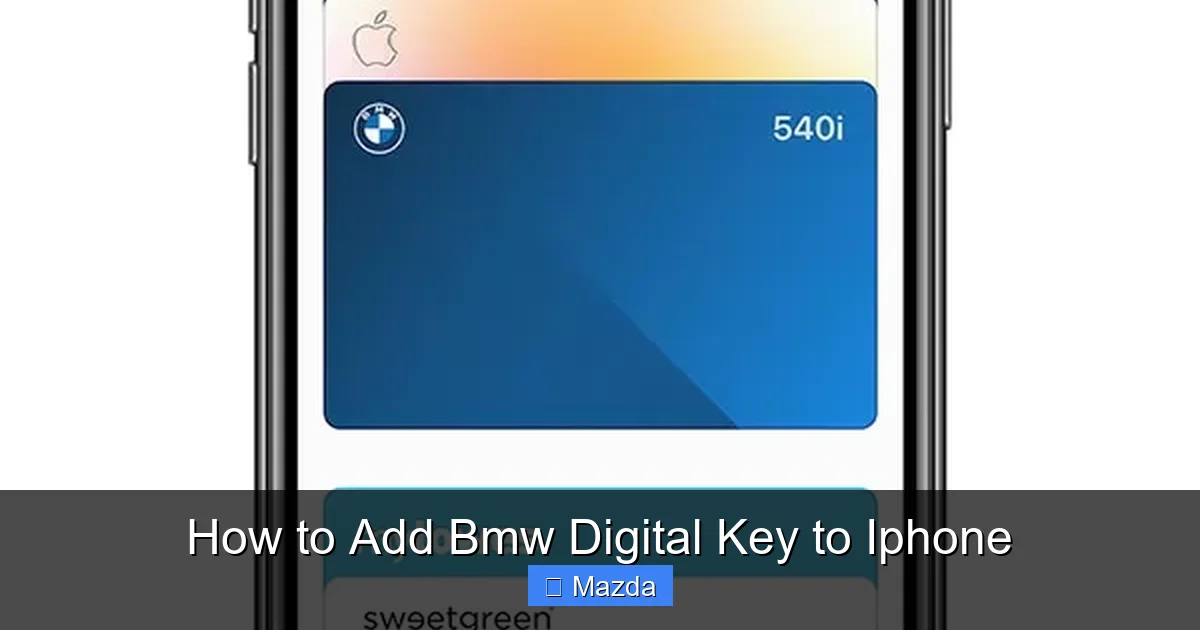
How to Add Bmw Digital Key to Iphone

Contents
- 1 Key Takeaways
- 2 📑 Table of Contents
- 3 Demystifying the BMW Digital Key: How It Actually Works
- 4 Prerequisites and Pre-Setup Checklist: Don’t Skip This!
- 5 The Step-by-Step Setup Process: From Phone to Key
- 6 Making the Most of Your Digital Key: Features & Management
- 7 Troubleshooting: When Your Digital Key Doesn’t
- 8 The Road Ahead: Digital Keys in 2026 and Beyond
- 9 Conclusion: Your Phone is Now Your Key
- 10 Frequently Asked Questions

Car Jump Starter
Side Window Sunshade

Liquid Car Polish

LED Emergency Road Flares
Transform your iPhone into a secure, convenient BMW Digital Key with our comprehensive 2026 guide. We cover everything from compatibility checks and the simple setup process to advanced features like key sharing and troubleshooting common issues. Learn how to ditch your physical key fob and enjoy true keyless entry, plus get tips on backup options and future tech trends.
Picture this: You stroll up to your sleek BMW, groceries in hand. Instead of fumbling for a key fob in your pocket or purse, you simply touch the door handle. It unlocks. You get in, press the start button, and you’re driving. No key required. This isn’t a glimpse into a distant future—it’s the reality of the BMW Digital Key on your iPhone. As of 2026, this technology has matured from a novelty to a standard feature on most new BMW models, offering unparalleled convenience and security. But to get there, you need to set it up correctly. This guide will walk you through every single step, from checking if your gear is compatible to mastering advanced sharing features and solving any hiccups along the way. Let’s turn that iPhone into your ultimate car key.
Key Takeaways
- Compatibility is Crucial: Your iPhone (iOS 16+) and BMW (model year 2021+ with Digital Key option) must both support the standard. Check your BMW’s iDrive system and your iPhone’s NFC capabilities first.
- Setup is a Two-Part Dance: Adding the key involves pairing your iPhone with the car via the BMW Connected App and then physically placing your phone in the designated spot (usually the wireless charging pad) for verification.
- Sharing is Secure & Simple: You can instantly share your digital key with up to 5 other iPhone users via iMessage, with customizable access times—perfect for valet or family.
- Backup Plans are Essential: Always carry the BMW Key Card or physical key fob. If your iPhone’s battery dies, the Key Card works via NFC tap. For extreme cases, know how to start a car without a key as a last-resort concept, though BMW has specific emergency procedures.
- Troubleshooting Often Involves Basics: Most issues stem from Bluetooth being off, low iPhone battery, or a blocked car antenna. A simple restart or re-pairing fixes 90% of problems.
- Security is Top-Tier: The key uses end-to-end encryption and device-specific keys, making it more secure than traditional radio fobs that can be cloned.
- Future-Proof Your Setup: With UWB (Ultra-Wideband) now standard in newer iPhones and BMWs, expect even more precise location-based features, like automatically adjusting seats and mirrors as you approach.
📑 Table of Contents
- Demystifying the BMW Digital Key: How It Actually Works
- Prerequisites and Pre-Setup Checklist: Don’t Skip This!
- The Step-by-Step Setup Process: From Phone to Key
- Making the Most of Your Digital Key: Features & Management
- Troubleshooting: When Your Digital Key Doesn’t
- The Road Ahead: Digital Keys in 2026 and Beyond
- Conclusion: Your Phone is Now Your Key
Demystifying the BMW Digital Key: How It Actually Works
Before we dive into the “how,” let’s quickly clarify the “what.” The BMW Digital Key isn’t just a remote control app on your phone. It’s a secure, hardware-based credential stored in the Secure Enclave of your iPhone (or Apple Watch), the same protected area that holds your Apple Pay data. It uses a combination of Near Field Communication (NFC) for close-range actions (like touching the door handle) and Ultra-Wideband (UWB) technology for precise, secure, and passive entry as you walk toward your car.
The Tech Trio: NFC, UWB, and Bluetooth
Think of it as a three-layer security and convenience system. NFC is the workhorse for deliberate actions—tapping your phone to the door handle or key card reader. It requires you to be within a few centimeters, preventing accidental unlocking. UWB is the magic for passive entry. It uses radio waves to measure the exact distance between your phone and the car with centimeter-level accuracy. This means the car knows you’re approaching and can pre-unlock as you get close, but it won’t react to a signal from inside your house. It’s incredibly spoof-resistant. Finally, Bluetooth Low Energy (BLE) maintains a constant, low-power connection for proximity detection and communication once you’re inside the vehicle. Together, they create a system that’s both effortless and far more secure than the radio-frequency key fobs of the past, which can be vulnerable to relay attacks.
Which BMWs and iPhones Play Nice?
Compatibility is the first gate. For your BMW, the Digital Key is a factory-installed option on nearly all models from the 2021 model year onward. This includes the 3 Series, 5 Series, X3, X5, and even the iX electric SUV. You’ll know your car is equipped if it has a wireless charging pad in the center console (the key verification spot) and the “Digital Key” option in the vehicle settings menu. If you’re unsure, your BMW dealer can look up your VIN to confirm.
For your iPhone, you need an iPhone XS or newer, running iOS 16 or later. The UWB feature, which enables the most seamless “walk-up and unlock” experience, requires an iPhone 11 or newer (or Apple Watch Series 6 or newer). Older compatible iPhones (XS, XR) will still work perfectly using NFC for tapping, but you’ll lose the passive, approach-based unlocking. It’s a subtle but fantastic upgrade if you have the newer hardware.
Prerequisites and Pre-Setup Checklist: Don’t Skip This!
Rushing into setup is the #1 cause of frustration. Take 10 minutes to run through this checklist. It will save you 30 minutes of head-scratching later.
Visual guide about How to Add Bmw Digital Key to Iphone
Image source: gentologie.com
For Your iPhone:
- Update iOS: Go to Settings > General > Software Update. Install the latest version (iOS 18.x as of late 2026).
- Enable Bluetooth & Wi-Fi: Both must be turned on. They don’t need to be connected to a network, but the radios must be active.
- Sign into iCloud: You must be signed in with your Apple ID. This syncs the key across your devices.
- Set a Passcode: A device passcode is mandatory for the Secure Enclave to store the key.
- Charge Your Phone: Have at least 50% battery. The setup process uses NFC and can be power-intensive.
For Your BMW:
- Find Your VIN: Have it handy. You might need it during app setup.
- Ensure Car is “Ready”: The ignition should be in the “On” position (press the start button without your foot on the brake) or the car should be unlocked with the driver’s door closed.
- Clear the Key Slot: If your car has a physical key slot (rare on newer models), make sure it’s empty.
- Know Your BMW Connected App Login: You’ll need your BMW ID credentials. If you don’t have one, you’ll create it in the app.
- Have Your Physical Key Fob/Key Card Nearby: You’ll need it as a backup during setup to authorize the new digital key.
Pro Tip: Do this setup when you have a few minutes of uninterrupted time, ideally with the car parked in a location with good cellular signal, as the app may need to communicate with BMW’s servers.
The Step-by-Step Setup Process: From Phone to Key
Alright, everything’s checked. Let’s pair your iPhone with your BMW. The process is handled entirely through the official BMW Connected App (not the “BMW” app or “My BMW” app—make sure you have the correct one from the App Store).

Visual guide about How to Add Bmw Digital Key to Iphone
Image source: i.ytimg.com
Step 1: Launch the App and Navigate to Digital Key
Open the BMW Connected App and log in with your BMW ID. On the home screen, look for the “Digital Key” tile. If you don’t see it, tap the “More” tab (three horizontal lines) and find it in the list. Tap “Set Up Digital Key.” The app will begin scanning for your compatible vehicle. Ensure your iPhone’s Bluetooth is on and you are inside the car or very close to it.
Step 2: Vehicle Detection and Authorization
The app should detect your BMW’s VIN. Select it. You’ll be prompted to place your iPhone in the wireless charging pad. This is the critical physical verification step. The car’s NFC reader is located here. Gently lay your phone flat on the pad, screen facing up. You’ll feel a slight vibration or see a notification on your phone’s lock screen saying “BMW Digital Key.” Do not move your phone until the app confirms success. This process cryptographically binds your phone’s unique identifier to your car’s system.
Step 3: Verification and Naming
Once the NFC handshake is complete, the app will ask you to confirm. It might also prompt you to use your physical key fob or Key Card as a secondary authorization. Follow the on-screen instructions—usually, you’ll need to press a button on the fob or tap the Key Card in the same spot. After verification, you’ll be asked to name your new digital key (e.g., “My iPhone,” “Work Phone”). This is helpful if you later add an Apple Watch or share a key with a family member. You can also choose to enable “Express Mode” here, which allows unlocking without opening the app or authenticating with Face ID/Touch ID for maximum convenience (it uses the same security as Apple Pay).
Step 4: Final Confirmation and Test
The app will show a success message. Your digital key is now active! The final step is a real-world test. Lock your car using the app or the physical key fob. Then, with your iPhone in your pocket, walk up to the driver’s door and touch the handle. It should unlock instantly. Get in, press the start button—the car should start. If it does, you’re all set. If not, double-check that “Express Mode” is on in your iPhone’s Wallet app settings for the BMW key.
Important Note: The digital key is stored in your iPhone’s Wallet app. You can access it there to see its status, rename it, or remove it. Sharing options are also managed from the Wallet or within the BMW Connected App.
Making the Most of Your Digital Key: Features & Management
Now that you’re unlocked and driving, let’s explore the powerful features that make the BMW Digital Key a game-changer.

Visual guide about How to Add Bmw Digital Key to Iphone
Image source: pictures.dealer.com
Sharing Keys: The Ultimate Convenience for Valet & Family
This is arguably the best feature. You can share your digital key with anyone who has an iPhone (iOS 16+) or an Android phone (using the BMW Digital Key app for Android). In your Wallet app, tap your BMW key, then the “Share” button. You can send it via iMessage. The recipient gets a key that you can restrict: you can set an expiration time (e.g., 4 hours for a valet) or limit it to basic functions (unlock and drive, but no high-performance mode). You can revoke it instantly at any time from your phone. No more handing over your physical key fob and worrying about where it ends up.
Using with Apple Watch
If you have an Apple Watch Series 6 or newer, the key automatically syncs to it via iCloud. You can unlock and start your BMW directly from your wrist. Just raise your wrist, tap the key icon in the Wallet app on the watch, and touch the door handle. It’s incredibly handy when you’re carrying something or don’t want to pull out your phone.
Backup, Backup, Backup: The Key Card and Physical Fob
Your iPhone is your primary key, but you must have a backup. BMW provides a Key Card—a credit-card-sized NFC card. If your iPhone’s battery is completely dead, you can tap the Key Card on the door handle and the NFC reader in the car to unlock and start. It’s simple and reliable. Additionally, if your car came with a traditional key fob (some markets still do), keep it in a known place. For those curious about universal backup methods, understanding how to start a car without a key in older vehicles highlights how far we’ve come, but always rely on your manufacturer-provided backups first.
Managing Keys and Privacy
You can add multiple digital keys to a single car (e.g., your iPhone, your spouse’s iPhone, your Apple Watch). Each appears separately in your Wallet. If you sell your car, you must remove your digital key from the vehicle. The easiest way is to go to your BMW Connected App, select the car, and choose “Remove Digital Key.” You should also do this if you get a new iPhone. Forgetting to remove a key is a major privacy and security risk.
Troubleshooting: When Your Digital Key Doesn’t
Even with flawless setup, occasional glitches happen. Here’s how to diagnose and fix the most common BMW Digital Key problems.
“Phone Not Detected” or “Key Not Found”
First, check the basics: Is Bluetooth on? Is Wi-Fi on? Is your iPhone locked with a passcode? Is your phone’s battery above 5%? Is the car’s antenna (around the door handles) blocked by a thick case or metal object? Try removing your phone from any thick case. Restart both your iPhone and your car’s infotainment system (hold the iDrive controller button for 10 seconds to reboot). If that fails, delete the key from your Wallet and go through the setup process again, ensuring your phone is perfectly centered on the wireless charging pad during verification.
Setup Fails at the “Place Phone on Charging Pad” Step
This is often a physical alignment issue. Make sure the car is in the correct state (ignition on, driver’s door closed). Clean the charging pad and the back of your phone to remove any dust or debris. Try a different orientation—some cars have the reader slightly offset. Also, ensure no other NFC tags (like transit cards or other car key fobs) are in your phone case, as they can interfere. If you’ve recently changed your iPhone’s passcode, you may need to re-authenticate.
Car Unlocks but Won’t Start
The start process has an extra security layer. Your phone must be inside the car and detected by the internal NFC reader (usually near the wireless charging pad). Make sure you place your phone on the pad after getting in, or if using UWB, ensure it’s not in a bag that blocks signals. If the start button flashes red, it means the key wasn’t authenticated. Try placing your phone directly on the pad, then press start. If this persists, your car’s NFC reader module may need service.
“Key System Error” or Other Warning Messages
A generic “Key System Error” can be alarming. It might indicate a temporary communication glitch, a low battery in your Key Card (if you use it), or a deeper issue with the car’s access system. First, try the basics: restart the car, ensure your iPhone’s software is updated, and remove any other NFC cards from your wallet case. If the error persists, you can often reset the system by inserting the Key Card into the card slot (if present) and following the prompts. For persistent errors, you’ll need to visit your BMW dealer. Remember, key system errors are not unique to BMW; many modern cars with complex electronics can experience similar faults, and the diagnostic process often starts with simple resets.
Battery Drain on iPhone
Using the Digital Key has a negligible impact on battery life because UWB and NFC are very low-power. However, if you notice significant drain, check if “Express Mode” is on (it should be). Also, go to Settings > Privacy & Security > Location Services > System Services and ensure “Digital Key” is enabled. If your phone is constantly searching for the car, it might be because you’re parking very close to your home and the car is within range for extended periods. You can temporarily disable the key in your Wallet if needed.
The Road Ahead: Digital Keys in 2026 and Beyond
The BMW Digital Key is part of a massive shift in automotive access. As we move through 2026, the technology is evolving rapidly. The industry-wide Digital Key 2.0 standard, championed by the Car Connectivity Consortium (which includes BMW, Apple, Google, and many others), is becoming ubiquitous. This means your BMW Digital Key will soon work seamlessly with Android phones and even other brands’ vehicles that adopt the standard, creating a truly universal digital key.
Ultra-Wideband (UWB) is the star of the show. In 2026, UWB enables “precision entry.” Your car doesn’t just know you’re near; it knows which door you’re approaching and can automatically illuminate that specific door handle. It can also personalize settings: as you walk toward the driver’s side, your seat and mirror positions are recalled, the steering wheel adjusts, and your favorite radio station fades in. This spatial awareness is the next frontier.
Security continues to tighten. The move from NFC-only to UWB+NFC makes relay attacks—where thieves amplify your key fob’s signal from inside your house to unlock and start the car—virtually impossible. The UWB signal cannot be recorded and replayed. Furthermore, BMW is exploring biometric integration, potentially allowing your iPhone’s Face ID to authorize specific high-performance functions or valet mode, adding another layer of protection.
Finally, the ecosystem is expanding. Your BMW Digital Key might soon grant access not just to your car, but to your home garage door, a secured parking gate, or even a shared fleet vehicle—all managed from the same Wallet app. The physical key is truly becoming a relic of the past, replaced by a secure, multi-functional digital identity in your pocket.
Conclusion: Your Phone is Now Your Key
Setting up your BMW Digital Key on your iPhone is one of the most satisfying tech upgrades you can make to your driving experience. It’s a perfect blend of cutting-edge security and effortless convenience. By following this guide—checking compatibility, preparing your devices, carefully executing the NFC pairing, and understanding the management features—you’ll join the ranks of drivers who never reach for a key fob again. Remember the pillars of success: keep your phone updated and charged, always have your Key Card as a backup, and don’t hesitate to reboot and re-pair if things go sideways. The future of car access is digital, personal, and intelligent, and it’s already here in your BMW. Now, go enjoy that walk-up-and-drive magic.
Frequently Asked Questions
Can I add the BMW Digital Key to an Android phone?
Yes, but with limitations. Android users can use the “BMW Digital Key” app (available on Google Play) to add a key, but it relies on NFC only (no UWB passive entry) and requires Android 12 or later with NFC. Sharing from an iPhone to an Android is supported.
Will the BMW Digital Key drain my iPhone battery?
Minimally. The system uses ultra-low-power UWB and NFC. You might notice a 1-2% per day difference at most, similar to having Apple Pay set up. The convenience far outweighs any negligible impact.
What happens if my iPhone battery dies?
Your digital key will continue to work for a short time (typically 3-5 hours) in “Express Mode” even after the phone powers off, as the credential is stored in the Secure Enclave. For longer periods, use your BMW Key Card by tapping it on the door handle and NFC reader.
Can I have multiple digital keys on one iPhone for different BMWs?
Yes. Your iPhone’s Wallet can store multiple BMW Digital Keys, each for a different vehicle. They are managed separately. You can also have keys from different brands if they use the same Digital Key 2.0 standard.
Is the BMW Digital Key secure against hacking or cloning?
Extremely. It uses end-to-end encryption and a unique device identifier that cannot be copied. UWB prevents relay attacks. It’s significantly more secure than traditional radio key fobs, which can be cloned with inexpensive devices.
I changed my iPhone. How do I transfer the key to my new phone?
First, remove the key from your old iPhone via the Wallet app or BMW Connected App. Then, on your new iPhone, sign into the same Apple ID and BMW ID, and run through the setup process again. You’ll need your physical Key Card or fob for authorization.