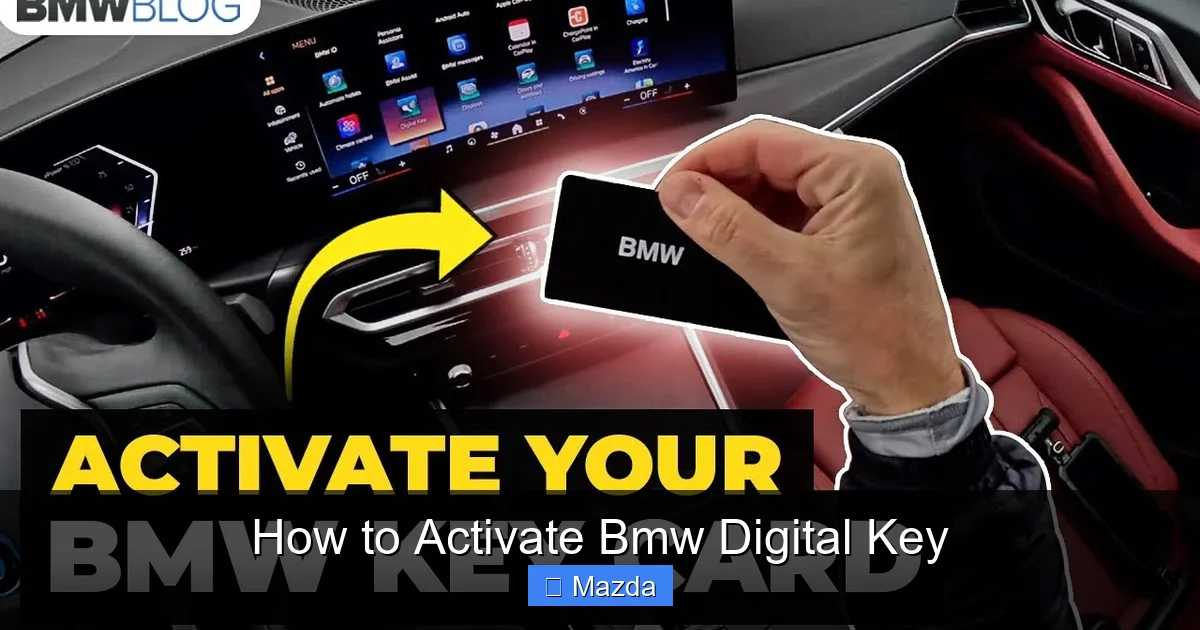
How to Activate Bmw Digital Key

Contents
- 1 Key Takeaways
- 2 📑 Table of Contents
- 3 Understanding the BMW Digital Key: More Than Just a Gimmick
- 4 Prerequisites: What You Need Before You Start
- 5 Activation for iPhone: A Journey to Apple Wallet
- 6 Activation for Android: Two Potential Paths
- 7 Troubleshooting: When the Tap Doesn’t Work
- 8 Future-Proofing: What 2026 and Beyond Holds
- 9 Conclusion: Your Key, Your Way
- 10 Frequently Asked Questions

Diesel Fuel Additive

Waterless Car Wash Spray

Car Tissue Holder
Car Phone Holder
Activating your BMW Digital Key transforms your smartphone into a secure, keyless entry system. This guide walks you through the simple steps for both iPhone and Android devices, ensuring you can lock, unlock, and start your BMW with just a tap. We also cover model compatibility, common issues, and future updates for 2026 models to keep your experience flawless.
So, you’ve heard about the BMW Digital Key and you’re ready to ditch the physical fob. Smart move! There’s something incredibly satisfying about walking up to your Beemer, phone in hand, and just… driving away. No digging in pockets or purses. But before you can enjoy that futuristic convenience, you need to activate it. Think of this guide as your friendly, step-by-step manual. We’ll break down everything from the “what-you-need” checklist to the actual tap-on-phone process, and even peek at what 2026 models have in store. Let’s get your smartphone ready to be your new best friend on the road.
Key Takeaways
- Compatibility is key: Your BMW must be a 2020 or newer model with the Comfort Access package, and your phone must support NFC and run updated software.
- Two main setup paths: iPhone users add the key to Apple Wallet, while Android users typically use Google Pay or the BMW Connected App.
- Physical key still required: You must have your vehicle’s original key fob present during the initial digital key activation process.
- Security is multi-layered: The Digital Key uses end-to-end encryption and requires biometric authentication (Face ID/Touch ID) for use.
- Troubleshooting starts simple: Most activation failures are due to Bluetooth/NFC being off, an outdated app, or a weak phone battery.
- 2026 brings enhancements: Newer models support Ultra-Wideband (UWB) for even more precise, secure, and passive entry without removing your phone.
📑 Table of Contents
- Understanding the BMW Digital Key: More Than Just a Gimmick
- Prerequisites: What You Need Before You Start
- Activation for iPhone: A Journey to Apple Wallet
- Activation for Android: Two Potential Paths
- Troubleshooting: When the Tap Doesn’t Work
- Future-Proofing: What 2026 and Beyond Holds
- Conclusion: Your Key, Your Way
Understanding the BMW Digital Key: More Than Just a Gimmick
First, let’s clarify what we’re talking about. The BMW Digital Key isn’t just an app that remotely locks your car. It’s a replacement for your physical key fob, using Near Field Communication (NFC) technology. Your car’s door handles and ignition area have special readers. When you hold your compatible smartphone near them, it securely communicates and performs the action—unlock, lock, or start the engine.
How It Actually Works: The Magic of NFC
Imagine a tiny, secure handshake between your phone and your car. That’s NFC. Unlike Bluetooth, which has a longer range, NFC requires the devices to be within a few centimeters. This is a major security feature—someone can’t accidentally or maliciously unlock your car from across a parking lot. The digital key credential is stored in a secure element within your phone (like in Apple’s Secure Enclave or Android’s Titan M chip), isolated from your regular data. When you tap, the phone and car exchange encrypted codes. If they match, the action happens. It’s fast, secure, and incredibly simple.
The Big Benefits Over Your Old Fob
Why make the switch? For starters, convenience. You’re almost always with your phone. Losing a bulky key fob is a thing of the past. Secondly, security. The digital key can’t be cloned via relay attacks (a common hack against traditional key fobs) because of the short-range requirement and dynamic encryption. Third, integration. Your digital key lives alongside your boarding passes and credit cards in your digital wallet. Finally, sharing. You can digitally send a temporary, limited-access key to a friend or valet directly through the BMW Connected App, something you can’t easily do with a physical key.
Prerequisites: What You Need Before You Start
You can’t just wave your phone at any BMW and expect magic. A few boxes need to be checked first. Rushing into setup without confirming these will lead to frustration. Let’s get prepared.

Visual guide about How to Activate Bmw Digital Key
Image source: bmw.scene7.com
Your BMW Must Be Eligible
This is the non-negotiable first step. The Digital Key is available on BMW models from the 2020 model year onward. However, it’s not always standard. It’s typically bundled with the Comfort Access package (which includes keyless entry) or as part of higher trims. For 2026, BMW has made it standard on most new models, but it’s always wise to check your specific VIN or owner’s manual. If your car has a touch-sensitive door handle that unlocks when you grab it (without pressing the fob button), you likely have the necessary hardware. If you’re unsure, your BMW dealer’s service department can look up your car’s build sheet in seconds.
Your Smartphone Must Be Compatible
Not all phones are created equal in the eyes of BMW. The requirements are strict for security reasons:
- For iPhone: You need an iPhone XR, XS, or newer (all models with Face ID or Touch ID). It must run iOS 13.1 or later. The feature is integrated into the Apple Wallet app.
- For Android: Your phone must have NFC capability and run Android 11 or newer. The key is stored in Google Pay (on supported devices) or within the BMW Connected App (on others). Google Pixel (3 and newer) and Samsung Galaxy (S10 and newer) series are widely supported. Always check the latest compatibility list in the BMW Connected App.
Software and App Readiness
Before you touch your car, prepare your phone. Ensure your phone’s operating system is updated to the latest version. Then, download and log into the BMW Connected App. This app is your command center for everything digital key-related, even if you plan to use Apple Wallet. You must have a BMW ConnectedDrive account (the free one is fine) and your vehicle must be successfully paired with the app via Bluetooth. If you haven’t done this initial “connection” step, do it now—it’s often a prerequisite for the Digital Key setup itself.
The Physical Key Must Be Present
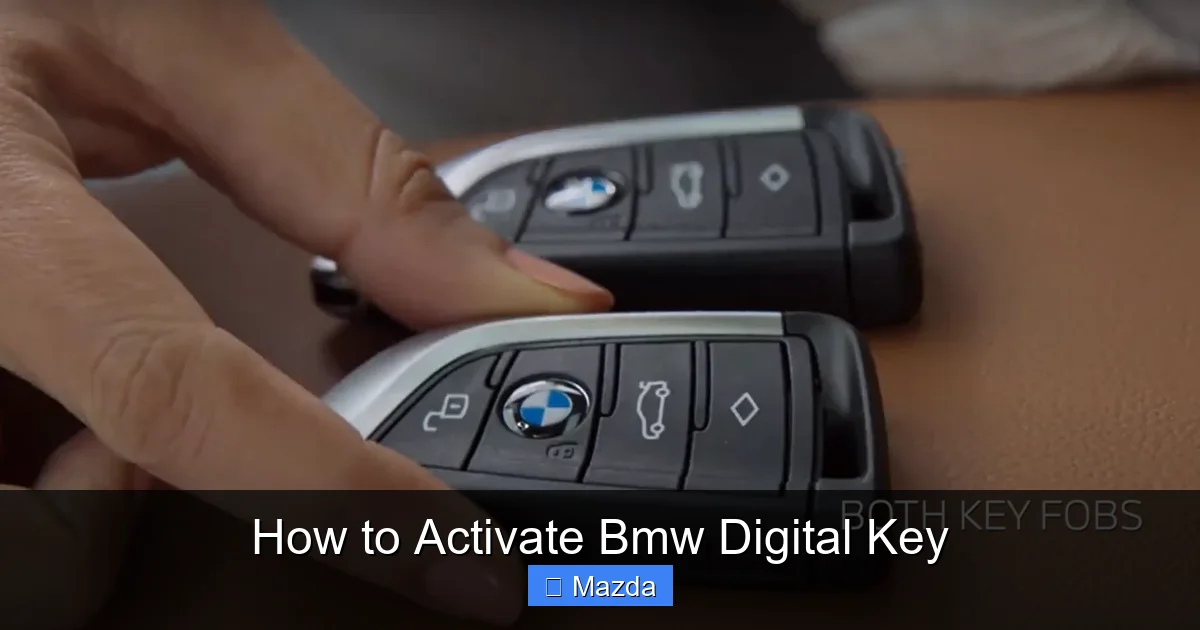
Here’s a critical and often overlooked step. Your original physical key fob must be inside the car with you during the entire activation process. The car uses the physical key’s unique signal to authorize the creation of a new digital credential. Think of it as the master key granting permission for a duplicate. Without it, the car will simply refuse to proceed. So, have that fob handy before you start.
Activation for iPhone: A Journey to Apple Wallet
If you’re an iPhone user, your BMW Digital Key will live alongside your credit cards and transit passes in the Apple Wallet app. The setup is designed to be smooth and is largely managed through the BMW Connected App, which hands off to Apple’s Wallet interface.
Visual guide about How to Activate Bmw Digital Key
Image source: i.ytimg.com
Step 1: The Setup Wizard in the BMW Connected App
Open your BMW Connected App. Go to the “Menu” (usually three horizontal lines). Look for the option labeled “Digital Key” or “Set Up Digital Key”. Tap it. The app will guide you through a series of screens explaining the feature. It will then ask you to confirm that your iPhone is compatible and that you have the physical key with you. You’ll be prompted to place your iPhone in the car’s wireless charging tray or on the center console—this is to ensure a strong, stable connection.
Step 2: The Handoff to Apple Wallet
Once your car and phone are communicating, the BMW app will trigger a handoff to Apple’s Wallet app. Your iPhone screen will display an Apple Wallet interface showing a placeholder for your BMW Digital Key. You’ll be asked to place your iPhone on the car’s door handle or in the wireless charging slot (the exact spot varies by model; the app will specify). This physical proximity via NFC is the moment of cryptographic pairing. Your phone will vibrate or chime when it detects the car’s NFC reader.
Step 3: Confirmation and Naming
After a successful read, you’ll see a confirmation screen in Apple Wallet. You can often name the key (e.g., “My BMW X5”). You’ll also set your default action—unlock/lock or just unlock. For security, you’ll be asked to enable Express Mode. This is crucial. Express Mode allows you to use the key without having to authenticate with Face ID or Touch ID every single time. The phone authenticates you once when you unlock it, and then the NFC communication is trusted for a short period. You’ll still need to authenticate after a reboot or if your phone is locked for too long. This balances convenience and security perfectly.
Step 4: Final Test
Once added to Apple Wallet, the key is active! The best part is the test. Lock your car with the fob or the app. Then, simply hold the top of your iPhone (where the NFC antenna is) near the driver’s door handle. You should hear the familiar unlock sound and see the door handle light up. To start, place the phone in the wireless charging area and press the start/stop button. The car should start just as if you had the fob. Pro Tip: If the first try fails, remove your phone case. Some thick cases can interfere with NFC signals. Also, ensure your phone’s screen is on—it doesn’t need to be unlocked, but it must be awake.
Activation for Android: Two Potential Paths
Android’s ecosystem is more varied, so your setup path depends on your specific phone and its integration with Google Pay. Don’t worry, the BMW Connected App will detect the correct path for you.
Visual guide about How to Activate Bmw Digital Key
Image source: cartriple.com
Path A: The Google Pay Integration (The Simplest Route)
On many modern Android phones (especially Google Pixels and Samsung Galaxies), the process mirrors the iPhone experience. After initiating setup in the BMW Connected App, it will direct you to Google Pay. You’ll be prompted to add a new “pass” or “key” to your Google Pay wallet. You’ll then follow the on-screen instruction to hold your phone against the door handle or wireless charging pad. The secure element in your phone (often the same one used for contactless payments) stores the key credential. The authentication works similarly to Express Mode on iPhone, using your phone’s lock screen (PIN, pattern, or biometric) as the initial gate.
Path B: The BMW Connected App “Standalone” Method
Some Android phones, particularly older models or those from certain manufacturers, may not support the Google Pay integration. In this case, the BMW Connected App itself becomes the home for your digital key. The activation steps are similar: you’ll be guided to place your phone on the car. However, the key will be accessible directly within the BMW app’s “Digital Key” section. To use it, you’d open the BMW app, authenticate yourself (with PIN or biometrics), and then tap a virtual “Unlock” or “Start” button. This is slightly less seamless than the wallet-integrated method (you have to open an app), but it’s still keyless and functional. The app will clearly indicate which method your device supports during setup.
Critical Android-Specific Tips
Android users should pay extra attention to battery optimization settings. To ensure the key works reliably, you must disable battery optimization for the BMW Connected App and Google Pay (if used). If your phone aggressively kills background processes, it may prevent the NFC service from waking up properly. Go to your phone’s Settings > Apps > [BMW Connected App] > Battery > and set to “Unrestricted” or “No optimization.” Also, ensure NFC is turned on in your quick settings panel. A missing NFC toggle is a sure sign your phone isn’t compatible.
Troubleshooting: When the Tap Doesn’t Work
Even with perfect setup, things can go wrong. Don’t panic. Most activation and usage issues have simple fixes.
“My Phone Isn’t Detected” or “Activation Failed”
This is the most common hurdle. First, double-check the prerequisites. Is your car a 2020+ with Comfort Access? Is your phone model and OS version on the compatibility list? Is the physical key inside the car? Is Bluetooth on? Is NFC on? Is your phone’s battery above 20%? Low power mode can sometimes throttle NFC. Second, restart both your phone and your car. A simple reboot clears transient software glitches. Third, remove your phone case. Thick, metal-lined cases are notorious NFC blockers. Try with a bare phone. Fourth, ensure precise placement. The NFC reader is in a specific spot—usually the driver’s door handle or the base of the windshield (for start). The BMW app or manual will show an icon of where to place the phone. It needs to be dead-center on that area for 2-3 seconds.
The Key Works Once, Then Stops
If activation succeeded but the key now fails intermittently, the issue is likely post-setup. First, re-authenticate. If you’re using Express Mode and your phone has been locked for more than a few hours, you may need to unlock it with your PIN/biometric first. Second, check for software updates. Go to your phone’s app store and update the BMW Connected App. Also, check for any pending BMW vehicle software updates via the app or in-car menu. BMW periodically releases updates that improve Digital Key stability. Third, revoke and re-add the key. In the BMW Connected App, you can delete the digital key from your phone and from the car (via the app’s vehicle settings), and then start the activation process from scratch. This often clears corrupted pairing data.
Security Lockout: “Too Many Attempts”
For security, the car will temporarily disable the Digital Key function if it detects too many failed NFC attempts in a short period (like constantly tapping a dead phone). The solution is to use your physical key fob to unlock and start the car. This automatically resets the counter. Then, ensure your phone is charged and try again. This is a feature, not a bug—it prevents brute-force attacks.
When All Else Fails: The Dealer is Your Friend
If you’ve tried everything, the issue might be with the car’s NFC hardware module or a deeper software glitch. At this point, a visit to your BMW dealer is necessary. They can run a diagnostic on the vehicle’s access systems and, if needed, perform a software reset or re-flash of the Digital Key module. Have your VIN ready. Also, mention that you’re trying to set up the Digital Key—they can sometimes push a specific enablement code to your vehicle remotely before you even arrive.
Future-Proofing: What 2026 and Beyond Holds
The technology is evolving fast. If you’re buying a new BMW in 2026 or later, you’re getting the latest iteration. Understanding the roadmap helps you appreciate what you have and what’s coming.
The Ultra-Wideband (UWB) Revolution
Starting with the 2025/2026 model year, BMW is rolling out Ultra-Wideband (UWB) technology in addition to NFC. UWB is like a precise radar for your phone. It can measure the distance to your car with centimeter-level accuracy. What does this mean for you? True passive entry and start. With UWB, you won’t even need to take your phone out of your pocket or bag. As you walk toward your car, it will automatically unlock when you’re within a couple of feet. When you sit down and press the start button, the car will know the authorized phone is inside and start. The NFC tap is still there as a reliable backup, but UWB makes the experience even more seamless and secure, as it’s virtually impossible to spoof. Phones like the iPhone 11 and newer, and recent high-end Androids, already have UWB chips.
Enhanced Sharing and Fleet Management
BMW is expanding the Digital Key’s sharing capabilities. In 2026, expect more granular control over shared keys. You’ll be able to set time-based restrictions (e.g., this key works only between 9 AM and 5 PM), geofencing (the key deactivates if the car leaves a designated area), and feature limits (e.g., a shared key can drive but not access the glovebox or trunk). This is huge for families with teen drivers or for car-sharing programs. The management of these shared keys will be even more intuitive within the Connected App.
Deeper Vehicle Integration
The Digital Key is becoming a true identity token. Future updates may link your personalized driver profiles (seat, mirror, climate, infotainment preferences) directly to the key. When your phone authenticates, the car will not only unlock but also instantly load your perfect setup. Imagine your BMW knowing it’s you before you even touch the seat. There’s also talk of integrating with smart home systems—imagine your garage door opening automatically as your BMW, recognized by your phone, pulls into the driveway.
Staying Updated
The beauty of a digital system is that it can be improved. To ensure your Digital Key stays cutting-edge, always install BMW vehicle software updates when prompted via the Connected App or in-car menu. These Over-The-Air (OTA) updates can add new features, improve reliability, and patch security vulnerabilities. Similarly, keep your phone’s OS and the BMW app updated. BMW’s 2026 commitment means they will support this technology for the long haul, with backward compatibility for older models where hardware allows.
Conclusion: Your Key, Your Way
Activating your BMW Digital Key is a one-time setup that pays off every single day. It’s about more than just convenience; it’s about embracing a more integrated, secure, and modern relationship with your vehicle. By following the steps in this guide—confirming compatibility, having your physical key ready, and carefully following the on-screen prompts—you’ll be tapping your phone to drive in no time. Remember, the core principle is simple: your phone becomes the cryptographic key. If you hit a snag, the troubleshooting steps solve 95% of issues. And as you look ahead, the move to UWB in 2026 models promises to make this feature feel truly magical. So go ahead, set it up, and enjoy the freedom of being keyless. Just don’t forget to charge your phone!
Frequently Asked Questions
Can I activate the BMW Digital Key without the physical key fob being in the car?
No. The physical key must be inside the vehicle during the entire activation process. The car uses the physical key’s unique signal to authorize the creation of the new digital credential. This is a mandatory security step.
What happens if my phone battery dies? Can I still unlock/start the car?
Yes, but with a caveat. For iPhone with Express Mode and compatible Android phones, the Digital Key will work for up to approximately 5 hours after the phone powers off due to a dead battery, as long as the phone had a sufficient charge when it shut down. This is a reserved power feature. For longer periods, you’ll need to use your physical key fob.
Is the BMW Digital Key secure? Can it be hacked or cloned?
Yes, it’s highly secure. The key credential is stored in your phone’s secure hardware (Secure Enclave or Titan M chip), isolated from your data. Communication uses end-to-end encryption and dynamic codes that change with every use. The short-range NFC requirement prevents relay attacks that plague traditional key fobs. It’s significantly more secure than a physical key.
Can I have multiple phones set up as Digital Keys for my BMW?
Absolutely. You can activate the Digital Key on multiple smartphones for the same vehicle. This is perfect for families. Each user will need to go through the activation process on their own compatible device. You can manage and delete keys for other users via the BMW Connected App.
My phone is compatible, but the BMW Connected App says my car isn’t eligible. What now?
This usually means your vehicle lacks the necessary hardware (Comfort Access) or the car’s software module isn’t enabled. First, double-check your model year and package. If you believe it should be supported, contact your BMW dealer. They can verify your VIN and may need to activate the Digital Key function in the car’s backend system or install a hardware retrofit if possible.
Will a screen protector or phone case interfere with the Digital Key?
Most standard thin plastic or silicone cases and screen protectors do not interfere. However, thick, rugged cases with metal components or heavily padded wallets can block the NFC signal. If you’re having trouble, try temporarily removing your case during activation and use. Some BMW models also have a specific “key” spot that’s more sensitive to cases.