Does Toyota Corolla Have Apple Carplay

Contents
- 1 Key Takeaways
- 2 📑 Table of Contents
- 3 Which Toyota Corolla Models Include Apple CarPlay?
- 4 How to Set Up Apple CarPlay in Your Toyota Corolla
- 5 What Can You Do with Apple CarPlay in the Corolla?
- 6 Troubleshooting Common Apple CarPlay Issues in the Corolla
- 7 Should You Upgrade to a Newer Corolla for Apple CarPlay?
- 8 The Future of Apple CarPlay in Toyota Vehicles
- 9 Conclusion
- 10 Frequently Asked Questions




The Toyota Corolla has included Apple CarPlay support since the 2019 model year, making it easy for iPhone users to access music, maps, messages, and more safely while driving. Most trims and recent models come equipped with this feature, though availability may vary by region and specific trim level.
If you’re driving a Toyota Corolla—or thinking about buying one—you’ve probably wondered: *Does the Toyota Corolla have Apple CarPlay?* You’re not alone. With more drivers relying on their smartphones for navigation, music, and communication, seamless integration between your phone and your car has become essential. Apple CarPlay has emerged as one of the most popular and user-friendly ways to bring your iPhone experience into the vehicle without compromising safety or convenience.
The good news? Yes, the Toyota Corolla does support Apple CarPlay—but only on certain models and years. Since its major redesign in 2019, Toyota began rolling out Apple CarPlay across most Corolla trims in key markets like the United States, Canada, Australia, and parts of Europe. This means that if you’re shopping for a used Corolla from 2019 or newer, there’s a strong chance it comes equipped with this feature. Even better, recent updates have introduced wireless connectivity, so you can enjoy all the benefits of Apple CarPlay without fumbling with cables.
In this guide, we’ll walk you through everything you need to know about Apple CarPlay in the Toyota Corolla—from which models include it, how to set it up, troubleshooting tips, and what to expect if you’re considering an older model. Whether you’re a current Corolla owner or browsing dealerships, understanding CarPlay compatibility will help you make the most of your driving experience.
Key Takeaways
- Apple CarPlay is available on Toyota Corolla models from 2019 onward: Starting with the 2019 refresh, nearly all Corolla trims in the U.S. and many global markets include Apple CarPlay as standard or optional.
- It works wirelessly on newer models: From 2023 onward, select Corolla trims offer wireless Apple CarPlay, eliminating the need for a USB cable.
- Compatible with iPhone 5 and newer: As long as your iPhone runs iOS 7.1 or later, you can use Apple CarPlay in a compatible Corolla.
- Enhances safety and convenience: Apple CarPlay lets you use Siri, make calls, send texts, and navigate using Apple Maps—all with minimal distraction.
- Not all older Corollas have it: Models before 2019 generally do not support Apple CarPlay unless retrofitted with aftermarket systems.
- Check your trim and region: Availability can differ based on country and trim level—always confirm with your owner’s manual or dealer.
- Easy setup process: Once connected via USB (or wirelessly), Apple CarPlay appears automatically on the infotainment screen.
📑 Table of Contents
- Which Toyota Corolla Models Include Apple CarPlay?
- How to Set Up Apple CarPlay in Your Toyota Corolla
- What Can You Do with Apple CarPlay in the Corolla?
- Troubleshooting Common Apple CarPlay Issues in the Corolla
- Should You Upgrade to a Newer Corolla for Apple CarPlay?
- The Future of Apple CarPlay in Toyota Vehicles
- Conclusion
Which Toyota Corolla Models Include Apple CarPlay?
When it comes to infotainment features, Toyota has made significant strides in recent years. The Corolla, long known for its reliability and affordability, now offers modern tech amenities that rival much pricier vehicles. But when did Apple CarPlay officially arrive in the Corolla lineup?
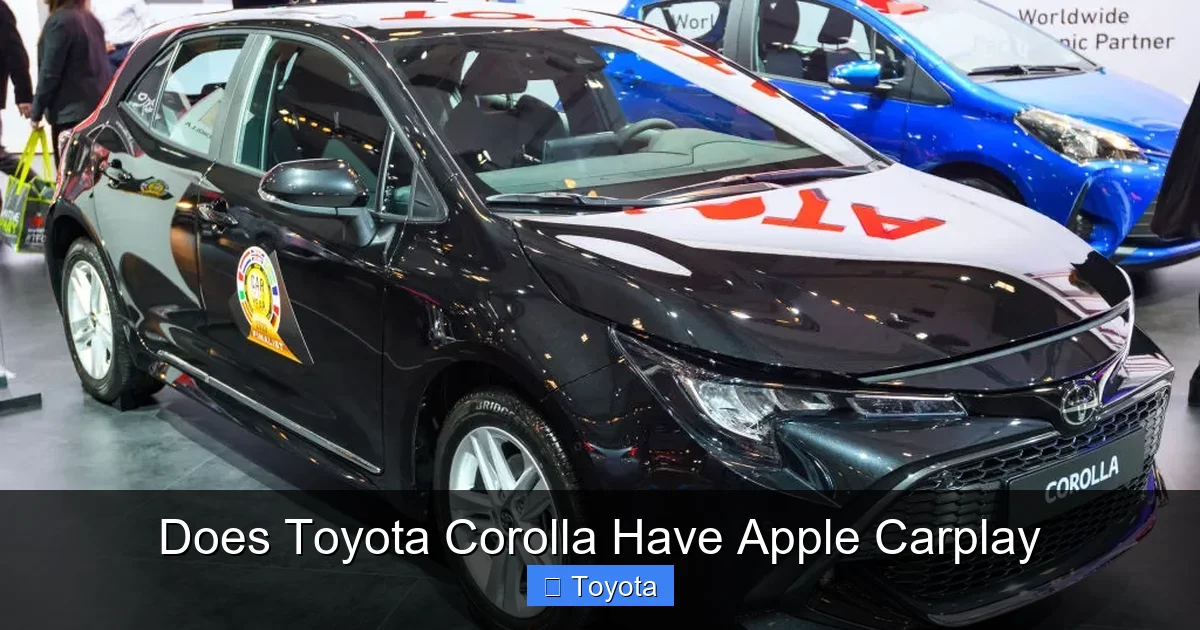
Apple CarPlay became available in the Toyota Corolla starting with the **2019 model year**. This was part of a broader update that included a refreshed exterior design, improved interior materials, and a completely redesigned infotainment system. Prior to 2019, Corolla models did not offer native Apple CarPlay support—even as optional equipment. So if you’re looking at a 2018 or earlier Corolla, you’ll likely need to explore aftermarket solutions if you want CarPlay functionality.
From 2019 onward, Apple CarPlay is included on nearly all Corolla trims in the U.S., including the L, LE, SE, XLE, and XSE. It’s typically bundled with Toyota’s Entune 3.0 or later multimedia system, which features a 7- or 8-inch touchscreen depending on the trim. In some cases, especially on base models, CarPlay might be optional rather than standard—so always double-check the vehicle’s window sticker or ask the dealer.
Outside the U.S., availability can vary. For example, in Canada and Australia, Apple CarPlay is widely available on 2019+ Corollas, but in certain European markets, Toyota initially delayed CarPlay rollout due to regulatory and software considerations. However, by 2021, most global Corolla models had adopted the feature.
Wireless vs. Wired Apple CarPlay in the Corolla
One of the biggest improvements in recent Corolla models is the introduction of **wireless Apple CarPlay**. While early 2019–2022 Corollas required a physical USB connection to activate CarPlay, Toyota began offering wireless connectivity in select trims starting with the **2023 model year**.
Wireless Apple CarPlay allows you to connect your iPhone to the car’s infotainment system without plugging in a cable. Once paired via Bluetooth and Wi-Fi, your phone automatically connects when you start the car—making the experience far more seamless. This feature is typically found on higher trims like the XSE or Limited, though availability may expand in future model years.
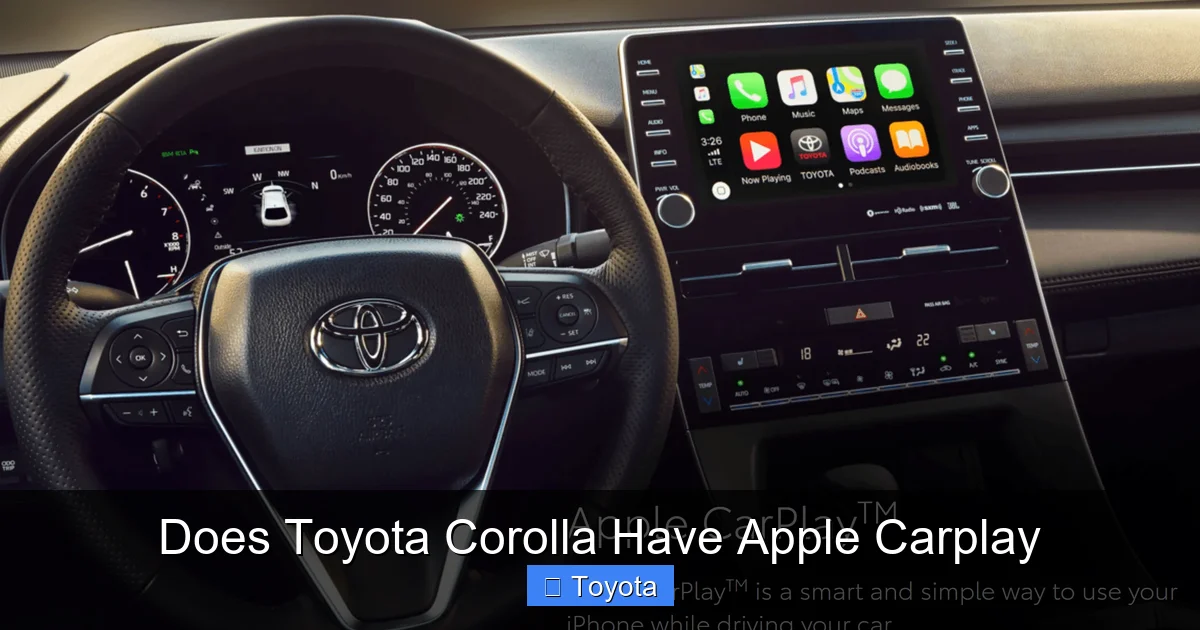
Even if your Corolla only supports wired CarPlay, the experience is still excellent. Simply plug your iPhone into the USB port (usually located in the center console), and CarPlay will launch automatically on the screen. The interface mirrors your iPhone’s home screen but is optimized for driving—with larger icons, voice control via Siri, and simplified navigation.
How to Set Up Apple CarPlay in Your Toyota Corolla
Visual guide about Does Toyota Corolla Have Apple Carplay
Image source: d39q3bqe976bgd.cloudfront.net
Setting up Apple CarPlay in your Toyota Corolla is straightforward—even if you’re not particularly tech-savvy. Whether you have a wired or wireless setup, the process takes just a few minutes. Here’s a step-by-step guide to get you started.
For Wired Apple CarPlay (2019–2022 Models)
1. **Ensure your iPhone is compatible.** Apple CarPlay works with iPhone 5 and newer models running iOS 7.1 or later. For the best experience, update to the latest version of iOS.
2. **Connect your iPhone to the car’s USB port.** Use the original Apple Lightning cable (or a certified third-party cable) and plug it into the USB port labeled “Smartphone” or “Media” in your Corolla’s center console.
3. **Wait for the system to recognize your phone.** The Entune infotainment screen should display a prompt asking if you want to enable Apple CarPlay. Tap “Allow” on both your phone and the car screen.
4. **Grant necessary permissions.** Your iPhone may ask for access to Siri, location, and messages. Accept these to unlock full functionality.
5. **Start using CarPlay.** Once connected, the CarPlay interface will appear on your dashboard screen. You can now use Apple Maps, Spotify, Messages, Phone, and other supported apps.
For Wireless Apple CarPlay (2023+ Models)
1. **Make sure your Corolla supports wireless CarPlay.** Check your owner’s manual or look for a “Wireless Phone Charger” pad—this often indicates wireless capability.
2. **Enable Bluetooth and Wi-Fi on your iPhone.** Both must be turned on for wireless pairing.
3. **Go to Settings > General > CarPlay on your iPhone.** Tap “Add New Car” and select your Toyota Corolla from the list of available vehicles.
4. **Follow the on-screen prompts.** You’ll see a confirmation code on both your phone and the car’s display. Verify they match, then tap “Connect.”
5. **Place your phone on the wireless charger (if equipped).** This helps maintain a strong connection and keeps your device charged.
6. **Enjoy hands-free access.** Once paired, CarPlay will launch automatically every time you enter the car.
Tips for a Smooth Experience
– Always use a high-quality USB cable. Cheap or damaged cables can cause connection issues.
– Keep your iPhone updated. Apple frequently releases CarPlay improvements in iOS updates.
– If CarPlay doesn’t appear, try restarting both your phone and the car’s infotainment system.
– Disable “Do Not Disturb While Driving” temporarily during setup if prompted.
What Can You Do with Apple CarPlay in the Corolla?
Visual guide about Does Toyota Corolla Have Apple Carplay
Image source: i.ytimg.com
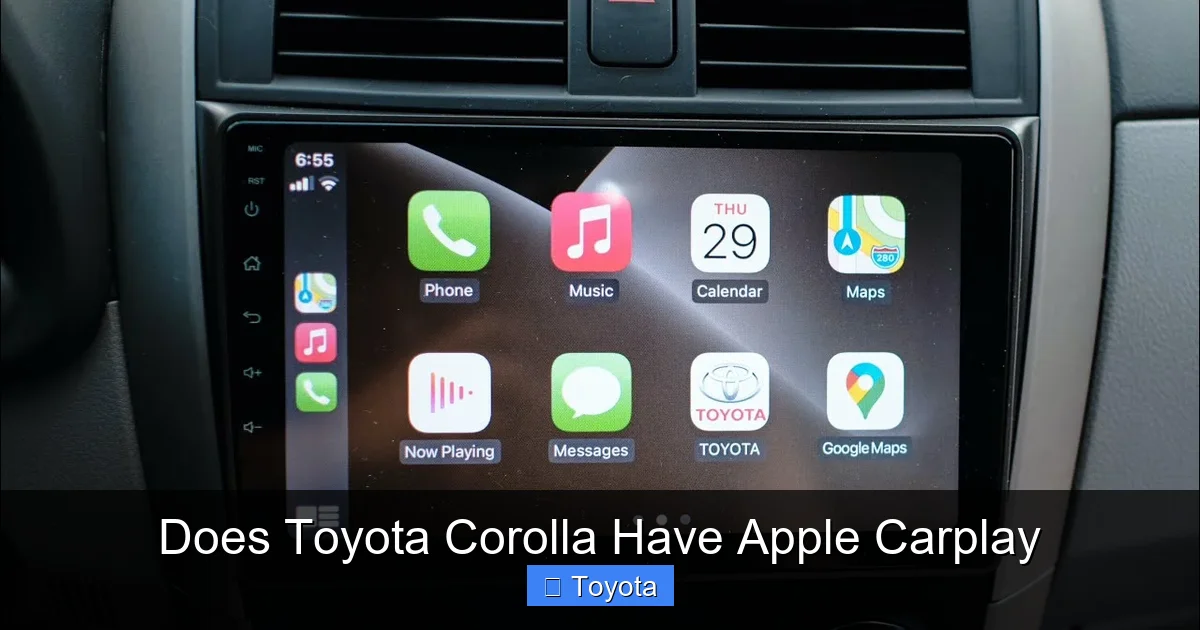
Once Apple CarPlay is up and running in your Toyota Corolla, you gain access to a suite of powerful, driver-friendly features. The goal of CarPlay isn’t to replicate your entire iPhone experience—it’s to deliver the most useful functions in a safe, distraction-minimized way.
Navigation with Apple Maps
One of the most popular uses of Apple CarPlay is navigation. Apple Maps provides turn-by-turn directions, real-time traffic updates, and estimated arrival times—all displayed clearly on your Corolla’s touchscreen. You can search for destinations using Siri (“Hey Siri, navigate to the nearest gas station”) or type them in manually.
Unlike some third-party apps, Apple Maps integrates seamlessly with your calendar, reminders, and frequent locations. If you have a meeting scheduled, CarPlay may even suggest leaving early based on current traffic conditions.
Music and Podcasts
Whether you’re streaming from Apple Music, Spotify, Pandora, or Audible, CarPlay lets you control your audio library with ease. You can browse playlists, skip tracks, or search for new content using voice commands. The large, tactile buttons on the CarPlay interface make it simple to adjust volume or change stations without taking your eyes off the road.
Phone Calls and Messages
CarPlay supports hands-free calling and texting. When a call comes in, you can answer or decline using the steering wheel controls or the touchscreen. For messages, Siri reads incoming texts aloud and lets you reply using voice dictation. You’ll never have to pick up your phone while driving.
Third-Party App Support
In addition to Apple’s native apps, CarPlay supports a growing list of third-party services. Popular options include:
– WhatsApp (for messaging)
– Waze (for alternative navigation)
– Amazon Music
– iHeartRadio
– Overcast (for podcasts)
Note that not all apps are available in every region, and some may require a subscription.
Siri Integration
Siri is the heart of the CarPlay experience. By saying “Hey Siri” or holding the voice command button on your steering wheel, you can:
– Make calls
– Send messages
– Get directions
– Play music
– Check the weather
– Control smart home devices (if enabled)
Siri’s natural language processing makes interactions feel conversational and intuitive.
Troubleshooting Common Apple CarPlay Issues in the Corolla
Visual guide about Does Toyota Corolla Have Apple Carplay
Image source: i.ytimg.com
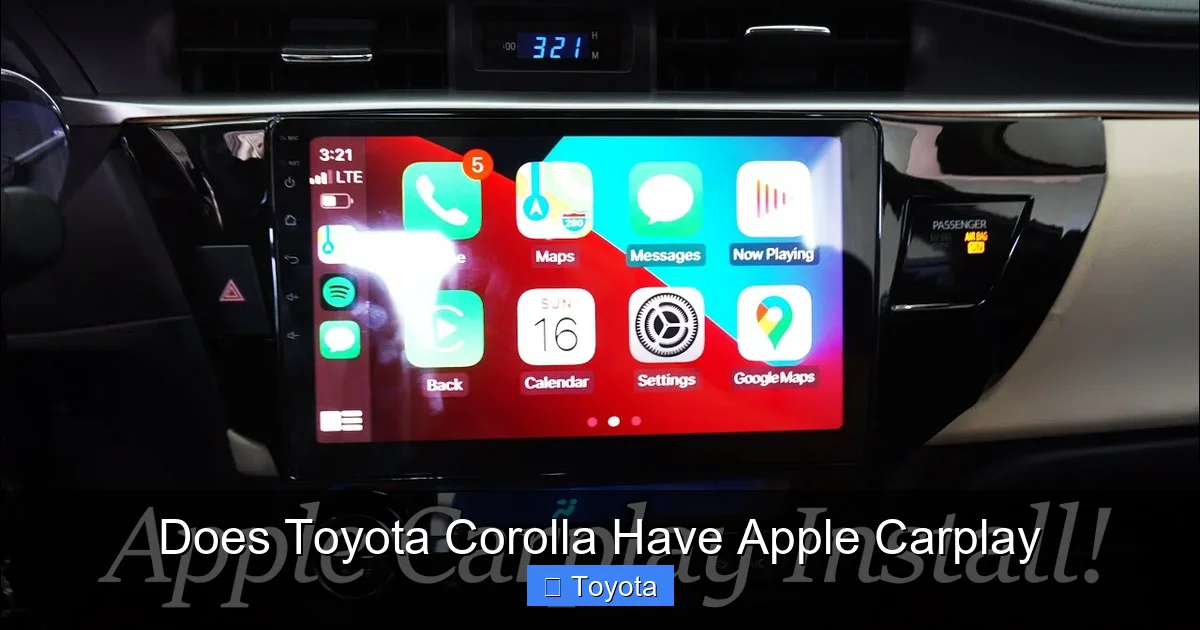
Even with a well-designed system like Apple CarPlay, occasional glitches can occur. If you’re experiencing problems connecting or using CarPlay in your Toyota Corolla, here are some common fixes.
CarPlay Won’t Connect
– **Check your cable.** A faulty or non-certified USB cable is the #1 cause of connection failures. Try a different cable or port.
– **Restart your devices.** Turn off your iPhone and restart the Corolla’s infotainment system (usually by holding the power button for 10 seconds).
– **Update software.** Ensure your iPhone is running the latest iOS version and that your Corolla’s multimedia system has the most recent firmware update from Toyota.
CarPlay Disconnects Frequently
– **Disable battery optimization.** Some iPhones aggressively close background apps to save power. Go to Settings > Battery > Low Power Mode and turn it off.
– **Check for interference.** Wireless chargers or aftermarket accessories can sometimes interfere with the USB connection.
– **Reset network settings.** On your iPhone, go to Settings > General > Reset > Reset Network Settings (note: this will erase saved Wi-Fi passwords).
Apps Not Appearing or Crashing
– **Reinstall the app.** Delete and reinstall problematic apps from the App Store.
– **Check app permissions.** Make sure the app has access to location, microphone, and notifications.
– **Contact Toyota support.** If the issue persists, there may be a compatibility problem with your specific Corolla model.
Wireless CarPlay Not Working
– **Ensure both devices are updated.** Wireless CarPlay requires iOS 9 or later and compatible Toyota firmware.
– **Re-pair your phone.** Delete the car from your iPhone’s CarPlay settings and set it up again.
– **Move your phone closer.** If using a wireless charger, place your iPhone directly on the pad for optimal signal strength.
Should You Upgrade to a Newer Corolla for Apple CarPlay?
If you’re driving a pre-2019 Toyota Corolla and love the idea of Apple CarPlay, you might be wondering whether it’s worth upgrading. The answer depends on your priorities.
For many drivers, the addition of Apple CarPlay alone may not justify trading in a reliable older Corolla. However, if you’re already considering an upgrade—or if your current car is nearing the end of its lifespan—the 2019+ Corolla offers compelling reasons to switch:
– Improved safety features (Toyota Safety Sense 2.0)
– Better fuel efficiency
– Modern infotainment with Apple CarPlay and Android Auto
– Sleeker design and higher-quality interior materials
Alternatively, you can explore **aftermarket solutions**. Companies like Pioneer, Kenwood, and Alpine offer CarPlay-compatible head units that can be installed in older Corollas. These systems often include larger screens, better sound quality, and additional features like backup cameras. However, installation can cost $300–$800 depending on the unit and labor, and you may lose some factory integrations (like steering wheel controls).
For most buyers, though, the convenience and peace of mind of a factory-installed system in a newer Corolla outweigh the cost of an aftermarket retrofit.
The Future of Apple CarPlay in Toyota Vehicles
Toyota has been gradually expanding Apple CarPlay (and Android Auto) across its entire lineup, and the Corolla is no exception. As of 2024, nearly every new Corolla sold in major markets includes CarPlay as standard—even on base trims. The shift toward wireless connectivity and deeper vehicle integration suggests that future Corolla models will offer an even more seamless smartphone experience.
Rumors also point to Toyota adopting **next-generation CarPlay**—a more immersive version announced by Apple in 2022 that could eventually control climate, audio, and even instrument cluster displays. While this isn’t available yet, it signals a future where your iPhone becomes the central hub for your entire driving experience.
For now, though, the current implementation of Apple CarPlay in the Toyota Corolla strikes an excellent balance between functionality, safety, and ease of use. Whether you’re commuting to work, running errands, or taking a road trip, CarPlay helps you stay connected—without compromising your focus on the road.
Conclusion
So, does the Toyota Corolla have Apple CarPlay? The short answer is yes—if you’re driving a 2019 model or newer. This popular compact car has embraced modern technology, offering iPhone users a safe, intuitive way to access their favorite apps, navigate, communicate, and entertain themselves while on the go.
From wired connections in earlier models to wireless convenience in the latest trims, Toyota has made Apple CarPlay accessible to a wide range of Corolla owners. Setup is simple, performance is reliable, and the feature enhances both safety and enjoyment behind the wheel.
If you’re in the market for a Corolla, prioritize models from 2019 onward to ensure CarPlay compatibility. And if you already own one, take a few minutes to connect your iPhone—you might be surprised how much more enjoyable your daily drives become.
With Apple CarPlay, your Toyota Corolla isn’t just a reliable mode of transportation—it’s a smart, connected companion for every journey.
Frequently Asked Questions
Does the 2020 Toyota Corolla have Apple CarPlay?
Yes, the 2020 Toyota Corolla includes Apple CarPlay as standard on all trims in the U.S. and most other markets. It requires a wired USB connection to function.
Can I add Apple CarPlay to a 2017 Toyota Corolla?
The 2017 Corolla does not support Apple CarPlay natively. However, you can install an aftermarket head unit from brands like Pioneer or Kenwood that offers CarPlay compatibility.
Is wireless Apple CarPlay available on all 2023 Corolla models?
Wireless Apple CarPlay is available on select 2023 Corolla trims, typically the higher-end XSE and Limited models. Base trims may still require a wired connection.
Why won’t my iPhone connect to Apple CarPlay in my Corolla?
Common causes include a faulty USB cable, outdated iOS, or incorrect settings. Try using a certified cable, updating your phone, and restarting both devices.
Does Apple CarPlay work with Android phones in the Corolla?
No, Apple CarPlay is designed exclusively for iPhones. Android users can use Android Auto, which is also supported on most 2019+ Corolla models.
Will Apple CarPlay drain my iPhone battery in the Corolla?
Using CarPlay can consume battery, especially with navigation or streaming. However, connecting via USB (or using a wireless charger) will keep your phone powered during use.