
How to Restart Mazda Screen

A frozen or unresponsive Mazda infotainment screen is a common but frustrating issue. Most problems can be solved with a simple soft reset, which is like restarting your phone. If that fails, a more thorough hard reset may be needed, though this can erase some personalized settings. Always try the gentlest method first and consult your owner’s manual for model-specific instructions, especially with the 2026 system updates.
That moment of dread is familiar to many Mazda owners. You’re driving, you reach for the infotainment screen to change the music or follow a navigation prompt, and… nothing. The screen is frozen, black, or stuck on a single menu. Your first instinct might be to panic, but take a breath. Knowing how to properly restart a Mazda screen is an essential skill for any modern driver. Think of it like rebooting your smartphone when it acts up—it’s a simple fix that solves the vast majority of hiccups. This comprehensive guide will walk you through every method, from the quickest soft reset to the more involved factory reset, specifically tailored for Mazda vehicles, including the latest 2026 models. We’ll cover the ‘why’ behind the freezes and give you the confidence to tackle this issue yourself, saving you time and a potential trip to the dealership.
Key Takeaways
- Most freezes are software glitches: Like any computer, your Mazda’s system can get bogged down and needs a reboot.
- Start with a soft reset: This is the safest first step, preserving all your saved settings, paired devices, and map data.
- A hard reset is a last resort: Also called a factory reset, this clears everything back to default and should only be done if a soft reset fails.
- 2026 models have updated processes: Newer systems may have different button combinations or menu paths; your manual is key.
- Persistent issues need a professional: If resets don’t work, it could signal a deeper hardware problem requiring dealer diagnostics.
- Prevention is possible: Regular system updates and avoiding unnecessary apps can reduce future crashes.
- Battery health matters: A weak car battery can cause system instability, making restarts more frequent.
📑 Table of Contents
- Understanding Your Mazda Infotainment System (The Heart of the Screen)
- When and Why Should You Restart Your Mazda Screen?
- Method 1: The Soft Reset (Your First and Best Option)
- Method 2: The Hard Reset / Factory Reset (Nuclear Option)
- Advanced Troubleshooting: When Restarts Aren’t Enough
- Preventive Maintenance: Keeping Your Screen Healthy
- Conclusion: You’ve Got This
Understanding Your Mazda Infotainment System (The Heart of the Screen)
Before we start pressing buttons, it helps to understand what we’re dealing with. Your Mazda’s screen isn’t just a display; it’s the control center for the entire infotainment system, officially called Mazda Connect. This system integrates audio, navigation, phone connectivity, vehicle settings, and even some climate controls. It runs on a dedicated computer with its own memory and software, much like a tablet or smartphone. Because it’s always powered (to maintain settings and the clock), it can experience the same kinds of software bugs, memory leaks, and cache issues that your personal devices do. A simple restart clears out temporary files and refreshes the system’s processes, often resolving problems instantly. The architecture has evolved significantly over the years, from earlier resistive touch screens to the current, more powerful Mazda Connect systems with capacitive touch and faster processors. The 2026 models feature further refinements in user interface and background process management, but the core principles of troubleshooting remain the same.
The Evolution: From Buttons to Touch
Older Mazda models (pre-2014) relied heavily on a rotary controller and had smaller, non-touch screens. The restart procedures for these can differ. From the Mazda3 and CX-5 redesigns onward, the large central touchscreen became the primary interface. Your specific restart method will depend on your model year and whether your vehicle has the standard display or the larger, optional premium display. This guide focuses on the most common configurations for models from 2014 to the present 2026 lineup. If you have an older model with a small non-touch screen controlled solely by the commander knob, the steps will be slightly different, but the concept of a system reboot is identical.
When and Why Should You Restart Your Mazda Screen?
Knowing the symptoms that indicate a simple restart is needed can save you from unnecessary worry. You don’t need to restart the screen for every minor glitch, but certain behaviors are clear red flags.
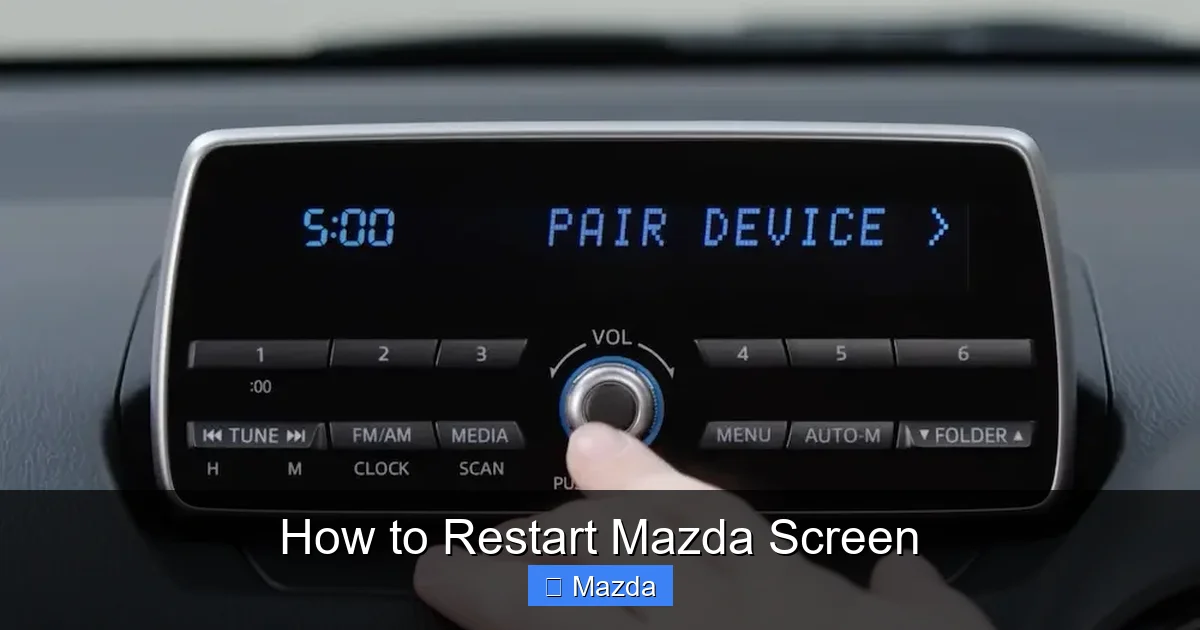
Visual guide about How to Restart Mazda Screen
Image source: cdn.cartipsdaily.com
- The screen is completely frozen or unresponsive: Tapping icons, using the commander knob, or pressing physical buttons has no effect.
- It’s stuck on a loading screen: The Mazda logo or a spinning circle appears forever when you start the car.
- Specific apps crash repeatedly: Navigation freezes, radio stops working, or Apple CarPlay/Android Auto disconnects constantly.
- Weird graphical glitches: Parts of the screen are missing, colors are wrong, or text is garbled.
- Bluetooth won’t connect or audio stutters: These can sometimes be software-related and cleared with a reboot.
Before you restart, a quick check can sometimes solve the problem. Ensure your vehicle is in Park (P) with the engine running or in ACC (Accessory) mode. Some functions are disabled while driving for safety. Also, a very low battery in the car can cause system instability. If your headlights are dim or the engine cranks slowly, charge the battery first. If you’re experiencing issues with connected features like Mazda Connected Services, a poor cellular or GPS signal might be the culprit, not the screen itself.
Is It a Software Problem or Something Worse?
The vast majority of screen freezes are software problems—temporary bugs in the operating system. However, if the screen remains black or unresponsive after multiple successful restarts, it could point to a hardware failure. This might include a loose internal cable, a failing display unit, or a problem with the main infotainment computer. If you’ve followed all restart procedures and the problem persists, it’s time to consult a Mazda technician. They can run deeper diagnostics and check for any stored fault codes in the system.
Method 1: The Soft Reset (Your First and Best Option)
The soft reset is the equivalent of holding down the power button on your phone. It forces the system to close all applications and reboot the operating system without erasing your personal data. This should be your go-to first step. It’s quick, safe, and effective for 90% of common freezes. There are two primary ways to perform a soft reset on a modern Mazda.

Visual guide about How to Restart Mazda Screen
Image source: cdn.cartipsdaily.com
The Classic Power Cycle (Holding the “Home” Button)
This is the most universally recognized method for Mazda vehicles with a touchscreen. The “Home” button is the physical button, often with a house icon, located below or beside the screen (or the center of the commander knob on some models).
- Ensure the car is in Park (P) and the engine is running. The system needs power to reboot properly.
- Locate the “Home” button. On most models (CX-5, CX-30, Mazda3, CX-50), this is a physical button on the dash near the screen. On some, it’s the center button of the commander knob.
- Press and hold the “Home” button for about 10-15 seconds. You should see the screen begin to dim or a loading indicator appear. Keep holding it.
- Release the button when the Mazda logo appears on the screen. This indicates the system is restarting. The full boot process takes 30-60 seconds. Do not touch any buttons during this time.
- Wait for the system to fully load back to the main menu. Test your functions (radio, volume, navigation) to confirm the freeze is resolved.
Pro Tip: If your vehicle has a physical “Power” button (often a small circular button near the volume knob), holding that for 10 seconds also performs a soft reset on many models. Consult your owner’s manual to confirm the correct button for your specific year and trim.
Using the Menu System (If the Screen is Partially Responsive)
If your screen is slow but still lets you navigate menus, you can initiate a soft reset from within the system itself. This is a cleaner method but isn’t always available if the system is completely locked.
- From the main home screen, select “Settings” (the gear icon).
- Scroll down and select “System” or “General”.
- Look for an option called “Reboot System,” “Restart Infotainment,” or “System Reset”. The exact wording varies by model year.
- Select it and confirm when prompted. The screen will go black and restart.
This menu-based reboot is excellent because it’s the intended, “official” way to restart the system without using button combinations. If you can access it, use it.
Method 2: The Hard Reset / Factory Reset (Nuclear Option)
Also known as a master reset or factory data reset, this procedure returns the infotainment system to its original, out-of-the-box state. This will erase all personalized data: your saved radio presets, paired Bluetooth devices, downloaded map data (if applicable), account logins, and custom settings. Only use this if a soft reset does not fix the problem. Think of it as the last resort before visiting a dealer. There are two common ways to perform a hard reset.

Visual guide about How to Restart Mazda Screen
Image source: cdn.cartipsdaily.com
Via the Settings Menu (The Recommended Hard Reset Path)
This is the safest way to perform a factory reset, as it’s a built-in function of the system.
- With the car in Park and engine running, go to Settings > System.
- Scroll to find “Initialize” or “Reset All Settings” or “Factory Reset.”
- You will be presented with a clear warning about data loss. You may need to type a confirmation code (often “1234” or the last 4 digits of your VIN, check your manual).
- Confirm the reset. The system will wipe itself and reboot, taking several minutes. Be patient.
- After it restarts, you will need to go through the initial setup process again: set language, time, date, and reconnect your phone.
The Battery Disconnect Method (For Severe Lockups)
If your screen is so frozen that you cannot access *any* menus, not even the settings, this physical method can force a full power cycle. Warning: This will also reset other vehicle systems like the radio presets and clock, and may trigger dashboard warning lights that will need to be cleared.
- Turn off the engine and remove the key fob. For keyless models, press the engine start/stop button to turn off the engine, then press it again (without brake) to put the car in ACC mode, then open the door to fully power down. Wait 5 minutes.
- Locate your car’s battery. It’s usually in the engine bay, but some Mazdas (like the MX-5) have it in the trunk.
- Identify the negative (-) terminal. It has a black cap and a minus sign.
- Using a 10mm wrench, loosen the nut on the negative terminal clamp. Carefully lift the clamp off the battery post and tuck it aside so it cannot touch the metal post.
- Wait at least 5-10 minutes. This allows the capacitors in the infotainment system to fully discharge, clearing any volatile memory.
- Reconnect the negative clamp and tighten the nut securely.
- Start your car. The infotainment system will perform a full, cold boot. It may take longer than usual the first time. All settings will be reset.
Important Note for 2026 Models: Some newer vehicles with advanced battery management systems may throw a battery-related fault code after a disconnect. You may need to perform a simple throttle body adaptation or have a dealer clear the code. Always check your 2026 owner’s manual first, as it may recommend a specific reset sequence instead of a battery disconnect.
Advanced Troubleshooting: When Restarts Aren’t Enough
You’ve tried both soft and hard resets, but the screen still misbehaves. Now what? Before you call the dealer, there are a few more things to check that can cause persistent issues.
Check for System Updates
Mazda periodically releases software updates for the infotainment system to fix bugs and add features. An outdated system is more prone to crashes. You can check for updates in the Settings > System > Software Update menu. If an update is available, ensure you have a stable Wi-Fi connection (you can use your phone as a hotspot) and the engine is running or the car is plugged in (for hybrids). The update can take 30-90 minutes. Do not interrupt it. A failed update can brick the system, requiring professional re-flashing. If you’re uncomfortable doing this yourself, your dealer can perform it, often as part of a scheduled service. For those with navigation systems, map updates are separate and may require a USB drive purchased from Mazda.
The “Fuse Pull” Method
If the system is completely dead and a battery disconnect seems extreme, you can try pulling the specific fuse for the infotainment system. This is more precise than disconnecting the whole battery.
- Find your vehicle’s fuse box diagram. It’s on the underside of the fuse box cover (usually in the engine bay) or in your owner’s manual. Look for a fuse labeled “INFOTAINMENT,” “RADIO,” “METER,” or “AUDIO.”
- Using a fuse puller (or needle-nose pliers), remove that specific fuse.
- Wait 2-3 minutes.
- Reinsert the fuse firmly.
- Turn the ignition on and see if the system powers up.
Caution: Pulling the wrong fuse can disable other important systems like your fuel pump or lights. Double-check the diagram. This method is less common for simple freezes but can work for a total black screen.
Consider Related Systems: i-Stop and Battery Health
Modern Mazdas feature i-Stop (automatic engine stop-start). This system places a heavy drain on the 12V battery. If your battery is failing (typically after 3-4 years), the voltage can drop low enough during i-Stop events to cause the infotainment system to reboot or freeze. You might notice the screen flickering or resetting when you come to a stoplight. If you’re experiencing frequent, unexplained restarts, have your battery and charging system tested. Learning how to disable i-Stop Mazda temporarily can help diagnose if this is the root cause, though it’s not a permanent fix for a weak battery.
Preventive Maintenance: Keeping Your Screen Healthy
An ounce of prevention is worth a pound of cure. While you can’t prevent all software bugs, you can significantly reduce the frequency of freezes with good habits.
- Install Updates Promptly: When Mazda releases a software update, install it. These often contain critical stability fixes for the infotainment system.
- Be Selective with Apps: If your system supports downloading third-party apps (like Spotify or iHeartRadio), only install what you truly use. Too many apps running in the background can tax the system’s memory.
- Clear Bluetooth Pairing List: Over time, your vehicle can store dozens of old, unused phone pairings. A cluttered Bluetooth list can cause connection issues. Periodically go into Bluetooth settings and delete old devices.
- Use Quality USB Cables: For Apple CarPlay/Android Auto, a cheap, damaged cable can cause intermittent disconnections that feel like system crashes. Use a certified, good-quality cable.
- Avoid Extreme Temperatures: Don’t expect flawless performance if your car has been sitting in extreme cold or heat for days. Electronics perform best within a moderate temperature range. Let the car’s HVAC system bring the cabin to a normal temperature before heavy use.
- Perform Occasional Soft Resets: Even if there’s no problem, doing a soft reset once a month can clear out accumulated temporary files and cache, keeping the system running smoothly. It’s like a digital tune-up.
General Vehicle Maintenance Matters
Your infotainment system is part of your car’s electrical ecosystem. A well-maintained vehicle is a reliable vehicle. Simple tasks like replacing your cabin air filter might seem unrelated, but a clogged filter makes your HVAC fan work harder, placing a small additional strain on the electrical system. While not a direct cause of screen freezes, overall electrical health is important. A weak alternator or corroded battery terminals can cause voltage dips that affect sensitive electronics. Regular service checks these components.
Conclusion: You’ve Got This
Dealing with a frozen Mazda Connect screen can be annoying, but it’s rarely a catastrophic problem. Armed with the knowledge of how to restart your Mazda screen, you are now empowered to fix this common issue yourself in under a minute. Always start with the gentle soft reset—holding the Home button. It’s your best friend. Reserve the hard reset for persistent issues, remembering it will wipe your personalized settings. For the 2026 model year and beyond, the core principles remain the same, but always peek at your owner’s manual for any new-specific instructions. By performing regular updates and mindful usage, you can keep your car’s digital brain happy and responsive for years to come. If all else fails, your certified Mazda technician has the advanced diagnostic tools to get to the bottom of any hardware issue. Now, go enjoy your drive—and your working screen!
Frequently Asked Questions
What’s the difference between a soft reset and a hard reset on my Mazda?
A soft reset (holding the Home button) simply restarts the system’s software, preserving all your saved settings, paired phones, and map data. A hard reset (factory reset) erases everything and returns the system to its original factory state, requiring you to set everything up again. Always try a soft reset first.
Will restarting my Mazda screen delete my saved radio stations or Bluetooth pairings?
A soft reset will not delete any of your saved data. Your presets and paired devices will be intact. A hard reset (factory reset) will delete all personalized data, including radio presets, Bluetooth pairings, and navigation home addresses.
How often should I restart my Mazda’s infotainment system?
You don’t need to do it on a schedule. Only restart when you experience a problem like freezing or lag. However, performing a soft reset once a month can help clear out temporary files and keep the system running smoothly, much like restarting your computer.
My screen is completely black and unresponsive. Will a soft reset still work?
If the screen is totally black and no lights are on, it’s likely a total power loss issue, not a software freeze. First, check your car’s main battery. A severely discharged battery can shut down all systems. If the battery is fine but the screen stays black after trying the soft reset button combo, you may need to try the battery disconnect method or consult a dealer, as it could be a hardware failure.
My Mazda screen freezes every time I start the car. Is this normal?
No, this is not normal. A system should boot cleanly every time. This could indicate a failing battery that can’t provide stable power during startup, a corrupted software installation, or a hardware issue. Start with a hard reset to clear any corruption. If the problem persists, have your battery and charging system tested, and consider having the dealership check for software updates or hardware faults.
Are there any risks to restarting my Mazda screen myself?
For a soft reset, there are no risks. It’s completely safe and designed for user use. For a hard reset, the only risk is losing your personalized settings, which you’ll have to set up again. For the battery disconnect method, there is a small risk of triggering other system warnings or, if done incorrectly, causing a short circuit. Always follow the steps carefully and ensure the car is off before touching the battery.
