
How Do I Connect My Phone to Toyota Corolla Navigation?

Connecting your phone to your Toyota Corolla’s navigation system is primarily done through Apple CarPlay or Android Auto, which mirror your phone’s apps, including Google Maps or Apple Maps, onto the car’s touchscreen. The process involves enabling these features on your phone, using a USB cable (for wired connections) or setting up a wireless connection if your Corolla supports it, and following simple on-screen prompts. Bluetooth is used for calls and audio but does not stream navigation maps to the car’s built-in display.
Key Takeaways
- Primary Methods: You connect your phone’s navigation apps to your Corolla’s screen using Apple CarPlay (for iPhone) or Android Auto (for Android phones), not by directly pairing with the factory navigation software.
- Wired vs. Wireless: Most Corollas require a USB cable for the initial setup and often for the connection itself. Only newer models (typically 2021+ with specific audio packages) support true wireless CarPlay/Android Auto.
- Bluetooth is Different: Bluetooth pairing connects your phone for hands-free calls and music streaming, but it cannot display turn-by-turn navigation on the car’s screen. You would still look at your phone.
- USB Port is Key: The correct USB port (often labeled with a smartphone or CarPlay/Android Auto icon) is essential. Using the wrong port (like a charge-only port) will prevent the connection.
- Software Must Be Updated: Ensure your phone’s OS (iOS or Android) and your Corolla’s infotainment system software are up-to-date to avoid compatibility and connection problems.
- Permissions Are Crucial: When you plug in, your phone will ask for permissions to access location, notifications, etc. You must allow these for navigation to work properly on the car’s display.
- Factory Navigation vs. Phone Mirroring: The built-in Toyota navigation system (if equipped) is a separate, subscription-based service. Connecting your phone via CarPlay/Android Auto bypasses this, using your phone’s data and apps instead.
📑 Table of Contents
- So, You Want to See Your Phone’s Maps on Your Corolla’s Screen?
- The Two Main Bridges: Apple CarPlay & Android Auto Explained
- Method 1: The Wired Connection (USB Cable – The Most Common Way)
- Method 2: The Wireless Connection (If Your Corolla Supports It)
- What About Bluetooth? The Important Distinction
- Troubleshooting: “Why Won’t It Connect?!” Common Fixes
- Advanced Considerations & Special Cases
- Conclusion: You’re Ready to Roll
So, You Want to See Your Phone’s Maps on Your Corolla’s Screen?
Let’s be real. That little screen on your phone is just too small to glance at while you’re merging onto the highway. You bought a Toyota Corolla, a car known for reliability and smart features, and you want to use its bigger, brighter dashboard screen for turn-by-turn directions. You’re in the right place. The question “How do I connect my phone to Toyota Corolla navigation?” is one we get all the time. But here’s the most important thing to understand upfront: you don’t actually connect your phone to the Corolla’s built-in navigation system. Instead, you connect your phone to the car’s infotainment system to use a technology that mirrors your phone’s navigation apps—like Google Maps, Waze, or Apple Maps—onto the car’s display. This is done through two fantastic systems: Apple CarPlay and Android Auto. Think of them as a bridge between your smartphone and your car’s screen. This guide will walk you through every single step, for every type of connection and every Corolla model year, so you can get from Point A to Point B without fumbling for your phone.
The Two Main Bridges: Apple CarPlay & Android Auto Explained
Before we dive into the “how,” let’s clarify the “what.” Understanding these two platforms will make troubleshooting a breeze later.
Visual guide about How Do I Connect My Phone to Toyota Corolla Navigation?
Image source: wonder007.com.tw
What is Apple CarPlay?
If you own an iPhone (iPhone 5 or later, running iOS 7.1 or above), CarPlay is your gateway. It’s an Apple-designed standard that allows your iPhone to take over the infotainment screen in compatible cars, like your Corolla. When connected, the screen shows a simplified, driver-focused version of your phone’s interface, with large icons for Phone, Messages, Music, and—most importantly for you—your navigation apps. Siri is also integrated, allowing for voice commands. The maps you see are from Apple Maps, but you can also use third-party apps like Google Maps or Waze if they have CarPlay support (which they do).
What is Android Auto?
For Android phone users (phones running Android 8.0 or later, with the Android Auto app installed on older versions), this is your equivalent. Android Auto projects a Google-designed interface onto your car’s screen. It’s heavily integrated with the Google Assistant for voice commands and defaults to Google Maps for navigation. Like CarPlay, it also supports other popular navigation apps like Waze. The experience is designed to be minimal and safe, reducing distractions while driving.
Why Not the Built-In Toyota Navigation?
Many Corollas, especially higher trims from certain model years, come with a built-in Toyota navigation system. This is a separate piece of software stored in the car, often requiring a subscription for map updates. Connecting your phone via CarPlay or Android Auto essentially bypasses this system. You’re using your phone’s GPS, your phone’s data plan, and your preferred apps (like the ever-popular Waze). This is almost always the preferred method because your phone’s maps are always up-to-date, and you have the flexibility of your favorite apps. The only exception is if you are in an area with no cell signal and have a pre-loaded map on the car’s system, but that’s becoming increasingly rare.
Method 1: The Wired Connection (USB Cable – The Most Common Way)
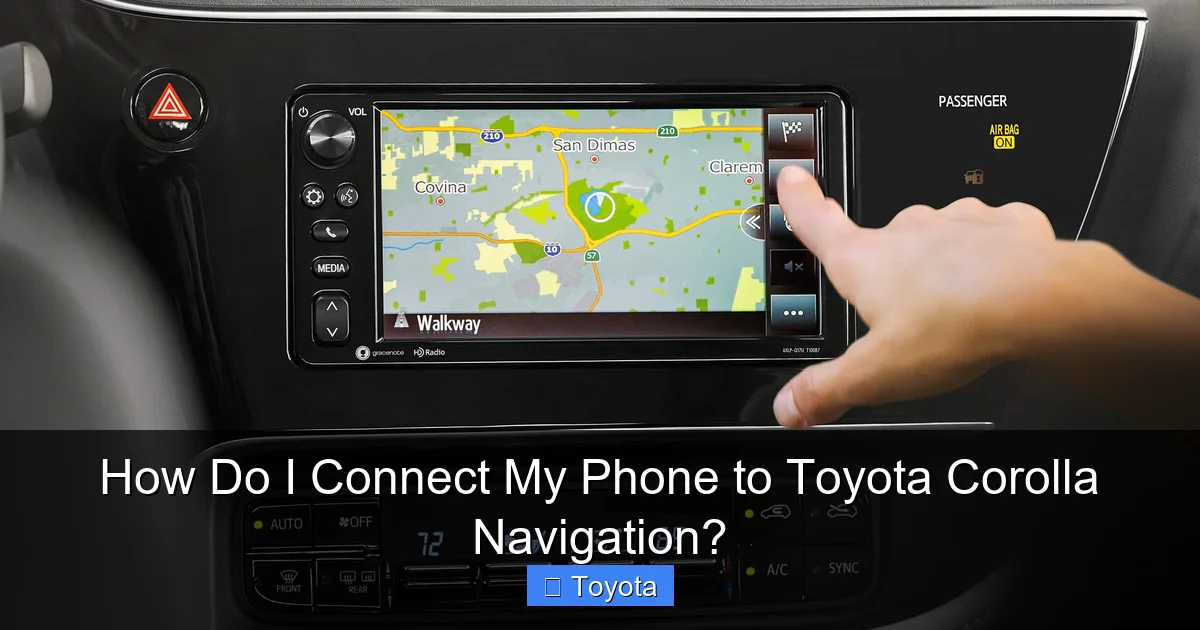
For the vast majority of Toyota Corollas on the road today, a physical USB connection is the standard and most reliable way to establish a link. This method works for both Apple CarPlay and Android Auto. The steps are remarkably similar, with slight differences based on your phone.
Visual guide about How Do I Connect My Phone to Toyota Corolla Navigation?
Image source: st.automobilemag.com
Step-by-Step Wired Setup for iPhone (CarPlay)
First, locate the correct USB port in your Corolla. This is critical. Look for a USB-A port (the classic rectangular one) in the center console or under the climate controls. It may have a small smartphone icon or the words “CarPlay” next to it. Do not use a USB port that is only for charging (sometimes these are in the rear or lack data lines). Start your Corolla. Make sure your iPhone is unlocked. Take your certified Apple USB cable (a cheap, non-certified cable is a common cause of failure) and plug it into both your phone and the car’s designated data USB port. Your Corolla’s screen should light up within a few seconds. You might see a prompt on your phone’s screen asking, “Allow this car to access your iPhone?” Tap Allow. You may also be asked to enable “Show on Lock Screen” and “Siri while locked”—say yes to all for full functionality. On the car’s screen, you should see the Apple CarPlay home screen with large app icons. If this is your first time, the car may ask you to accept some terms and conditions on the screen. Do so. You’re in! To use navigation, simply tap the Google Maps, Apple Maps, or Waze icon on the CarPlay screen. For a seamless experience every time you start the car, just plug in and go.
Step-by-Step Wired Setup for Android (Android Auto)
The process is almost identical. Ensure your Android phone is unlocked and has the Android Auto app installed (though on Android 10 and later, it’s often built-in and can be enabled in settings). Find the correct USB data port in your Corolla. Connect your phone using a good-quality USB cable. Your phone will likely show a notification about USB charging—tap it and select “File Transfer / Android Auto” or “Transferring files.” This setting is crucial; if it defaults to “No data transfer,” Android Auto won’t launch. On your phone, you’ll get a prompt: “Allow USB debugging?” (this is for advanced features) and “Allow Android Auto to access your phone’s location?” You must allow the location permission. Accept any other prompts about notifications. Your Corolla’s screen should then switch to the Android Auto interface, featuring the Google Assistant bar at the bottom and your app icons. Tap the navigation app you want to use. If the Android Auto screen doesn’t appear, check your phone’s notification shade for the USB mode prompt and change it. You may also need to enable Android Auto in your car’s infotainment settings under “Apple CarPlay & Android Auto Settings” or similar.
Pro Tips for a Smooth Wired Connection
Always use the cable that came with your phone or a high-quality MFi (for iPhone) or certified USB-IF (for Android) cable. A flimsy cable might charge your phone but won’t transmit data. Keep the cable organized; a tangled cable can be a distraction. If your Corolla has a USB port in the center console that’s hard to reach, consider a short, right-angle cable for a cleaner setup. Remember, for wired connections, your phone’s screen will be locked and mostly unusable while CarPlay/Android Auto is active—this is a safety feature to prevent you from touching your phone.
Method 2: The Wireless Connection (If Your Corolla Supports It)
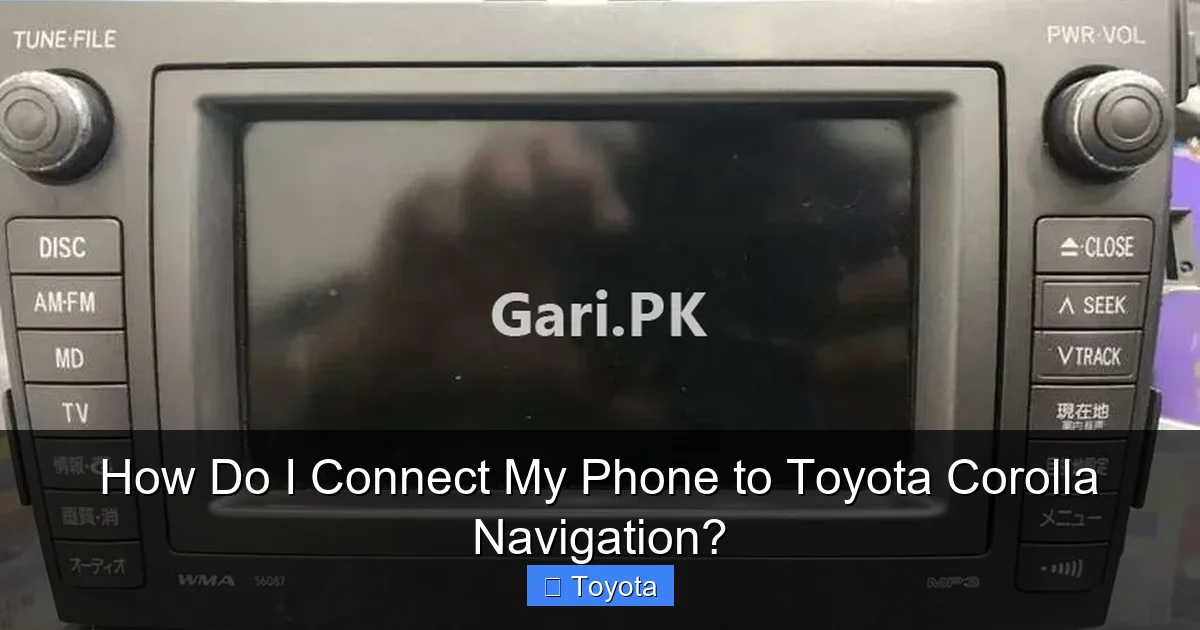
This is the holy grail of connectivity: no cables, just get in and go. However, wireless CarPlay and Android Auto are a relatively new feature. They are typically available on Corolla models from the 2021 model year onward, and often only on trims equipped with the premium audio system (like the SE, XLE, or XSE with JBL® audio). You must check your owner’s manual or the infotainment settings menu to see if “Wireless Apple CarPlay” or “Wireless Android Auto” is listed as an option.
Visual guide about How Do I Connect My Phone to Toyota Corolla Navigation?
Image source: gari.pk
Setting Up Wireless CarPlay (iPhone)
The first connection must be done via USB. Follow all the wired setup steps above for your iPhone. Once CarPlay is working over the cable, go to your Corolla’s infotainment settings menu. Navigate to “Apple CarPlay & Android Auto Settings” or “Device Settings.” You should see an option for “Connect via Wireless” or “Wireless Apple CarPlay.” Turn this ON. Now, disconnect the USB cable. Your iPhone and your Corolla should automatically connect via Bluetooth and Wi-Fi within about 15-30 seconds. You’ll see the CarPlay home screen appear on your display. From then on, as long as Bluetooth and Wi-Fi are on in your phone (they are required for the initial handshake), getting in your car and starting it should trigger an automatic connection. If it doesn’t, sometimes simply unlocking your phone and tapping the “CarPlay” notification on the lock screen will force the connection.
Setting Up Wireless Android Auto
Similarly, the first setup requires a USB cable. Connect your Android phone via USB and go through the entire wired setup process, granting all permissions. Once Android Auto is running, go to your Corolla’s Settings > “Apple CarPlay & Android Auto Settings.” Look for “Wireless Android Auto” and enable it. Disconnect the USB cable. Your phone and car will now communicate wirelessly. On your Android phone, you might need to open the Android Auto app and ensure “Connect to car via Wi-Fi” is enabled in its settings. The first wireless connection might take a minute as the systems pair. After that, it should be seamless. A key tip: keep your phone’s Wi-Fi turned on, even if you’re not connected to a network. The wireless link uses a direct Wi-Fi connection between your phone and the car’s head unit.
Troubleshooting Wireless Issues
Wireless can be finicky. If it’s not connecting, try these steps: 1) Forget the car in your phone’s Bluetooth and Android Auto/CarPlay settings, then redo the initial wired setup. 2) Ensure your phone’s battery saver or data saver modes are OFF for the Android Auto/Apple CarPlay apps. 3) Restart both your phone and your car’s infotainment system (hold the power/volume knob for 10 seconds to force a reboot). 4) Check for any software updates for your car’s infotainment system through the Toyota Owners app or a dealer.
What About Bluetooth? The Important Distinction
This is a major point of confusion for many drivers. Bluetooth is a different wireless technology altogether. You must pair your phone with your Corolla via Bluetooth for hands-free phone calls and to stream music from apps like Spotify or your phone’s music library. The process is simple: go to Settings > Bluetooth on your car’s screen, turn it on, set your phone to discoverable, and select your Corolla’s name (e.g., “TOYOTA ABC123”). But here is the critical limitation: Bluetooth does NOT transmit navigation maps or turn-by-turn directions to your car’s screen. If you are using Bluetooth for audio and start a navigation app on your phone, you will hear voice prompts through your car’s speakers (if the app is set to play audio over Bluetooth), but the visual map will remain on your phone’s screen. For the visual map on your dashboard display, you need Apple CarPlay or Android Auto. So, you will likely use both: Bluetooth for calls/music (if you prefer it over CarPlay’s music interface) and CarPlay/Android Auto for navigation. However, CarPlay and Android Auto can also handle music and calls, so many people just use that single connection for everything.
Troubleshooting: “Why Won’t It Connect?!” Common Fixes
Even with clear instructions, things can go wrong. Don’t panic. This is your checklist for when the screen stays black or says “No Device Connected.”
Check the USB Cable and Port First
This is the culprit 50% of the time. Use a known-good, data-capable cable. Try a different USB port in the car if available. Inspect the port for debris; a can of compressed air can work wonders. Also, clean the charging port on your phone with a toothpick (gently!)—lint buildup is a silent killer of connections.
Phone and Car Software Updates
Outdated software is the second most common issue. On your iPhone, go to Settings > General > Software Update. On Android, go to Settings > System > System Update. For your Corolla, you can sometimes update the infotainment firmware via USB using a file downloaded from Toyota’s owner portal, or more commonly, through over-the-air (OTA) updates if your model supports it. Check your owner’s manual or the “System Update” option in your car’s Settings menu. A recent update might have changed the USB port’s functionality.
Granting Permissions (Again)
If you initially denied permissions on your phone (Location, Notifications), CarPlay/Android Auto will have limited functionality or fail to start. On iPhone, go to Settings > General > CarPlay > [Your Car’s Name] and ensure all apps are allowed. On Android, go to Settings > Apps > Android Auto > Permissions and grant Location and Phone access. You may also need to enable “Display over other apps” for Android Auto.
Reset the Infotainment System
A simple reboot can clear temporary glitches. To reset your Corolla’s screen, locate the “Setup,” “Menu,” or “Info” button on the steering wheel or infotainment panel. Hold it down for about 10-15 seconds until the screen goes black and the Toyota logo reappears. Alternatively, you can disconnect the negative battery terminal for a few minutes (this is more drastic and may reset radio presets and clock). The steering wheel button method is preferred.
Forget and Re-Pair Everything
Sometimes the car and phone just need a fresh start. On your phone, go to Bluetooth settings and “Forget” your Toyota. In your car’s Bluetooth settings, delete your phone from the paired list. Then, unplug any USB cable, restart both the car and your phone, and begin the entire setup process from scratch as if it were brand new. This resolves many persistent pairing conflicts.
Advanced Considerations & Special Cases
Let’s cover some specific scenarios you might encounter.
My Corolla Doesn’t Have CarPlay/Android Auto Listed!
If your Corolla is a 2019 or older model, it likely uses the older Entune™ system, which did not natively support CarPlay or Android Auto. However, some 2017-2019 Corollas with the Entune 3.0 system received a free software update from Toyota to enable Apple CarPlay. Check with your dealer or the Toyota website to see if an update is available for your specific VIN. If no update exists and your car lacks the feature, your only options are using your phone on a mount with its speaker, or using an aftermarket stereo that supports CarPlay/Android Auto.
Using a Different Navigation App
Once CarPlay or Android Auto is running, you can use any navigation app that has been developed for that platform. On CarPlay, you can add Google Maps or Waze by downloading them from the iPhone’s App Store. They will then appear on your CarPlay home screen. On Android Auto, Google Maps and Waze are deeply integrated. You can set your default navigation app in your phone’s settings. A great tip: if you use Waze, make sure to enable “Keep Waze on top” in its settings so it doesn’t get pushed out by other CarPlay/Android Auto apps.
The “No Signal” or “Poor Signal” Problem
Remember, when you use CarPlay/Android Auto for navigation, your phone is using its cellular data connection. If you are in a remote area with no cell service, your maps won’t load new data or traffic. The built-in Toyota navigation (if you have it) uses stored map data and a GPS satellite signal, which works anywhere. So, for long road trips through dead zones, you might consider pre-downloading offline maps in Google Maps or Waze on your phone before you leave. This allows the app to guide you without a live data connection.
Multiple Phones, One Car
Your Corolla can store multiple phone profiles. If you and a partner both use the car, you can pair both phones. The car will typically connect to the last phone that was used. When you get in with your phone, you may need to select your phone’s name from a list on the screen if it doesn’t connect automatically. You can also set a “Primary Phone” in the Bluetooth settings menu.
Conclusion: You’re Ready to Roll
Connecting your phone to your Toyota Corolla’s navigation system is no longer a complex, dealer-only task. It’s a simple process of understanding that you’re using Apple CarPlay or Android Auto as a window into your phone’s apps. For most drivers, the path is straightforward: get a good USB cable, plug it into the correct port, grant the permissions on your phone, and you’re looking at Google Maps on your big, beautiful dashboard screen. If you have a newer Corolla, explore the wireless setup for a truly cable-free experience. Remember the key distinctions: USB for screen-mirrored navigation, Bluetooth for calls and music. Bookmark this guide, and when you hit a snag, run through our troubleshooting checklist—cable, software, permissions, reset. With these steps mastered, your Corolla’s infotainment system becomes a powerful, personalized command center, making every drive safer and more informed. Now, plug in, pick your destination, and enjoy the ride.
Frequently Asked Questions
Can I use my phone’s Google Maps on the Toyota navigation screen without CarPlay/Android Auto?
No. The factory-installed Toyota navigation screen is a separate, closed system. The only way to display apps like Google Maps or Waze on that screen is through the Apple CarPlay or Android Auto interface, which acts as a bridge between your phone and the display.
My USB port charges my phone but won’t connect for CarPlay. Why?
This almost always means you’re using a “charge-only” USB port, not a data port. Your Corolla has a specific USB port (often labeled with a smartphone icon) that has the data lines needed for CarPlay/Android Auto. Using a different port, a non-data cable, or a faulty port will only provide charging power. Ensure you’re using the correct port and a high-quality, data-capable cable.
Do I need an internet connection in my car for CarPlay/Android Auto to work?
No. CarPlay and Android Auto use your phone’s cellular data connection for real-time traffic, searching destinations, and streaming music. The connection between your phone and the car is direct, via USB or Wi-Fi/Bluetooth. You do not need a separate in-car Wi-Fi hotspot or SIM card, though if your car has a connected service subscription (like Toyota Safety Connect), it may enhance some features.
Is wireless CarPlay/Android Auto available on all Toyota Corollas?
No. Wireless connectivity is a feature that started appearing on select 2021 and newer Corolla models, typically bundled with premium audio packages. Many base-model Corollas, even recent ones, only support wired connections via USB. You must check your vehicle’s specifications or the infotainment settings menu for a “Wireless CarPlay” or “Wireless Android Auto” option to be sure.
Why does my navigation voice cut out or sound choppy when using CarPlay?
This is usually an audio routing issue. When CarPlay is active, it takes over the audio channels. First, check your phone’s volume buttons—they control the navigation prompt volume. Also, check the “Navigation Volume” setting within the Apple CarPlay or Android Auto settings on your car’s screen. It might be turned down low. If using Bluetooth for music simultaneously, there can be conflicts; try using CarPlay’s native music interface instead.
Can I use the built-in Toyota navigation and my phone’s apps at the same time?
No. When you connect via Apple CarPlay or Android Auto, the car’s screen switches entirely to that phone’s interface. You cannot view the built-in Toyota navigation and a phone-based app simultaneously. You must choose one source. To use the factory navigation, you would need to unplug your phone and launch the navigation system from the car’s main menu.
