
How Do I Delete the Bluetooth Device from My Toyota Camry 2019

Keeping your Toyota Camry’s Bluetooth paired device list clean is essential for smooth connectivity. This guide shows you two easy methods to delete unwanted devices—via the touchscreen or voice commands—and troubleshoot common issues. Follow these simple steps to avoid connection problems and maintain a secure, organized system.
Ever struggled to connect your phone to your Camry’s Bluetooth because an old device keeps interfering? You’re not alone. Many 2019 Toyota Camry owners face this exact issue. That forgotten phone from a previous owner or an old device you no longer use can clutter your pairing list. This causes connection delays, failed pairings, and frustration. The good news? Deleting unwanted Bluetooth devices from your 2019 Camry is a simple process you can do yourself in under a minute. This guide will walk you through every step, from the basic touchscreen method to using voice commands and troubleshooting tricky situations. Let’s get your infotainment system organized and working perfectly.
Key Takeaways
- Regular audits prevent clutter: Periodically review and remove old or unused paired devices to maintain smooth Bluetooth performance.
- Touchscreen method is straightforward: The primary way to delete a device is through the infotainment system’s Bluetooth settings menu.
- Voice commands offer hands-free option: You can use Toyota’s voice recognition system to delete devices without taking your hands off the wheel.
- Troubleshoot if devices don’t appear: If a device is stuck, ensure it’s disconnected, try a system reset, or check for software updates.
- Full reset is a last resort: Resetting the infotainment system will clear all paired devices and settings, so use this only if other methods fail.
- Security benefit: Removing devices you no longer use prevents unauthorized access and reduces pairing confusion.
📑 Table of Contents
Understanding Your Camry’s Bluetooth System
Before we dive into deletion steps, it helps to understand how Bluetooth works in your 2019 Toyota Camry. Your vehicle’s infotainment system acts as a host, allowing compatible devices like smartphones and tablets to connect wirelessly for audio streaming and hands-free calls. The system can store multiple paired devices—typically up to five—but it’s not unlimited. When you pair a new phone, it gets added to this internal list. Over time, this list can become crowded with devices you no longer use. This is the core reason you need to know how to delete a Bluetooth device from your Toyota Camry 2019. A cluttered list means your car might try to connect to the wrong device automatically or fail to connect to the one you want.
How Bluetooth Works in Your Camry
Think of the pairing process like exchanging phone numbers. When you pair your phone, the Camry and your phone share a unique digital “handshake.” This handshake is stored in both systems. Every time you start the car, the infotainment system searches for its paired devices. If your phone is on and within range, they recognize each other and connect automatically. This is convenient until you have five old devices in the memory. The system might connect to an old phone in your passenger’s purse instead of yours, or it might get confused and not connect at all. That’s why managing this list is crucial for a seamless experience.
Why You Might Want to Delete Devices
There are several practical reasons to clean up your paired devices list. First, you sold or traded the vehicle and need to remove your personal information. Second, you no longer use an old phone that’s still paired. Third, you’re experiencing connection issues like random disconnections or inability to pair a new device. Fourth, you want to prioritize your primary phone so it connects automatically every time. Fifth, and importantly, it’s a security step. Any device that remains paired could potentially connect to your car’s audio system or access your call history if it’s within range. Regularly auditing your Bluetooth list is just good digital hygiene, similar to clearing cookies from your browser.
Method 1: Deleting via the Touchscreen
The most direct and reliable way to delete a Bluetooth device from your 2019 Toyota Camry is through the infotainment touchscreen. This method gives you full visual control and is the standard procedure for most users. The 2019 Camry comes with Toyota’s Entune™ 3.0 system (or Audio Plus in some trims). While menu layouts can vary slightly, the core steps are identical. Let’s break it down.
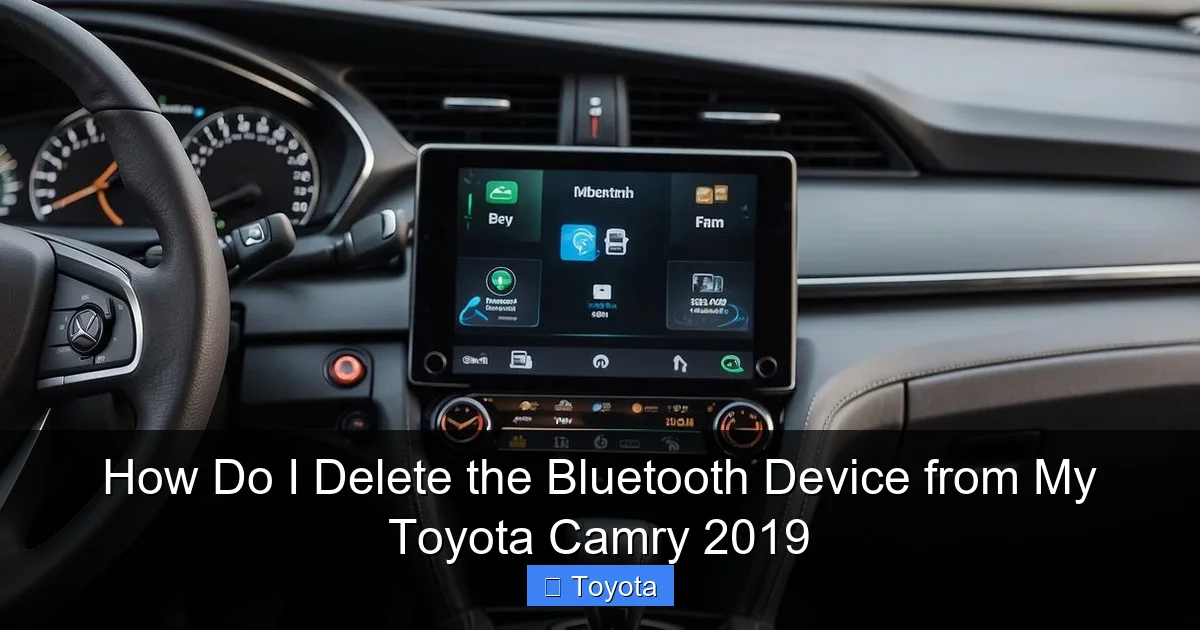
Visual guide about How Do I Delete the Bluetooth Device from My Toyota Camry 2019
Image source: koala.sh
Step-by-Step Touchscreen Navigation
Start by ensuring your car is in Park (P) and the ignition is on. You don’t need the engine running, but the electrical system must be active. Here is the exact sequence:
- Press the “SETUP” button on your dashboard or touchscreen. This opens the main settings menu.
- On the screen, select “Bluetooth” or “Phone”. The exact label depends on your system version.
- You will see a list of currently paired devices. Each entry shows the device name (e.g., “John’s iPhone” or “Galaxy S10”).
- Select the device you want to remove. Tap on its name.
- You should now see device-specific options like “Connect,” “Disconnect,” and “Delete” or “Remove.”
- Tap “Delete” or “Remove.” A confirmation prompt will appear asking “Are you sure?”
- Confirm the deletion. The device will vanish from the list instantly.
That’s it! The device is now unpaired. Your Camry will no longer attempt to connect to it. If you ever need to pair that device again, you’ll have to go through the full pairing process from scratch.
Visual Guide to Menu Options
For visual learners, here’s what to look for. The menu path is typically: Setup > Bluetooth > Device List > [Select Device] > Delete. Some models might have the Bluetooth settings under a “Communication” or “Connectivity” submenu. If you don’t see “Bluetooth” immediately, look for a gear icon (Settings) or a phone icon. Navigating the infotainment system is similar to changing other settings; for instance, adjusting the time or removing a contact from the home screen follows comparable menu structures. If you get lost, consult your owner’s manual—the index has a direct “Bluetooth” entry with diagrams specific to your trim.
Method 2: Using Voice Commands
Your 2019 Camry is equipped with Toyota’s voice recognition system. This allows you to perform many functions, including deleting paired Bluetooth devices, without touching any buttons. It’s a fantastic option if you’re driving (though always best to do this when parked for safety) or if the touchscreen is unresponsive.
Visual guide about How Do I Delete the Bluetooth Device from My Toyota Camry 2019
Image source: driverlessrevolutions.com
Setting Up Voice Control for Bluetooth
First, ensure the voice command system is enabled. Press the voice command button on your steering wheel (usually a button with a microphone icon). You should hear a prompt like “Please say a command.” For Bluetooth deletion to work via voice, the system must recognize the device name correctly. The device name is whatever you named it when you paired it (or the default name from your phone, like “iPhone” or “Pixel 4”). If you have multiple devices with similar names, voice commands might get confused. It’s a good practice to give your primary phone a unique name in your phone’s Bluetooth settings before pairing (e.g., “Camry-John’s iPhone”).
Voice Command Phrases for Deletion
The exact phrasing can vary, but these commands are generally effective:
- “Delete paired phone“
- “Remove Bluetooth device“
- “Delete [Device Name]” (e.g., “Delete John’s iPhone”)
After pressing the voice button, say one of these phrases clearly. The system will respond, often listing devices. You may need to confirm by saying “Yes” or “Confirm.” If the system says “I didn’t catch that,” try again with a clearer enunciation. If it fails repeatedly, the device name might not be stored correctly in the system’s memory, or there could be a software glitch. In that case, revert to the touchscreen method.
Pro Tip: Practice these voice commands while the car is parked. Get comfortable with the phrasing so you can use it confidently later. Voice control is also useful for other infotainment tasks, such as connecting Google Maps to Toyota navigation or making calls.
Troubleshooting Common Deletion Issues
Sometimes, the deletion process doesn’t go smoothly. Here are the most common hurdles and how to overcome them.
Visual guide about How Do I Delete the Bluetooth Device from My Toyota Camry 2019
Image source: img.cdn-worldsapps.com
Device Not Appearing in the List?
If you go to delete a device but it’s not in your paired list, there are a few possibilities. First, it might already be deleted! Check your phone’s Bluetooth settings—if it shows as “Not Connected” under your Camry’s name, the car may have already removed it. Second, the device could be connected to another system (like a home stereo) and not showing as available in the car. Disconnect it from all other devices first. Third, a software glitch might hide the list. Try turning your car’s ignition off and on again, or restarting the infotainment system (hold the power button for 10 seconds if available).
“Delete” Option Grayed Out or Missing?
This usually happens because the selected device is currently connected. The system often prevents deletion of an active connection. First, disconnect the device. You can do this by going to the device’s entry in the list and selecting “Disconnect,” or by turning off Bluetooth on your phone. Once it shows as “Disconnected” or “Not Paired,” the “Delete” option should become active. If it remains grayed out, the device might be locked as a “primary” or “favorite” device in some system configurations. In rare cases, a system reset is needed.
What to Do If Deletion Fails
If you’ve tried both touchscreen and voice methods and the device stubbornly remains, it’s time for a deeper reset. Perform a soft reset of the infotainment system: Locate the fuse box (usually under the dash or in the engine compartment) and find the fuse for the audio system/entertainment. Pull it for 30 seconds, then reinsert. This will reboot the system and often clears temporary glitches. Important: This may also reset other settings like radio presets and clock time. If you need to reset the clock after this, you can follow the steps in our guide on how to change the time on a Toyota Camry. If a soft reset doesn’t work, a full system reset (returning to factory defaults) is the next step, but this will erase ALL paired devices, phone contacts downloaded to the car, and navigation favorites. We’ll cover that in the next section.
Best Practices for Bluetooth Management
Now that you know how to delete a device, let’s talk about how to manage your Bluetooth list proactively to avoid future headaches.
Regularly Audit Paired Devices
Make it a habit to check your paired device list every few months. Go into Settings > Bluetooth and scroll through. If you see a device name you don’t recognize or haven’t used in over a year, delete it. This keeps the list short and efficient. A shorter list means faster connection times and less confusion for the system. Think of it like cleaning out your closet—you keep what you wear regularly and donate the rest.
Name Devices Clearly
When you pair a new phone, the system will use the device’s “Bluetooth name” by default. This is often just the phone model (e.g., “Samsung Galaxy S21”). If you have multiple similar devices or share the car with family, rename your phone to something unique before pairing. On an iPhone: Settings > General > About > Name. On Android: Settings > About Phone > Device Name. Name it something like “Camry-John” or “Camry-IPhone13.” This makes identifying and selecting the correct device in the list trivial, and it helps voice commands work better.
Security Considerations
Every paired device is a potential access point. While the risk is low in a private car, it’s not zero. If you sell your Camry, you must delete all paired devices before handing over the keys. The new owner could otherwise connect to your phone if it’s within range, potentially accessing call logs or contacts synced to the car. Deleting devices is a critical step in the vehicle handover process, just like removing garage door opener codes. It’s a simple act of digital security.
When Simple Deletion Isn’t Enough
In rare cases, you might encounter a device that is “ghost paired”—it appears in the list but won’t delete, or the system behaves erratically. Here’s what to do when basic steps fail.
Performing a Full System Reset
A full factory reset of the infotainment system will wipe the slate clean. Warning: This deletes all personalized settings: radio presets, navigation destinations, paired devices, downloaded contacts, and audio settings. You will have to set everything up again. The reset procedure varies by model year and trim. Often, you can find it in Settings > General > Reset or Settings > System Reset. There might also be a physical reset button behind a small panel on the unit. Consult your owner’s manual for the exact steps for your 2019 Camry. After the reset, you will need to re-pair your phone from scratch. This is a nuclear option, but it resolves deep software corruption.
Resetting Bluetooth Without Losing Other Settings
Some systems offer a “Reset Bluetooth” or “Clear Bluetooth Data” option separate from a full factory reset. This targets only the wireless connectivity module. Look for it in the Bluetooth settings menu itself or under a “Connectivity” submenu. If available, this is preferable as it preserves your radio stations and clock settings. However, not all 2019 Camry trims include this granular option.
Visiting a Dealer or Professional
If you’ve tried everything and a problematic device remains, or if the infotainment system is frozen and unresponsive, it’s time to seek professional help. A Toyota dealer’s service department can connect diagnostic tools to force-clear the Bluetooth module’s memory. They can also check for software updates that might fix bugs causing deletion failures. Sometimes, a simple TSB (Technical Service Bulletin) update from Toyota resolves these quirks. While a dealer visit might cost time or money, it’s the ultimate solution for persistent software issues.
Conclusion: A Simple Fix for a Common Problem
Managing the Bluetooth devices in your 2019 Toyota Camry shouldn’t be a chore. As we’ve seen, deleting an old or unused device is a quick process—either a few taps on the touchscreen or a clear voice command. The key is to be proactive. Regularly check your paired device list, name your phones clearly, and don’t hesitate to remove anything you no longer need. This small maintenance task ensures your Camry’s infotainment system remains responsive, secure, and ready to connect to your primary phone the moment you start the engine. If you ever run into trouble, the troubleshooting steps—from disconnecting first to performing a system reset—have you covered. A clean Bluetooth list is a happy Bluetooth list. Now, go forth and delete that old device from 2017 that’s been haunting your connection attempts!
Frequently Asked Questions
Why can’t I delete a Bluetooth device from my 2019 Camry?
The most common reason is that the device is currently connected. You must disconnect it first by selecting “Disconnect” in the device options or turning off Bluetooth on your phone. If it’s already disconnected but still won’t delete, try restarting the infotainment system or performing a soft reset.
Will deleting a Bluetooth device erase my contacts from the car?
No. Deleting a Bluetooth device only removes the pairing connection. Any contacts or call history that were downloaded to the car’s system from that phone will remain stored until you either manually delete them from the car’s phonebook or perform a full system reset. The deletion is isolated to the wireless link.
How many Bluetooth devices can I pair with my 2019 Toyota Camry?
The 2019 Camry’s Entune system can typically store up to five paired Bluetooth devices. Once you reach this limit, you must delete an existing device before pairing a new one. This limit is standard for most Toyota models of this era.
What should I do if voice commands won’t delete a device?
First, ensure the device name is simple and clear. Complex names confuse the voice system. Second, make sure the device is disconnected. Third, try the exact phrase “Delete [Device Name]” instead of generic commands. If all else fails, use the touchscreen method, as it’s more reliable for precise actions like deletion.
Can I delete a paired device from my phone instead of the car?
No. Deleting the car from your phone’s Bluetooth list only removes the pairing from your phone’s side. The Camry will still retain the device in its memory. To fully remove it, you must delete it from the car’s infotainment system using the methods described above.
Is there a way to delete all paired devices at once?
Yes, but it requires a full factory reset of the infotainment system. Go to Settings > General > Reset (or similar). This will erase all paired devices along with radio presets, navigation data, and other personalized settings. There is no “delete all” button for Bluetooth only on most 2019 Camry trims.
