
How to Reset Toyota Camry Touch Screen

Is your Toyota Camry touch screen frozen, unresponsive, or glitching? Don’t worry—resetting it is easier than you think. Whether you’re dealing with a software hiccup or a full system crash, this guide walks you through simple, effective methods to restore your infotainment system to working order—no dealership visit required.
Key Takeaways
- Soft resets are the first step: A quick reboot can fix minor glitches without losing your settings or data.
- Hard resets restore factory defaults: Use this when the screen is completely unresponsive or after a failed update.
- Check your model year: Reset procedures vary slightly between older Entune systems and newer Toyota Audio Multimedia setups.
- Backup your data first: Hard resets erase saved Bluetooth pairings, navigation favorites, and app logins.
- Use the correct button combinations: Timing and sequence matter—pressing the wrong buttons or holding them too long can cause issues.
- Keep your system updated: Regular software updates prevent many touch screen problems before they start.
- When to call a pro: If resets don’t work, there may be a hardware issue requiring professional diagnosis.
📑 Table of Contents
- Introduction: Why Your Toyota Camry Touch Screen Might Need a Reset
- Understanding Your Toyota Camry’s Infotainment System
- How to Perform a Soft Reset (Quick Reboot)
- How to Perform a Hard Reset (Factory Reset)
- Troubleshooting Common Touch Screen Issues
- When to Seek Professional Help
- Preventing Future Touch Screen Problems
- Conclusion: Take Control of Your Camry’s Touch Screen
Introduction: Why Your Toyota Camry Touch Screen Might Need a Reset
Picture this: You’re cruising down the highway, your favorite playlist humming through the speakers, when suddenly—your Toyota Camry’s touch screen freezes. The navigation map stops updating, the climate controls become unresponsive, and tapping the screen does nothing. Sound familiar? You’re not alone. Touch screen issues are one of the most common complaints among Toyota Camry owners, especially as infotainment systems grow more complex.
Modern Toyota Camrys come packed with advanced technology—Apple CarPlay, Android Auto, built-in navigation, voice commands, and more—all controlled through a central touch screen. While these features enhance convenience and safety, they also introduce new points of failure. Software bugs, failed updates, electrical glitches, or even extreme temperatures can cause the system to act up. The good news? Most of these problems can be fixed with a simple reset. Whether you drive a 2015 Camry with the older Entune system or a 2023 model with Toyota’s latest Audio Multimedia interface, knowing how to reset your touch screen can save you time, money, and frustration.
Understanding Your Toyota Camry’s Infotainment System
Before diving into reset procedures, it helps to understand what you’re working with. Toyota has used several different infotainment platforms over the years, and the reset method depends largely on which one your Camry has. Let’s break it down by generation.
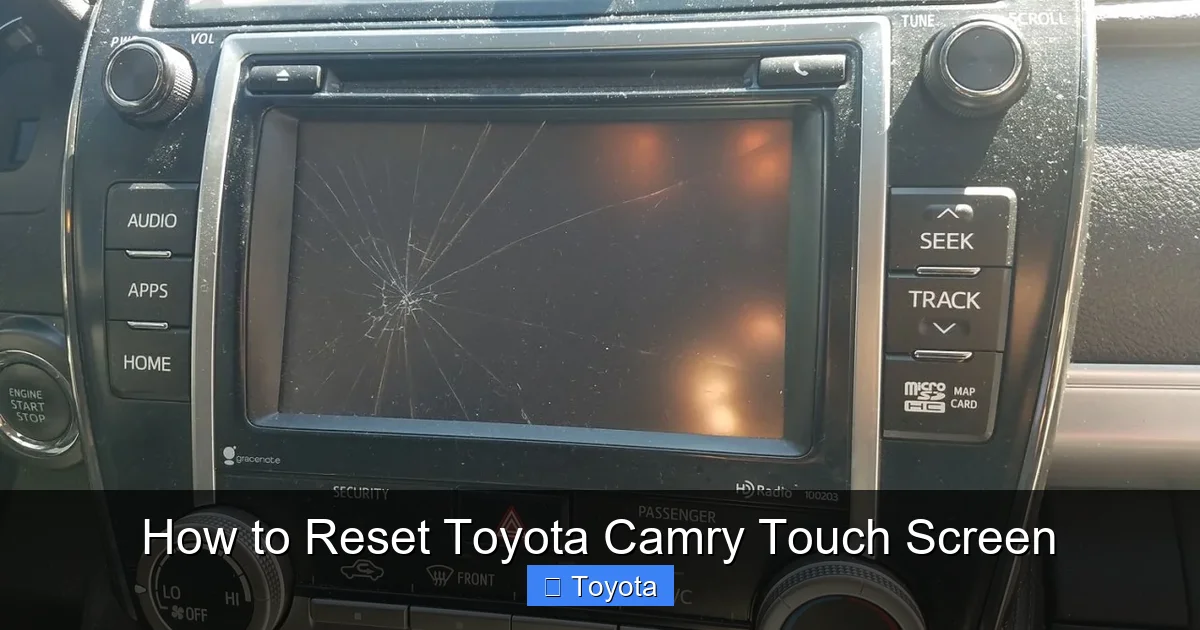
Visual guide about How to Reset Toyota Camry Touch Screen
Image source: i.ytimg.com
Entune Systems (2012–2020 Models)
Most Toyota Camrys from 2012 to 2020 use the Entune infotainment system. These systems typically feature a 6.1-inch to 8-inch touch screen and support basic functions like Bluetooth, USB connectivity, and optional navigation. Entune relies on embedded software that can occasionally freeze or lag, especially after a software update or prolonged use. The good news is that Entune systems are relatively straightforward to reset using physical buttons on the dashboard.
Toyota Audio Multimedia (2021 and Newer Models)
Starting in 2021, Toyota introduced its new Toyota Audio Multimedia (TAM) system, which powers the touch screens in newer Camry models. This system is more advanced, with larger screens (up to 9 inches), faster processors, and deeper integration with smartphones and cloud services. While more capable, TAM systems can also be more sensitive to software conflicts. Resetting them requires a slightly different approach, often involving a combination of button presses and system reboots.
Identifying Your System
Not sure which system you have? Here’s a quick way to tell:
- If your Camry has a physical “Menu” or “Apps” button below the screen, it’s likely an Entune system.
- If the screen is larger (8–9 inches) and has no physical buttons—just a sleek interface—you probably have the Toyota Audio Multimedia system.
- You can also check your owner’s manual or visit Toyota’s official website and enter your VIN to confirm your infotainment version.
Knowing your system type is crucial because the reset steps differ. Using the wrong method could delay a fix or, in rare cases, cause further issues. So take a moment to identify your setup before proceeding.
How to Perform a Soft Reset (Quick Reboot)
A soft reset—also known as a reboot or restart—is the gentlest way to fix a glitchy touch screen. It’s like turning your phone off and on again. This method doesn’t erase any data, so your Bluetooth pairings, saved destinations, and app settings remain intact. It’s the perfect first step when your screen is slow, frozen, or acting erratically.

Visual guide about How to Reset Toyota Camry Touch Screen
Image source: autorideup.com
Step-by-Step Soft Reset for Entune Systems (2012–2020)
If you have an older Camry with the Entune system, follow these steps:
- Turn off the ignition: Press the “Power” button or turn the key to the “Off” position. Wait about 10 seconds.
- Restart the vehicle: Turn the ignition back to “On” or press the “Power” button to start the engine. The system will reboot automatically.
- Wait for the system to load: Give it 30–60 seconds. The screen may go black briefly before displaying the home screen.
- Test the touch screen: Try tapping the climate controls, navigation, or audio buttons to see if responsiveness has returned.
This method works because it forces the infotainment system to restart its software without clearing any saved data. It’s especially effective after a software update or if the system has been running for days without a break.
Step-by-Step Soft Reset for Toyota Audio Multimedia (2021+)
Newer Camry models with the Toyota Audio Multimedia system require a slightly different approach:
- Turn off the ignition: Press the “Power” button to shut down the vehicle.
- Wait 2–3 minutes: This allows the system’s capacitors to fully discharge, ensuring a complete reboot.
- Restart the vehicle: Turn the ignition back on and let the system boot up.
- Check for responsiveness: Once the screen lights up, test all functions.
Why the longer wait? The newer TAM system has more complex software and background processes. A full power cycle ensures all components reset properly.
Pro Tips for a Successful Soft Reset
- Don’t rush it: If you restart too quickly, the system may not fully reset. Wait at least 30 seconds for older models and 2–3 minutes for newer ones.
- Try it twice: If the first reboot doesn’t work, repeat the process. Sometimes a second attempt clears lingering glitches.
- Check for updates: After a successful reset, go to the system settings and check for software updates. Toyota often releases patches to fix known bugs.
Most touch screen issues—like lag, freezing, or unresponsive buttons—can be resolved with a soft reset. It’s quick, safe, and doesn’t require any tools or technical know-how. Try this first before moving on to more drastic measures.
How to Perform a Hard Reset (Factory Reset)
If a soft reset doesn’t solve the problem, it’s time to try a hard reset. This method restores the infotainment system to its factory settings, wiping all user data in the process. It’s the digital equivalent of a “clean slate” and is often necessary after a failed software update, persistent crashes, or when the screen is completely unresponsive.
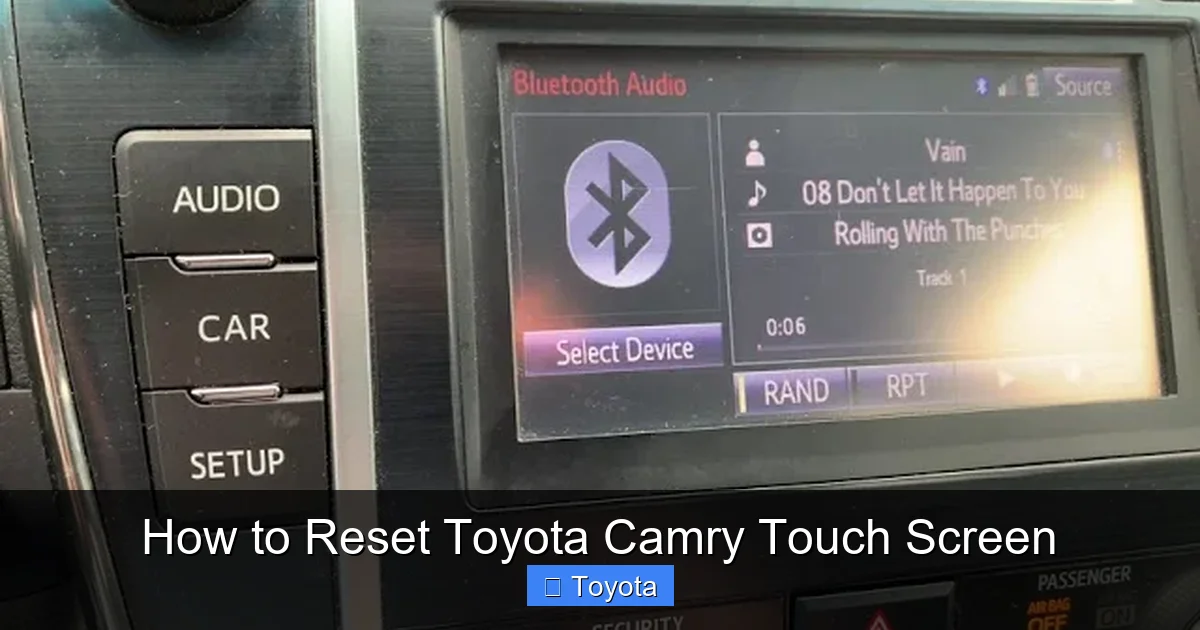
Visual guide about How to Reset Toyota Camry Touch Screen
Image source: i.ytimg.com
Warning: A hard reset will erase all saved data, including Bluetooth pairings, navigation favorites, app logins, and custom settings. Make sure you’re ready to reconfigure everything before proceeding.
Hard Reset for Entune Systems (2012–2020)
For older Camry models with Entune, follow these steps:
- Turn off the ignition: Ensure the vehicle is completely powered down.
- Locate the reset buttons: Look for the “Power,” “Volume,” and “Tune” buttons on the left side of the screen.
- Press and hold the buttons: Simultaneously press and hold the “Power,” “Volume Down,” and “Tune” (or “Seek”) buttons.
- Turn on the ignition: While holding the buttons, turn the key to “On” or press the “Power” button (do not start the engine).
- Wait for the reset screen: After about 10–15 seconds, the screen should display a message like “System Reset” or “Factory Reset.”
- Release the buttons: Let go and wait for the system to restart.
- Reconfigure settings: Once the system reboots, you’ll need to reconnect your phone, re-enter navigation favorites, and adjust preferences.
This method forces the Entune system to clear its memory and reload the original software. It’s highly effective for resolving deep-seated software issues.
Hard Reset for Toyota Audio Multimedia (2021+)
Newer Camry models with the Toyota Audio Multimedia system use a different reset process:
- Turn off the ignition: Power down the vehicle completely.
- Open the glove compartment: Look for a small reset button near the fuse box or behind a panel.
- Press and hold the reset button: Use a paperclip or pen to press and hold the button for 10–15 seconds.
- Turn on the ignition: While still holding the button, turn the key to “On” or press the “Power” button.
- Wait for confirmation: The screen should display a reset message or go through a reboot sequence.
- Release and restart: Let go of the button and allow the system to fully restart.
Note: Some newer models may not have a physical reset button. In that case, you may need to use the touch screen menu:
- Go to Settings > System > Reset Options > Factory Reset.
- Enter your security code (if prompted).
- Confirm the reset and wait for the system to reboot.
What to Expect After a Hard Reset
After a hard reset, your Camry’s infotainment system will behave like it did the day you bought it. You’ll need to:
- Reconnect your smartphone via Bluetooth.
- Re-download and log in to apps like Spotify or Apple Music.
- Re-enter saved addresses in the navigation system.
- Adjust audio and climate preferences.
While it’s a bit of a hassle, the peace of mind from a fully functional system is worth it. And remember: regular software updates can help prevent the need for future hard resets.
Troubleshooting Common Touch Screen Issues
Even after a reset, some touch screen problems may persist. Here are a few common issues and how to address them.
Screen is Unresponsive to Touch
If the screen lights up but doesn’t respond to touch, it could be a calibration issue. Try this:
- Go to Settings > Display > Touch Screen Calibration (if available).
- Follow the on-screen prompts to recalibrate the touch points.
- If calibration isn’t an option, a hard reset often fixes the problem.
Screen Flickers or Goes Black
Flickering or black screens can indicate a loose connection or failing hardware. Check:
- The 12V battery—low voltage can cause display issues.
- The fuse for the infotainment system (usually in the cabin fuse box).
- Connections behind the screen (best left to a professional).
Apps Crash or Freeze Frequently
This is often due to outdated software or incompatible apps. Try:
- Updating the infotainment system via Toyota’s website or dealership.
- Uninstalling and reinstalling problematic apps.
- Using wired connections (USB) instead of wireless for Apple CarPlay or Android Auto.
Bluetooth Won’t Connect After Reset
After a hard reset, your phone may not reconnect automatically. To fix this:
- Delete the old pairing from both your phone and the car.
- Re-pair the devices as if for the first time.
- Ensure your phone’s Bluetooth is set to “Discoverable.”
Most of these issues can be resolved with a combination of resets, updates, and careful troubleshooting. But if problems continue, it may be time to visit a Toyota service center.
When to Seek Professional Help
While most touch screen issues can be fixed at home, some problems require professional attention. Here’s when to call in the experts:
- The screen remains completely black after multiple resets.
- You notice physical damage, such as cracks or discoloration.
- The system repeatedly crashes or fails to boot.
- You suspect a hardware failure, like a faulty display or motherboard.
Toyota dealerships have diagnostic tools that can pinpoint hardware issues and perform software flashes that aren’t available to consumers. They can also replace the entire infotainment unit if necessary. While this may cost a few hundred dollars, it’s often the only solution for severe problems.
Additionally, if your Camry is still under warranty, a dealership repair may be covered at no cost. Always check your warranty status before paying for service.
Preventing Future Touch Screen Problems
The best way to deal with touch screen issues is to prevent them from happening in the first place. Here are some proactive tips:
- Update regularly: Check for software updates every few months. Toyota releases patches to improve performance and fix bugs.
- Avoid extreme temperatures: Don’t leave your Camry in direct sunlight for long periods, as heat can damage electronics.
- Use a screen protector: A high-quality protector can prevent scratches and reduce glare.
- Clean the screen properly: Use a microfiber cloth and screen-safe cleaner—never spray liquid directly on the screen.
- Restart occasionally: Even if the system seems fine, a soft reset every few weeks can keep it running smoothly.
By taking these simple steps, you can extend the life of your infotainment system and enjoy a seamless driving experience.
Conclusion: Take Control of Your Camry’s Touch Screen
Your Toyota Camry’s touch screen is a powerful tool—but like any technology, it can occasionally act up. Whether you’re dealing with a frozen display, unresponsive buttons, or app crashes, knowing how to reset your system puts you in control. From quick soft resets to full factory restores, the solutions are within reach for every Camry owner.
Remember: start with a soft reset, back up your data before a hard reset, and always check your model year to use the correct procedure. And if all else fails, don’t hesitate to contact a Toyota service professional. With the right approach, you can keep your infotainment system running smoothly for years to come—so you can focus on what really matters: the joy of the drive.
Frequently Asked Questions
How often should I reset my Toyota Camry touch screen?
You don’t need to reset it regularly unless you notice performance issues. A soft reset every few weeks can help maintain smooth operation, but it’s not required.
Will a hard reset delete my music and apps?
A hard reset won’t delete music stored on a USB drive, but it will remove app logins, Bluetooth pairings, and saved settings. Your media files remain safe.
Can I reset the touch screen while driving?
No. Always perform a reset with the vehicle turned off and parked. Attempting a reset while driving can distract you and is unsafe.
Why does my touch screen freeze after an update?
Software updates can sometimes cause temporary glitches. A soft reset usually resolves this. If not, a hard reset may be needed to clear corrupted data.
Is there a way to reset without losing my data?
A soft reset preserves all data. Only a hard reset erases settings. Always try a soft reset first to avoid unnecessary data loss.
What if the reset buttons don’t work?
If physical buttons fail, try accessing the reset option through the touch screen menu (if responsive). If not, consult a Toyota technician—there may be a hardware issue.
