
How to Connect an Iphone to Toyota Highlander

Connecting your iPhone to a Toyota Highlander is easier than you think. Whether you want to stream music, make hands-free calls, or use Apple CarPlay for navigation, this guide walks you through every method—Bluetooth, USB, and wireless setup—so you can stay connected safely on the road.
Key Takeaways
- Bluetooth pairing is the most common way to connect an iPhone to a Toyota Highlander. It allows for hands-free calling and audio streaming without needing cables.
- Apple CarPlay offers a smarter, safer way to use your iPhone apps. It mirrors key features like Maps, Messages, and Music directly on your Highlander’s touchscreen.
- USB connection provides faster data transfer and keeps your phone charged. It’s ideal for using CarPlay or playing music from your device.
- Wireless Apple CarPlay is available on newer Highlander models. No cables needed—just connect over Wi-Fi once paired.
- Always ensure your iPhone and Highlander’s infotainment system are updated. Software updates fix bugs and improve compatibility.
- Resetting network settings can resolve connection issues. If pairing fails, this often overlooked step can restore functionality.
- Multiple devices can be paired, but only one can be active at a time. Switch between phones easily through the audio or phone menu.
📑 Table of Contents
- Introduction: Why Connecting Your iPhone to Your Toyota Highlander Matters
- Understanding Your Toyota Highlander’s Infotainment System
- Method 1: Connecting via Bluetooth
- Method 2: Using Apple CarPlay via USB
- Method 3: Wireless Apple CarPlay (For Compatible Models)
- Troubleshooting Common Connection Problems
- Best Practices for a Seamless Experience
- Conclusion: Enjoy a Smarter, Safer Drive
Introduction: Why Connecting Your iPhone to Your Toyota Highlander Matters
In today’s fast-paced world, staying connected while driving isn’t just convenient—it’s essential. Whether you’re navigating rush-hour traffic, catching up on podcasts during a commute, or making a quick call to confirm dinner plans, your iPhone and Toyota Highlander can work together seamlessly. The Highlander, known for its reliability and family-friendly features, comes equipped with advanced infotainment systems designed to integrate smoothly with smartphones. And when it comes to Apple users, the experience is even more intuitive thanks to Apple CarPlay and robust Bluetooth support.
But let’s be honest—technology can sometimes feel overwhelming. You might find yourself staring at the screen, wondering, “How do I actually connect my iPhone to my Toyota Highlander?” Don’t worry. You’re not alone. Many drivers struggle with the initial setup, especially if they’re new to the vehicle or upgrading from an older model. The good news? Once you understand the process, it becomes second nature. This guide will walk you through every step, from basic Bluetooth pairing to advanced wireless CarPlay setup, so you can enjoy a safer, smarter, and more enjoyable drive.
Understanding Your Toyota Highlander’s Infotainment System
Before diving into the connection process, it helps to understand what you’re working with. The Toyota Highlander has evolved significantly over the years, especially in terms of technology. Depending on your model year and trim level, you may have one of several infotainment systems—ranging from the basic Entune system to the more advanced Toyota Audio Multimedia system found in newer models (2020 and later).
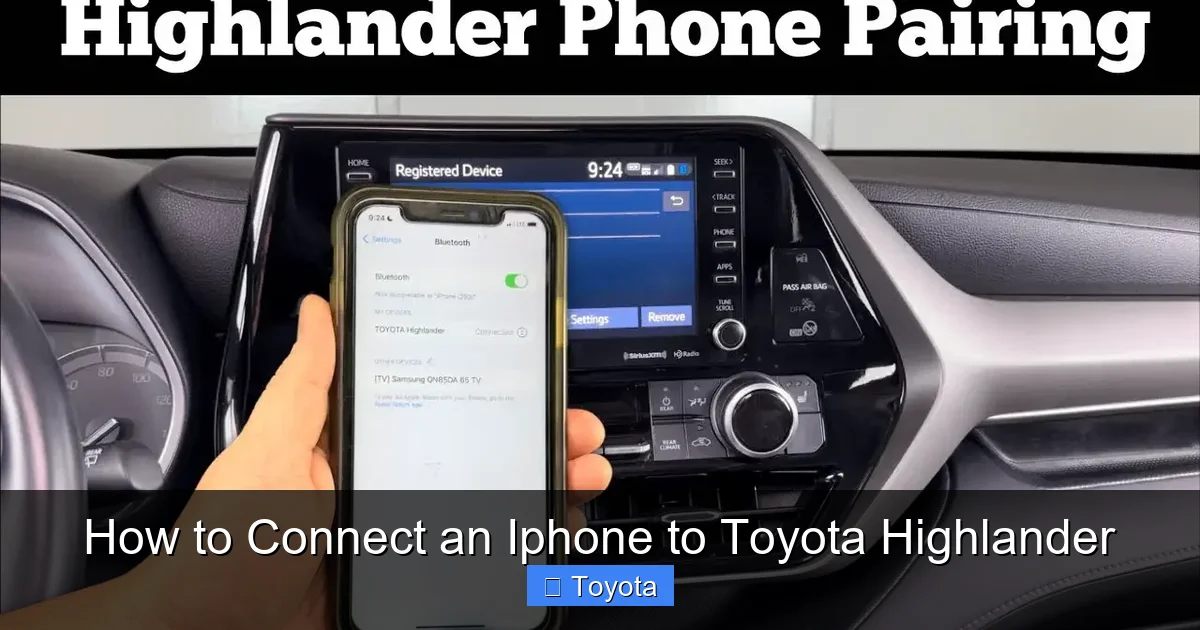
Visual guide about How to Connect an Iphone to Toyota Highlander
Image source: diycarexpert.com
Key Features of the Highlander’s Infotainment System
- Touchscreen Display: Most Highlanders come with a 7- to 12.3-inch touchscreen, depending on the trim. The larger screens support higher resolution and better responsiveness.
- Apple CarPlay Compatibility: Available on nearly all Highlander models from 2019 onward, CarPlay lets you access iPhone apps safely while driving.
- Bluetooth Connectivity: Standard on all modern Highlanders, Bluetooth enables hands-free calling and wireless audio streaming.
- USB and Auxiliary Ports: Located in the center console, these allow for wired connections and charging.
- Voice Recognition: Use Siri or the built-in voice command system to control music, navigation, and calls without touching your phone.
Model Year Matters
It’s important to note that older Highlander models (pre-2019) may not support Apple CarPlay or may require a software update to enable it. For example, 2017 and 2018 Highlanders can often be upgraded via a USB update from Toyota’s website. Always check your owner’s manual or visit a Toyota dealer to confirm your system’s capabilities. Newer models (2020–2024) typically come with wireless CarPlay, which eliminates the need for a cable once initially set up.
Method 1: Connecting via Bluetooth
Bluetooth is the most straightforward way to connect your iPhone to your Toyota Highlander. It’s perfect for making hands-free calls, streaming music, and receiving message notifications. The process is quick, and once paired, your phone will automatically reconnect when you start the car.
Visual guide about How to Connect an Iphone to Toyota Highlander
Image source: m.media-amazon.com
Step-by-Step Bluetooth Pairing Guide
- Turn on Your Highlander: Start the engine or put the vehicle in accessory mode. The infotainment system must be powered on.
- Open iPhone Settings: On your iPhone, go to Settings > Bluetooth and make sure Bluetooth is turned on.
- Access the Highlander’s Bluetooth Menu: On the touchscreen, tap Menu > Setup > Bluetooth. Select Add New Device.
- Search for Devices: The Highlander will scan for nearby Bluetooth devices. Your iPhone should appear in the list.
- Select Your iPhone: Tap on your iPhone’s name when it appears. A pairing code will display on both screens.
- Confirm the Code: Make sure the codes match, then tap Pair on both devices. Your iPhone may ask for permission to access contacts and messages—tap Allow.
- Test the Connection: Try making a call or playing music to confirm everything works.
Tips for a Smooth Bluetooth Experience
- Keep Your Phone Close: Bluetooth has a limited range (about 30 feet). Keep your iPhone in the cabin for the best signal.
- Name Your Device: Rename your iPhone in the Highlander’s Bluetooth menu (e.g., “John’s iPhone”) to avoid confusion if multiple devices are paired.
- Re-pair if Needed: If the connection drops frequently, delete the device from both your phone and the car, then re-pair.
Common Bluetooth Issues and Fixes
Sometimes, Bluetooth won’t connect even when both devices are on. Here’s how to troubleshoot:
- Restart Both Devices: Turn off your iPhone and restart the Highlander. This refreshes the connection.
- Forget and Re-Pair: On your iPhone, go to Settings > Bluetooth, tap the “i” next to your Highlander, and select Forget This Device. Repeat the pairing process.
- Check for Interference: Other electronic devices (like portable chargers or smartwatches) can interfere with Bluetooth signals. Remove them temporarily.
Method 2: Using Apple CarPlay via USB
If you want more than just music and calls—like turn-by-turn navigation, voice messaging, and app integration—Apple CarPlay is the way to go. While Bluetooth handles basic functions, CarPlay gives you a full iPhone experience on your Highlander’s screen. The most reliable way to use CarPlay is through a USB cable.
Visual guide about How to Connect an Iphone to Toyota Highlander
Image source: m.media-amazon.com
How to Set Up CarPlay with a USB Cable
- Use a Certified Lightning Cable: Apple recommends using an MFi-certified cable. Cheap knockoffs may not work or could damage your phone.
- Connect Your iPhone: Plug the Lightning end into your iPhone and the USB end into the Highlander’s USB port (usually in the center console).
- Unlock Your iPhone: The first time you connect, you’ll need to unlock your phone and tap Allow when prompted to trust the vehicle.
- Enable CarPlay: On your iPhone, go to Settings > General > CarPlay. Select your Highlander from the list and customize your dashboard (e.g., choose which apps appear).
- Start Using CarPlay: The CarPlay interface should appear on your Highlander’s screen. Use the touchscreen or Siri to navigate, send messages, or play music.
Why USB is Better for CarPlay
While wireless CarPlay is convenient, a wired connection offers several advantages:
- Faster Response: USB provides a more stable and responsive connection than Wi-Fi.
- Charging: Your iPhone charges while connected, so you won’t run out of battery on long trips.
- Reliability: Wireless connections can drop in areas with poor Wi-Fi signals or interference.
Customizing Your CarPlay Experience
Once connected, you can personalize CarPlay to suit your needs:
- Rearrange Apps: Press and hold any app icon on the CarPlay screen, then drag it to a new position.
- Add or Remove Apps: Go to Settings > General > CarPlay on your iPhone and toggle apps on or off.
- Use Siri: Press and hold the voice button on your steering wheel or say “Hey Siri” to control CarPlay hands-free.
Method 3: Wireless Apple CarPlay (For Compatible Models)
If you own a 2020 or newer Toyota Highlander, you may have access to wireless Apple CarPlay—a game-changer for convenience. This feature lets you use CarPlay without plugging in your iPhone, as long as Bluetooth and Wi-Fi are enabled.
Setting Up Wireless CarPlay
- Ensure Compatibility: Confirm your Highlander supports wireless CarPlay. Check your owner’s manual or look for the wireless charging pad (a sign of newer tech).
- Pair via Bluetooth First: Follow the Bluetooth pairing steps above. This is required before enabling wireless CarPlay.
- Enable CarPlay on iPhone: Go to Settings > General > CarPlay, select your Highlander, and toggle on Allow Wireless CarPlay.
- Start the Car: With your iPhone in the cabin (and Bluetooth/Wi-Fi on), CarPlay should launch automatically.
- Use Siri to Confirm: Say “Hey Siri, open CarPlay” if it doesn’t start on its own.
Tips for Wireless CarPlay Success
- Keep iPhone in the Cabin: Wireless signals weaken through metal. Place your phone on the wireless charger or in the front seat.
- Update Software: Ensure both your iPhone and Highlander’s system are running the latest software. Toyota releases updates to improve wireless performance.
- Restart if It Fails: If wireless CarPlay stops working, restart your phone and the car. Sometimes a simple reboot fixes connectivity glitches.
Limitations of Wireless CarPlay
While convenient, wireless CarPlay isn’t perfect:
- Battery Drain: Using Wi-Fi and Bluetooth simultaneously can drain your iPhone faster than a wired connection.
- Setup Required: You still need to plug in the first time to enable wireless mode.
- Not All Apps Work: Some third-party apps may not appear in wireless mode due to Apple’s restrictions.
Troubleshooting Common Connection Problems
Even with the best setup, issues can arise. Here’s how to solve the most common problems when connecting your iPhone to your Toyota Highlander.
iPhone Not Showing Up in Bluetooth List
If your iPhone doesn’t appear when searching for devices:
- Make sure Bluetooth is on and your iPhone isn’t in Airplane Mode.
- Move closer to the car—Bluetooth range is limited.
- Restart both devices and try again.
CarPlay Not Launching
If CarPlay doesn’t start when you plug in your iPhone:
- Check the USB cable—try a different one if possible.
- Unlock your iPhone and tap Trust when prompted.
- Go to Settings > General > CarPlay and ensure your Highlander is listed and enabled.
Audio Playing Through Phone Instead of Car
If music or calls come through your iPhone’s speaker instead of the car’s audio system:
- On your iPhone, swipe down from the top-right corner to open Control Center.
- Tap the audio output icon (looks like a triangle with circles) and select your Highlander.
- Alternatively, go to Settings > Bluetooth and tap the “i” next to your car to set it as the default audio device.
Connection Drops Frequently
Intermittent disconnections can be frustrating. Try these fixes:
- Update your iPhone to the latest iOS version.
- Reset network settings on your iPhone: Settings > General > Reset > Reset Network Settings (note: this will erase saved Wi-Fi passwords).
- Visit a Toyota dealer to check for infotainment system updates.
Best Practices for a Seamless Experience
To get the most out of your iPhone and Toyota Highlander connection, follow these best practices:
Keep Software Updated
Both Apple and Toyota regularly release updates that improve compatibility and fix bugs. Check for iOS updates on your iPhone (Settings > General > Software Update) and visit Toyota’s website or your dealer for vehicle software updates.
Use High-Quality Accessories
Invest in a good Lightning cable and, if possible, a wireless charging pad. Cheap cables can cause connection issues or fail to charge your phone properly.
Manage Multiple Devices
If multiple people use the car, each iPhone can be paired. To switch between devices, go to the Bluetooth or CarPlay menu and select the desired phone. Only one can be active at a time.
Use Voice Commands
Minimize distractions by using Siri or the Highlander’s voice control. Say “Hey Siri, call Mom” or “Navigate to the nearest gas station” to keep your hands on the wheel.
Clean the USB Port
Dust and debris can block the USB port. Use a can of compressed air or a soft brush to clean it periodically.
Conclusion: Enjoy a Smarter, Safer Drive
Connecting your iPhone to your Toyota Highlander doesn’t have to be complicated. Whether you choose Bluetooth for simple audio and calls, USB for reliable CarPlay, or wireless for ultimate convenience, the process is designed to be user-friendly. With the right setup, you can enjoy seamless navigation, hands-free communication, and your favorite music—all while keeping your focus on the road.
Remember, technology works best when it’s up to date and properly maintained. Regularly check for software updates, use quality cables, and don’t hesitate to reset settings if something goes wrong. Your Highlander is more than just a vehicle—it’s a mobile command center, and your iPhone is the perfect companion. So go ahead, pair them up, and enjoy every mile with confidence and connectivity.
Frequently Asked Questions
Can I connect my iPhone to a 2017 Toyota Highlander?
Yes, but Apple CarPlay may not be available by default. Some 2017 models can be updated via USB to support CarPlay. Check with your Toyota dealer or visit Toyota’s website for compatibility and update instructions.
Why won’t my iPhone connect to CarPlay even when plugged in?
This could be due to a faulty cable, outdated software, or a trust issue. Try using a different Lightning cable, update your iPhone and vehicle software, and make sure you tap “Trust” when prompted on your phone.
Does wireless CarPlay work with all iPhone models?
Wireless CarPlay requires an iPhone 8 or newer with iOS 13 or later. Older iPhones can still use CarPlay via USB cable.
How do I disconnect my iPhone from the Highlander?
To disconnect, simply unplug the USB cable or turn off Bluetooth on your iPhone. To remove the device permanently, go to the Bluetooth or CarPlay settings on either device and select “Forget This Device.”
Can I use Android Auto with my Toyota Highlander?
The Toyota Highlander supports Apple CarPlay but not Android Auto. If you switch from iPhone to Android, you’ll need to use Bluetooth for calls and music, as there’s no native Android Auto integration.
What should I do if my iPhone keeps disconnecting from Bluetooth?
Try restarting both devices, forgetting and re-pairing the connection, or resetting network settings on your iPhone. If the problem persists, visit a Toyota service center to check the infotainment system.