
How to Play Dvd in Toyota Sienna Without Remote

If you’ve lost your Toyota Sienna’s DVD remote or it’s not working, don’t worry—you can still enjoy movies on the rear-seat entertainment system. This guide shows you multiple ways to play DVDs using the built-in screen controls, USB drives, or even your smartphone, so your family stays entertained on long drives.
Key Takeaways
- Use the built-in screen buttons: Most Toyota Sienna models have physical or touch-sensitive controls on the rear-seat DVD screen to play, pause, and navigate discs.
- Try the front console controls: Some Sienna trims allow DVD playback control from the front dashboard or center console, even without a remote.
- Play videos via USB or SD card: Bypass the DVD drive entirely by loading movies onto a USB drive or SD card and inserting it into the entertainment system.
- Use a smartphone or tablet as a media source: Stream content wirelessly using screen mirroring or connect via HDMI or AUX cables for direct playback.
- Check for hidden menu access: Some Sienna systems allow remote-free navigation by holding specific buttons or using secret menu codes.
- Consider a universal remote or replacement: If all else fails, a compatible universal remote can restore full functionality at a low cost.
- Ensure the system is powered and in correct mode: Always verify the entertainment system is turned on and set to the right input source (e.g., DVD, USB, AUX).
📑 Table of Contents
- Introduction: When the Remote Goes Missing
- Understanding Your Toyota Sienna’s Entertainment System
- Method 1: Using the Built-In Screen Controls
- Method 2: Controlling Playback from the Front Console
- Method 3: Playing Videos via USB or SD Card
- Method 4: Using Your Smartphone or Tablet
- Method 5: Replacing or Using a Universal Remote
- Conclusion: Stay Entertained, No Remote Needed
Introduction: When the Remote Goes Missing
Picture this: You’re about to hit the road for a long family trip, the kids are buckled in the back, and you pop in their favorite movie—only to realize the DVD remote is missing. Panic sets in. Will the kids be bored? Will the drive turn into a meltdown marathon? Not necessarily.
The Toyota Sienna is one of the most family-friendly minivans on the market, and its rear-seat entertainment system is a lifesaver on road trips. But what happens when the remote disappears under a seat cushion or stops working? The good news is, you don’t always need the remote to play a DVD. Many Sienna owners don’t realize that their vehicle’s entertainment system has built-in controls, alternative input methods, and smart workarounds that let you keep the movie playing—even without that tiny, easily misplaced remote.
In this guide, we’ll walk you through every practical method to play a DVD in your Toyota Sienna without a remote. Whether you’re dealing with a lost remote, a dead battery, or just want to simplify your setup, we’ve got you covered. From using the screen’s own buttons to streaming from your phone, these tips are designed for real-world use—no tech degree required.
Understanding Your Toyota Sienna’s Entertainment System
Before diving into solutions, it’s important to understand how the Toyota Sienna’s rear-seat entertainment (RSE) system works. Depending on your model year and trim level (LE, XLE, Limited, or Platinum), the system may vary slightly, but the core components are usually the same.
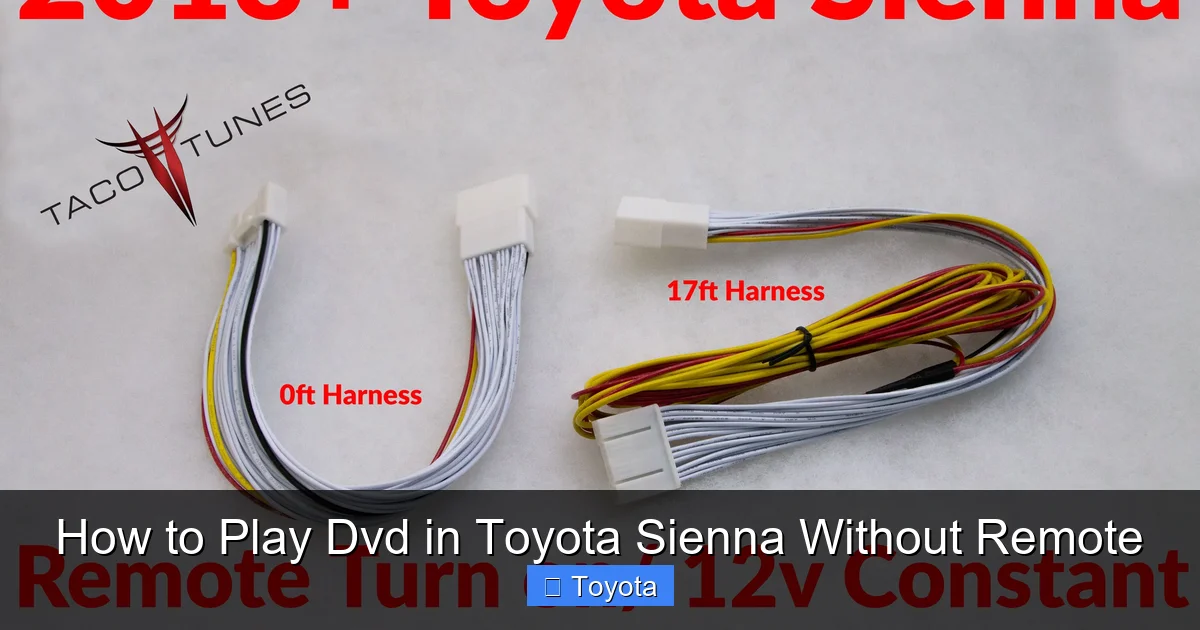
Visual guide about How to Play Dvd in Toyota Sienna Without Remote
Image source: tacotunes.com
Common Features Across Models
Most Siennas with rear entertainment come equipped with:
- A flip-down LCD screen mounted in the ceiling (typically 10.1 inches)
- A built-in DVD player (usually located in the center console or under a seat)
- Headphone jacks for private listening
- USB and SD card slots for media playback
- AUX and HDMI inputs (on newer models)
- Wireless remote control (the one that often goes missing)
The system is designed to entertain passengers in the second and third rows, especially children. It can play DVDs, audio CDs, MP3s, and video files from USB drives. Some newer models even support Bluetooth audio and screen mirroring.
How the Remote Fits In
The remote control is the most common way to operate the system. It lets you play, pause, skip chapters, adjust volume, and switch inputs. But it’s not the only way. In fact, the system is built with redundancy in mind—Toyota knows families lose remotes. That’s why many functions can be accessed directly through the screen or front controls.
For example, on most Sienna models, the DVD screen has small buttons along the bottom or side edge. These might include power, menu, play, pause, and eject. They’re often touch-sensitive or require a firm press. If you’ve never noticed them before, look closely—they’re there to help when the remote isn’t available.
Model Year Differences to Note
Older Siennas (2011–2017) typically have simpler systems with basic DVD playback and limited USB support. Newer models (2018–2023) often include enhanced features like dual screens, HDMI inputs, and better file format compatibility. Always check your owner’s manual or look for input labels on the console to understand what your specific system supports.
Knowing your system’s capabilities is the first step to playing DVDs without a remote. Once you understand what inputs and controls are available, you can choose the best method for your situation.
Method 1: Using the Built-In Screen Controls
If you’ve never used the buttons on the DVD screen itself, you’re missing out on a simple and reliable way to control playback. These physical or touch-sensitive controls are your first line of defense when the remote is nowhere to be found.
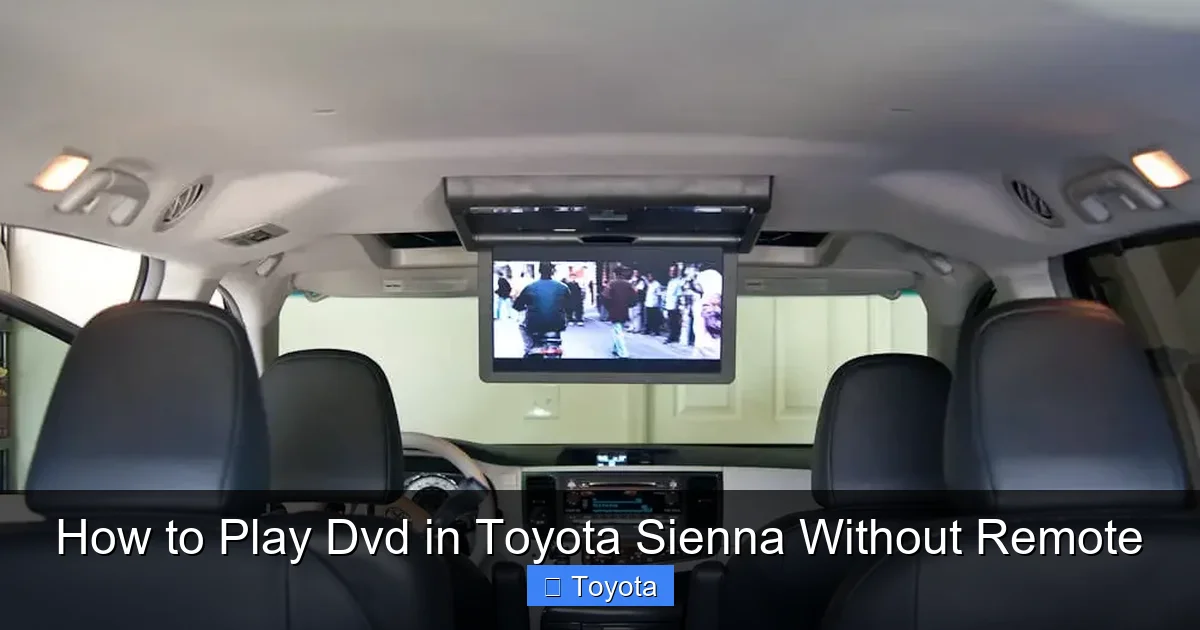
Visual guide about How to Play Dvd in Toyota Sienna Without Remote
Image source: automotiveex.com
Locating the Screen Buttons
Look along the bottom or side edge of the flip-down screen. You’ll usually find a cluster of small buttons labeled with icons like:
- Power (often a circle with a line)
- Menu (a grid or list icon)
- Play/Pause (triangle and two vertical lines)
- Stop (a square)
- Eject (an arrow pointing out of a tray)
- Volume (speaker icon with +/-)
On some models, these buttons are backlit and only visible when the screen is on. If you don’t see them right away, try turning on the entertainment system using the front controls or by inserting a DVD—the buttons may light up.
Step-by-Step: Playing a DVD with Screen Controls
- Insert the DVD: Open the DVD tray (usually in the center console) and place the disc label-side up. Push the tray back in until it clicks.
- Turn on the screen: Press the power button on the screen. The display should light up and show the DVD menu or start playing automatically.
- Navigate the menu: Use the menu button to access the DVD’s main menu. Use the directional arrows (if available) or play button to select options.
- Start playback: Press the play button. If the movie doesn’t start, try pressing play again or use the menu to select “Play Movie.”
- Adjust volume: Use the volume buttons on the screen or ask the front passenger to adjust it from the main audio system.
Pro Tip: If the screen doesn’t respond, make sure the entertainment system is powered on. Some Siennas require the vehicle to be in “Accessory” or “On” mode for the rear system to work.
Troubleshooting Screen Control Issues
If the buttons don’t work, try these fixes:
- Clean the buttons: Dust or grime can interfere with touch-sensitive controls. Wipe them gently with a dry cloth.
- Check the power source: Ensure the vehicle’s battery isn’t low and the entertainment system fuse hasn’t blown.
- Reset the system: Turn off the vehicle, wait 30 seconds, then restart. This can reset the electronics.
- Try a different DVD: A scratched or incompatible disc might not play, making it seem like the controls are broken.
Using the screen controls is the most straightforward method and works on nearly all Sienna models. It’s especially useful for quick playback without extra devices.
Method 2: Controlling Playback from the Front Console
You might not know it, but in many Toyota Sienna trims, the front dashboard or center console has controls that can operate the rear entertainment system. This is a game-changer when the remote is missing.
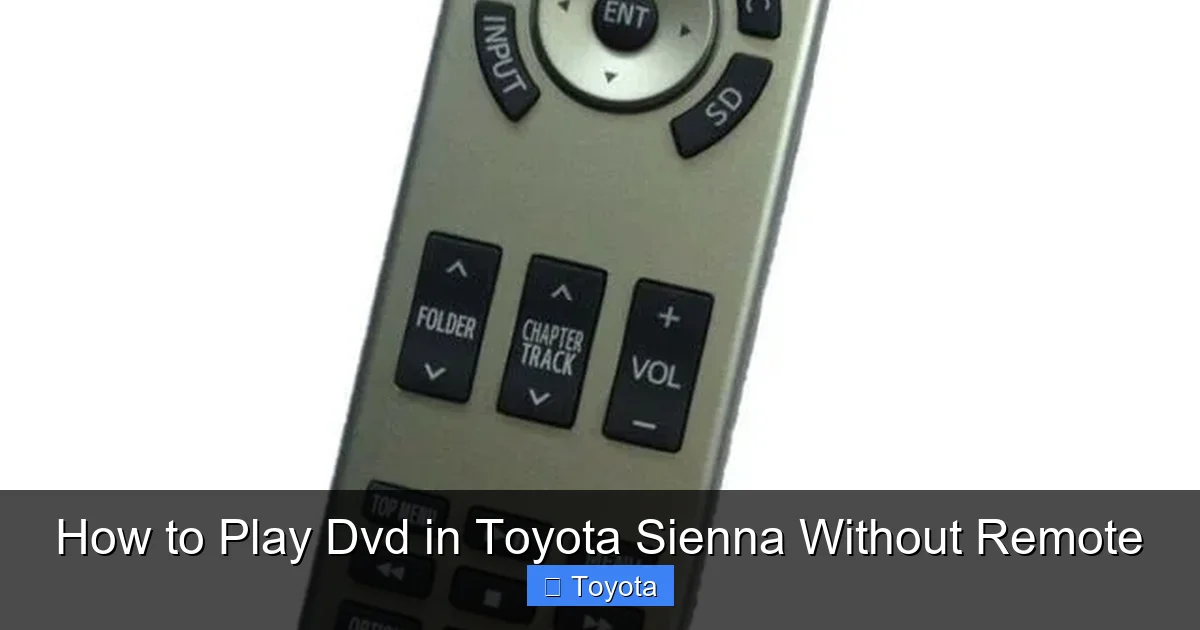
Visual guide about How to Play Dvd in Toyota Sienna Without Remote
Image source: s3.amazonaws.com
Where to Find Front Controls
Look for buttons or a touchscreen interface on the center stack, usually near the climate controls or audio system. These may include:
- A “Rear” or “RSE” (Rear Seat Entertainment) button
- Play, pause, and eject buttons labeled for rear use
- A menu or source button that lets you switch to DVD mode
On higher trims like the XLE or Limited, the front touchscreen may have a dedicated “Entertainment” tab where you can control the rear system remotely.
How to Use Front Console Controls
- Press the “Rear” or “RSE” button: This activates control of the rear system from the front.
- Insert the DVD: Place the disc in the tray and close it.
- Select DVD mode: Use the source or input button to switch to “DVD” or “Disc.”
- Start playback: Press the play button on the front console. The movie should begin on the rear screen.
- Adjust settings: Use the front controls to pause, skip, or adjust volume as needed.
Example: In a 2020 Toyota Sienna Limited, you can press the “Menu” button on the center screen, select “Entertainment,” then choose “Rear Display.” From there, you can play, pause, or eject the DVD—all from the driver’s seat.
Limitations and Tips
Not all Sienna models support full front control. Older or base trims may only allow basic functions like power and source selection. Also, some systems require the rear screen to be on before front controls work.
Tip: If you can’t find the controls, consult your owner’s manual or look for a “Rear Entertainment” section in the infotainment menu. Toyota often hides these features in submenus.
This method is ideal for parents who want to manage what their kids are watching without handing over the remote. It also keeps the front passenger involved in the entertainment experience.
Method 3: Playing Videos via USB or SD Card
If your DVD player is acting up or you’d rather avoid discs altogether, playing videos from a USB drive or SD card is a smart alternative. This method skips the DVD player entirely and uses the Sienna’s built-in media player.
Why Use USB or SD Instead of DVD?
- No need for a remote—playback is controlled via screen or front buttons
- Faster loading and no risk of disc scratches
- Supports a wider range of video formats (MP4, AVI, MKV, etc.)
- Easier to update content—just swap the drive
Preparing Your Media Files
Not all video files work with the Sienna’s system. To ensure compatibility:
- Use common formats like MP4 or AVI
- Keep resolution under 1080p (most systems don’t support 4K)
- Avoid DRM-protected files (like Netflix downloads)
- Name files simply (e.g., “Movie1.mp4”) to avoid confusion
Pro Tip: Use free software like HandBrake to convert videos to a compatible format. Set the output to MP4 with H.264 video and AAC audio.
Step-by-Step: Playing from USB or SD
- Copy videos to a USB drive or SD card: Use a computer to transfer your movies. Format the drive as FAT32 for best compatibility.
- Insert the drive: Plug the USB into the port (usually in the center console) or insert the SD card into the slot.
- Turn on the rear screen: Use the screen’s power button or front controls.
- Select the correct input: Press the “Source” or “Input” button until you see “USB” or “SD.”
- Browse and play: Use the screen buttons or front controls to navigate the file list and select a movie.
Example: Load “Frozen.mp4” onto a USB drive, insert it, and press play. The movie starts without any remote needed.
Troubleshooting USB Playback
If the system doesn’t recognize the drive:
- Try a different USB port or card slot
- Reformat the drive to FAT32
- Use a shorter USB cable or a different brand of drive
- Check file format and resolution
This method is perfect for families who want to avoid discs and keep their entertainment digital. It’s also great for long trips with multiple movies.
Method 4: Using Your Smartphone or Tablet
In today’s connected world, your smartphone or tablet can double as a media source for your Sienna’s entertainment system. With the right cables or wireless tech, you can stream movies directly to the rear screen—no DVD or remote required.
Option A: Wired Connection (HDMI or AUX)
Many newer Siennas have HDMI or AUX inputs in the center console. Here’s how to use them:
- Get the right cable: Use an HDMI-to-HDMI cable or a 3.5mm AUX cable.
- Connect your device: Plug one end into your phone/tablet and the other into the Sienna’s input.
- Switch to the correct source: Use the screen or front controls to select “HDMI” or “AUX.”
- Play the video: Open a streaming app or video file on your device. The video appears on the rear screen.
Note: Some phones require an adapter (like Lightning to HDMI for iPhones). Check compatibility before buying.
Option B: Wireless Screen Mirroring
If your Sienna supports it, you can mirror your phone’s screen wirelessly:
- Enable screen mirroring on your phone (e.g., Smart View on Samsung, AirPlay on iPhone)
- Select the Sienna’s entertainment system from the list of available devices
- Play your video—it appears on the rear screen
Limitations: Not all Siennas support wireless mirroring. Check your owner’s manual or look for “Screen Mirroring” in the settings.
Best Apps for In-Car Streaming
- Netflix, Disney+, YouTube: Download movies for offline viewing
- VLC Media Player: Plays almost any video file from your phone
- Plex: Stream from your home media server
This method is ideal for tech-savvy families who prefer streaming over physical media. It also lets you access a huge library of content without carrying DVDs.
Method 5: Replacing or Using a Universal Remote
If none of the above methods work, or you just want the convenience of a remote, consider getting a replacement or universal remote.
Buying a Replacement Remote
You can order an OEM remote from Toyota Parts or online retailers like Amazon. Search for “Toyota Sienna DVD remote” and match your model year. Prices range from $20 to $50.
Using a Universal Remote
Universal remotes like the Logitech Harmony or GE Universal Remote can be programmed to work with your Sienna’s system. Follow the setup instructions to sync it with the entertainment unit.
Tip: Keep the remote in a designated spot (like the glove box) to avoid losing it again.
Conclusion: Stay Entertained, No Remote Needed
Losing the DVD remote doesn’t have to ruin your family trip. With the built-in screen controls, front console options, USB playback, smartphone streaming, or a replacement remote, you’ve got plenty of ways to keep the movies rolling in your Toyota Sienna.
Try these methods next time you’re on the road. You might find that playing a DVD without a remote is easier than you thought. And who knows? You might even prefer the simplicity of USB drives or wireless streaming.
Remember: the goal is happy passengers and peaceful drives. With a little know-how, your Sienna’s entertainment system can deliver both—remote or not.
Frequently Asked Questions
Can I play a DVD in my Toyota Sienna without any remote or buttons?
Yes, as long as the DVD screen has built-in controls or you can access the system from the front console. If both are unavailable, try using a USB drive or smartphone connection instead.
Why won’t my DVD play even with the screen buttons?
The disc might be scratched, dirty, or incompatible. Also, check that the entertainment system is powered on and the correct input source is selected.
Can I use a USB drive to play movies in my Sienna?
Yes, most Siennas support USB playback. Use MP4 or AVI files under 1080p and format the drive as FAT32 for best results.
Do all Toyota Sienna models have HDMI input?
No, only newer models (typically 2018 and later) include HDMI ports. Check your center console or owner’s manual to confirm.
How do I reset the rear entertainment system?
Turn off the vehicle, wait 30 seconds, then restart. This often resets the electronics and restores functionality.
Can I control the rear DVD from the driver’s seat?
Yes, on many Sienna trims, the front console or touchscreen allows you to play, pause, and eject DVDs remotely.
