
How to Connect a Phone to Car Bluetooth in a Nissan

Connecting your phone to a Nissan via Bluetooth is easier than you think. Whether you’re making hands-free calls, streaming music, or using navigation apps, this guide walks you through every step—no tech degree required. We cover setup, troubleshooting, and tips to keep your connection smooth.
Key Takeaways
- Bluetooth pairing is standard on most Nissan models from 2010 onward. You’ll typically find the system under “Settings” or “Connections” on your infotainment screen.
- Always ensure your phone’s Bluetooth is turned on before starting. This simple step prevents connection failures and saves time.
- Use the “Add Device” or “Pair New Device” option in your Nissan’s menu. Follow on-screen prompts to complete the pairing process.
- Enter the correct PIN when prompted—common codes include 0000, 1234, or 1111. Your phone will usually display this during pairing.
- Test both calling and audio streaming after setup. This confirms full functionality and helps catch issues early.
- If connection fails, restart both devices and try again. A quick reboot often resolves temporary glitches.
- Keep your Nissan’s software updated for better compatibility. Check for updates through Nissan’s official website or your dealership.
📑 Table of Contents
Why Connecting Your Phone to Nissan Bluetooth Matters
Imagine driving down the highway, your favorite playlist pumping through the car speakers, while your GPS quietly guides you to your destination—all without touching your phone. That’s the magic of connecting your phone to your Nissan’s Bluetooth system. It’s not just about convenience; it’s about safety, efficiency, and making every drive more enjoyable.
Bluetooth integration in modern Nissans allows you to make hands-free calls, stream music, access voice assistants like Siri or Google Assistant, and even get real-time traffic updates. Whether you’re commuting to work, running errands, or heading out on a road trip, having your phone seamlessly linked to your vehicle enhances the entire driving experience. Plus, it keeps your eyes on the road and your hands on the wheel—something every responsible driver should prioritize.
But let’s be honest: not everyone finds the process intuitive. Some people struggle with outdated menus, confusing prompts, or phones that just won’t pair. That’s why we’ve created this comprehensive guide. We’ll walk you through every step, from initial setup to troubleshooting common issues, so you can get connected quickly and confidently—no matter what Nissan model you drive or what type of phone you use.
Understanding Your Nissan’s Bluetooth System
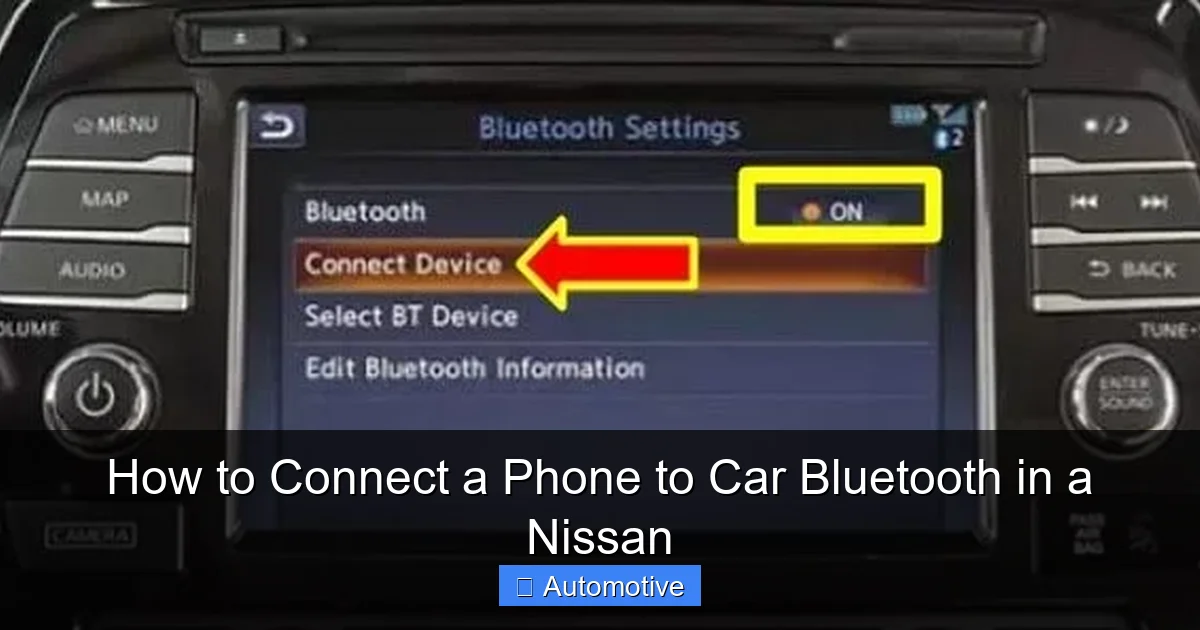
Visual guide about How to Connect a Phone to Car Bluetooth in a Nissan
Image source: hiride.com
Before diving into the pairing process, it helps to understand how your Nissan’s Bluetooth system works. Most Nissan vehicles from 2010 onward come equipped with built-in Bluetooth connectivity, typically managed through the infotainment system—the screen in the center of your dashboard. This system supports two main functions: hands-free calling and wireless audio streaming.
Hands-free calling lets you receive and make phone calls using your car’s microphone and speakers. You can answer calls with a button on your steering wheel or the touchscreen, and your voice comes through clearly thanks to noise-canceling technology. Audio streaming, on the other hand, allows you to play music, podcasts, or audiobooks from your phone directly through your car’s sound system. No aux cables or USB sticks needed.
Different Nissan models may have slightly different interfaces. For example, older models like the 2012 Altima use a more basic menu system, while newer ones like the 2023 Rogue feature NissanConnect with larger touchscreens and voice command support. However, the core Bluetooth pairing process remains largely the same across the lineup.
One thing to note: not all trims include Bluetooth. Base models of certain older Nissans (like the 2009 Versa) may lack this feature. If you’re unsure, check your owner’s manual or look for a Bluetooth icon on your dashboard or steering wheel controls. When in doubt, consult your local Nissan dealer—they can confirm whether your vehicle supports Bluetooth and help with activation if needed.
Step-by-Step Guide to Pairing Your Phone
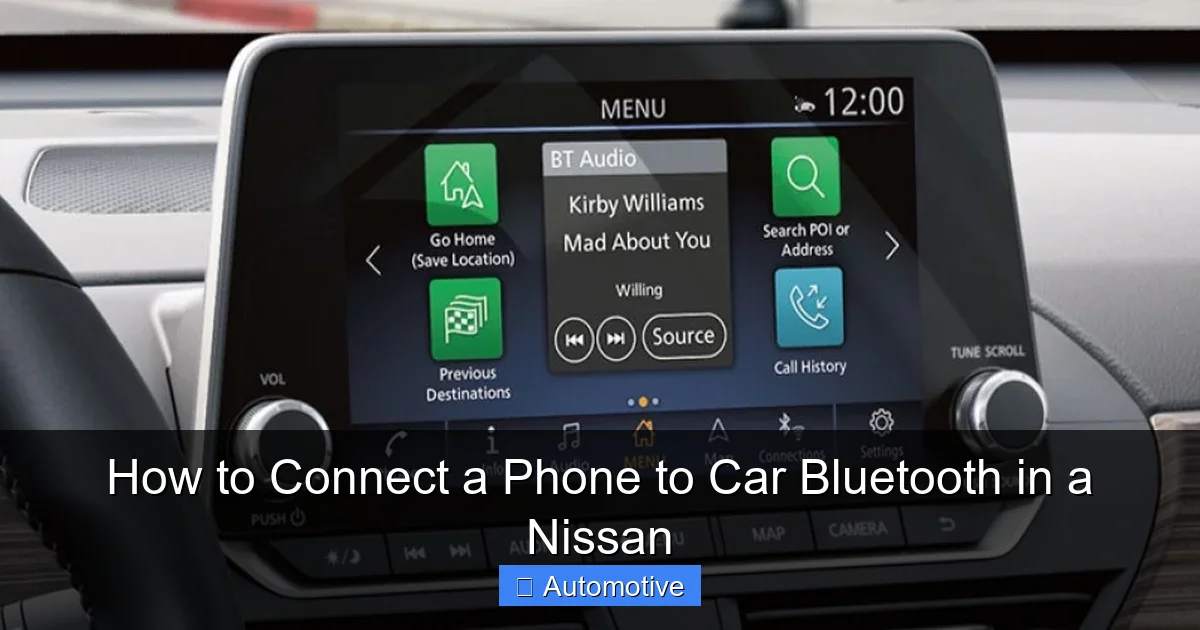
Visual guide about How to Connect a Phone to Car Bluetooth in a Nissan
Image source: majorworld.com
Now that you know what to expect, let’s get your phone connected. The process is straightforward, but attention to detail matters. Follow these steps carefully, and you’ll be streaming music and taking calls hands-free in no time.
Step 1: Turn On Your Phone’s Bluetooth
Start by unlocking your phone and opening the Settings app. Look for “Bluetooth”—it’s usually near the top of the menu on iPhones or under “Connections” on Android devices. Tap it and make sure the toggle switch is turned on (it should turn blue or green). You’ll see a list of nearby devices appear as your phone scans for available connections.
Pro tip: Keep your phone close to the car’s infotainment system during this process. Distance can weaken the signal and cause pairing failures. Also, ensure your phone isn’t in airplane mode—this disables all wireless connections, including Bluetooth.
Step 2: Access the Bluetooth Menu in Your Nissan
Next, turn on your Nissan’s ignition (you don’t need to start the engine, but the electronics must be powered). On your dashboard screen, look for a menu labeled “Settings,” “Connections,” or “Phone.” Tap or select it using the touchscreen or control knob.
Navigate to the Bluetooth section. You might see options like “Bluetooth Devices,” “Add Device,” or “Pair New Device.” Select the option to add a new device. Your car will begin scanning for nearby phones with Bluetooth enabled.
Step 3: Select Your Phone from the List
Within a few seconds, your phone should appear on the Nissan’s screen. It will usually show up as the name of your device—like “iPhone” or “Samsung Galaxy.” Tap on it to initiate pairing.
At this point, your phone may display a notification asking if you want to pair with your Nissan. Confirm by tapping “Pair” or “Yes.” Some phones also show a four-digit PIN—this is normal and part of the security process.
Step 4: Enter the PIN (If Required)
Your Nissan may now display a PIN on its screen, such as 0000, 1234, or 1111. Enter this same code on your phone when prompted. Both devices must agree on the PIN to complete the pairing.
Don’t worry if you’ve never seen this before—it’s just a security measure to prevent unauthorized connections. Most modern phones handle this automatically, but older models or certain Android versions may require manual input.
Step 5: Confirm Pairing and Test the Connection
Once the PIN is accepted, you should see a confirmation message on both your phone and your Nissan’s screen saying “Connected” or “Paired Successfully.” Congratulations—you’re almost done!
Now, test the connection. Try making a quick phone call (to a friend or a business) to ensure the microphone and speakers are working. Then, open a music app like Spotify or Apple Music and play a song. The audio should stream wirelessly through your car’s speakers.
If everything works, you’re all set. If not, don’t panic—we’ll cover troubleshooting in the next section.
Troubleshooting Common Bluetooth Connection Issues
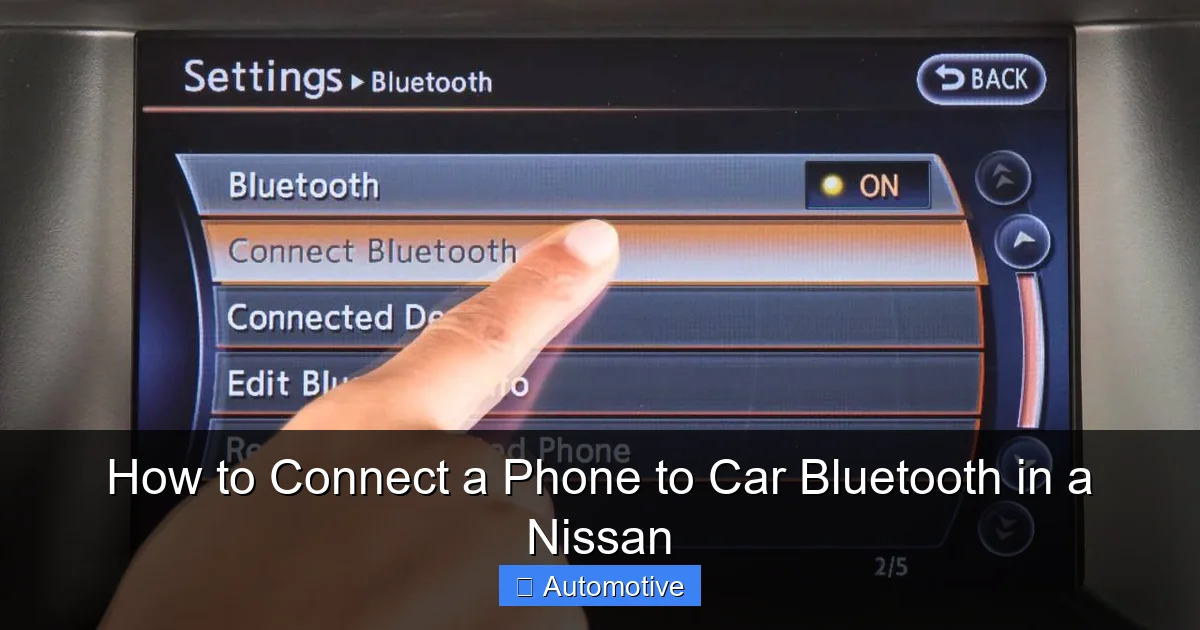
Visual guide about How to Connect a Phone to Car Bluetooth in a Nissan
Image source: i.ytimg.com
Even with perfect steps, sometimes things go wrong. Bluetooth is reliable, but it’s not foolproof. Here are the most common issues drivers face—and how to fix them.
Issue 1: Phone Not Showing Up on Nissan’s Screen
If your phone doesn’t appear in the list of available devices, first double-check that Bluetooth is enabled on your phone. Then, make sure your Nissan is in pairing mode. Some systems only scan for devices for a limited time—usually 30 to 60 seconds. If the scan ends, restart it by going back to the “Add Device” menu.
Another possibility: your phone is already connected to another Bluetooth device (like wireless earbuds or a smartwatch). Disconnect from other devices temporarily, then try again.
Issue 2: Pairing Fails After Entering PIN
This usually happens due to a mismatch in the PIN. Make sure you’re entering the exact code shown on your Nissan’s screen—not one from memory or a default guess. If it still fails, cancel the process and restart from the beginning.
Sometimes, the issue is with the phone’s Bluetooth cache. On Android, go to Settings > Apps > Show System Apps > Bluetooth > Storage > Clear Cache. On iPhone, toggle Bluetooth off and on, or restart the phone.
Issue 3: Audio Streams but Calls Don’t Work
This is a common hiccup. Your phone may have paired for audio but not for hands-free calling. To fix this, go to your phone’s Bluetooth settings, find your Nissan in the list, and tap the “i” icon (iPhone) or gear icon (Android). Make sure “Phone Audio” or “Calls” is enabled.
Also, check your Nissan’s phone settings. Some models require you to manually enable call permissions after pairing. Look for a “Phone” or “Call” tab in the Bluetooth menu and ensure it’s set to “On.”
Issue 4: Connection Drops Frequently
Intermittent disconnections can be frustrating. Often, this is due to interference from other wireless signals or low phone battery. Keep your phone charged and avoid placing it near metal objects or other electronics.
Another fix: delete the existing pairing and re-pair your phone from scratch. Over time, Bluetooth profiles can become corrupted. Removing and re-adding the connection often resolves stability issues.
Issue 5: Nissan Doesn’t Recognize Your Phone at All
If your Nissan consistently fails to detect your phone, the problem might be compatibility. While most modern phones work with Nissan systems, very old or obscure devices may not be supported. Check Nissan’s official compatibility list online or ask your dealer.
Also, ensure your Nissan’s infotainment software is up to date. Manufacturers release updates to improve Bluetooth performance and fix bugs. You can usually download updates via USB or visit a dealership for assistance.
Tips for Maintaining a Stable Bluetooth Connection
Once your phone is connected, you’ll want to keep it that way. A stable Bluetooth connection makes driving safer and more enjoyable. Here are some practical tips to ensure smooth performance over time.
Keep Your Phone Charged
Bluetooth uses power, and a low battery can weaken the signal or cause disconnections. Try to keep your phone above 20% charge, especially on long drives. Consider using a car charger or wireless charging pad if your Nissan supports it.
Update Your Phone and Car Software
Software updates often include Bluetooth improvements. On your phone, regularly check for iOS or Android updates. For your Nissan, visit the NissanConnect website or ask your dealer about available infotainment updates. These can fix bugs, improve compatibility, and add new features.
Avoid Too Many Paired Devices
Most Nissan systems can store up to seven paired devices. But having too many can slow down the connection process or cause confusion. If you’ve paired multiple family members’ phones, consider removing old or unused ones. Go to the Bluetooth menu, select the device, and choose “Delete” or “Forget.”
Use Voice Commands When Possible
Instead of fumbling with your phone or touchscreen, use voice commands to control calls and music. Say “Hey Siri” or “OK Google” to make calls, send texts, or play songs. This reduces distraction and keeps your focus on the road.
Re-Pair After Major Phone Changes
If you upgrade your phone, reset it to factory settings, or install a major OS update, re-pair it with your Nissan. Old pairing data may not transfer correctly, leading to connection issues. A fresh start ensures optimal performance.
Advanced Features and Hidden Gems
Beyond basic calling and music, your Nissan’s Bluetooth system may offer advanced features that many drivers overlook. Exploring these can unlock even more value from your vehicle.
Text Message Readouts
Some Nissan models can read incoming text messages aloud through the car’s speakers. When a message arrives, you’ll hear a chime, and the system will ask if you want it read. You can reply using voice commands—no need to touch your phone.
To enable this, go to your phone’s Bluetooth settings, select your Nissan, and turn on “Message Access” or “SMS Sync.” Note: This feature works best with iPhones and newer Android devices.
Contact Syncing
Once paired, your Nissan may automatically sync your phone’s contact list. This lets you make calls by saying a name (“Call Mom”) or selecting a contact from the screen. If contacts don’t appear, check your phone’s permissions—ensure your Nissan has access to your contacts.
Multiple Device Switching
If multiple people drive your Nissan, each person can pair their phone. The system will remember all devices and connect to the last one used. When a new driver gets in, simply turn on their phone’s Bluetooth, and the car will switch automatically—no re-pairing needed.
Steering Wheel Controls
Take advantage of your steering wheel buttons. Most Nissans let you answer calls, skip tracks, or activate voice commands without taking your hands off the wheel. Familiarize yourself with these controls—they’re designed for safety and convenience.
Conclusion
Connecting your phone to your Nissan via Bluetooth is a simple yet powerful upgrade to your driving experience. It enhances safety, adds convenience, and turns your car into a smarter, more connected space. Whether you’re using it for hands-free calls, streaming music, or accessing navigation, Bluetooth integration makes every journey better.
The process is straightforward: turn on Bluetooth, access your Nissan’s menu, pair your devices, and test the connection. If you run into issues, don’t stress—most problems have quick fixes, from restarting devices to clearing caches or re-pairing.
Remember, technology works best when it’s maintained. Keep your phone charged, update your software, and clean up old pairings to ensure smooth performance. And don’t forget to explore advanced features like text readouts and voice commands—they can make a big difference in your daily routine.
With this guide, you’re now equipped to connect your phone to your Nissan Bluetooth with confidence. So buckle up, pair up, and enjoy the ride—hands-free, worry-free, and fully connected.
Frequently Asked Questions
Can I connect two phones to my Nissan Bluetooth at the same time?
Most Nissan models support multiple paired devices, but only one can be actively connected at a time. The system will automatically switch to the last used phone when it’s turned on.
Why won’t my Nissan recognize my iPhone?
This could be due to Bluetooth being off, the phone being in airplane mode, or an outdated iOS version. Ensure Bluetooth is enabled, restart both devices, and check for software updates.
How do I delete a paired phone from my Nissan?
Go to the Bluetooth menu on your Nissan’s screen, select the device you want to remove, and choose “Delete” or “Forget.” This clears the pairing and frees up space for new devices.
Can I use Bluetooth if my Nissan doesn’t have a touchscreen?
Yes. Older models use physical buttons or a control knob to navigate the menu. Look for a “Phone” or “Settings” button on your dashboard and follow the on-screen prompts.
Does Bluetooth work with Android Auto or Apple CarPlay?
Bluetooth handles calls and music, while Android Auto and Apple CarPlay require a USB connection. However, some features like voice commands may still use Bluetooth for communication.
What if my Nissan’s Bluetooth menu is missing?
Your vehicle may not have Bluetooth capability, especially if it’s an older base model. Check your owner’s manual or contact a Nissan dealer to confirm features and explore aftermarket options if needed.
