
How to Activate the Audi Navigation System

Activating your Audi navigation system is easier than you think. With the right steps, you can unlock real-time traffic, voice guidance, and route optimization in minutes. Whether you’re using MMI, Google Earth, or smartphone integration, this guide covers everything you need.
Key Takeaways
- Check your Audi model and year: Navigation features vary by model and production year, so confirm compatibility before starting.
- Ensure your MMI system is updated: Outdated software can prevent activation; always update via Audi’s official portal or dealership.
- Use an active Audi connect subscription: Most navigation services require a paid or trial subscription to access real-time data and online features.
- Pair your smartphone via Apple CarPlay or Android Auto: This enhances navigation with apps like Google Maps and Waze directly on your dashboard.
- Download map updates regularly: Keep your offline maps current by downloading updates through the myAudi app or SD card.
- Enable location services and GPS: Without proper permissions, the system won’t function correctly—double-check settings in MMI and your phone.
- Contact Audi support if issues persist: If activation fails, professional help ensures no hardware or account issues are overlooked.
📑 Table of Contents
- Introduction: Why Your Audi Navigation System Matters
- Understanding Your Audi Navigation System
- Step-by-Step Guide to Activating Your Audi Navigation System
- Troubleshooting Common Activation Issues
- Tips for Maximizing Your Audi Navigation Experience
- Conclusion: Drive Smarter with Your Audi Navigation
Driving an Audi isn’t just about luxury—it’s about intelligence, precision, and seamless integration. One of the smartest features built into most modern Audis is the advanced navigation system. Whether you’re navigating city streets, planning a cross-country road trip, or just trying to avoid traffic on your daily commute, the Audi navigation system is your co-pilot. But here’s the catch: it doesn’t always come fully activated out of the box. That’s where this guide comes in.
Many Audi owners are surprised to learn that simply owning a vehicle with navigation capabilities doesn’t mean the system is ready to use. Activation often requires a few key steps—some digital, some physical—and a bit of patience. From software updates to subscription services, there’s more going on under the hood than you might expect. But don’t worry. Once you know how to activate the Audi navigation system, you’ll unlock a world of convenience, safety, and efficiency. This guide will walk you through every step, no matter your Audi model or technical experience.
Before diving into activation, it helps to understand what you’re working with. Audi’s navigation system is powered by the MMI (Multi Media Interface), a sophisticated infotainment platform that controls everything from music to climate to GPS. Depending on your model—whether it’s an A4, Q5, e-tron, or RS6—the interface may look slightly different, but the core functionality remains consistent.
Visual guide about How to Activate the Audi Navigation System
Image source: thecarhow.com
Types of Audi Navigation Systems
Audi offers several navigation tiers, each with increasing levels of capability:
- MMI Radio Plus: Basic navigation with static maps and limited features. Often found in older or entry-level models.
- MMI Navigation: Standard system with touchpad or touchscreen, voice control, and SD card-based map storage.
- MMI Navigation Plus: Includes 3D maps, Google Earth integration, and enhanced route planning.
- MMI Touch Response (Latest Models): Features dual touchscreens, haptic feedback, and full smartphone integration via Apple CarPlay and Android Auto.
Knowing which system you have is the first step. You can usually find this information in your owner’s manual or by checking the MMI menu under “System Information.”
Key Features of Audi Navigation
Once activated, your Audi navigation system offers a suite of powerful tools:
- Real-Time Traffic Updates: Powered by Audi connect, this feature reroutes you around accidents, construction, and congestion.
- Voice-Guided Directions: Speak naturally (“Navigate to nearest gas station”) and let the system respond.
- Google Earth Integration: See photorealistic 3D terrain and landmarks for better orientation.
- Online Search: Use voice or touch to search for points of interest (POIs) like restaurants, hotels, or charging stations.
- Predictive Route Learning: The system learns your habits and suggests routes based on time of day and past trips.
These features aren’t just flashy—they’re designed to make driving safer, faster, and more enjoyable. But again, most require activation and a valid subscription.
Now that you understand what’s possible, let’s get your system up and running. The activation process varies slightly depending on your model and year, but the core steps are universal. Follow this guide carefully to avoid common pitfalls.
Visual guide about How to Activate the Audi Navigation System
Image source: thecarhow.com
Step 1: Check Your Vehicle’s Compatibility
Not every Audi comes with navigation hardware. Even if your car has a screen, it might only support radio or media playback. To confirm navigation capability:
- Look for a “Nav” or “Map” button on your MMI controller or touchscreen.
- Check your owner’s manual under “Infotainment” or “Navigation.”
- Visit the Audi website and enter your VIN to see your vehicle’s exact specs.
If your car lacks navigation hardware, you can’t activate it—no software trick will add it. However, you can still use Apple CarPlay or Android Auto for GPS via your phone.
Step 2: Update Your MMI Software
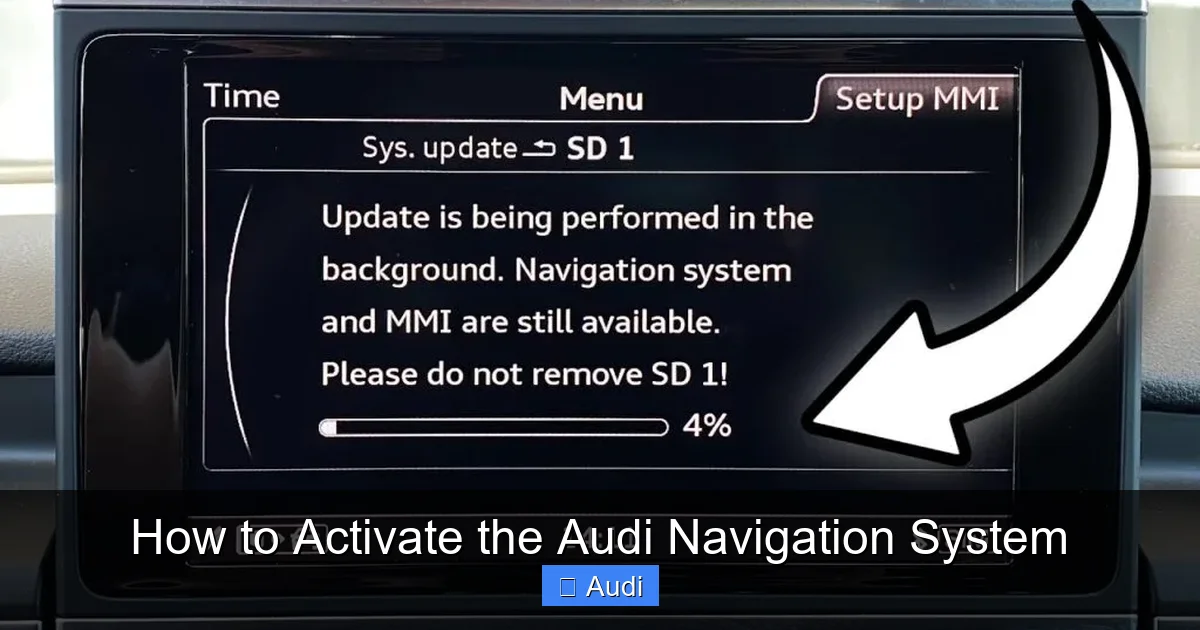
Outdated software is one of the most common reasons navigation fails to activate. Audi regularly releases updates that fix bugs, improve performance, and enable new features. Here’s how to update:
- Via SD Card: Download the latest MMI update from the Audi Tech Portal. Copy the file to an SD card (formatted to FAT32), insert it into your car, and follow on-screen prompts.
- Via Dealership: If you’re not tech-savvy, visit an Audi service center. They’ll update your system for free or a small fee.
- Via myAudi App: Some newer models support over-the-air (OTA) updates. Open the app, go to “Vehicle Status,” and check for updates.
Always back up your settings before updating. A failed update can reset your system, so ensure your battery is charged and the car is parked safely.
Step 3: Activate Audi Connect
Audi Connect is the backbone of your navigation system’s online features. Without it, you’ll miss real-time traffic, weather, fuel prices, and more. Activation requires a subscription, but many new Audis come with a free trial (usually 3–6 months).
To activate Audi Connect:
- Log in to your myAudi account (or create one if you haven’t).
- Register your vehicle using your VIN and license plate.
- Go to “Services” and select “Audi Connect.”
- Choose a plan (e.g., “Audi connect PRIME” for full features) and enter payment details.
- Sync your car by turning it on and waiting for the MMI to connect to the network (may take 5–10 minutes).
Once activated, you’ll see a signal icon in the top-right corner of your MMI screen. If it’s gray or missing, check your SIM card (located in the glovebox or center console) and ensure it’s properly seated.
Step 4: Download Map Updates
Even with Audi Connect, your offline maps need regular updates. Older maps can lead to incorrect routes, missing roads, or outdated POIs. Audi recommends updating maps at least once a year.
To download map updates:
- Insert an SD card (8GB or larger, Class 10 recommended) into your computer.
- Go to the Audi Map Update Portal and log in with your myAudi credentials.
- Select your vehicle and download the latest map package (usually 15–20GB).
- Copy the files to the SD card and insert it into your car.
- Follow the on-screen instructions to install (may take 30–60 minutes).
Tip: Use a high-speed SD card and avoid interrupting the process. A failed update can corrupt the navigation system.
Step 5: Pair Your Smartphone
While the built-in navigation is powerful, pairing your smartphone unlocks even more options. Apple CarPlay and Android Auto let you use Google Maps, Waze, Spotify, and more directly on your dashboard.
To connect:
- Enable Bluetooth and Wi-Fi on your phone.
- On your MMI, go to “Media” > “Smartphone Interface.”
- Select “Apple CarPlay” or “Android Auto” and follow pairing prompts.
- Accept permissions on your phone (location, notifications, etc.).
Once connected, your phone’s navigation apps will appear on the MMI screen. You can switch between Audi navigation and phone apps seamlessly.
Step 6: Test and Calibrate
After activation, take your car for a short drive to test the system. Try these quick checks:
- Enter a destination and confirm voice guidance works.
- Check if real-time traffic reroutes you around delays.
- Use voice commands (“Hey Audi, find coffee shops”).
- Verify GPS accuracy by comparing your location to a known landmark.
If the GPS seems off, recalibrate it by driving in an open area (away from tall buildings) for 10–15 minutes. The system will sync with satellites automatically.
Troubleshooting Common Activation Issues
Even with careful steps, problems can arise. Here’s how to fix the most common issues.

Visual guide about How to Activate the Audi Navigation System
Image source: thecarhow.com
“No Signal” or “Connection Failed”
If your MMI shows “No Signal” or fails to connect to Audi Connect:
- Check your SIM card: Open the glovebox, locate the SIM tray, and ensure the card is clean and properly inserted.
- Restart the MMI: Hold the power button (usually the volume knob) for 10 seconds until the screen turns off and on.
- Reset network settings: Go to “Settings” > “System” > “Reset” > “Network Settings.”
- Contact Audi Support: If the issue persists, your SIM may be damaged or deactivated.
Maps Not Loading or Outdated
If maps appear blank or show old roads:
- Ensure the SD card is inserted correctly and not corrupted.
- Reformat the SD card (backup data first) and reinstall maps.
- Check if your MMI software supports the latest map version.
- Use the myAudi app to verify map subscription status.
Voice Commands Not Working
If “Hey Audi” doesn’t respond:
- Enable voice control in “Settings” > “Voice Control.”
- Speak clearly and avoid background noise.
- Update your MMI software—older versions have weaker voice recognition.
- Reset voice settings: Go to “Settings” > “Voice Control” > “Reset to Default.”
Apple CarPlay or Android Auto Not Connecting
If your phone won’t pair:
- Use the original USB cable—third-party cables often fail.
- Restart both your phone and the MMI system.
- Check for phone software updates.
- Disable battery optimization for CarPlay/Android Auto in your phone settings.
Once activated, your navigation system is just the beginning. Here’s how to get the most out of it.
Use Offline Maps for Remote Areas
Even with Audi Connect, signal drops in rural or mountainous areas. Always keep offline maps updated so you’re never lost.
Set Home and Work Addresses
Save your frequent destinations in “Favorites” for one-touch navigation. The system will also suggest routes based on your routine.
Enable Predictive Routing
Go to “Navigation Settings” > “Predictive Route” and allow the system to learn your habits. It will suggest departures before meetings or traffic peaks.
Use Google Earth for Scenic Drives
Switch to Google Earth view for stunning 3D landscapes. Perfect for road trips or exploring new cities.
Monitor Data Usage
Audi Connect uses mobile data for real-time features. If you’re on a limited plan, disable unnecessary services like weather or fuel prices.
Keep Your Subscription Active
Letting your Audi Connect subscription lapse disables online features. Set a calendar reminder to renew before it expires.
Activating your Audi navigation system might seem daunting at first, but it’s a one-time process that pays off every time you drive. From avoiding traffic jams to discovering hidden gems along your route, the system transforms your Audi into a true smart vehicle. By following this guide—checking compatibility, updating software, activating Audi Connect, and pairing your phone—you’ll unlock the full potential of your car’s technology.
Remember, maintenance is key. Regular map updates, software checks, and subscription renewals ensure your navigation stays reliable and accurate. And if you ever hit a snag, Audi’s support team is just a call away. So go ahead—enter your destination, press start, and let your Audi guide the way. The road is waiting.
Frequently Asked Questions
Do all Audi models come with navigation?
No, not all Audi models include built-in navigation. Entry-level trims may only have basic infotainment systems. Check your owner’s manual or use your VIN on Audi’s website to confirm.
Can I use Google Maps on my Audi navigation system?
Yes, but only through Apple CarPlay or Android Auto. The built-in system uses Audi’s own maps, but you can mirror Google Maps from your phone to the MMI screen.
Is Audi Connect free?
New Audis often include a free trial (3–6 months), but ongoing use requires a paid subscription. Plans vary by region and features.
How often should I update my maps?
Audi recommends updating maps at least once a year. More frequent updates ensure accuracy, especially in rapidly developing areas.
Why is my GPS signal weak?
Weak signals can result from tall buildings, tunnels, or a faulty GPS antenna. Drive in an open area to recalibrate, or have the antenna checked by a technician.
Can I activate navigation without a subscription?
You can use basic offline navigation without a subscription, but real-time traffic, weather, and online search require an active Audi Connect plan.
