
How to Add Pictures to Uconnect from Your Phone

Adding pictures to Uconnect from your phone is easier than you think. This guide walks you through every step, from compatible devices to troubleshooting tips, so you can personalize your vehicle’s display with your favorite photos.
Key Takeaways
- Check compatibility first: Not all Uconnect systems support photo uploads—verify your model and software version before starting.
- Use a USB drive for best results: While some methods involve Bluetooth or apps, transferring via USB is the most reliable way to add pictures.
- Resize images for optimal display: Uconnect works best with JPEG files under 5MB and resolutions around 800×480 pixels.
- Organize photos in folders: Create clearly labeled folders on your USB drive to make browsing easier on the Uconnect screen.
- Update your Uconnect system: Ensure your infotainment system has the latest firmware to avoid glitches during upload.
- Avoid copyrighted or inappropriate content: Only use personal photos to prevent legal issues or distractions while driving.
- Test after uploading: Always preview your images on the Uconnect screen to confirm they appear correctly.
📑 Table of Contents
- Introduction: Personalize Your Drive with Uconnect
- Understanding Uconnect and Its Photo Features
- Preparing Your Photos for Upload
- Transferring Photos from Your Phone to Uconnect
- Setting Up and Viewing Photos on Uconnect
- Troubleshooting Common Issues
- Safety and Best Practices
- Conclusion: Make Your Drive More Personal
Introduction: Personalize Your Drive with Uconnect
Imagine cruising down the highway, the sun setting behind the hills, and your favorite family photo glowing softly on your car’s infotainment screen. That’s the magic of adding pictures to Uconnect from your phone—a simple yet powerful way to make your vehicle feel more like home. Whether you’re showing off vacation snapshots, displaying a motivational quote, or just keeping a loved one close during your commute, personalizing your Uconnect system adds a touch of warmth and individuality to every drive.
But here’s the good news: you don’t need to be a tech wizard to do it. With the right tools and a little know-how, anyone can transfer photos from their smartphone to their Uconnect system in minutes. This guide is designed for everyday drivers—not mechanics or coders—who want to enhance their in-car experience without the hassle. We’ll walk you through everything from checking compatibility to troubleshooting common issues, all in plain, easy-to-follow language.
Understanding Uconnect and Its Photo Features
Before diving into the how-to, it’s important to understand what Uconnect actually is and what it can (and can’t) do. Uconnect is Chrysler, Dodge, Jeep, Ram, and FIAT’s proprietary infotainment system. It handles everything from navigation and music to phone calls and climate control. Depending on your vehicle’s year and trim level, your Uconnect system may come in different versions—Uconnect 4, 5, 8.4, or even the newer Uconnect 5 with wireless Apple CarPlay and Android Auto.
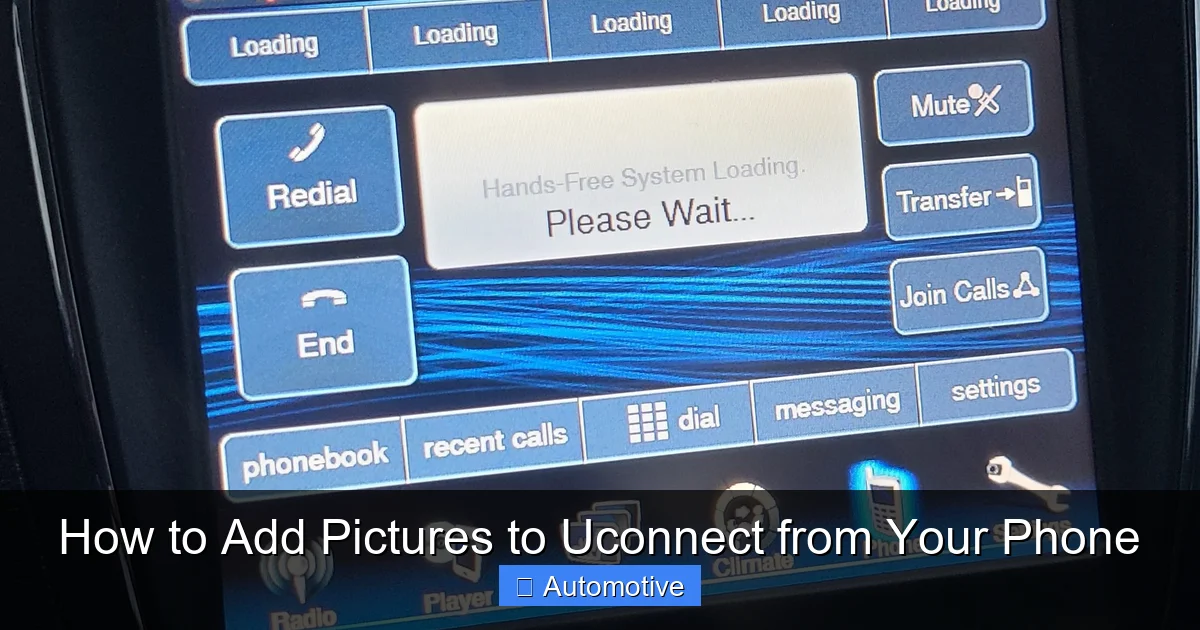
Visual guide about How to Add Pictures to Uconnect from Your Phone
Image source: dodgejourneyforum.com
Which Uconnect Systems Support Photo Uploads?
Not all Uconnect systems allow photo uploads. Older models (pre-2013) typically don’t support this feature at all. However, most Uconnect 4 and newer systems—especially those with touchscreens 7 inches or larger—do allow users to display custom images. The key is checking your system’s capabilities. You can usually find this information in your owner’s manual or by going to Settings > System Information on your Uconnect screen.
Why Add Pictures to Uconnect?
Beyond the emotional benefit of seeing a cherished memory on your dashboard, adding pictures to Uconnect can serve practical purposes too. For example, some drivers use photos as visual reminders—like a picture of their kids to stay focused on safe driving, or a map snapshot for a road trip. Others use it to showcase their personality, whether it’s a scenic landscape, a pet photo, or a favorite quote. It’s a small customization that makes a big difference in how connected you feel to your vehicle.
Preparing Your Photos for Upload
Now that you know your Uconnect system supports photo uploads, it’s time to get your images ready. The success of your upload depends heavily on how well you prepare your photos. Uconnect isn’t picky, but it does have preferences—and ignoring them can lead to blurry images, long load times, or failed transfers.
File Format and Size Requirements
Uconnect primarily supports JPEG (.jpg) files. While some newer systems may accept PNG, it’s safest to stick with JPEG for compatibility. Avoid HEIC (used by newer iPhones) unless you convert it first—Uconnect doesn’t recognize this format natively. As for file size, keep each image under 5MB. Larger files may not upload or could slow down your system.
Optimal Image Resolution
The ideal resolution for Uconnect photos is around 800×480 pixels—this matches the standard display resolution of most Uconnect screens. If your photos are much larger, they’ll be scaled down anyway, wasting storage and processing power. If they’re too small, they’ll look pixelated. Use a free photo editor like Google Photos, Photoshop Express, or even your phone’s built-in editor to resize images quickly.
Organizing Your Photos
Before transferring, organize your photos into folders on your computer or phone. Name them clearly—like “Family,” “Vacation2023,” or “Motivational”—so you can easily find them later. This is especially helpful if you plan to upload multiple images. A well-organized folder structure saves time and reduces frustration when browsing on the Uconnect screen.
Transferring Photos from Your Phone to Uconnect
There are a few ways to get your photos from your phone to your Uconnect system, but not all methods are created equal. Let’s explore the most effective options, starting with the most reliable.
Method 1: Using a USB Drive (Recommended)
The most reliable way to add pictures to Uconnect from your phone is by using a USB flash drive. Here’s how:
- Step 1: Transfer your prepared photos from your phone to a computer. You can do this via USB cable, cloud storage (like Google Drive or iCloud), or email.
- Step 2: Insert a USB drive (formatted as FAT32 or exFAT) into your computer.
- Step 3: Copy your photo folders onto the USB drive. Avoid placing photos directly in the root folder—create a folder like “Uconnect_Photos” for better organization.
- Step 4: Safely eject the USB drive and insert it into your vehicle’s USB port (usually located in the center console or dashboard).
- Step 5: On your Uconnect screen, go to Media > Photos (or Gallery, depending on your system). Your photos should appear automatically.
This method works across nearly all Uconnect systems and avoids connectivity issues that can arise with wireless transfers.
Method 2: Using Bluetooth (Limited Support)
Some newer Uconnect systems allow photo transfer via Bluetooth, but this feature is inconsistent and often slow. To try it:
- Pair your phone with Uconnect via Bluetooth.
- Open your phone’s photo gallery and select an image.
- Tap “Share” and choose “Bluetooth.”
- Select your vehicle from the list of available devices.
Note: This method often fails with larger files or multiple images. It’s best used for quick, single-photo transfers when a USB drive isn’t available.
Method 3: Using Uconnect Apps (Rarely Supported)
A few Uconnect systems support third-party apps like Uconnect Gallery or My Chrysler App, which may allow photo uploads. However, these apps are not widely available and often require a subscription or vehicle registration. Check the Uconnect app store (if your system has one) or visit the official Uconnect website to see if your model supports this feature.
Setting Up and Viewing Photos on Uconnect
Once your photos are on the USB drive and plugged into your vehicle, it’s time to view them on the Uconnect screen. The process is straightforward, but a few tips can make the experience smoother.
Navigating the Photo Gallery
After inserting the USB drive, tap the Media button on your Uconnect home screen. Then select Photos or Gallery. Your folders should appear in a list. Tap a folder to view its contents. Use the on-screen arrows or swipe gestures (on touchscreen models) to browse through images.
Setting a Photo as Your Background
Some Uconnect systems allow you to set a photo as your home screen background. To do this:
- Open the photo you want to use.
- Tap the menu button (usually three dots or a gear icon).
- Select Set as Wallpaper or Use as Background.
Note: Not all models support this feature. If you don’t see the option, your system likely doesn’t allow custom wallpapers.
Creating a Slideshow
Want to enjoy a rotating display of your favorite shots? Many Uconnect systems support photo slideshows. To start one:
- Open the photo gallery.
- Tap the Slideshow button (often represented by a play icon).
- Adjust settings like transition speed and repeat mode if available.
This is perfect for long drives or showing off vacation photos to passengers.
Troubleshooting Common Issues
Even with careful preparation, things can go wrong. Here are some common problems and how to fix them.
Photos Not Showing Up
If your images don’t appear on the Uconnect screen, check the following:
- Is the USB drive properly inserted? Try removing and reinserting it.
- Is the file format correct? Convert HEIC or PNG files to JPEG.
- Is the USB drive formatted correctly? Reformat it to FAT32 if needed.
- Are the photos in a supported folder structure? Avoid deeply nested folders.
Also, restart your Uconnect system by turning the car off and on again. This often resolves temporary glitches.
Images Appear Blurry or Stretched
This usually happens when the resolution doesn’t match the screen. Resize your photos to 800×480 pixels before uploading. Avoid using ultra-wide or vertical images unless you’re okay with black bars on the sides.
USB Drive Not Recognized
If Uconnect doesn’t detect your USB drive:
- Try a different USB port in your vehicle.
- Use a different USB drive—some brands aren’t compatible.
- Ensure the drive isn’t password-protected or encrypted.
Stick to standard, no-frills USB 2.0 or 3.0 drives for best results.
System Freezes or Slows Down
Uploading too many large files can overwhelm your Uconnect system. Limit your photo collection to 50–100 images per USB drive. If the system freezes, restart it by holding the power and volume buttons for 10 seconds (varies by model).
Safety and Best Practices
While adding pictures to Uconnect is fun and personalizing, it’s important to keep safety in mind. Your infotainment system is designed to assist driving, not distract from it.
Avoid Distractions While Driving
Never browse or change photos while the vehicle is in motion. Use passenger assistance or pull over safely before making changes. Some Uconnect systems lock photo functions when the car is moving—this is a safety feature, not a bug.
Use Personal, Non-Distracting Images
Choose photos that are meaningful but not overly stimulating. Avoid fast-moving slideshows, flashing images, or content that could divert your attention. A calm, static background is best for daily driving.
Respect Copyright and Privacy
Only upload photos you own or have permission to use. Avoid screenshots of movies, celebrity images, or copyrighted artwork. Also, be mindful of privacy—don’t display photos of others without their consent, especially in shared or rental vehicles.
Conclusion: Make Your Drive More Personal
Adding pictures to Uconnect from your phone is a simple yet meaningful way to customize your driving experience. Whether it’s a photo of your dog, a scenic mountain view, or a snapshot from your last family trip, these small touches make your car feel more like an extension of yourself. With the right preparation—proper file formats, optimal resolution, and a reliable USB drive—you can enjoy your favorite images on the go without any hassle.
Remember, the key to success is compatibility and simplicity. Stick to JPEG files, keep sizes manageable, and use a USB drive for the most reliable transfer. And always prioritize safety—personalize your ride, but never at the cost of focus on the road. Now that you know how to add pictures to Uconnect from your phone, it’s time to grab your USB drive, select those special photos, and hit the road with a little extra joy in your dashboard.
Frequently Asked Questions
Can I add pictures to Uconnect directly from my phone without a USB drive?
While some newer Uconnect systems support Bluetooth photo transfer, it’s unreliable and slow. Using a USB drive is the most consistent and recommended method for adding pictures to Uconnect from your phone.
What image formats does Uconnect support?
Uconnect primarily supports JPEG (.jpg) files. PNG may work on some newer systems, but HEIC (used by iPhones) is not compatible unless converted to JPEG first.
How many photos can I upload to Uconnect at once?
There’s no strict limit, but for best performance, keep your collection under 100 images per USB drive. Larger collections may slow down the system or cause freezing.
Can I set a photo as my Uconnect home screen background?
Some Uconnect models allow custom wallpapers, but many do not. Check your system’s photo menu for a “Set as Wallpaper” option. If it’s not there, your model likely doesn’t support it.
Why won’t my USB drive show up on Uconnect?
This could be due to incompatible formatting, a faulty drive, or a damaged USB port. Try reformatting the drive to FAT32 or using a different USB stick. Also, ensure the drive isn’t encrypted or password-protected.
Is it safe to view photos on Uconnect while driving?
No. For safety, only browse or change photos when the vehicle is parked. Many Uconnect systems disable photo functions while driving to prevent distractions.
