
How to Program a Mitsubishi Universal Remote

Programming a Mitsubishi universal remote doesn’t have to be confusing. With the right steps and a little patience, you can sync your remote to control your TV, soundbar, or other devices in just a few minutes. This guide walks you through every method—from auto-search to direct code entry—so you can get back to enjoying your entertainment system hassle-free.
Programming a Mitsubishi universal remote might sound like a tech-heavy task, but it’s actually quite straightforward—once you know the steps. Whether you’ve just bought a new TV, replaced an old sound system, or simply can’t find the original remote, a universal remote can be a lifesaver. Mitsubishi, known for reliable electronics, offers universal remotes that work with a wide range of devices, from TVs and DVD players to streaming boxes and soundbars.
The good news? You don’t need to be a tech expert to get it working. With a little patience and the right approach, you can have your Mitsubishi universal remote synced up in under 10 minutes. This guide will walk you through every method—auto-search, direct code entry, and even troubleshooting tips—so you can confidently program your remote and enjoy seamless control over your home entertainment setup.
No more juggling multiple remotes or squinting at tiny buttons. Once programmed, your Mitsubishi universal remote becomes the one-stop solution for turning on your TV, adjusting the volume, switching inputs, and more. Whether you’re setting it up for the first time or reprogramming it for a new device, this guide has you covered.
Key Takeaways
- Check compatibility first: Not all Mitsubishi universal remotes work with every device. Verify your remote model and the device you want to control before starting.
- Use the auto-search method for simplicity: This is the easiest way to program your remote when you don’t know the device code. It scans through all available codes automatically.
- Direct code entry is faster if you know the code: Look up your device brand in the included code list and enter it directly for a quick setup.
- Battery power matters: Weak batteries can cause programming failures. Always use fresh batteries before starting the process.
- Test each function after programming: Don’t assume it’s working—test volume, power, input, and mute to ensure full control.
- Reset the remote if needed: If something goes wrong, a hard reset can clear old settings and give you a clean slate.
- Keep the manual handy: Even if you don’t use it right away, the code list and troubleshooting tips are invaluable for future reference.
📑 Table of Contents
Understanding Your Mitsubishi Universal Remote
Before diving into the programming steps, it’s important to understand what you’re working with. Mitsubishi universal remotes come in a few different models, but they all share similar features and functions. Most are designed to control up to six devices, including TVs, cable boxes, satellite receivers, DVD/Blu-ray players, audio systems, and even streaming devices like Roku or Apple TV.
These remotes typically have labeled buttons for each device type—like “TV,” “CBL/SAT,” “DVD,” “AUX,” and “AUDIO”—which help you switch between devices. There’s also a “POWER” button, volume and channel controls, navigation arrows, and a “MENU” or “SETUP” button used during programming. Some models include backlighting for easier use in dim rooms, and many are compact and ergonomic for comfortable handling.
One key thing to note is that not all Mitsubishi universal remotes are created equal. Older models may have limited compatibility with newer smart devices, while newer versions often support HDMI-CEC and infrared (IR) learning. Always check the model number on the back of your remote or in the user manual to confirm its capabilities.
What Devices Can It Control?
Mitsubishi universal remotes are designed to work with a broad range of electronics. The most common devices include:
– **Televisions** (LED, LCD, OLED, Smart TVs)
– **Cable and satellite boxes** (Comcast, DirecTV, Dish Network)
– **DVD and Blu-ray players**
– **Home theater systems and soundbars**
– **Streaming devices** (Roku, Amazon Fire Stick, Apple TV—via IR blaster)
– **Gaming consoles** (limited support, usually for power and basic navigation)
Keep in mind that while the remote can send signals to these devices, it may not support every advanced feature—like voice control or app navigation—unless the device itself supports IR commands for those functions.
Remote Model Variations
Mitsubishi has released several universal remote models over the years, such as the Mitsubishi MZ-BR01, MZ-BR02, and others. While the programming steps are generally similar, some models may have slight differences in button layout or setup procedures. For example, older remotes might require you to press and hold two buttons to enter programming mode, while newer ones use a dedicated “SETUP” button.
If you’re unsure which model you have, look for a label on the back or inside the battery compartment. This information is crucial if you need to download a digital manual or look up specific codes online.
Preparing to Program Your Remote
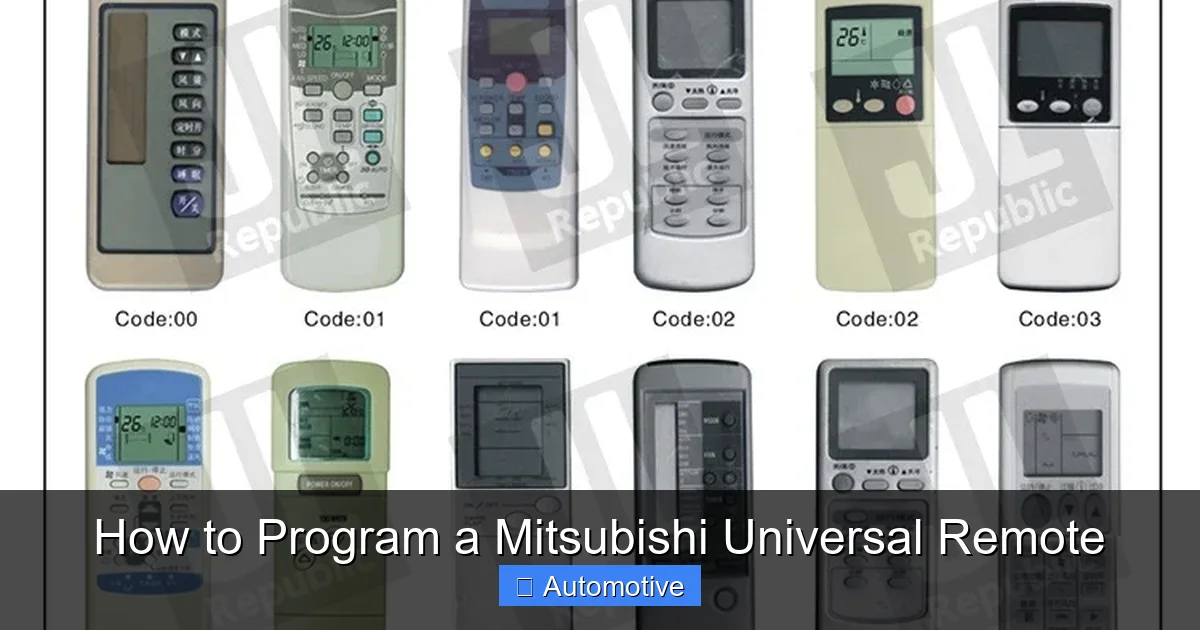
Visual guide about How to Program a Mitsubishi Universal Remote
Image source: down-th.img.susercontent.com
Before you start programming, a little prep work can save you time and frustration. Think of it like setting up a new phone—you want everything ready so the process goes smoothly.
Gather Your Tools
You’ll need just a few things:
– Your Mitsubishi universal remote
– Fresh AA or AAA batteries (depending on the model)
– The device you want to control (TV, soundbar, etc.)
– The user manual (or access to the code list online)
– A pen and paper (optional, for noting codes)
Using fresh batteries is especially important. Weak batteries can cause the remote to send weak or inconsistent signals, which may prevent successful programming. If your remote has been sitting in a drawer for months, replace the batteries even if they seem to work.
Locate the Device Code List
Every Mitsubishi universal remote comes with a code list—either in the printed manual or as a downloadable PDF. This list contains hundreds of three- to five-digit codes, each corresponding to a specific brand and model of device.
For example, you might find that Samsung TVs use codes like 11756, 11758, or 11760, while Sony sound systems use 21234 or 21235. Having this list on hand makes direct code entry much faster.
If you’ve lost your manual, don’t worry. You can usually find it on Mitsubishi’s official support website by searching for your remote model number. Some third-party sites also host updated code lists, but always double-check for accuracy.
Ensure Line of Sight
Your remote uses infrared (IR) signals to communicate with your devices. That means there needs to be a clear line of sight between the remote’s front (where the IR emitter is) and the device’s IR receiver (usually on the front panel).
Remove any obstacles—like decorative items, remotes, or even your hand—that might block the signal. Also, avoid programming in direct sunlight or near bright lights, as they can interfere with IR signals.
Method 1: Auto-Search Programming (Easiest for Beginners)
Visual guide about How to Program a Mitsubishi Universal Remote
Image source: down-th.img.susercontent.com
If you don’t know the device code or can’t find it in the manual, the auto-search method is your best bet. This method automatically cycles through all available codes until it finds one that works with your device. It’s simple, reliable, and perfect for first-time users.
Step-by-Step Auto-Search Instructions
1. **Turn on the device** you want to control (e.g., your TV).
2. **Press and hold the “SETUP” button** on your Mitsubishi remote until the red light stays on (usually about 3 seconds).
3. **Press the device button** you want to program (e.g., “TV”). The red light should blink once and stay on.
4. **Press and hold the “POWER” button** while pointing the remote at the device.
5. The remote will begin sending power-off signals. **Watch your device closely**—when it turns off, immediately release the “POWER” button.
6. **Press the “SETUP” button once** to save the code. The red light should turn off.
If the device turns off during the process, that means the remote found a working code. If it doesn’t turn off after a few seconds, the remote will continue cycling through codes. Just keep holding the “POWER” button until it does.
Testing the Remote
After saving the code, test the remote to make sure it works properly:
– Press the “POWER” button to turn the device back on.
– Try adjusting the volume.
– Use the channel up/down buttons.
– Switch inputs if applicable.
If any function doesn’t work, try the auto-search again—sometimes the first code found isn’t the best match. You can also try the direct code method for more precision.
Tips for Success
– **Be patient.** The auto-search can take up to a minute, especially if your device brand has many codes.
– **Don’t move the remote.** Keep it pointed steadily at the device during the process.
– **Try multiple times.** If it fails the first time, repeat the steps. Sometimes a second attempt finds a better code.
Method 2: Direct Code Entry (Fastest When You Know the Code)
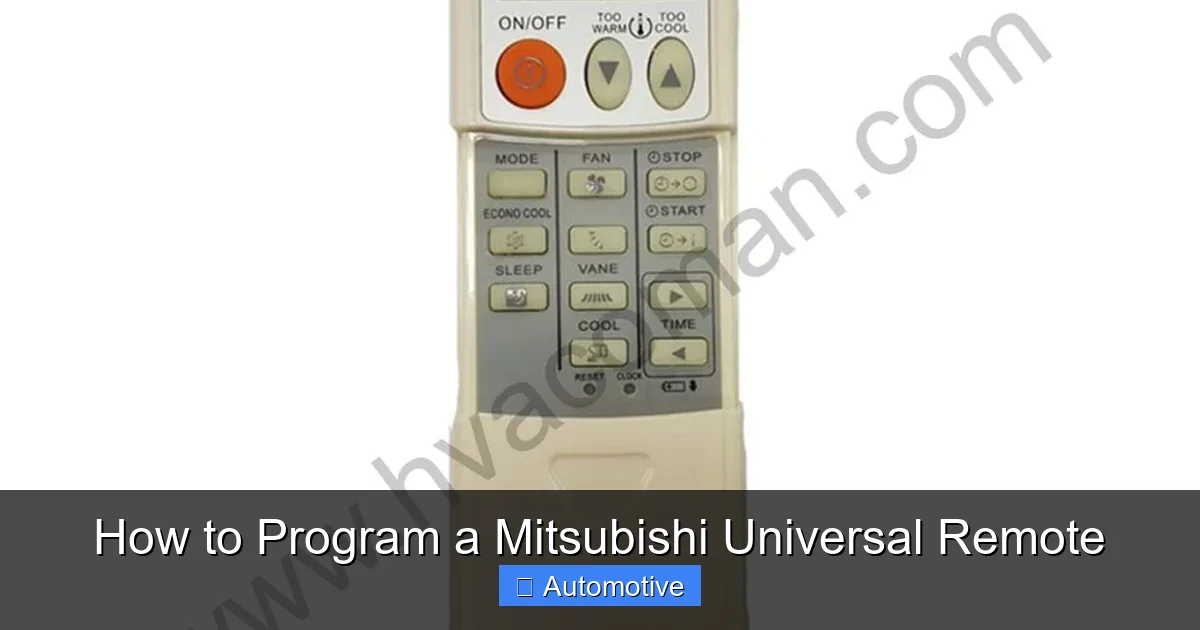
Visual guide about How to Program a Mitsubishi Universal Remote
Image source: hvacoman.com
If you have the code for your device—either from the manual or an online search—direct code entry is the quickest way to program your Mitsubishi universal remote. This method skips the scanning process and goes straight to the correct code.
How to Enter a Code Manually
1. **Turn on the device** you want to control.
2. **Press and hold the “SETUP” button** until the red light stays on.
3. **Press the device button** (e.g., “TV”) you want to program. The red light should blink once and remain on.
4. **Enter the 3- to 5-digit code** using the number buttons on the remote.
5. The red light should turn off after you enter the last digit.
6. **Test the remote** to confirm it works.
If the code is correct, your device should respond to the remote’s commands. If not, try another code from the list for your brand.
Finding the Right Code
Not all codes work perfectly with every model—even within the same brand. For example, a Samsung TV from 2015 might respond better to code 11756, while a 2020 model works best with 11760.
If the first code doesn’t work, try the next one on the list. Most manuals group codes by brand, so you can go down the list until you find a match.
Example: Programming a Sony Soundbar
Let’s say you’re setting up a Sony HT-X8500 soundbar. You look up the code list and find these options: 21234, 21235, 21236.
– Enter 21234 using the steps above.
– Test volume and power.
– If it doesn’t work, try 21235.
– Repeat until you find the one that works.
This method saves time and gives you more control over the programming process.
Programming Multiple Devices
One of the biggest advantages of a universal remote is the ability to control multiple devices with one remote. Your Mitsubishi remote can typically handle up to six devices, each assigned to a different button.
Assigning Devices to Buttons
Here’s how to program each device:
– **TV:** Controls your television (power, volume, channels).
– **CBL/SAT:** For cable or satellite boxes.
– **DVD:** For DVD or Blu-ray players.
– **AUX:** Often used for streaming devices or gaming consoles.
– **AUDIO:** For sound systems or receivers.
– **CD:** Less common, but used for CD players.
To program each one, repeat the auto-search or direct code method, selecting the appropriate device button each time.
Switching Between Devices
Once programmed, simply press the device button (e.g., “DVD”) to switch control to that device. The remote will send commands only to that device until you switch again.
For example:
– Press “TV” to control the television.
– Press “DVD” to control the Blu-ray player.
– Press “AUDIO” to adjust the sound system volume.
This eliminates the need to juggle multiple remotes during movie night.
Tip: Label Your Buttons
If you’re using non-standard devices (like a Roku in the “AUX” slot), consider labeling the buttons with a small sticker or marker. This helps avoid confusion later.
Troubleshooting Common Issues
Even with the best preparation, things don’t always go perfectly. Here are some common problems and how to fix them.
Remote Doesn’t Respond After Programming
– **Check the batteries.** Weak batteries are the #1 cause of failure.
– **Ensure line of sight.** Move closer to the device and remove any obstructions.
– **Try a different code.** The first code found may not support all functions.
– **Reset the remote** (see below).
Only Some Buttons Work
This usually means the code is partially compatible. Try another code from the list. Some codes only support basic functions like power and volume, while others include input switching and menu navigation.
Device Turns On But Doesn’t Respond to Commands
– Make sure you’re pressing the correct device button.
– Check if the device is in the right mode (e.g., not in standby).
– Try reprogramming with a different code.
How to Reset Your Mitsubishi Universal Remote
If nothing works, a reset can clear all programmed settings and restore the remote to factory defaults.
1. Remove the batteries.
2. Press and hold the “POWER” button for 10 seconds to drain residual power.
3. Reinsert the batteries.
4. The remote is now reset and ready to program again.
Tips for Long-Term Use
Once your remote is working, a few habits can keep it running smoothly.
Keep the Manual Accessible
Store the code list in a safe place—or take a photo of it with your phone. You’ll appreciate it when you need to reprogram later.
Update Codes as Needed
If you buy a new TV or sound system, you’ll need to reprogram the remote. The process is the same—just use the new device’s codes.
Avoid Dropping the Remote
Universal remotes have delicate internal components. A hard drop can damage the IR emitter or circuit board.
Clean Regularly
Wipe the remote with a dry cloth to remove dust and fingerprints. Avoid liquids, which can damage the electronics.
Conclusion
Programming a Mitsubishi universal remote is easier than most people think. Whether you use the auto-search method for simplicity or direct code entry for speed, you can have full control over your home entertainment system in just a few minutes. With the right preparation, a little patience, and this guide, you’ll never have to hunt for multiple remotes again.
Remember to test each function after programming, keep your code list handy, and don’t hesitate to reset the remote if something goes wrong. Once set up, your Mitsubishi universal remote becomes a powerful tool for seamless, clutter-free control.
So go ahead—grab that remote, pop in some fresh batteries, and get programming. Your couch-time experience is about to get a whole lot better.
Frequently Asked Questions
How do I find the correct code for my device?
Check the code list in your remote’s manual or download it from Mitsubishi’s support website. Look up your device brand and try the listed codes one by one until you find one that works.
Can I program my Mitsubishi remote without the manual?
Yes, you can use the auto-search method to find a working code automatically. However, having the manual or code list makes the process faster and more reliable.
Why won’t my remote turn on the TV after programming?
This could be due to weak batteries, incorrect code, or blocked IR signals. Try replacing the batteries, using a different code, and ensuring a clear line of sight between the remote and TV.
How many devices can a Mitsubishi universal remote control?
Most Mitsubishi universal remotes can control up to six devices, including TV, cable box, DVD player, sound system, and more.
What if none of the codes work for my device?
Try the auto-search method again, or check online forums for updated codes. Some newer devices may not be fully compatible with older remotes.
Can I use my Mitsubishi remote with a smart TV?
Yes, as long as the smart TV supports infrared (IR) commands. Most smart TVs do, but advanced features like voice control may not work through the remote.